Everything You Need to Know About the Frontier Internet Router
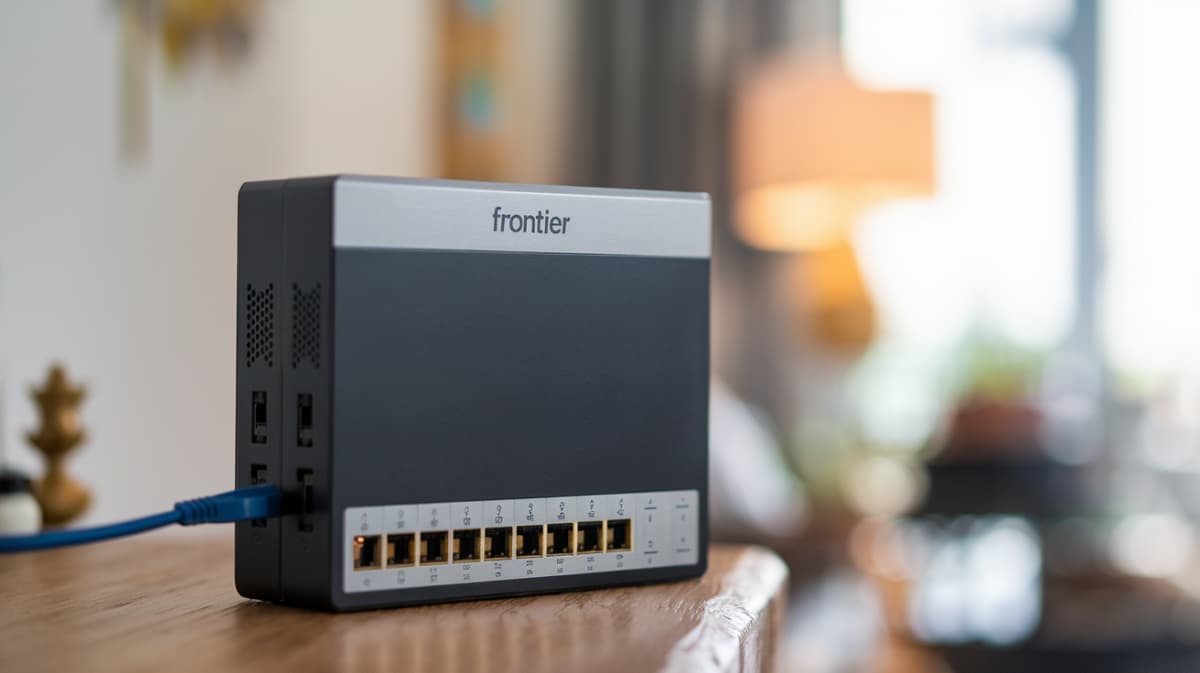
Unlock the full potential of your Frontier internet service with our comprehensive guide to their routers. From understanding key features to troubleshooting common issues, this resource provides everything you need to optimize your home network and ensure a seamless online experience in 2025 and 2026.
Understanding Frontier Internet Routers
Frontier Communications, a prominent internet service provider (ISP) in the United States, offers a range of internet plans powered by various technologies, including DSL, fiber optic, and fixed wireless. The gateway to this digital world within your home is the Frontier internet router. Often provided by Frontier as part of your service package, this device is crucial for distributing your internet connection to all your devices, whether wired or wireless. Understanding its role, capabilities, and how to manage it effectively is paramount to enjoying a stable, fast, and secure online experience. In 2025 and 2026, with the increasing demand for bandwidth for streaming, gaming, remote work, and smart home devices, a well-configured router is no longer a luxury but a necessity. This guide will delve deep into everything you need to know about Frontier internet routers, empowering you to make informed decisions and resolve common issues.
The Role of Your Router
At its core, your Frontier router acts as a traffic director for your home network. It takes the internet signal from your modem (or is an all-in-one modem-router unit) and broadcasts it wirelessly via Wi-Fi, while also providing Ethernet ports for wired connections. It assigns unique local IP addresses to each device on your network, allowing them to communicate with each other and with the internet. Furthermore, modern routers incorporate security features to protect your network from unauthorized access and manage the flow of data to ensure fair usage among connected devices. Without a router, your internet connection would be limited to a single device connected directly to the modem.
Router vs. Modem Explained
It's a common point of confusion, but understanding the difference between a modem and a router is fundamental. The modem is the device that connects your home to your Internet Service Provider's (ISP) network. It translates the signal from your ISP (whether it's DSL, fiber, or cable) into a format that your router can understand. The router, on the other hand, takes that internet signal from the modem and creates a local network within your home, allowing multiple devices to share the connection. Some Frontier internet packages may come with an all-in-one modem-router combo unit, simplifying the setup but sometimes offering less flexibility than separate devices. For fiber optic connections, the Optical Network Terminal (ONT) often serves a similar function to a modem, converting light signals into electrical signals.
Types of Frontier Routers Available
Frontier Communications utilizes different types of equipment depending on the internet technology deployed in a specific area. This means the router you receive might vary. Understanding these variations can help you better appreciate your network's capabilities and limitations.
Frontier DSL Routers
For areas where Frontier primarily offers DSL (Digital Subscriber Line) internet, the routers are designed to work with the telephone lines. These routers convert the analog signals from the phone line into digital data that your devices can use. DSL technology has been around for a long time and offers varying speeds depending on the distance from the central office and the quality of the phone lines. Frontier's DSL routers are typically basic but functional, providing Wi-Fi connectivity and Ethernet ports for wired devices. They are generally sufficient for moderate internet usage, such as web browsing, email, and standard-definition streaming.
Frontier Fiber Optic Routers (ONTs and Gateways)
Frontier's fiber optic internet, often branded as Frontier Fiber, offers significantly higher speeds and lower latency compared to DSL. In fiber deployments, you'll typically encounter an Optical Network Terminal (ONT) installed at your home. The ONT converts the optical signals from the fiber optic cable into electrical signals. This ONT might be a standalone device, or it might be integrated into a gateway unit that also functions as a router. Frontier's fiber gateways are generally more advanced, designed to handle the high bandwidth and low latency associated with fiber connections. These devices often support the latest Wi-Fi standards, such as Wi-Fi 6, to maximize the speed delivered to your wireless devices. For users with Frontier Fiber, the router plays an even more critical role in leveraging the full speed potential.
Frontier Fixed Wireless Routers
In some rural or underserved areas, Frontier may offer fixed wireless internet. This technology uses radio waves to transmit internet signals from a tower to an antenna installed at your home. The router in a fixed wireless setup receives the wireless signal and then distributes it throughout your home via Wi-Fi and Ethernet. These routers are designed to be robust and handle the unique challenges of wireless transmission, such as signal interference. While speeds can be competitive, they may not reach the gigabit levels offered by fiber. The router's primary function remains to create a reliable local network for your devices.
Common Router Models and Their Capabilities (2025-26)
While Frontier may update its equipment offerings, some common models have been prevalent. As of 2025-26, users might encounter devices like the Frontier Gateway (often an all-in-one modem/router for DSL or a router for fiber) or specific branded routers. For fiber customers, the gateway is usually a high-performance device capable of delivering multi-gigabit speeds. For DSL, the router might be a more standard model supporting Wi-Fi 5 (802.11ac) or older standards. It's important to check the specifications of your specific Frontier-provided router. Key specifications to look for include:
- Wi-Fi Standard: Wi-Fi 5 (802.11ac) is common, but Wi-Fi 6 (802.11ax) is becoming more prevalent, especially with fiber. Wi-Fi 6 offers better performance in congested environments and supports more devices.
- Dual-Band or Tri-Band: Dual-band routers operate on 2.4 GHz and 5 GHz frequencies, while tri-band adds another 5 GHz or a 6 GHz band (Wi-Fi 6E). This helps reduce interference and improve speeds.
- Ethernet Ports: Look for Gigabit Ethernet ports for fast wired connections.
- MU-MIMO (Multi-User, Multiple Input, Multiple Output): This technology allows the router to communicate with multiple devices simultaneously, improving efficiency.
- Beamforming: Directs Wi-Fi signals towards connected devices, strengthening the connection.
It's worth noting that Frontier's provided equipment is optimized for their network, but sometimes users may consider upgrading to a third-party router to gain more advanced features or better performance, especially if their provided unit is older or doesn't meet their needs. We'll explore this further in a later section.
Key Features to Look For in a Frontier Router
Whether you're getting a router from Frontier or considering purchasing your own, understanding the features that contribute to a robust home network is essential. These features directly impact your internet speed, reliability, and security.
Wi-Fi Standards and Speed
The Wi-Fi standard dictates the maximum theoretical speeds your wireless network can achieve. As of 2025-26, the most relevant standards are:
- Wi-Fi 5 (802.11ac): Offers speeds up to several gigabits per second (Gbps) on the 5 GHz band. It's a solid standard for most households, especially for streaming and general browsing.
- Wi-Fi 6 (802.11ax): The current leading standard, Wi-Fi 6 offers significantly improved efficiency, speed, and performance in environments with many connected devices. It's backward compatible with Wi-Fi 5.
- Wi-Fi 6E: Extends Wi-Fi 6 by adding the 6 GHz band, providing even more bandwidth and less interference for compatible devices.
When evaluating a Frontier router, check which Wi-Fi standard it supports. For fiber optic plans offering gigabit speeds, a Wi-Fi 6 or Wi-Fi 6E router is highly recommended to avoid bottlenecks.
Frequency Bands (Dual-Band vs. Tri-Band)
Routers operate on different radio frequency bands. The most common are:
- 2.4 GHz: Offers a longer range and better penetration through walls but has lower speeds and is more prone to interference from other devices (microwaves, Bluetooth).
- 5 GHz: Offers much higher speeds but has a shorter range and is less effective at penetrating obstacles.
- 6 GHz (Wi-Fi 6E): A new band offering very high speeds and minimal interference, but with a limited range and requiring compatible devices.
Dual-band routers broadcast on both 2.4 GHz and 5 GHz. Tri-band routers broadcast on 2.4 GHz and two separate 5 GHz bands, or 2.4 GHz, 5 GHz, and 6 GHz (for Wi-Fi 6E). A tri-band setup can help distribute devices more effectively, reducing congestion and improving overall performance, especially in busy households.
Ethernet Ports
While Wi-Fi is convenient, wired Ethernet connections generally offer the most stable and fastest speeds. Your router should have several Ethernet ports. For modern internet plans, look for routers with Gigabit Ethernet ports (10/100/1000 Mbps) to ensure you can utilize the full speed of your connection for devices like gaming consoles, desktop computers, and smart TVs.
MU-MIMO and Beamforming
- MU-MIMO (Multi-User, Multiple Input, Multiple Output): This technology allows a router to communicate with multiple devices simultaneously, rather than sequentially. This is particularly beneficial in households with many connected devices, improving overall network efficiency and reducing lag.
- Beamforming: Instead of broadcasting Wi-Fi signals in all directions, beamforming technology focuses the Wi-Fi signal directly towards connected devices. This strengthens the signal, improves range, and enhances stability for individual devices.
These advanced features, commonly found in Wi-Fi 5 and Wi-Fi 6 routers, significantly enhance the user experience by providing a more robust and responsive wireless network.
Guest Network Capabilities
A guest network allows you to provide internet access to visitors without giving them access to your main network and its connected devices. This is a crucial security feature. Look for a router that allows you to easily set up and manage a separate guest Wi-Fi network with its own password.
Quality of Service (QoS) Settings
Quality of Service (QoS) allows you to prioritize certain types of traffic or specific devices on your network. For example, you can prioritize video streaming or online gaming to ensure a smooth experience, even when other devices are consuming bandwidth. While Frontier's provided routers may have basic QoS, third-party routers often offer more granular control.
Setting Up Your Frontier Router: A Step-by-Step Guide
Setting up your Frontier internet router is usually straightforward, especially if it's a device provided by Frontier. However, if you're connecting a new router or troubleshooting, following these steps will ensure a successful setup.
Step 1: Unboxing and Physical Connections
Carefully unbox your Frontier router. Identify the power adapter, Ethernet cables, and the router itself. Locate the appropriate ports on your modem (or ONT for fiber) and your router.
- For DSL: Connect one end of an Ethernet cable to the Ethernet port on your DSL modem and the other end to the WAN (Wide Area Network) or Internet port on your Frontier router.
- For Fiber: Connect one end of an Ethernet cable to the LAN port on your ONT and the other end to the WAN/Internet port on your Frontier router. If you have a Frontier gateway that includes both modem and router functions, you might only need to connect the power and the fiber cable.
- For Fixed Wireless: Connect the Ethernet cable from your fixed wireless antenna's indoor unit to the WAN/Internet port on your Frontier router.
Connect the power adapter to the router and plug it into a power outlet. Ensure your modem or ONT is also powered on and functioning correctly.
Step 2: Powering On and Initial Boot-Up
Turn on your router. Most routers have a power button. Allow the router a few minutes to boot up. During this process, indicator lights on the router will typically flash and then stabilize, indicating that it's ready. Consult your router's manual for specific light meanings.
Step 3: Connecting a Device for Configuration
You can connect a device to your router in two ways:
- Wired Connection: Use an Ethernet cable to connect your computer directly to one of the LAN ports on the router. This is the most reliable method for initial setup.
- Wireless Connection: Look for a default Wi-Fi network name (SSID) and password printed on a sticker on the router itself. Connect your computer or smartphone to this default network.
Step 4: Accessing the Router's Web Interface
Open a web browser on the connected device. In the address bar, type the router's IP address. Common default IP addresses for routers are 192.168.1.1 or 192.168.0.1. You can usually find this IP address and the default login credentials (username and password) on the router's sticker or in its manual. If you're unsure, a quick web search for "[Your Router Model] default IP address" can help.
You will be prompted to enter the username and password. Enter the default credentials to log in.
Step 5: Initial Setup Wizard and Configuration
Most routers will guide you through an initial setup wizard. This wizard typically involves:
- Changing the Default Password: This is the most crucial step for security. Choose a strong, unique password for your router's administrative access.
- Configuring Your Wi-Fi Network:
- Network Name (SSID): Choose a unique name for your Wi-Fi network.
- Wi-Fi Password (WPA2/WPA3): Select a strong password for your Wi-Fi network. WPA3 is the most secure option if available, followed by WPA2.
- Security Type: Ensure you select WPA2-PSK (AES) or WPA3 for the best security.
- Internet Connection Type: For most Frontier setups, the router will automatically detect the connection type (e.g., DHCP). If prompted, select the appropriate settings based on your ISP's instructions.
Step 6: Saving Settings and Rebooting
After completing the setup wizard, save your settings. The router will likely prompt you to reboot to apply the changes. Once the router restarts, your new Wi-Fi network should be visible, and you can connect your devices using the new SSID and password you created.
Step 7: Connecting Your Devices
On each of your devices (laptops, smartphones, tablets, smart TVs, etc.), search for available Wi-Fi networks. Select your new network name (SSID) and enter the Wi-Fi password you set. For wired devices, connect them to the LAN ports on the router using Ethernet cables.
Optimizing Your Frontier Router Performance
Once your Frontier router is set up, you'll want to ensure it's performing at its best. Several factors can affect your Wi-Fi speed and reliability. Implementing these optimization tips can make a significant difference.
Router Placement is Key
The physical location of your router has a profound impact on Wi-Fi signal strength and coverage. For optimal performance in 2025-26:
- Central Location: Place your router in a central location in your home, away from exterior walls.
- Elevated Position: Routers broadcast signals downwards and outwards. Placing it on a high shelf or table can improve coverage.
- Avoid Obstructions: Keep the router away from thick walls, metal objects, aquariums, and other electronic devices that can cause interference (microwaves, cordless phones, Bluetooth devices).
- Minimize Interference: If you have multiple routers or access points, ensure they are not too close together to avoid signal overlap.
Update Router Firmware
Router manufacturers regularly release firmware updates to improve performance, fix bugs, and patch security vulnerabilities. Keeping your Frontier router's firmware up-to-date is crucial. You can usually check for and install firmware updates through the router's web interface. Frontier may also push updates automatically for their provided equipment.
Adjusting Wi-Fi Channels
Wi-Fi networks operate on specific channels. If many networks in your area are using the same channel, it can lead to congestion and slower speeds. Most routers have an "auto" setting for channel selection, but manually selecting a less congested channel can sometimes improve performance. You can use Wi-Fi analyzer apps on your smartphone to identify the least crowded channels in your area. For the 5 GHz band, channels 36, 40, 44, and 48 are often less congested than higher channels. For the 2.4 GHz band, channels 1, 6, and 11 are non-overlapping and generally recommended.
Utilize the 5 GHz Band
If your router is dual-band or tri-band, ensure your devices are connecting to the 5 GHz band whenever possible, especially for bandwidth-intensive tasks like streaming or gaming. While the 2.4 GHz band has a longer range, the 5 GHz band offers significantly faster speeds and less interference. You might need to create separate SSIDs for each band (e.g., "MyHomeWiFi_2.4GHz" and "MyHomeWiFi_5GHz") to manually select the band for your devices.
Manage Connected Devices
The more devices connected to your router, the more bandwidth is shared. Periodically review the list of connected devices in your router's interface and disconnect any devices that are not in use. For devices that don't require high speeds, consider connecting them to the 2.4 GHz band to free up the 5 GHz band for more demanding devices.
Enable QoS Settings
As mentioned earlier, Quality of Service (QoS) settings can significantly improve the performance of critical applications. If your Frontier router supports QoS, configure it to prioritize your most important activities, such as video conferencing for work, online gaming, or streaming services. This ensures these activities receive the necessary bandwidth even when other devices are active on the network.
Consider a Mesh Wi-Fi System or Extender (for larger homes)
If you have a large home or experience Wi-Fi dead zones, a single router might not be sufficient. In such cases, consider a mesh Wi-Fi system or Wi-Fi extenders. A mesh system uses multiple nodes to create a single, seamless Wi-Fi network throughout your home, offering better performance and coverage than traditional extenders. For 2025-26, mesh systems are increasingly popular for their ease of use and effectiveness.
Restart Your Router Regularly
A simple router reboot can often resolve minor performance issues and refresh the network connection. It's a good practice to restart your router at least once a month, or whenever you notice a slowdown or connectivity problems.
Troubleshooting Common Frontier Router Issues
Even with the best setup, you might encounter occasional issues with your Frontier internet router. Here are some common problems and their solutions.
No Internet Connection
This is the most frustrating issue. Follow these steps:
- Check Lights: Examine the indicator lights on your modem/ONT and router. Consult your device manuals to understand what each light signifies (e.g., power, internet connection, Wi-Fi activity).
- Restart Devices: Power cycle your modem/ONT and router. Turn them off, wait 30 seconds, and then turn them back on, starting with the modem/ONT first, then the router.
- Check Cables: Ensure all Ethernet cables are securely plugged into the correct ports and are not damaged.
- Test with a Wired Connection: Connect a computer directly to the router via Ethernet. If you get internet access, the issue is likely with your Wi-Fi. If not, the problem might be with the router, modem, or your Frontier service.
- Check for Service Outages: Visit the Frontier website or contact their customer support to see if there are any reported service outages in your area.
- Contact Frontier Support: If none of the above steps resolve the issue, it's time to contact Frontier's technical support.
Slow Internet Speeds
If your internet speeds are slower than expected, consider these factors:
- Run a Speed Test: Use an online speed test tool (like Ookla Speedtest) to measure your current download and upload speeds. Compare these results to the speeds advertised in your Frontier plan.
- Check Wi-Fi Signal Strength: A weak Wi-Fi signal can cause slow speeds. Move closer to the router or try optimizing its placement.
- Too Many Devices: If many devices are actively using the internet, speeds can be divided. Disconnect unused devices.
- Router Age/Capability: An older router might not be able to keep up with your internet plan's speed, especially if you have gigabit service. Consider upgrading.
- Interference: Other electronic devices or neighboring Wi-Fi networks can interfere. Try changing Wi-Fi channels.
- Malware: Malware on your devices can consume bandwidth. Run a scan with reputable antivirus software.
- ISP Throttling: In rare cases, ISPs may throttle speeds. Contact Frontier if you suspect this.
Wi-Fi Connectivity Issues (Intermittent Drops, Cannot Connect)
If your Wi-Fi is unreliable:
- Restart Router: A simple reboot often fixes temporary glitches.
- Check Password: Ensure you are entering the correct Wi-Fi password.
- Forget and Reconnect: On your device, "forget" the Wi-Fi network and then try reconnecting.
- Update Device Drivers: Ensure your device's Wi-Fi drivers are up to date.
- Router Overheating: Ensure the router has adequate ventilation.
- Firmware Update: Check for and install any available firmware updates for your router.
- Channel Congestion: Try changing the Wi-Fi channel on your router.
Difficulty Accessing Router Settings
If you can't log into your router's web interface:
- Verify IP Address: Double-check the router's IP address.
- Correct Credentials: Ensure you are using the correct username and password. If you've forgotten it, you might need to perform a factory reset.
- Factory Reset: Locate the reset button on your router (usually a small, recessed button). Press and hold it for about 10-30 seconds (refer to your router's manual). This will restore the router to its default settings, requiring you to reconfigure it from scratch.
Frontier Router Security Best Practices
Securing your Frontier internet router is crucial to protect your home network and personal data from cyber threats. Implementing these best practices will significantly enhance your network's security in 2025-26.
Change Default Login Credentials
This is the single most important security step. The default username and password for your router's administrative interface are often publicly known. Change them immediately upon setup to a strong, unique password that is difficult to guess. Avoid using easily identifiable information like your name, address, or birthday.
Use Strong Wi-Fi Encryption (WPA3/WPA2)
Always use the strongest available Wi-Fi encryption. WPA3 is the latest and most secure standard, offering improved protection against brute-force attacks and enhanced encryption. If your router and devices don't support WPA3, use WPA2-PSK (AES). Avoid older encryption methods like WEP or WPA, as they are easily compromised.
Create a Strong, Unique Wi-Fi Password
Your Wi-Fi password (also known as the pre-shared key or passphrase) is what users enter to connect to your wireless network. Make it long (at least 12-15 characters), complex, and unique. Combine uppercase and lowercase letters, numbers, and symbols. Avoid using common words or easily guessable patterns.
Enable the Guest Network
If your router supports a guest network, use it for visitors. This creates a separate Wi-Fi network that provides internet access but isolates guests from your main network and any devices connected to it (like computers with sensitive files, printers, or smart home devices). You can set a different password for the guest network and even limit its bandwidth.
Keep Router Firmware Updated
As mentioned in the optimization section, firmware updates often contain critical security patches that fix vulnerabilities discovered by manufacturers. Regularly check for and install firmware updates for your Frontier router. If your router is provided by Frontier, they may push updates automatically, but it's good to be aware of this.
Disable Remote Management (if not needed)
Remote management allows you to access your router's settings from outside your home network. While convenient for some, it can also be a security risk if not properly secured. If you don't need to access your router settings remotely, disable this feature in your router's configuration menu.
Disable WPS (Wi-Fi Protected Setup) if Vulnerable
WPS is designed to make connecting devices easier, but some implementations have known vulnerabilities that can allow attackers to gain access to your network. If your router supports WPS, consider disabling it, especially if you're not using it. If you must use it, ensure it's the PIN-based method, and be aware of its potential risks.
Enable Network Firewall
Most routers have a built-in firewall that helps protect your network from unsolicited incoming traffic from the internet. Ensure this firewall is enabled and configured correctly. You can usually find firewall settings within your router's advanced configuration options.
Consider MAC Address Filtering (with caution)
MAC address filtering allows you to create a list of approved devices that can connect to your network based on their unique MAC addresses. While this can add a layer of security, it's not foolproof, as MAC addresses can be spoofed. It can also be cumbersome to manage, especially if you have many devices or frequently add new ones.
Frontier Router Upgrades and Alternatives
While Frontier provides routers, they might not always be the most advanced or performant option, especially if you have a high-speed internet plan or specific networking needs. Understanding your options for upgrading or choosing an alternative can be beneficial.
When to Consider Upgrading Your Frontier Router
- Outdated Wi-Fi Standard: If your current Frontier router only supports older Wi-Fi standards (like Wi-Fi 4/802.11n) and you have a fast internet plan, an upgrade is likely necessary to achieve advertised speeds.
- Poor Coverage: If you experience Wi-Fi dead zones or weak signals in parts of your home, a more powerful router or a mesh system might be needed.
- Insufficient Ports: If you have many wired devices and your current router has limited Ethernet ports, an upgrade can provide more connectivity.
- Lack of Advanced Features: If you need features like robust QoS, advanced parental controls, or VPN support that your current router doesn't offer.
- Performance Bottlenecks: If speed tests consistently show much lower speeds than your plan allows, especially on Wi-Fi, the router could be the bottleneck.
Using Your Own Router with Frontier
Frontier generally allows customers to use their own routers, especially for DSL and fiber connections. This can give you more control over your network and access to newer technology. However, there are a few considerations:
- Compatibility: Ensure the router you choose is compatible with Frontier's network technology. For DSL, it needs to support PPPoE (Point-to-Point Protocol over Ethernet) and potentially VLAN tagging. For fiber, it needs to be able to handle high speeds.
- Modem/ONT: If Frontier provides an all-in-one modem-router, you might need to put it in "bridge mode" so that your own router handles all the networking functions. If you have a separate modem or ONT, you'll connect your own router to that device.
- Technical Support: Frontier's technical support may be limited if you use your own equipment, as they are primarily responsible for their provided hardware.
Types of Third-Party Routers to Consider
- High-Performance Routers: Look for routers supporting Wi-Fi 6 or Wi-Fi 6E from reputable brands like ASUS, Netgear, TP-Link, and Linksys. These offer superior speed, range, and features.
- Mesh Wi-Fi Systems: For larger homes or challenging layouts, mesh systems (e.g., Google Nest Wifi, Amazon Eero, Netgear Orbi, TP-Link Deco) provide seamless coverage.
- Gaming Routers: If you're a serious gamer, consider routers specifically designed for gaming, offering advanced QoS, low latency, and dedicated gaming features.
Setting Up a Third-Party Router
The setup process for a third-party router is similar to the one described earlier, but you'll need to ensure you have the correct connection details from Frontier. This often involves entering your Frontier username and password for PPPoE authentication if you're on DSL. For fiber, it might be a simple DHCP connection. Always consult your new router's manual and Frontier's support documentation for specific instructions.
Frontier Router Support and Resources
When you encounter issues or need information about your Frontier internet router, several resources are available to help you. Leveraging these resources can save you time and frustration.
Frontier's Official Support Website
Frontier's website is the primary source for official information. You can find:
- FAQs and Troubleshooting Guides: Many common questions and issues are addressed in their online knowledge base.
- Device Information: Details about the specific router models they provide, including setup guides and specifications.
- Service Outage Maps: Check for reported internet outages in your area.
- Account Management: Access your account details, billing information, and plan specifics.
Frontier Customer Support Contact Information
If you can't find the answer online, contacting Frontier's customer support is the next step:
- Phone Support: Frontier offers phone support for technical assistance and general inquiries. The contact number can usually be found on their website or your bill.
- Online Chat: Some ISPs offer live chat support, which can be a convenient way to get quick answers.
- Social Media: Frontier may have official social media channels where you can reach out for support.
When contacting support, have your account information ready and be prepared to describe the issue clearly, including any troubleshooting steps you've already taken. For router-specific issues, note the model number of your device.
Router Manufacturer Support
If you are using a third-party router or have purchased one to use with Frontier service, the router manufacturer's support channels are invaluable:
- Manufacturer Websites: Most manufacturers have extensive support sections with FAQs, user manuals, firmware downloads, and troubleshooting articles.
- Technical Support Lines: Contact the manufacturer directly for hardware-specific issues or advanced configuration help.
- Community Forums: Many manufacturers host online forums where users can ask questions and share solutions.
Online Tech Forums and Communities
Websites like Reddit (e.g., r/Frontier, r/HomeNetworking), DSLReports forums, and other tech-focused communities can be excellent resources. You can find discussions, tips, and advice from other Frontier customers and networking enthusiasts who may have encountered similar problems or have expertise to share.
User Manuals and Online Guides
Always keep the user manual for your Frontier router (or any third-party router you use) handy. These manuals provide detailed information on setup, configuration, troubleshooting, and feature explanations. Many manuals are available for download in PDF format from the manufacturer's or ISP's website.
By understanding your Frontier router, its capabilities, and how to manage and troubleshoot it, you can ensure a consistently reliable and high-performing internet experience. Whether you're relying on the equipment provided by Frontier or opting for your own, this comprehensive guide aims to equip you with the knowledge needed to navigate the world of home networking in 2025-26.
In conclusion, mastering your Frontier internet router is key to unlocking the full potential of your service. From understanding the nuances of DSL, fiber, and fixed wireless routers to implementing essential security measures and optimization techniques, this guide has covered the critical aspects. We've explored the importance of Wi-Fi standards, frequency bands, and the role of features like MU-MIMO and Beamforming. Furthermore, practical, step-by-step instructions for setup and troubleshooting have been provided, along with crucial security best practices for 2025-26. Finally, we've addressed options for upgrading your equipment and where to find support. For an optimal online experience, we strongly recommend regularly checking for firmware updates, securing your network with strong passwords and encryption, and considering a router placement that maximizes signal strength. If your current router is aging or underperforming, investing in a modern Wi-Fi 6 or Wi-Fi 6E router, or a mesh system for larger homes, can dramatically improve speed, coverage, and device connectivity, ensuring you get the most out of your Frontier internet plan.
📚Read More Articles About Frontier Fiber Internet

Frontier Black Friday Deals 2025 – Unbeatable Internet & TV Bundle Savings
November 3, 2025
Frontier Internet Outage: Causes, Solutions, and How to Stay Connected
May 16, 2025
Exploring the Frontier Internet Affordable Connectivity Program: Your Guide to High-Speed Access
January 21, 2025