What does my house need for fiber internet?

Preparing your home for fiber internet involves understanding the physical infrastructure and equipment required. This guide breaks down precisely what your house needs, from external connections to internal wiring and the router, ensuring a smooth and high-speed digital experience. We'll cover everything from the initial installation to optimizing your home network.
What is Fiber Internet and Why Upgrade?
Fiber internet, also known as fiber optic internet, utilizes thin strands of glass or plastic to transmit data as pulses of light. This technology offers significantly higher speeds, lower latency, and greater reliability compared to traditional cable or DSL connections. As of 2025, fiber is rapidly becoming the standard for high-speed internet access, with an estimated 70% of new residential installations being fiber-based in major metropolitan areas. Upgrading to fiber means enjoying seamless 4K streaming, lag-free online gaming, efficient remote work, and the ability to connect numerous devices simultaneously without performance degradation. Understanding what your house needs is the first step to unlocking this advanced connectivity.
External Infrastructure: The Connection to Your Home
The most critical component for fiber internet is the physical fiber optic cable that connects your home to the provider's network. This connection originates from a local distribution point, often a cabinet or a junction box on your street, and runs underground or overhead to your property.
The Fiber Optic Cable Itself
Fiber optic cables are made of very thin strands of glass, each thinner than a human hair. These strands are bundled together and protected by various layers of insulation and sheathing to withstand environmental conditions. The cable carries data as light signals, which is why it's so much faster and more efficient than copper wiring.
Underground vs. Aerial Installation
The method of bringing the fiber to your home depends on the existing infrastructure in your neighborhood.
- Underground Installation: This is often preferred for aesthetic reasons and protection from weather. A trench is dug from the street to your house, and the fiber optic cable is laid within. This process may involve a small amount of landscaping disruption, which the installation crew will typically restore.
- Aerial Installation: In areas where undergrounding is not feasible or cost-effective, fiber optic cables are strung overhead from utility poles. This is generally a quicker installation process but can be more susceptible to damage from storms or falling branches.
The Network Interface Device (NID) or Optical Network Terminal (ONT)
At the point where the external fiber optic cable enters your home, there will be a Network Interface Device (NID) or, more commonly for fiber, an Optical Network Terminal (ONT). This device is crucial for converting the light signals from the fiber optic cable into electrical signals that your home network equipment can understand.
What the ONT Does
The ONT is the gateway for fiber internet into your home. It acts as a modem, but specifically for fiber optic signals. It's typically a small box installed on an exterior wall or in a utility closet. The fiber optic cable from the street terminates at the ONT, and then an Ethernet cable connects the ONT to your router.
Placement Considerations for the ONT
While the provider usually dictates the exact placement of the ONT based on where the fiber enters your home, it's beneficial to consider its location. Ideally, it should be:
- In a location that is easily accessible for technicians.
- Close to where you plan to place your router to minimize the length of the Ethernet cable run.
- Protected from extreme temperatures and moisture.
- Near a power outlet, as the ONT requires power to function.
Internal Wiring and Placement
Once the fiber optic signal reaches your home via the ONT, it needs to be distributed to your devices. This involves internal wiring and strategic placement of your networking equipment.
Ethernet Cabling
The ONT outputs a signal via an Ethernet port. To distribute this high-speed internet throughout your home, you'll need Ethernet cables connecting the ONT to your router, and potentially from your router to stationary devices like desktop computers, smart TVs, or gaming consoles.
Types of Ethernet Cables
For fiber internet speeds, it's essential to use modern Ethernet cabling. As of 2025, the recommended standards are:
- Cat 6: Supports speeds up to 10 Gbps over shorter distances (up to 55 meters) and 1 Gbps up to 100 meters. It's a good baseline for most homes.
- Cat 6a: An enhanced version of Cat 6, supporting 10 Gbps speeds up to 100 meters. This is ideal for future-proofing and ensuring maximum performance throughout your home.
- Cat 7/Cat 8: These offer even higher speeds and bandwidth but are often overkill for typical home use and can be more expensive. Cat 6a is generally sufficient for most residential fiber deployments.
Wired vs. Wireless Connections
While Wi-Fi is convenient, wired Ethernet connections offer the most stable and fastest speeds, with virtually no latency. For devices that are stationary and require the highest performance (e.g., gaming PCs, high-end streaming devices), a direct Ethernet connection from the router is always preferable. For devices that move or where running cables is impractical, Wi-Fi is the solution, but its performance is heavily dependent on the router and the number of devices connected.
Router Placement
The placement of your Wi-Fi router is critical for maximizing wireless coverage and speed throughout your home. The router acts as the central hub for your wireless network.
Optimal Router Location Strategies
Consider these factors for the best router placement:
- Central Location: Position the router as close to the center of your home as possible. This ensures that the Wi-Fi signal radiates outwards evenly.
- Elevated Position: Place the router on a shelf or table, rather than on the floor. Signals tend to travel downwards and outwards more effectively from a higher point.
- Avoid Obstructions: Keep the router away from thick walls (especially concrete or brick), large metal objects (like refrigerators or filing cabinets), mirrors, and aquariums, as these can interfere with Wi-Fi signals.
- Minimize Interference: Position the router away from other electronic devices that emit radio waves, such as microwaves, cordless phones, and Bluetooth devices.
- Consider a Mesh System: For larger homes or homes with dead zones, a mesh Wi-Fi system is often the best solution. These systems use multiple nodes placed around the house to create a seamless, strong Wi-Fi network.
Essential Equipment for Fiber Internet
Beyond the external fiber line and internal wiring, specific equipment is necessary to get your fiber internet up and running and to manage your home network effectively.
The Optical Network Terminal (ONT)
As mentioned earlier, the ONT is provided by your Internet Service Provider (ISP) and is essential for converting optical signals to electrical signals. You generally do not need to purchase this; it's part of the installation service.
The Router
The router is the device that creates your home network and distributes the internet connection wirelessly (Wi-Fi) and via Ethernet ports. While some ISPs provide a router/modem combo unit, it's often beneficial to purchase your own, especially for fiber, to ensure you can take full advantage of the speeds.
ISP-Provided Equipment vs. Your Own Router
ISPs often provide a gateway device that combines modem, router, and sometimes even Wi-Fi capabilities. These are convenient but may not always offer the best performance or features.
- Pros of ISP Equipment: Simple setup, often included in the service plan, technician support.
- Cons of ISP Equipment: Can be underpowered for high fiber speeds, limited customization options, may have outdated Wi-Fi standards, potential for "rental fees."
Purchasing your own router allows you to select a device that meets your specific needs for speed, coverage, and features. For fiber internet, look for routers that support the latest Wi-Fi standards (Wi-Fi 6 or Wi-Fi 6E, and increasingly Wi-Fi 7 in 2025) and have Gigabit Ethernet ports.
Modem (Not Typically Needed for Fiber)
It's important to clarify that fiber optic internet does not use a traditional modem in the same way cable or DSL does. The ONT serves the function of signal conversion. Therefore, you won't need a separate modem to connect to your fiber service. Your ISP will provide the ONT.
Network Switches (Optional)
If you have many devices that require a wired Ethernet connection and your router doesn't have enough ports, you can add a network switch. A switch is a simple device that expands the number of available Ethernet ports on your network.
When to Use a Network Switch
A network switch is useful in scenarios like:
- You have more than 4-8 devices that you want to connect via Ethernet.
- You have a home office with multiple computers, printers, and servers needing wired connections.
- You want to hardwire smart home hubs or entertainment systems in various rooms.
Mesh Wi-Fi Systems (Optional but Recommended for Larger Homes)
For larger homes or homes with multiple floors and thick walls, a single router might not provide adequate Wi-Fi coverage. A mesh Wi-Fi system consists of a main router and one or more satellite nodes that work together to create a single, seamless Wi-Fi network covering your entire home.
Benefits of Mesh Systems
- Extended Coverage: Eliminates Wi-Fi dead zones.
- Seamless Roaming: Devices automatically connect to the strongest signal as you move around the house.
- Easy Setup: Most mesh systems are designed for user-friendly installation via a mobile app.
- Scalability: You can add more nodes to expand coverage further.
Choosing the Right Router for Fiber Speeds
Selecting the correct router is paramount to experiencing the full benefits of your fiber internet connection. Fiber speeds can range from 100 Mbps to 1 Gbps and even higher, so your router needs to be capable of handling these speeds.
Key Router Specifications for Fiber
Wi-Fi Standards
The Wi-Fi standard dictates the theoretical maximum speeds and efficiency of your wireless network. For fiber internet in 2025, consider:
- Wi-Fi 6 (802.11ax): Offers significant improvements over Wi-Fi 5 (802.11ac), including higher speeds, better performance in crowded environments, and improved battery life for connected devices. It's capable of handling multi-gigabit speeds.
- Wi-Fi 6E: An extension of Wi-Fi 6 that adds the 6 GHz band. This provides more bandwidth and less interference, ideal for high-demand applications and a growing number of compatible devices.
- Wi-Fi 7 (802.11be): The latest standard, offering even higher speeds, lower latency, and increased capacity. While still emerging, Wi-Fi 7 routers are becoming available and are the ultimate choice for future-proofing.
Gigabit Ethernet Ports
Your router must have Gigabit Ethernet ports (10/100/1000 Mbps) for its WAN (Wide Area Network) connection (to the ONT) and for any wired devices. If you have a multi-gigabit fiber plan (e.g., 2 Gbps, 5 Gbps), you'll need a router with multi-gigabit WAN and LAN ports (e.g., 2.5 Gbps, 5 Gbps, or 10 Gbps).
Processor and RAM
A powerful processor and ample RAM are crucial for a router to manage multiple devices, traffic prioritization, and advanced features without slowing down. For fiber speeds, look for routers with dual-core or quad-core processors clocked at 1 GHz or higher and at least 512 MB of RAM.
Dual-Band vs. Tri-Band
- Dual-Band: Operates on 2.4 GHz and 5 GHz bands.
- Tri-Band: Operates on 2.4 GHz, 5 GHz, and an additional 5 GHz or 6 GHz band (for Wi-Fi 6E/7).
Recommended Router Types for Fiber
High-Performance Wi-Fi 6/6E Routers
These are excellent choices for most households with 1 Gbps or multi-gigabit fiber plans. Brands like ASUS, Netgear, TP-Link, and Eero offer robust models with advanced features like MU-MIMO, OFDMA, and beamforming, which optimize wireless performance.
Mesh Wi-Fi Systems
As discussed, mesh systems are ideal for larger homes or those with signal issues. Look for mesh kits that support Wi-Fi 6 or Wi-Fi 6E and offer multi-gigabit backhaul (the connection between nodes) for optimal performance.
Multi-Gigabit Routers
If your fiber plan offers speeds above 1 Gbps (e.g., 2 Gbps, 5 Gbps, 10 Gbps), you absolutely need a router with multi-gigabit Ethernet ports (2.5 Gbps, 5 Gbps, 10 Gbps) for both the WAN and at least one LAN port. These routers are designed to handle the extreme speeds of modern fiber connections.
Example: A family with a 2 Gbps fiber plan would benefit from a tri-band Wi-Fi 6E mesh system with at least one 2.5 Gbps or 5 Gbps WAN port and multiple 2.5 Gbps LAN ports. This ensures that both wired and wireless devices can achieve speeds close to their maximum potential.
The Fiber Internet Installation Process
Understanding what to expect during the installation process can help alleviate any concerns and ensure you're prepared. The process is generally straightforward but requires coordination between you and the ISP.
Pre-Installation Steps
Before the technician arrives, there are a few things you should do:
- Confirm Serviceability: Ensure fiber internet is actually available at your address.
- Schedule an Appointment: Work with your ISP to book an installation slot that is convenient for you.
- Clear Access: Ensure clear access to the exterior of your home where the fiber line will enter and to any interior locations where the ONT or router will be placed. Remove any obstructions like plants, furniture, or stored items.
- Identify Power Sources: Make sure there are accessible power outlets near where the ONT and router will be installed.
- Consider Router Placement: Think about where you want your router to be located and inform the technician if you have specific preferences, especially if you plan to run your own Ethernet cables.
During the Installation
The installation typically involves the following steps:
- Exterior Connection: The technician will run the fiber optic cable from the street connection point to your house. This might involve trenching or attaching to existing poles.
- ONT Installation: The technician will install the ONT, usually on an exterior wall or in a utility space. They will connect the fiber optic cable to the ONT and ensure it's powered on.
- Internal Connection: An Ethernet cable will be run from the ONT to your chosen router location. If you have pre-existing Ethernet drops that you want to use, communicate this to the technician.
- Router Setup: The technician will connect your router to the ONT via the Ethernet cable. They will help set up the initial Wi-Fi network name (SSID) and password.
- Testing: The technician will perform speed tests to ensure the connection is working correctly and meeting the advertised speeds.
- Customer Education: The technician will usually provide a brief overview of the equipment and how to access your Wi-Fi settings.
Post-Installation
After the technician leaves:
- Connect Your Devices: Connect your computers, smartphones, tablets, and other devices to your Wi-Fi network.
- Test Further: Perform your own speed tests on various devices and in different locations within your home to assess coverage and performance.
- Configure Advanced Settings: If you're using your own router, you can now access its advanced settings to customize your network name, password, security settings, and more.
- Troubleshoot: If you encounter any issues, refer to the troubleshooting section or contact your ISP.
What to Ask the Technician
Don't hesitate to ask the technician questions:
- "Where is the best place to put my router for optimal coverage?"
- "What type of Ethernet cable is being used for the connection to the router?"
- "Can I use my own router, and if so, how do I connect it?"
- "What are the basic troubleshooting steps if my internet goes down?"
Optimizing Your Home Network for Fiber
Once fiber internet is installed, optimizing your home network ensures you get the best possible performance from your high-speed connection. This involves both hardware and software configurations.
Router Settings Optimization
Your router's settings play a significant role in network performance.
Firmware Updates
Always ensure your router's firmware is up to date. Manufacturers release updates to fix bugs, improve security, and enhance performance. Most modern routers allow for automatic updates or provide a simple interface to check and install them.
Wi-Fi Channel Selection
Wi-Fi signals operate on specific channels. If many nearby networks are using the same channel, it can cause interference. Most routers automatically select the best channel, but you can manually choose less congested channels using Wi-Fi analyzer apps on your smartphone or computer. For the 5 GHz band, channels 36-48 and 149-165 are often good choices, while the 6 GHz band (Wi-Fi 6E/7) offers many more clean channels.
Quality of Service (QoS) Settings
QoS allows you to prioritize certain types of traffic or devices on your network. For example, you can prioritize video conferencing or gaming traffic over less time-sensitive activities like large file downloads. This ensures that critical applications receive the bandwidth they need, even when the network is busy.
Leveraging Wired Connections
As emphasized before, wired connections are the most reliable and fastest. For devices that don't move:
- Desktop Computers: Connect directly to the router or a network switch via Ethernet.
- Smart TVs and Gaming Consoles: For uninterrupted streaming and gaming, use Ethernet connections.
- Smart Home Hubs: Devices like smart home hubs often benefit from a stable wired connection.
Managing Wi-Fi Devices
The number of devices connected to your Wi-Fi can impact performance.
Device Prioritization
If your router supports it, you can assign priority to specific devices. This is different from QoS, which prioritizes traffic types. Device prioritization ensures that, for instance, your work laptop always gets the best Wi-Fi signal.
Wi-Fi Band Steering
Many modern routers can automatically steer devices between the 2.4 GHz and 5 GHz (or 6 GHz) bands. Devices that support 5 GHz will be directed to it for faster speeds, while older or less demanding devices will use the 2.4 GHz band, which has a longer range. This helps balance the load across bands.
Network Security Best Practices
Securing your network is crucial, especially with high-speed internet.
- Strong Passwords: Use a strong, unique password for your Wi-Fi network (WPA2 or WPA3 encryption) and your router's administrative login.
- Guest Network: Set up a separate guest network for visitors. This keeps your main network secure and prevents guests from accessing your personal files.
- Disable WPS: Wi-Fi Protected Setup (WPS) can be a security vulnerability. It's often best to disable it if your router has the option.
- Regular Security Audits: Periodically check connected devices and change your Wi-Fi password.
Troubleshooting Common Fiber Internet Issues
Even with the reliability of fiber, occasional issues can arise. Knowing how to troubleshoot can save you time and frustration.
No Internet Connection
If you have no internet access:
- Check the ONT: Look at the lights on your ONT. They typically indicate power, signal, and internet status. Consult your ISP's documentation for what the lights mean.
- Reboot Equipment: Power cycle your ONT and router. Unplug both devices from power, wait 30 seconds, then plug the ONT back in. Once the ONT is fully booted up, plug in your router.
- Check Cables: Ensure all Ethernet cables are securely plugged into the correct ports on the ONT and router.
- Test with a Wired Connection: Connect a computer directly to the ONT (if possible, some ONTs have multiple Ethernet ports) or directly to the router using an Ethernet cable. If this works, the issue is likely with your Wi-Fi.
- Contact ISP: If none of the above works, there might be an outage in your area or a problem with the service line. Contact your ISP.
Slow Speeds
If your internet is slower than expected:
- Run Speed Tests: Use reputable speed test websites (e.g., Speedtest.net, Fast.com) from a wired connection and then from Wi-Fi. Compare the results to your subscribed plan speed.
- Check for Bandwidth Hogs: See if any devices are downloading large files, streaming in multiple 4K streams, or running intensive online applications that could be consuming bandwidth.
- Router Placement: If Wi-Fi speeds are slow, try moving your router to a more central location or away from obstructions.
- Wi-Fi Interference: Consider if other devices or neighboring Wi-Fi networks are causing interference. Try changing Wi-Fi channels.
- Too Many Devices: A large number of devices on the network can slow down overall performance.
- ISP Issues: It's possible there's an issue on the ISP's end or congestion in your local network.
Intermittent Connectivity
If your internet connection drops in and out:
- Check for Loose Cables: Ensure all physical connections are secure.
- Overheating Equipment: Make sure your router and ONT have adequate ventilation.
- Firmware and Drivers: Ensure your router's firmware is up-to-date, and your computer's network drivers are current.
- Interference: Investigate potential sources of Wi-Fi interference.
- ISP Outage: Check your ISP's website or social media for reported outages.
Wi-Fi Dead Zones
If certain areas of your home have weak or no Wi-Fi signal:
- Router Relocation: Try moving your router to a more central location.
- Mesh Wi-Fi System: This is the most effective solution for widespread dead zones.
- Wi-Fi Extenders: While less effective than mesh systems, extenders can help boost the signal in specific areas.
- Powerline Adapters: These use your home's electrical wiring to extend network connectivity.
Fiber vs. Other Internet Technologies
To truly appreciate what your house needs for fiber, it's helpful to understand how it compares to other common internet technologies available in 2025.
Fiber Optic Internet
Pros: Unmatched speeds (up to 10 Gbps+), extremely low latency, high reliability, immune to electromagnetic interference, symmetrical upload/download speeds.
Cons: Availability can be limited, installation can be more complex (though improving).
Cable Internet
Technology: Uses coaxial cables, shared bandwidth with neighbors.
Pros: Widely available, speeds often up to 1 Gbps (though typically asymmetrical).
Cons: Slower upload speeds, latency can be higher than fiber, performance can degrade during peak usage times due to shared bandwidth.
DSL (Digital Subscriber Line)
Technology: Uses existing telephone lines.
Pros: Available in many areas where cable or fiber are not, often cheaper.
Cons: Significantly slower speeds (often 10-100 Mbps), speeds decrease with distance from the provider's central office, asymmetrical speeds.
5G Home Internet
Technology: Wireless internet delivered via 5G cellular networks.
Pros: Quick setup (no physical installation to the home), can offer competitive speeds in some areas.
Cons: Performance varies greatly by location and network congestion, latency can be higher than fiber, data caps may apply, requires a good cellular signal.
Satellite Internet
Technology: Internet beamed from satellites to a dish on your home.
Pros: Available in very remote areas where other options are non-existent.
Cons: Very high latency, slow speeds, often expensive, data caps are common, susceptible to weather interference.
Comparison Table (2025 Estimates)
| Feature | Fiber Optic | Cable Internet | DSL | 5G Home Internet | Satellite Internet |
|---|---|---|---|---|---|
| Typical Download Speeds (2025) | 1 Gbps - 10 Gbps+ | 100 Mbps - 1 Gbps | 10 Mbps - 100 Mbps | 50 Mbps - 1 Gbps (variable) | 25 Mbps - 150 Mbps (variable) |
| Typical Upload Speeds (2025) | 1 Gbps - 10 Gbps+ (Symmetrical) | 10 Mbps - 50 Mbps (Asymmetrical) | 1 Mbps - 10 Mbps (Asymmetrical) | 10 Mbps - 50 Mbps (variable) | 2 Mbps - 20 Mbps (variable) |
| Latency (Ping) | Very Low (1-10 ms) | Low (10-30 ms) | Moderate (20-80 ms) | Moderate to High (20-100 ms) | Very High (400-700 ms) |
| Reliability | Very High | High | Moderate | Variable | Variable (weather dependent) |
| Availability | Growing, but not universal | Widespread | Widespread | Growing, dependent on 5G coverage | Remote areas |
Future-Proofing Your Home for Tomorrow's Internet
The internet landscape is constantly evolving, with demands for speed and bandwidth only increasing. Preparing your home for fiber is a significant step towards future-proofing your digital infrastructure.
Anticipating Future Speed Needs
As of 2025, gigabit speeds are becoming commonplace, but the next wave of internet services will likely demand even more. Technologies like 8K streaming, advanced virtual and augmented reality applications, and the continued expansion of the Internet of Things (IoT) will require faster and more responsive connections. Investing in fiber now means you're already equipped for these future demands.
Upgrading Internal Wiring
If your home doesn't have Cat 6a or newer Ethernet cabling, consider having it installed. While Wi-Fi will continue to improve, wired connections provide the most robust performance. Running cables through walls and ceilings is a significant undertaking, so doing it when planning other renovations or during the initial fiber installation can be more efficient.
Choosing Future-Ready Equipment
When purchasing a router or mesh system, opt for the latest standards. As mentioned, Wi-Fi 6E and Wi-Fi 7 are the current benchmarks for future-proofing your wireless network. Even if your current devices don't fully support these standards, having the hardware in place ensures you can take advantage of them as you upgrade your devices.
Considering Multi-Gigabit Services
Many fiber providers now offer plans exceeding 1 Gbps. If you anticipate needing these speeds for multiple users, heavy data consumption, or advanced applications, ensure your router and internal wiring can support multi-gigabit connections (2.5 Gbps, 5 Gbps, or 10 Gbps). This is a crucial step in ensuring your home network doesn't become a bottleneck for your fiber service.
Smart Home Integration
The growth of smart home technology means more devices are connecting to your network. Future-proofing also involves ensuring your network can handle the increased load and provide reliable connectivity to all your smart devices, from thermostats and security cameras to smart appliances and entertainment systems.
By making informed choices about your fiber setup and internal network infrastructure, you're not just upgrading your internet; you're investing in a robust digital foundation that will serve your household for years to come, keeping pace with technological advancements and evolving online needs.
In conclusion, preparing your house for fiber internet primarily involves ensuring the external fiber line can be brought to your home, having the necessary ONT installed by your ISP, and then equipping your interior with a capable router and potentially upgraded Ethernet cabling. By understanding these requirements and making informed choices about your equipment, you can unlock the unparalleled speed, reliability, and low latency that fiber optic technology offers. Don't let outdated infrastructure hold back your digital experience; take the steps today to bring your home into the future of high-speed internet connectivity.
📚Read More Articles About AT&T

AT&T Business Expands Enterprise and Public Sector Connectivity Architecture with Amazon Leo Satellite
September 9, 2026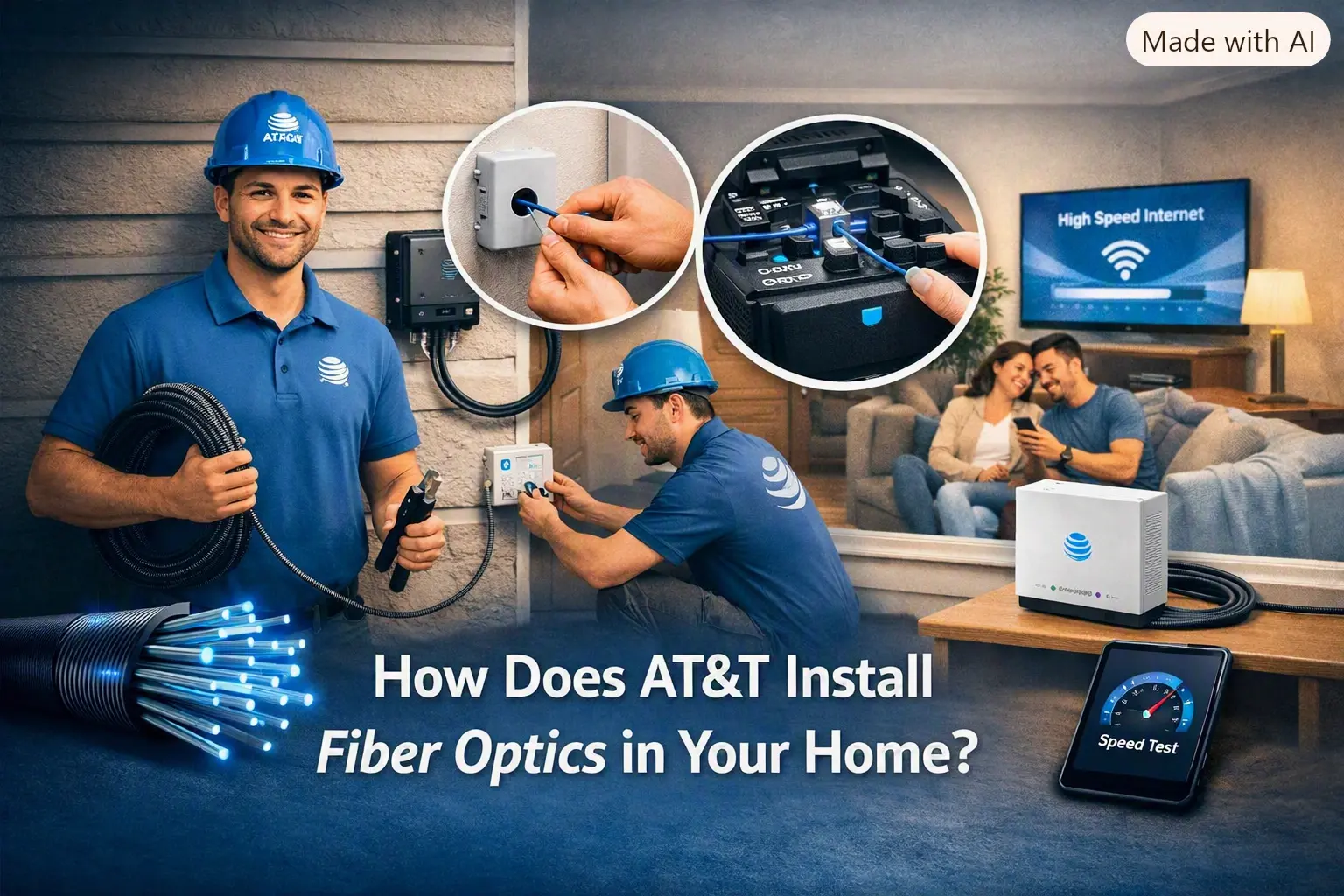
How Does AT&T Install Fiber Optics in Your Home?
August 10, 2026
How Much Does It Cost to Install AT&T Internet?
July 27, 2026