How to Set Verizon Fios Remote to TV?
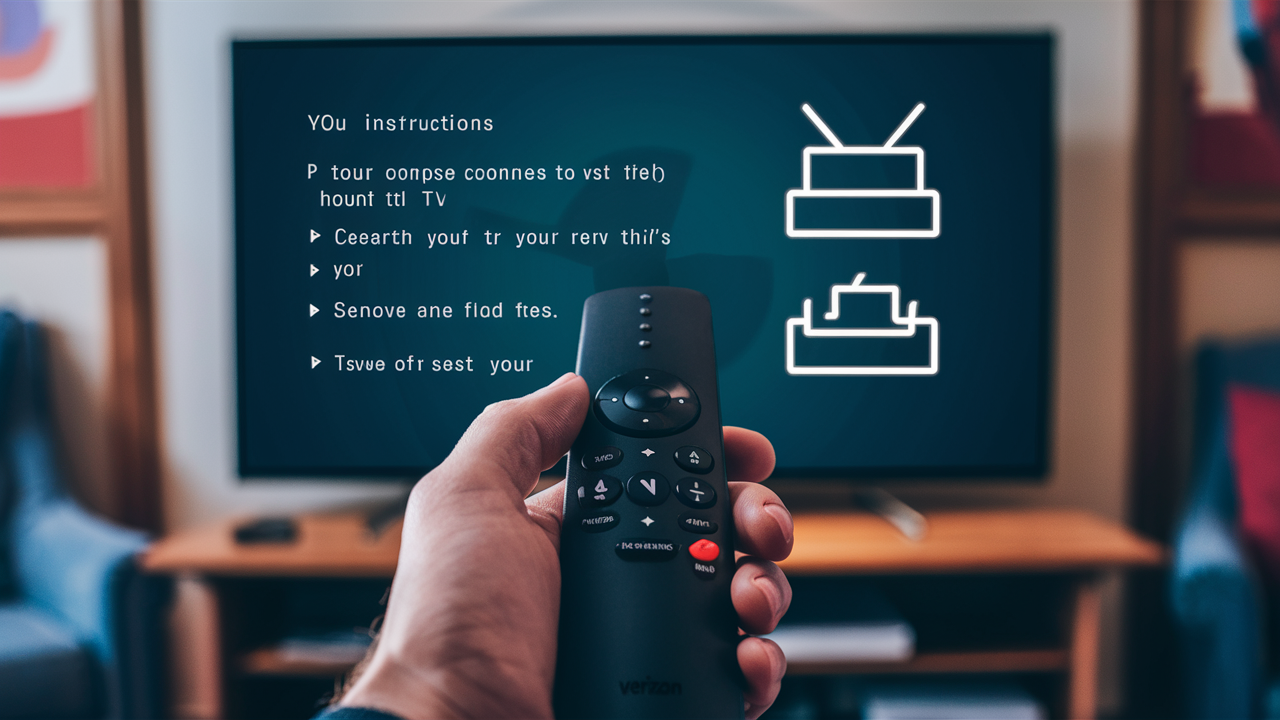
Struggling to connect your Verizon Fios remote to your television? This comprehensive guide provides clear, step-by-step instructions to help you set up your Fios remote for seamless control of your TV, ensuring you can enjoy your favorite shows and movies without frustration. We cover all common scenarios and troubleshooting tips.
Understanding Your Verizon Fios Remote
Verizon Fios offers several types of remotes, each with slightly different functionalities and setup procedures. Understanding which remote you have is the first crucial step in successfully setting it up to control your television. Most Fios remotes are designed to operate not only your Fios set-top box but also your TV's basic functions like power, volume, and input selection, acting as a universal remote.
The primary goal of setting up your Fios remote for TV control is to enable it to send infrared (IR) signals to your television. This allows you to use a single remote for both your Fios box and your TV, simplifying your entertainment setup. The process typically involves programming the remote with a specific code that corresponds to your TV's manufacturer and model. In 2026, the technology behind these remotes continues to evolve, offering more intuitive pairing methods and broader compatibility.
It's important to note that while most Fios remotes can control TV power, volume, and input, they may not be able to control all advanced TV functions. For comprehensive control, some users might still prefer their original TV remote for certain features. However, for everyday use, a properly configured Fios remote can significantly enhance convenience.
Pre-Setup Checks: Before You Begin
Before diving into the setup process, a few preliminary checks can save you time and prevent common frustrations. Ensuring these basics are covered will make the entire experience smoother.
1. Identify Your Fios Remote Model
Verizon has released various remote models over the years. Common ones include the Fios Voice Remote (often with a microphone button for voice commands) and older models that might look different. The setup instructions can vary slightly. Look for model numbers on the back or inside the battery compartment of your remote. Knowing your model is key to finding the most accurate instructions.
2. Identify Your TV Manufacturer and Model
You'll need to know the brand of your television (e.g., Samsung, LG, Sony, Vizio, TCL). If possible, having the exact model number of your TV can sometimes help in finding specific setup codes, although most universal remote setups rely on manufacturer codes first. This information is usually found on a sticker on the back of your TV or in its user manual.
3. Ensure Your TV is Powered On
During the setup process, you'll need to test if the remote is controlling your TV. Therefore, make sure your television is plugged in and powered on. It's also beneficial to have a clear line of sight between the remote and the TV's IR receiver, especially during the code search phase.
4. Check and Replace Batteries
Weak or dead batteries are a common culprit for remote control issues. Before you start, ensure your Fios remote has fresh, high-quality batteries installed. This is a simple yet often overlooked step that can resolve many connectivity problems.
5. Locate Your Fios Set-Top Box
While this guide focuses on setting the remote to control the TV, remember that the remote also needs to communicate with your Fios set-top box. Ensure your box is powered on and functioning correctly. The setup process for TV control is separate from pairing the remote with the box itself, but both need to be operational.
6. Have Your TV's Original Remote Handy (Optional but Recommended)
In case the Fios remote doesn't fully control your TV or if you need to switch inputs back to your Fios box, having the original TV remote accessible can be very helpful. It's also useful if you need to access your TV's settings menu for any reason.
Setting Up Your Fios Remote for TV Control: The Basics
The primary function of setting up your Fios remote for TV control is to enable it to operate your television's power, volume, and input functions. This process involves programming the remote with a specific code that tells it how to communicate with your TV's infrared (IR) receiver. Verizon Fios remotes typically support two main methods for achieving this:
Universal Remote Setup: This is the most common method, where you input a code specific to your TV brand.
Automatic Code Search: If you don't know the code, the remote can cycle through a list of codes until it finds one that works with your TV.
Some newer Fios remotes might also offer a guided setup through the Fios TV interface itself, which simplifies the process even further. Regardless of the method, the objective is to establish a reliable IR connection between the remote and your television.
Before proceeding, ensure you have followed the pre-setup checks outlined in the previous section. This includes having your TV powered on, fresh batteries in the remote, and knowing your TV manufacturer's brand name.
The following sections will detail the specific steps for each of these setup methods. It's crucial to follow the instructions precisely, as even minor deviations can lead to the setup failing. Remember that the goal is to program the remote to send commands to your TV, not to your Fios set-top box, although the remote controls both devices independently.
Understanding IR vs. RF Signals
It's important to differentiate between how your Fios remote communicates with your set-top box and how it communicates with your TV. Fios remotes typically use Radio Frequency (RF) signals to communicate with the Fios set-top box, which allows for control without a direct line of sight. However, to control your TV (power, volume, input), the remote usually switches to Infrared (IR) signals. IR signals require a direct line of sight between the remote and the TV's IR receiver, typically located on the front of the TV.
This distinction is important because if your TV setup isn't working, you might be experiencing an issue with the IR signal path rather than the RF connection to your Fios box. For example, if your TV is inside a cabinet with the door closed, the IR signal might be blocked, preventing the remote from turning the TV on or off.
Universal Remote Setup: Finding Codes for Your TV
The most common and often the quickest way to set up your Fios remote to control your TV is by using universal remote setup codes. These are numerical codes that your remote uses to identify and communicate with different brands and models of televisions.
Verizon provides a list of these codes, which can usually be found in the remote's user manual or on the Verizon Fios website. If you don't have the manual, the Verizon support website is your best resource. Search for "Fios remote setup codes" or your specific remote model.
The process generally involves putting your Fios remote into programming mode and then entering a specific code for your TV brand. Here’s a breakdown of how this typically works:
Where to Find TV Codes
Verizon Fios Website: The most reliable source. Navigate to the support section and search for your remote model or universal remote setup. They often have a searchable database.
Fios Remote Manual: If you still have the original manual that came with your remote, it will contain a list of codes categorized by TV manufacturer.
Third-Party Websites: While less official, some tech websites compile universal remote codes. Use these with caution and prioritize Verizon's official resources.
Example: If you have a Samsung TV, you might find a list of Samsung codes. You'll need to try each one until your TV responds correctly.
Preparing to Enter Codes
Before you start entering codes, ensure your remote is in the correct mode. Most Fios remotes have a button or a sequence to switch them into "TV mode" or "Universal Remote mode." This is crucial because if the remote is in "Fios Box mode," it won't be able to send commands to your TV.
Common Indicators: Look for buttons labeled "TV," "AUX," or a specific button that cycles through device modes. The remote's indicator light will often change color or blink to show which device mode it's in.
Automatic Code Search Method
If you can't find the correct code for your TV, or if the manual codes don't work, the automatic code search method is an excellent alternative. This process instructs your Fios remote to cycle through its entire library of TV codes, one by one, testing each one until it finds a match that controls your TV's power function. This can be a bit time-consuming but is often very effective.
Key Principle: The remote sends a "Power Off" command with each code. When the TV turns off, you quickly stop the process, and that code is then used for other functions like volume and input.
Step-by-Step Automatic Code Search
Ensure TV is On: Make sure your television is powered on, and you have a clear line of sight to its IR receiver.
Enter Programming Mode: Press and hold the "SETUP" button on your Fios remote until the indicator light stays solid. Then, press and hold the "TV" button (or the appropriate device button for your TV). Release the "TV" button once the indicator light blinks.
Initiate Code Search: Press the "POWER" button on your Fios remote. The indicator light will blink, indicating it's sending a power-off command.
Watch Your TV: Immediately look at your television. As soon as the TV turns OFF, press the "OK" or "ENTER" button on your Fios remote. This locks in the code that just turned off your TV.
Test the Code: The indicator light will blink to confirm the code has been accepted. Now, try pressing the "POWER" button again to turn your TV back ON. If it turns on, the code has been successfully programmed for power.
Test Other Functions: Test the "VOLUME UP/DOWN" and "CHANNEL UP/DOWN" buttons to see if they control your TV. If they do, you're likely done.
If It Doesn't Work: If the TV didn't turn off, or if the volume/channel buttons don't work, you'll need to repeat the process. When you press the "POWER" button in step 3, instead of pressing "OK" immediately when the TV turns off, you might need to press the "CH+" or "CH-" button to advance to the next code. Some remotes require you to press "OK" after the TV turns off, and then test functions. If they don't work, you repeat the process from step 2 or 3, and the remote will try the next code in sequence.
Important Note: The exact button presses and sequences can vary slightly between Fios remote models. Always refer to your remote's manual or Verizon's online support for the most accurate instructions for your specific model.
Manual Code Entry Method
The manual code entry method is generally faster than the automatic search if you can successfully identify the correct code for your TV. This method involves looking up the code for your TV brand and then entering it directly into the Fios remote.
Requirement: You must know your TV manufacturer's brand name and have access to the list of corresponding codes.
Step-by-Step Manual Code Entry
Power On Your TV: Ensure your television is powered on and ready to receive commands.
Enter Setup Mode: Press and hold the "SETUP" button on your Fios remote until the indicator light stays solid.
Select TV Mode: Press and release the "TV" button (or the appropriate device button for your TV). The indicator light should blink and then remain lit.
Enter the Code: Using the number pad on your remote, enter the first 4-digit code listed for your TV brand. For example, if the first code for Samsung is 1234, enter 1234.
Confirm Code Entry: After entering the code, the indicator light on the remote should blink twice to confirm that the code has been accepted.
Test the Remote: Point the remote at your TV and press the "POWER" button. If the TV turns off, the code is likely correct for power control.
Test Other Functions: If the TV turned off, try the "VOLUME UP/DOWN" and "INPUT" buttons. If these also work, you have successfully programmed your remote.
If the Code Doesn't Work: If the TV doesn't turn off, or if other functions don't work, repeat steps 2 through 6 with the next code listed for your TV brand. You may need to try several codes before finding one that works.
Example Scenario: You have a Sony TV. You look up Sony codes and find: 0001, 0004, 0007, 0010. You try 0001, and it doesn't work. You repeat the process and try 0004. If that works for power, you then test volume and input.
Important Consideration: Some TVs may require a 5-digit code. Check your Fios remote's manual or Verizon's website for the correct code length for your remote model.
Pairing Your Fios Remote with the Fios Set-Top Box
While the focus of this guide is setting the remote to control your TV, the remote must also be paired with your Fios set-top box to control Fios services. This pairing process typically uses RF signals and is distinct from the IR programming for your TV.
In most cases, new Fios remotes are pre-paired with the set-top box they come with. However, if you've replaced your remote or are experiencing issues with Fios box control (e.g., voice commands not working, channel changes are slow), you might need to re-pair it.
Steps for Pairing the Fios Remote to the Set-Top Box
Locate the Set-Top Box: Ensure your Fios set-top box is powered on and connected.
Find the Pairing Button: On the set-top box, there's usually a small pairing button. Its location varies by model but is often on the front panel, the side, or the back. It might be a small recessed button requiring a paperclip to press.
Put Remote in Pairing Mode: On your Fios remote, press and hold the "Mic" button (for voice remotes) or the "OK" button and the "Home" button simultaneously for about 5-10 seconds. The indicator light on the remote should start blinking, indicating it's in pairing mode.
Press the Pairing Button on the Box: While the remote is in pairing mode, press the pairing button on the set-top box.
Wait for Confirmation: The remote and the set-top box will communicate. The indicator light on the remote may change color or stop blinking, and you might see a confirmation message on your TV screen (e.g., "Remote Paired").
Test Fios Control: Try changing channels, accessing the guide, or using voice commands to ensure the remote is now controlling the Fios box.
Troubleshooting Pairing: If pairing fails, try moving the remote closer to the set-top box, ensure fresh batteries are in the remote, and try the pairing process again. If you're using an older remote, the button combination might differ; consult Verizon's support for your specific model.
Troubleshooting Common Fios Remote Setup Issues
Even with clear instructions, you might encounter problems when trying to set up your Fios remote to control your TV. Here are some common issues and their solutions:
1. Remote Not Responding at All
Check Batteries: Ensure they are fresh and inserted correctly. Try a different brand of batteries.
Check Device Mode: Make sure the remote is in "TV" mode, not "Fios Box" mode. Look for the indicator light.
Line of Sight: For IR signals to your TV, ensure there's a clear, unobstructed path between the remote and the TV's IR sensor. Remove any objects blocking the path.
Remote Damage: If the remote has been dropped or damaged, it might be malfunctioning.
2. TV Power Doesn't Work, But Volume Does (or Vice Versa)
This often indicates that the correct code was found for some functions but not all. It could also mean the remote is sending the wrong type of signal for a specific function.
Try Different Codes: If you used the manual method, try the next code in the list for your TV brand. If you used the auto-search, repeat the process, and be attentive to when the TV turns off.
Re-run Auto-Search: Sometimes, the auto-search might pick up a code that partially works. Running it again might find a more comprehensive code.
Check TV Settings: Some TVs have settings that can interfere with universal remotes. Consult your TV's manual.
3. Remote Controls the Fios Box but not the TV
This is a clear indication that the remote is not programmed for TV control.
Ensure TV Mode is Selected: Double-check that you've pressed the "TV" button or equivalent before attempting TV commands.
Re-program for TV: Go back to the manual or automatic code search sections and follow the steps again carefully.
Factory Reset Remote: Some remotes can be factory reset. This will erase all programming, and you'll need to set it up for both the Fios box and the TV from scratch. The reset procedure varies by model.
4. Indicator Light Not Behaving as Expected
The indicator light is your primary feedback mechanism. If it's not blinking, solid, or changing as described in the instructions, there's likely an issue with the remote itself or the button presses.
Press and Hold Firmly: Ensure you are pressing and holding the buttons for the required duration.
Consult Manual: The meaning of the indicator light's behavior (e.g., solid, blinking fast, blinking slow) is detailed in your remote's manual.
Battery Issue: Low batteries can cause erratic indicator light behavior.
5. Codes Not Found or Not Working
This can happen with very new TV models or older, less common brands.
Check for Updates: Visit Verizon's support site to see if new codes have been added for your remote model.
Try Codes for Similar Brands: Sometimes, codes for one brand might work for a lesser-known brand that uses similar technology.
Consider a Universal Remote App: If all else fails, many smartphones can act as universal remotes via Wi-Fi or IR blasters.
Advanced Fios Remote Features and Settings
Beyond basic TV control, modern Fios remotes, especially the voice-enabled models, offer advanced features that can significantly enhance your viewing experience. Understanding and utilizing these can make your Fios service even more convenient.
Voice Control
Many Fios remotes in 2026 feature voice control capabilities. This allows you to search for content, change channels, control playback (pause, rewind, fast forward), and even adjust settings using spoken commands.
Activation: Typically activated by pressing and holding the microphone button on the remote.
Commands: Examples include "Play Stranger Things on Netflix," "Go to channel 5," "What's the weather?" or "Record this show."
Tips for Best Performance: Speak clearly and directly into the remote. Ensure the remote is properly paired with the Fios box for voice commands to function.
Programmable Buttons
Some Fios remotes have programmable shortcut buttons. These can be set to launch specific apps (like Netflix, YouTube, or Max), go directly to a favorite channel, or perform a sequence of actions.
Setup: Programming these buttons usually involves navigating through the Fios TV interface settings. Look for options like "Remote Settings" or "Programmable Buttons."
Benefits: Saves time by providing one-touch access to your most-used features.
Backlighting
Many newer Fios remotes feature backlighting for the buttons. This is incredibly useful for operating the remote in low-light conditions, such as during a movie.
Activation: Backlighting is often activated by picking up the remote or pressing any button. It usually times out after a period of inactivity.
Settings: Some models might allow you to adjust the duration or brightness of the backlighting through the Fios TV menu.
Customizing Volume Control
While the remote is programmed to control your TV's volume, you can often choose whether the remote controls the TV's internal speakers or a connected soundbar/AV receiver.
Setup: This is typically done during the initial universal remote setup process or can be adjusted later in the Fios TV settings menu. You'll need to enter codes for your soundbar or receiver if applicable.
Troubleshooting: If volume control suddenly stops working, re-run the volume setup for your audio device.
Fios Remote Models and Their Capabilities (2026 Overview)
Verizon continues to update its Fios remote offerings, with models in 2026 generally focusing on enhanced user experience, voice control, and broader device compatibility. Understanding the capabilities of your specific remote model can help you leverage its full potential.
Fios Voice Remote (Latest Generation)
Key Features:
Voice Control: Advanced voice recognition for search, navigation, and content playback.
Universal Control: Seamlessly controls Fios box and most TVs, soundbars, and Blu-ray players.
Backlit Buttons: For easy use in the dark.
Ergonomic Design: Comfortable to hold and use.
Programmable Shortcuts: For quick access to apps and channels.
RF and IR Capabilities: RF for Fios box, IR for TV and other devices.
Set up Focus: Primarily guided setup through the Fios TV interface and robust automatic code search. Manual code entry is also supported.
Older Generation Fios Remotes
Key Features:
Basic Universal Control: Capable of controlling TV power, volume, and input, but may have fewer compatible devices.
No Voice Control: Lacks a microphone button and voice command functionality.
Manual and Automatic Code Entry: Relies heavily on manual code entry or automatic code search for TV setup.
Non-Backlit Buttons: Buttons are not illuminated.
Set up Focus: Manual and automatic code entry are the primary methods for TV control. Pairing with the Fios box is usually straightforward.
Fios Remote with Touchpad (Less Common)
Some earlier models might have featured a small touchpad for navigation, similar to a laptop. These are less common now, but they offered a different interaction method.
Note on Compatibility: While Verizon aims for broad compatibility, very new or obscure TV models might not be supported by older remotes. Newer remotes generally have a more extensive code library. In 2026, the trend is towards even greater compatibility, with updates to code databases pushed out regularly.
When setting up your remote, always try to use the instructions specific to your model. If you're unsure, Verizon's online support portal is the best place to find model-specific guides and code lists.
When to Contact Verizon Support
While this guide aims to be comprehensive, there are instances where you might need direct assistance from Verizon. If you've exhausted all troubleshooting steps and are still unable to set up your Fios remote to control your TV, it's time to reach out.
Situations Requiring Verizon Support:
Persistent Pairing Issues: If your remote consistently fails to pair with your Fios set-top box, even after following all steps.
No Codes Work: If you've tried all available codes for your TV brand (both manual and auto-search) and none of them control your TV functions.
Remote Malfunction: If the remote itself appears to be physically damaged, or if the indicator light doesn't function at all, suggesting a hardware defect.
Specific TV Model Incompatibility: If you have a very new or niche TV model that is not supported by any Fios remote codes. Verizon support might have specific workarounds or updated code information.
Complex Audio Setup: If you're trying to control a sophisticated home theater system with a soundbar and receiver, and the basic volume control setup isn't working as expected.
Fios TV Interface Issues: If the setup process within the Fios TV menu is not working correctly, or if you encounter error messages that you don't understand.
How to Contact Verizon Support:
Online Chat: Visit the Verizon Fios website and look for the "Support" or "Contact Us" section. Live chat is often the quickest way to get immediate assistance.
Phone Support: Verizon provides dedicated customer support lines for Fios services. You can find the relevant number on their website.
Verizon Community Forums: Other Fios users and Verizon representatives often post solutions to common problems on the official Verizon community forums.
When contacting support, be prepared to provide your account information, the model of your Fios remote, and the make and model of your television. Having a clear description of the problem and the steps you've already taken will help them assist you more efficiently.
In conclusion, setting up your Verizon Fios remote to control your TV is a straightforward process that greatly enhances your home entertainment experience. By understanding your remote, performing pre-setup checks, and following the appropriate programming method—whether manual code entry or automatic search—you can achieve seamless control. Troubleshooting common issues involves checking batteries, ensuring line of sight, and verifying the correct device mode. For advanced users, leveraging voice commands and programmable buttons unlocks the full potential of modern Fios remotes. If you encounter persistent problems, Verizon support is readily available to help you get back to enjoying your Fios service without interruption.
📚Read More Articles About Verizon Fios
Is Verizon Fios Fiber Internet Better Than AT&T Fiber Internet?
August 31, 2026
Exclusive Student Offer: Verizon WiFi Discount
December 16, 2024
Is Verizon Home Internet Ideal for Gaming Needs?
December 14, 2024