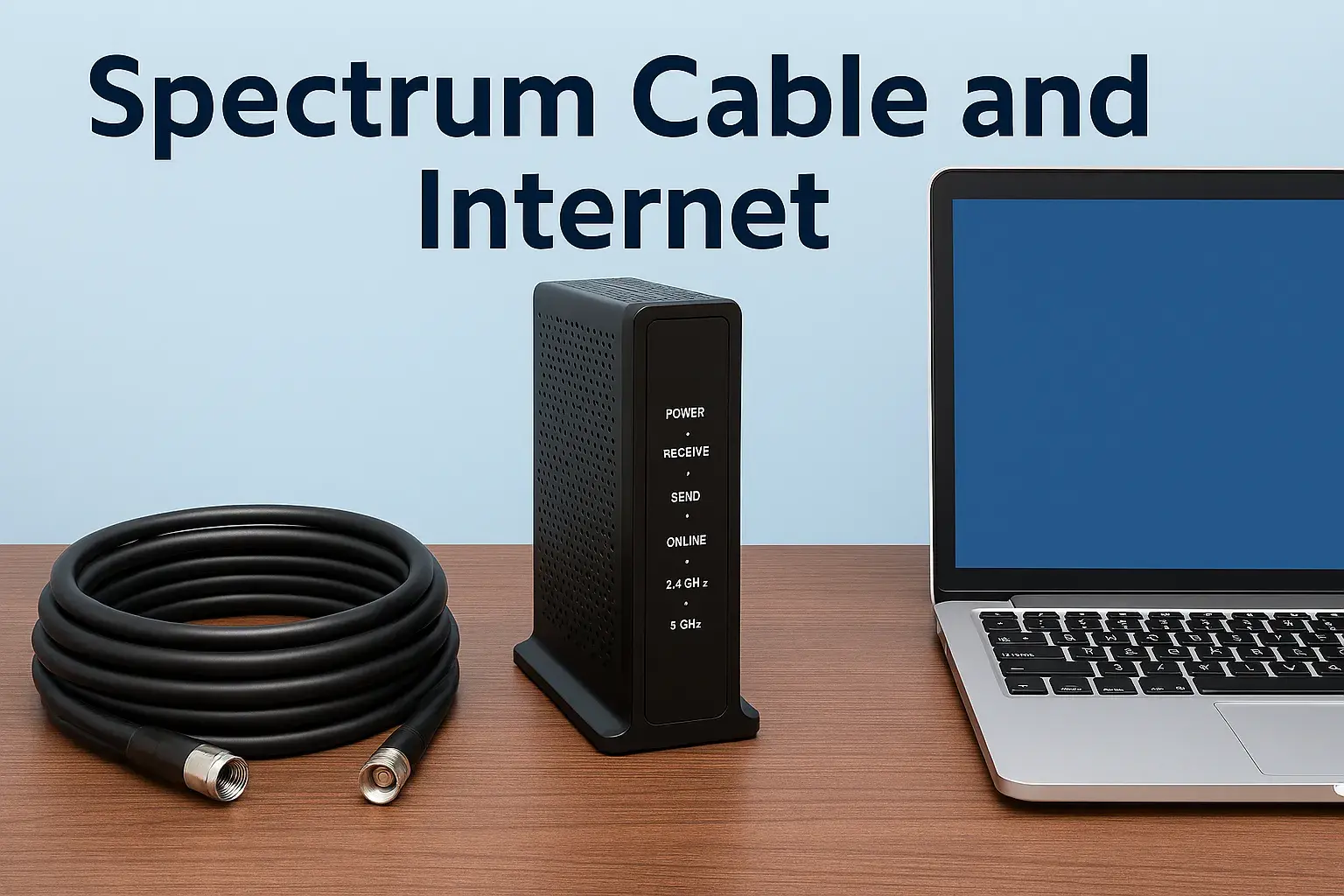
How to Reset Spectrum Internet ?

Experiencing slow internet or connectivity issues with your Spectrum service? This comprehensive guide will walk you through the essential steps on how to reset Spectrum internet, from simple modem reboots to advanced troubleshooting, ensuring you get back online quickly and efficiently. We cover all methods, empowering you to resolve common problems yourself.
Understanding Spectrum Internet Resets
When your Spectrum internet isn't performing as expected, a reset is often the first and most effective troubleshooting step. But what exactly does a "reset" entail, and why is it so commonly recommended? In essence, resetting your Spectrum internet equipment involves restarting the modem and/or router, clearing temporary glitches, refreshing network connections, and re-establishing communication with Spectrum's network. This process can resolve a wide array of connectivity problems, from slow speeds to complete service outages.
Spectrum, like most internet service providers (ISPs), relies on a complex network of hardware and software to deliver internet service to your home. Your modem and router are the critical pieces of equipment that bridge your home network to Spectrum's wider network. Over time, these devices can encounter minor software errors, network congestion issues, or simply need a fresh start to optimize their performance. A reset acts as a digital "reboot," allowing the devices to clear their memory, re-sync with Spectrum's servers, and often resolve the underlying issue without requiring a technician visit.
It's important to distinguish between different types of resets. A simple power cycle is the least intrusive and most common method. A factory reset, on the other hand, is more drastic, returning the device to its original manufacturer settings. Understanding these distinctions will help you choose the right approach for your specific internet problem. By the end of this guide, you'll be equipped with the knowledge and step-by-step instructions to effectively reset your Spectrum internet and regain a stable, fast connection.
Why Reset Your Spectrum Modem or Router?
Internet connectivity issues can be frustrating, and often the simplest solution is a reset. But why exactly does this seemingly basic action work so often? Understanding the underlying reasons can demystify the process and empower you to troubleshoot more effectively. In 2025, with increasing reliance on stable internet for remote work, online education, and entertainment, a well-functioning connection is paramount. Here are the primary reasons why resetting your Spectrum modem or router is a go-to solution:
- Clearing Temporary Glitches and Errors: Like any electronic device, modems and routers can experience minor software hiccups. These can be caused by a variety of factors, including power fluctuations, software bugs, or prolonged uptime without a refresh. A reset effectively clears the device's temporary memory (RAM), purging any corrupted data or stalled processes that might be interfering with its operation.
- Refreshing Network Connections: Your modem establishes a connection with Spectrum's network. This connection can sometimes become unstable or outdated. A reset forces the modem to disconnect from Spectrum's servers and then re-establish a fresh, clean connection. This is akin to hanging up and redialing a phone number to ensure a clear line.
- Re-establishing IP Addresses: Your modem is assigned an IP address by Spectrum, which is essential for your devices to communicate with the internet. Sometimes, this IP address can become outdated, conflicting, or corrupted. A reset prompts the modem to request a new IP address from Spectrum's DHCP (Dynamic Host Configuration Protocol) server, ensuring a valid and unique identifier for your connection.
- Resolving Slow Internet Speeds: Over time, a modem or router might become bogged down, leading to slower-than-expected speeds. This can be due to background processes, accumulated data, or inefficient network management. A reset can clear these performance bottlenecks, allowing the device to operate more efficiently and potentially restore your internet speeds to their optimal levels.
- Fixing Intermittent Connectivity: If your internet connection drops intermittently, a reset can often resolve the underlying instability. It provides a clean slate, allowing the equipment to re-sync with the network and maintain a more consistent connection.
- Troubleshooting Router Issues: If you have a separate Spectrum router (or a modem/router combo unit), resetting the router can resolve Wi-Fi specific problems, such as weak signals, devices not connecting, or slow Wi-Fi speeds. This is because the router manages your local network and Wi-Fi signal.
- Preparing for New Equipment or Configuration Changes: Before setting up new equipment or making significant changes to your network settings, a reset can ensure a clean start and prevent conflicts with previous configurations.
In 2025, with the average household consuming significantly more data than in previous years, often exceeding 400-500 GB per month for streaming and online activities, maintaining an optimal internet connection is more critical than ever. A simple reset is a low-risk, high-reward troubleshooting step that can save you time and frustration. It's the digital equivalent of turning it off and on again, a universally recognized problem-solving technique for a reason.
Types of Spectrum Internet Resets
When you encounter issues with your Spectrum internet service, not all "resets" are created equal. Spectrum provides users with several methods to refresh their connection, ranging from quick and simple to more comprehensive. Understanding the different types of resets will help you choose the most appropriate solution for your specific problem, ensuring you don't overcomplicate the troubleshooting process.
1. Power Cycle (Soft Reset)
This is the most common and least intrusive method. A power cycle involves completely unplugging your modem and router from the power source, waiting a short period, and then plugging them back in. This process forces the devices to shut down completely and restart, clearing temporary memory and re-establishing network connections. It's the digital equivalent of a quick reboot and is often the first step recommended by technical support.
2. Remote Reset (Via Spectrum App or Website)
Spectrum offers tools that allow you to remotely reset your modem and router without physically touching the equipment. This is typically done through the Spectrum mobile app or by logging into your account on the Spectrum website. These remote resets are essentially automated power cycles initiated by Spectrum's system, designed to quickly resolve common connectivity issues. This is particularly convenient if you're experiencing problems and can't easily access your modem.
3. Factory Reset (Hard Reset)
A factory reset is a more drastic measure. It returns your modem or router to its original, out-of-the-box settings. This means any custom configurations you've made, such as Wi-Fi network names (SSIDs), passwords, or port forwarding rules, will be erased. A factory reset is usually reserved for more persistent issues or when preparing to return equipment. It's a powerful tool for resolving deep-seated configuration problems but requires reconfiguring your network afterward.
4. Modem vs. Router Reset
It's also crucial to differentiate between resetting your modem and resetting your router.
- Modem Reset: The modem is the device that connects your home to Spectrum's network. Resetting the modem primarily affects your internet connection from Spectrum.
- Router Reset: The router manages your home's Wi-Fi network and local connections. Resetting the router affects your Wi-Fi signal, how devices connect to each other within your home, and internet access for those devices.
If you have a modem/router combo unit provided by Spectrum, resetting it will affect both aspects of your internet service. Understanding which device is causing the problem will guide you on which reset to perform.
In 2025, with the average household having 20-30 connected devices, the complexity of home networks has increased. Having these different reset options available ensures that users can tackle a wide range of issues efficiently. We will delve into the specifics of performing each of these resets in the following sections.
How to Perform a Power Cycle (Your Modem/Router)
The power cycle, often referred to as a soft reset, is the most fundamental and frequently successful troubleshooting step for Spectrum internet issues. It's simple, requires no special tools, and can resolve a surprising number of connectivity problems. This method involves completely disconnecting the power to your modem and router, allowing them to discharge any residual power, and then reconnecting them in a specific order.
Step-by-Step Power Cycle Guide:
Follow these steps carefully for an effective power cycle:
1. Disconnect Power to Your Router (If Separate)
If you have a separate Spectrum router connected to your modem, unplug the power cord from the back of the router or from the wall outlet. This is usually a small, often black, power adapter. Do not simply turn it off using a power button; a full unplug is necessary.
2. Disconnect Power to Your Modem
Locate your Spectrum modem. This is the device that connects to the coaxial cable coming from your wall. Unplug the power cord from the back of the modem or from the wall outlet. Ensure all lights on the modem turn off.
3. Wait for at Least 60 Seconds
This is a crucial step. Allowing the devices to remain unplugged for a full minute (or even longer, up to 2-3 minutes) ensures that all residual power dissipates and that the devices' internal memory is completely cleared. This extended wait time is often the difference between a successful reset and one that doesn't fully resolve the issue.
4. Reconnect Power to Your Modem
Plug the power cord back into your Spectrum modem. Do not plug in the router yet. The modem will begin its startup sequence. You will see various lights on the front of the modem blinking and then becoming solid. This process can take anywhere from 2 to 5 minutes, depending on the model and your location's network conditions.
Observe the Modem Lights: Wait until the modem's lights indicate a stable connection. Typically, you'll see lights for Power, Downstream, Upstream, and Online (or similar labels) become solid. Consult your modem's manual or Spectrum's support site for specific light indicators for your model.
5. Reconnect Power to Your Router (If Separate)
Once the modem lights indicate a stable internet connection, plug the power cord back into your Spectrum router. The router will also go through its own startup sequence, which can take another 1-2 minutes. Lights indicating power, internet connection, and Wi-Fi activity should illuminate.
6. Test Your Internet Connection
After both devices have fully started up, try connecting to the internet on one of your devices (e.g., a computer or smartphone). Open a web browser and try visiting a few websites. Check your Wi-Fi signal strength if you're using a wireless connection.
Important Considerations:
- Modem/Router Combo Units: If you have a single Spectrum-provided device that acts as both a modem and a router, you will only perform steps 2, 3, and 4, as there's only one device to power cycle.
- Order Matters: Always power on the modem first, wait for it to establish a stable connection, and then power on the router. This ensures the modem is ready to provide an internet signal to the router.
- Patience: Each device's startup sequence can take several minutes. Resist the urge to rush the process or unplug/replug repeatedly.
This power cycle method is highly effective for resolving common issues like slow speeds, intermittent disconnections, and devices not connecting to the network. It's a fundamental skill for any Spectrum internet user and should be your first line of defense when troubleshooting.
How to Reset Spectrum Modem via App or Website
Spectrum understands that not everyone wants to or can physically access their modem and router. To streamline troubleshooting, they offer a convenient remote reset option through their official platforms. This method essentially triggers a remote reboot of your Spectrum equipment, similar to a power cycle, but initiated digitally. This is particularly useful if you're experiencing connectivity issues but are away from home, or if you simply prefer a less hands-on approach.
Using the Spectrum Mobile App:
The Spectrum mobile app is designed to give users control over their services, including basic troubleshooting. If you have the app installed and are logged in:
- Open the Spectrum App: Launch the Spectrum app on your smartphone or tablet.
- Navigate to Internet Services: Look for a section related to your internet service or modem. This might be under "Services," "My Account," or a dedicated "Internet" tab.
- Find the Troubleshooting/Reset Option: Within the internet service section, you should find an option for troubleshooting or resetting your modem. This might be labeled as "Restart Modem," "Troubleshoot Connection," or similar.
- Initiate the Reset: Tap on the appropriate option. The app will likely display a confirmation message asking if you wish to proceed. Confirm your selection.
- Wait for the Process to Complete: The app will communicate with Spectrum's network to initiate a reboot of your modem. You may see a progress indicator or a message stating that the reset is in progress. This process typically takes a few minutes, similar to a manual power cycle.
- Test Your Connection: Once the app indicates the reset is complete, test your internet connection on your devices.
Note: The exact location and wording of these options can vary slightly with app updates. If you can't find it immediately, explore the "Services" or "Support" sections within the app.
Using the Spectrum Website:
You can also perform a remote reset by logging into your Spectrum account online.
- Go to the Spectrum Website: Open a web browser and navigate to the official Spectrum website (www.spectrum.com).
- Log In to Your Account: Click on the "Sign In" or "My Account" button, usually found in the top right corner. Enter your username and password.
- Access Your Services: Once logged in, navigate to the section that displays your services. Look for your internet service details.
- Locate the Reset Feature: Similar to the app, find the troubleshooting or modem reset option. This might be within a "My Services," "Internet," or "Support" section. It might be labeled as "Restart Modem," "Reboot Equipment," or a similar phrase.
- Confirm the Reset: You will likely be prompted to confirm that you want to reset your modem. Click "Confirm" or "Yes" to proceed.
- Wait and Test: The system will then remotely reboot your modem. Allow several minutes for this process to complete. After the modem has restarted, test your internet connection to see if the issue is resolved.
Troubleshooting Remote Resets:
- Account Verification: Ensure you are logged in with the correct account credentials associated with your Spectrum service.
- Equipment Compatibility: Remote resets are generally compatible with most Spectrum-provided modems. If you are using your own modem, ensure it's compatible with Spectrum's network and that remote management is enabled.
- Network Status: If Spectrum's network in your area is experiencing widespread outages, a remote reset might not be effective until the broader issue is resolved.
- App/Website Glitches: Occasionally, the app or website itself might experience temporary issues. If the remote reset doesn't work, try the manual power cycle method.
Utilizing these digital tools for resetting your Spectrum modem can be a quick and efficient way to resolve many common internet problems, especially when you need a fast solution without physical interaction with your equipment.
How to Perform a Factory Reset on Your Spectrum Router
While a power cycle or remote reset can fix many common issues, sometimes a more thorough approach is needed. A factory reset, also known as a hard reset, is the most comprehensive way to troubleshoot persistent problems with your Spectrum router. This process reverts the router to its original default settings, erasing any custom configurations you may have made, such as Wi-Fi names, passwords, or security settings.
When to Consider a Factory Reset:
- Persistent Wi-Fi connectivity issues that a power cycle doesn't resolve.
- Forgotten Wi-Fi password or network name.
- Router behaving erratically or not responding to settings changes.
- Preparing to return the router or hand it over to someone else.
- When instructed by Spectrum support for advanced troubleshooting.
Important Note: Performing a factory reset will erase all your custom settings. You will need to reconfigure your Wi-Fi network name (SSID), password, and any other personalized settings after the reset. If you have a Spectrum-provided modem/router combo unit, this reset will affect both modem and router functionalities.
Step-by-Step Factory Reset Guide:
The process for a factory reset typically involves a physical button on the router itself.
1. Locate the Reset Button
Turn your Spectrum router around and examine the back or bottom panel. You are looking for a small, often recessed, button labeled "Reset." This button is usually smaller than other buttons and may require a thin, pointed object to press, such as a paperclip, toothpick, or the end of a pen.
2. Ensure the Router is Powered On
The router must be powered on and connected to a power source for the reset to work. Do not unplug it during the reset process.
3. Press and Hold the Reset Button
Using your pointed object, carefully press and hold down the reset button. You will need to keep it held down for a specific duration, typically between 10 to 30 seconds. The exact time can vary by router model, so check your router's manual or Spectrum's support documentation if unsure. While holding the button, observe the lights on the front of the router.
4. Observe Router Lights
As you hold the reset button, you should see the router's lights change, blink, or turn off and then back on. This indicates that the router is acknowledging the reset command. Continue holding the button until you see these changes, then release it.
5. Wait for the Router to Reboot
After releasing the reset button, the router will begin its factory reset process and reboot. This can take several minutes (typically 5-10 minutes). During this time, the lights will flash as the device restores its default settings. Do not unplug the router during this reboot phase.
6. Reconfigure Your Network
Once the router has fully rebooted, it will be back to its factory default settings. This means:
- The Wi-Fi network name (SSID) and password will revert to the default settings printed on a label on the router itself (often on the bottom or back).
- Any custom settings you previously configured will be lost.
You will need to connect to the default Wi-Fi network and then access the router's administration interface (usually via a web browser) to set up your new Wi-Fi network name, password, and any other desired configurations.
Accessing Router Settings After Reset:
To reconfigure your router:
- Connect a computer to the router using an Ethernet cable or connect to the default Wi-Fi network using the default credentials found on the router's label.
- Open a web browser and type the router's default IP address into the address bar. Common IP addresses for Spectrum routers are 192.168.0.1 or 192.168.1.1.
- You will be prompted to log in. The default username and password are also usually found on the router's label.
- Navigate through the router's settings to set up your new Wi-Fi network name (SSID) and a strong, unique password.
- Save your changes and reboot the router if prompted.
Modem/Router Combo Units: If you have a Spectrum modem/router combo unit, a factory reset will reset both the modem and router functions. You will need to re-establish your internet connection by ensuring the modem part is properly provisioned by Spectrum and then reconfigure your Wi-Fi settings. In some cases, a factory reset on a combo unit might require Spectrum's intervention to reactivate the modem service.
A factory reset is a powerful tool for resolving persistent router issues, but it requires careful execution and subsequent reconfiguration. Always ensure you have the necessary default login information before proceeding.
Troubleshooting Common Spectrum Internet Issues
Even with a stable connection, Spectrum internet users can encounter various issues that affect their online experience. Fortunately, many of these problems can be resolved with the troubleshooting steps we've discussed, particularly resets. Here's a breakdown of common issues and how resets can help:
1. Slow Internet Speeds
Symptoms: Web pages load slowly, videos buffer frequently, downloads take longer than expected, online gaming is laggy.
How Resets Help: A power cycle or remote reset can clear temporary bottlenecks in your modem and router, allowing them to communicate more efficiently with Spectrum's network. It can also refresh your IP address, which might have become outdated and impacting performance. In 2025, with the average broadband speed offered by Spectrum often ranging from 300 Mbps to over 1 Gbps, slow speeds are particularly noticeable.
Additional Steps:
- Test Wired vs. Wireless: Connect a device directly to the modem or router via Ethernet cable. If speeds are significantly better wired, the issue might be with your Wi-Fi signal or router.
- Check Bandwidth Usage: Ensure no single device or application is consuming all your bandwidth (e.g., large downloads, constant streaming on multiple devices).
- Router Placement: For Wi-Fi issues, ensure your router is in a central, open location, away from obstructions and other electronic devices that can cause interference.
2. Intermittent Internet Drops
Symptoms: Your internet connection frequently disconnects and then reconnects on its own, or you experience sudden loss of service. This can affect all devices or just some.
How Resets Help: These drops can be caused by unstable connections to Spectrum's network or internal network glitches. A power cycle or remote reset helps re-establish a clean, stable connection. A factory reset on the router might be necessary if the drops are Wi-Fi related and persist after a power cycle.
Additional Steps:
- Check Cables: Ensure all coaxial and Ethernet cables are securely connected and not damaged.
- Check for Outages: Visit Spectrum's website or app to check for reported outages in your area.
- Router Firmware: Ensure your router's firmware is up to date.
3. No Internet Connection (All Devices Offline)
Symptoms: No devices can access the internet, and you might see an "no internet" or "connected, no internet" message on your devices.
How Resets Help: This is a prime candidate for a power cycle or remote reset. It ensures the modem is properly communicating with Spectrum's network and that the router is receiving an internet signal from the modem. If the modem lights indicate no connection, the issue might be external.
Additional Steps:
- Modem Lights: Carefully observe the lights on your modem. If the "Online" or "Internet" light is off or blinking continuously, there's a problem with the connection to Spectrum.
- Coaxial Cable: Ensure the coaxial cable is tightly screwed into the back of the modem and the wall outlet.
- Spectrum Outage: Confirm there isn't a wider service outage in your area.
4. Wi-Fi Not Working or Poor Signal
Symptoms: Devices can't connect to the Wi-Fi network, the Wi-Fi signal is weak or drops frequently, or you can connect but have no internet access through Wi-Fi.
How Resets Help: A power cycle of the router (or modem/router combo) can resolve temporary Wi-Fi software glitches. If issues persist, a factory reset of the router is often the most effective solution, as it clears any corrupted Wi-Fi configurations.
Additional Steps:
- Router Placement: As mentioned, optimize router placement for better signal coverage.
- Channel Congestion: If you live in a densely populated area, your Wi-Fi channel might be congested. Accessing your router settings allows you to change the Wi-Fi channel.
- Wi-Fi Extenders/Mesh Systems: For larger homes, consider Wi-Fi extenders or a mesh Wi-Fi system to improve coverage.
5. Specific Device Not Connecting
Symptoms: Only one or a few devices are unable to connect to the internet or Wi-Fi, while others work fine.
How Resets Help: While a full network reset might not be necessary, restarting the specific device that's having trouble can often resolve the issue. If the problem persists with that device, try forgetting the Wi-Fi network on that device and reconnecting. If it's a recurring issue, a router factory reset might help clear any device-specific connection conflicts.
Additional Steps:
- Device Restart: Reboot the problematic device (smartphone, computer, smart TV, etc.).
- Forget Network: On the device, go to Wi-Fi settings, find your network name, and select "Forget Network." Then, try reconnecting by entering the password again.
- Device IP Address: Ensure the device is obtaining a valid IP address from your router.
By systematically applying these troubleshooting steps, starting with the simplest resets, you can effectively diagnose and resolve most common Spectrum internet problems. In 2025, with the increasing complexity of home networks and the demand for reliable connectivity, mastering these basic troubleshooting techniques is invaluable.
When to Contact Spectrum Support
While this guide empowers you to perform various resets and troubleshoot many common Spectrum internet issues yourself, there are times when professional assistance is necessary. Knowing when to escalate your problem to Spectrum's technical support can save you significant time and frustration. Here are the key scenarios where contacting Spectrum support is recommended:
1. Persistent Issues After Multiple Resets
If you have diligently performed power cycles, remote resets, and even a factory reset on your router, and your internet issues (slow speeds, frequent drops, no connection) persist, it's time to reach out. This suggests the problem might be beyond what user-level troubleshooting can fix.
2. Modem Lights Indicate a Network Problem
Pay close attention to the lights on your Spectrum modem. If the "Online" or "Internet" light remains off, blinking continuously, or shows an error status after a successful power cycle, it indicates that your modem is not establishing a proper connection with Spectrum's network. This could be due to issues with the signal coming into your home, a problem with Spectrum's equipment in your area, or a provisioning issue with your modem.
Example: If the downstream and upstream lights are solid but the Online light is off, it means your modem is receiving a signal but cannot synchronize with Spectrum's network. This is a clear sign to contact support.
3. Equipment Malfunction or Damage
If you suspect your Spectrum-provided modem or router is physically damaged (e.g., cracked casing, bent ports) or is not powering on at all, contact Spectrum. They can diagnose whether the equipment needs replacement.
4. You Are Not Comfortable Performing Advanced Resets
While we've detailed how to perform a factory reset, some users may feel apprehensive about losing their settings or performing physical resets. If you are not comfortable with these steps, Spectrum support can guide you through them or perform them remotely if possible.
5. Suspected Service Outages Not Reflected Online
Although Spectrum's website and app usually provide up-to-date information on service outages, sometimes these systems may lag or miss localized issues. If you're experiencing a complete outage and cannot find any reported issues for your area, contacting support can help confirm if there's a known problem or if the issue is specific to your connection.
6. Billing or Service Plan Inquiries
If your internet issues seem related to your service plan, billing discrepancies, or if you're considering upgrading or changing your service, Spectrum's customer service department is the appropriate contact point. They can access your account details and provide specific information regarding your subscription.
7. Need for a Technician Visit
If Spectrum's remote troubleshooting and your own efforts fail to resolve the problem, they may determine that a technician visit is necessary. A technician can physically inspect your lines, connections, and equipment to diagnose and fix issues that cannot be resolved remotely.
How to Contact Spectrum Support:
Spectrum offers several ways to get in touch:
- Phone: The most direct method. You can find their customer service number on your bill or on their website. Expect potential wait times, especially during peak hours.
- Online Chat: Many users find the online chat feature on the Spectrum website to be efficient for quick questions or basic troubleshooting.
- Spectrum App: The mobile app often has a support or chat option that connects you with a representative.
- In-Person: Spectrum stores or service centers can also provide support, though this is less common for technical troubleshooting of home internet.
When you contact Spectrum support, be prepared to provide your account information and a clear description of the problem, including the troubleshooting steps you've already taken. This will help them diagnose the issue more quickly and efficiently. In 2025, Spectrum continues to invest in its network, but occasional issues are inevitable, and knowing when to call for help is part of effective internet management.
Optimizing Your Spectrum Internet Performance
Once you've successfully reset your Spectrum internet and resolved any immediate issues, it's wise to consider how to maintain optimal performance. Proactive steps can prevent future problems and ensure you're getting the most out of your subscribed internet speed. In 2025, with data demands ever-increasing, a well-optimized network is crucial for a seamless online experience.
1. Choose the Right Internet Plan
Ensure your Spectrum internet plan meets your household's needs. With the average data consumption rising, consider your typical usage patterns: how many people are online, what activities they engage in (streaming, gaming, video conferencing, large file downloads), and the number of connected devices. Spectrum offers various speed tiers, from basic plans suitable for light users to gigabit speeds for heavy-duty households. If your current plan consistently feels slow, it might be time to upgrade.
2. Use Quality Equipment
Modem: If you own your modem, ensure it's on Spectrum's approved list and supports the speeds you subscribe to. For example, a DOCSIS 3.0 modem might be sufficient for lower speeds, but a DOCSIS 3.1 modem is recommended for gigabit-level plans to ensure you can achieve those speeds. Spectrum often provides rental equipment, which is generally kept up-to-date, but if you own your own, verify its capabilities.
Router: A good router is essential for a strong Wi-Fi signal. For modern homes with many connected devices, consider a Wi-Fi 6 (802.11ax) or Wi-Fi 6E router. These newer standards offer faster speeds, better efficiency, and improved handling of multiple devices simultaneously compared to older Wi-Fi standards. If you have a large home, a mesh Wi-Fi system can provide consistent coverage throughout.
3. Optimize Router Placement and Settings
Placement: Position your router in a central, elevated, and open location in your home. Avoid placing it in closets, behind furniture, or near large metal objects, which can obstruct the signal. Keep it away from other electronics that can cause interference, such as microwaves, cordless phones, and Bluetooth devices.
Wi-Fi Channels: In crowded areas, Wi-Fi channels can become congested. Access your router's settings and experiment with different Wi-Fi channels (especially for the 2.4 GHz band). Many routers have an "auto" setting that can select the best channel, but manual selection can sometimes yield better results. For 5 GHz and 6 GHz bands, congestion is less common, but still worth checking if issues arise.
Band Steering: If your router supports band steering, enable it. This feature automatically guides devices to the most appropriate Wi-Fi band (2.4 GHz or 5 GHz/6 GHz) based on their capabilities and signal strength, optimizing performance.
4. Secure Your Wi-Fi Network
An unsecured or weakly secured Wi-Fi network can be exploited by unauthorized users, consuming your bandwidth and slowing down your connection. Always use a strong, unique password for your Wi-Fi network and enable WPA3 encryption if your router supports it (WPA2 is still widely used and secure). Regularly change your password.
5. Manage Connected Devices and Bandwidth
Be mindful of how many devices are actively using your internet connection simultaneously. Close unnecessary applications and background processes on your devices. If you have devices that are not in use, disconnect them from the Wi-Fi. For activities that require significant bandwidth, like large downloads or streaming in 4K, try to schedule them during off-peak hours when network congestion is typically lower.
6. Regular Maintenance
Periodically perform a power cycle on your modem and router (e.g., once a month). This simple habit can prevent many minor issues from developing. Also, keep your router's firmware updated, as manufacturers release updates to improve performance, security, and fix bugs.
7. Consider a Wired Connection
For devices that require the most stable and fastest connection (e.g., gaming consoles, desktop computers used for demanding tasks, smart TVs for 4K streaming), a wired Ethernet connection is always preferable to Wi-Fi. It bypasses potential Wi-Fi interference and signal degradation, providing a direct and consistent link to your router.
By implementing these optimization strategies, you can ensure your Spectrum internet service performs at its best, providing a reliable and fast online experience for all your connected devices. In the increasingly connected world of 2025, these practices are not just helpful but essential.
Conclusion
Effectively managing your Spectrum internet connection often begins with understanding how to reset your equipment. Whether you're facing slow speeds, intermittent drops, or a complete loss of service, the methods outlined in this guide—from simple power cycles and remote resets via the Spectrum app or website to more advanced factory resets of your router—provide a comprehensive toolkit for troubleshooting. By following these step-by-step instructions, you can resolve a majority of common issues independently, saving time and avoiding unnecessary service calls.
Remember the importance of patience during the reset process, observing modem lights for diagnostic clues, and knowing when to escalate to Spectrum support. For persistent problems, or when your modem indicates a network-level issue, contacting Spectrum's customer service is the next logical step. Furthermore, by optimizing your network through proper equipment selection, router placement, security measures, and mindful bandwidth management, you can ensure your Spectrum internet service remains robust and performs at its peak. In today's data-driven world, a stable and fast internet connection is no longer a luxury but a necessity, and mastering these troubleshooting and optimization techniques will keep you connected and productive.
📚Read More Articles About Spectrum

How to Find a Spectrum Store Near Me: A Comprehensive Guide
February 16, 2026
All About Spectrum Services: Internet, TV, Mobile Plans & Pricing Explained
January 19, 2026
Spectrum Store Locator for 43017: Hours, Services & What to Bring
December 22, 2025