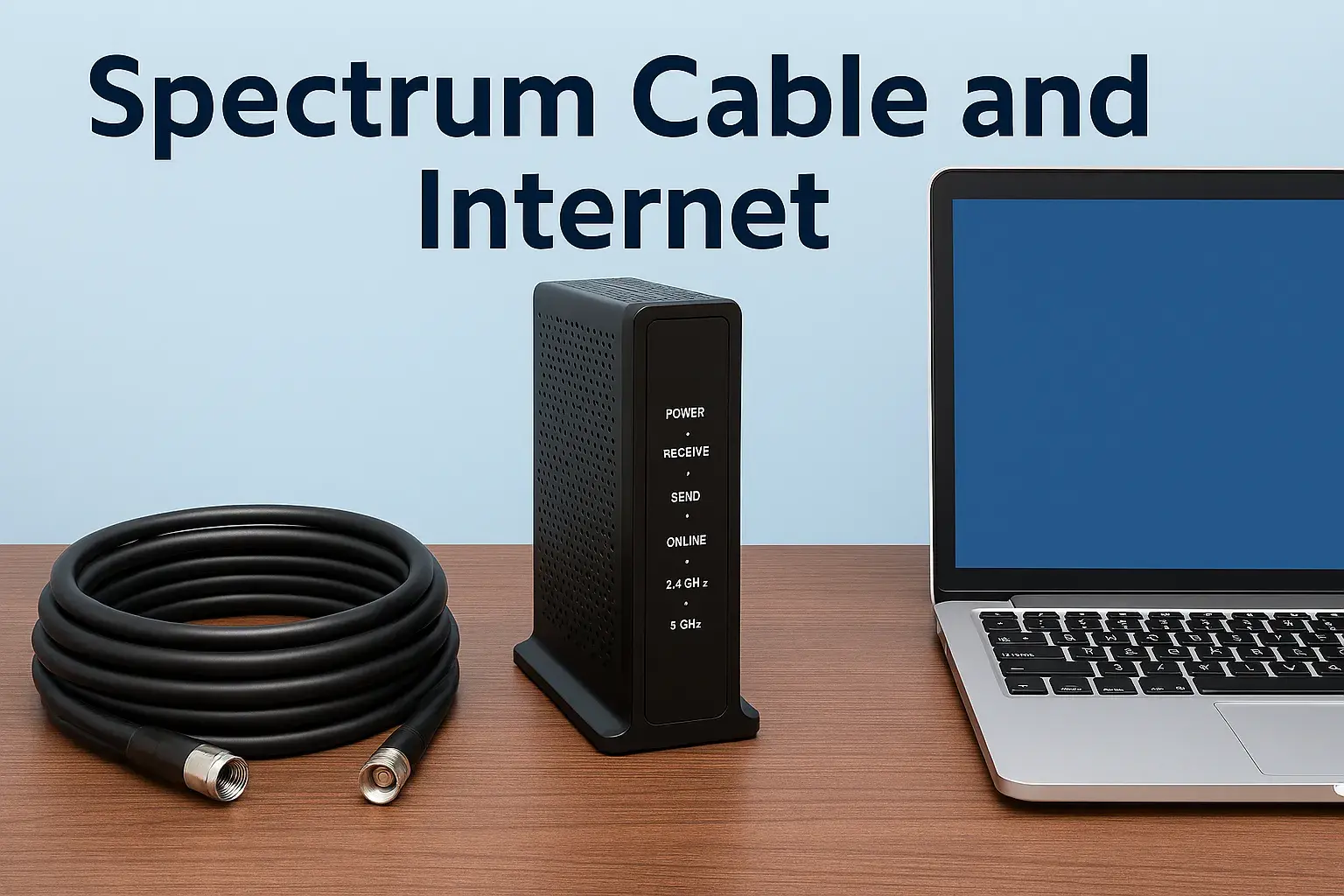
How To Install Spectrum Internet
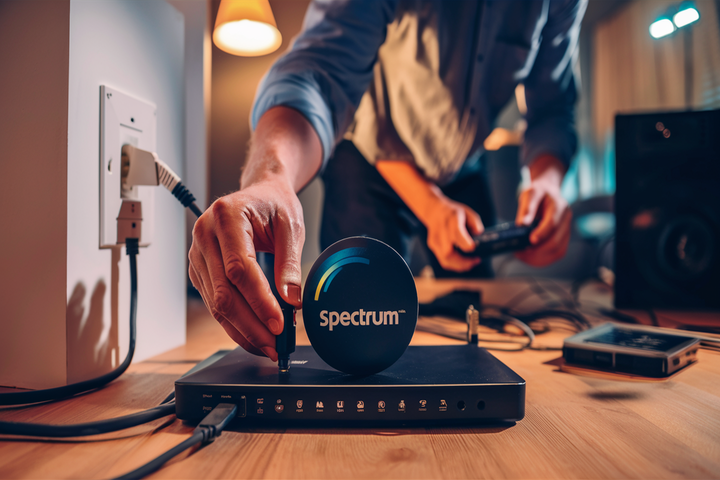
Installing Spectrum Internet at home can be a straightforward process, whether you opt for professional installation or choose to set it up yourself. This guide provides a comprehensive, step-by-step walkthrough to ensure a smooth and successful Spectrum internet setup, helping you get online quickly and efficiently.
Understanding Spectrum Internet Options
Spectrum, a prominent internet service provider (ISP) in the United States, offers a variety of internet plans designed to meet diverse user needs. When you decide to get Spectrum internet, you'll typically encounter two primary installation methods: professional installation and self-installation. Each has its own set of advantages, costs, and requirements, making it crucial to understand them before proceeding.
Professional Installation: The Hassle-Free Approach
Professional installation involves a certified Spectrum technician visiting your home to set up your internet service. This option is ideal for individuals who prefer not to deal with technical setup, have complex home wiring, or are installing service for the first time. The technician will ensure that the modem and router are correctly connected, test the signal strength, and confirm that your internet is working optimally. While it often incurs an upfront fee, it guarantees a professional setup and can save you time and potential frustration.
Self-Installation: The DIY Solution
Self-installation, also known as DIY installation, allows you to set up your Spectrum internet service yourself using a provided equipment kit. This is a cost-effective option as it typically avoids installation fees. Spectrum usually sends you a kit containing a modem, router (if bundled), and all necessary cables, along with clear, step-by-step instructions. This method requires a certain level of comfort with basic technology and following instructions precisely. It’s a popular choice for those who are tech-savvy or looking to save money on installation costs.
Choosing the Right Option for You
The choice between professional and self-installation largely depends on your personal preferences, technical comfort level, and budget. If you value convenience and peace of mind, professional installation is the way to go. If you're comfortable with technology and want to save money, self-installation is an excellent alternative. Spectrum's customer service can help you determine which option is best suited for your specific situation and location.
Preparing for Installation
Regardless of whether you choose professional or self-installation, proper preparation is key to a smooth and efficient setup process. Taking the time to gather necessary information and prepare your home environment will significantly reduce potential delays and ensure your Spectrum internet is up and running without a hitch.
Gathering Necessary Information
Before the installation day, whether it's for a technician visit or for your DIY kit, ensure you have the following information readily available:
- Account Details: Your Spectrum account number, order confirmation, and any relevant contact information.
- Service Address: Confirm the exact address where the internet service will be installed.
- Preferred Installation Date/Time: If scheduling a professional installation, have a few date and time options in mind.
- Payment Information: Be prepared to pay any upfront installation fees or equipment charges.
- Existing Wiring: Note the location of any existing cable outlets or wiring in your home.
Preparing Your Home Environment
To facilitate a swift installation, prepare your home as follows:
- Clear the Installation Area: Ensure the area where the modem and router will be placed is clean, accessible, and has sufficient ventilation. This typically means near a power outlet and a cable outlet.
- Locate Cable Outlets: Identify the coaxial cable outlets in your home. Spectrum internet typically connects via a coaxial cable. Ensure the outlet is in good condition and not damaged.
- Ensure Power Access: Make sure there are available power outlets near where you plan to set up your modem and router.
- Remove Obstructions: Clear any furniture or clutter that might hinder the technician's access to the installation point or your ability to set up the equipment yourself.
- Secure Pets: If you have pets, ensure they are secured during the installation process, especially if a technician is visiting.
Understanding Equipment Requirements
Spectrum provides the necessary equipment, but understanding what you'll receive is important:
- Modem: This device connects your home to Spectrum's network.
- Router: This device creates your Wi-Fi network, allowing multiple devices to connect wirelessly. Sometimes, Spectrum provides a modem/router combo unit.
- Cables: You'll receive coaxial cables, Ethernet cables, and power cords.
For self-installation, familiarize yourself with the equipment included in your kit. For professional installation, the technician will bring the appropriate equipment.
Professional Installation Guide
Opting for professional installation with Spectrum means a trained technician will handle the entire setup process. This section outlines what to expect from the moment you schedule your appointment to the final confirmation of your service.
Scheduling Your Appointment
When you sign up for Spectrum internet, you can schedule a professional installation. You'll typically be offered a range of appointment windows. It's advisable to choose a time when you or another adult (18 years or older) will be home for the entire duration of the appointment. Spectrum often provides tracking for technicians, similar to package delivery, allowing you to monitor their arrival.
What Happens on Installation Day
On the scheduled day, the Spectrum technician will arrive at your home. They will:
- Assess Your Home: The technician will first assess your home's existing wiring and determine the best location for the modem and router. They will check for a functional cable outlet and a nearby power source.
- Install or Connect Wiring: If necessary, the technician will install new wiring or connect to existing coaxial outlets. They will ensure a secure and optimal connection to Spectrum's network.
- Set Up Equipment: The technician will connect the modem to the cable outlet and power. If a separate router is being used, they will connect it to the modem via an Ethernet cable.
- Configure and Test: They will power on the equipment, configure it for your service, and perform speed tests to ensure you are receiving the speeds outlined in your plan.
- Wi-Fi Setup: If you have a Spectrum-provided router, the technician can help you set up your Wi-Fi network name (SSID) and password. They can also advise on optimal router placement for best coverage.
- Demonstration and Q&A: The technician will demonstrate how your internet is working, explain the equipment, and answer any questions you may have about your service or the equipment.
What to Have Ready for the Technician
While the technician brings most of the tools and equipment, having these items ready will streamline the process:
- Access to the Installation Area: Ensure the area where the modem and router will be placed is clear and accessible.
- A Responsible Adult: Someone 18 years or older must be present for the entire appointment.
- Your Account Information: Have your account number or order details handy.
- Device for Testing: It’s helpful to have a laptop or smartphone ready to test the Wi-Fi connection after the setup is complete.
Post-Installation Checks
Once the technician leaves, take a moment to verify that all devices in your home can connect to the internet. Test both wired (Ethernet) and wireless (Wi-Fi) connections. If you encounter any immediate issues, contact Spectrum customer support right away. They can often resolve minor problems remotely or schedule a follow-up visit if needed.
Self-Installation Guide
Spectrum's self-installation option empowers you to set up your internet service yourself, saving on potential installation fees. This guide provides a detailed, step-by-step process for a successful DIY setup.
Receiving Your Self-Installation Kit
Once you order Spectrum internet and choose self-installation, a kit will be shipped to your home. This kit typically includes:
- Modem: The device that connects to Spectrum's network.
- Power Cord: For the modem.
- Coaxial Cable: To connect the modem to the wall outlet.
- Ethernet Cable: To connect the modem to a router or a computer.
- Router (if applicable): If you ordered a Wi-Fi router from Spectrum, it will be included.
- Installation Guide: A printed manual with step-by-step instructions and diagrams.
Inspect the contents of the kit to ensure everything is present and undamaged. If anything is missing or broken, contact Spectrum customer support immediately.
Step-by-Step Self-Installation Process
Step 1: Choose a Location for Your Equipment
Select a central location in your home for your modem and router. Ideally, this spot should be:
- Near a functional coaxial cable outlet.
- Close to a power outlet.
- In an open area, away from obstructions, for better Wi-Fi signal distribution.
- Avoid placing it near large metal objects or other electronics that could cause interference.
Step 2: Connect the Modem
Follow these steps to connect your modem:
- Connect the Coaxial Cable: Screw one end of the coaxial cable securely into the cable outlet on your wall. Connect the other end to the "Cable In" or "RF In" port on the back of your modem. Hand-tighten is usually sufficient; avoid over-tightening.
- Connect the Power Cord: Plug the modem's power cord into the modem and then into a nearby power outlet.
- Power On: The modem will begin to power on. This process can take several minutes.
Step 3: Wait for Modem Synchronization
Observe the lights on the front of your modem. They will blink and change status as the modem powers up, connects to Spectrum's network, and synchronizes. This process can take anywhere from 5 to 15 minutes. You are looking for a solid "Online" or "Internet" light, indicating a successful connection. Refer to your modem's manual or the Spectrum guide for specific light indicators.
Step 4: Connect Your Router (If Separate)
If you have a separate Wi-Fi router:
- Connect Ethernet Cable: Plug one end of the Ethernet cable into the Ethernet port on your modem (often labeled "LAN" or "Ethernet"). Connect the other end into the "Internet" or "WAN" port on your router.
- Power On Router: Connect the router's power adapter and plug it into a power outlet.
- Wait for Router Boot-Up: The router will also take a few minutes to power on and establish a connection.
Step 5: Connect Your Devices
Once the modem and router are fully operational (indicated by stable lights), you can connect your devices:
- Wired Connection: Use an Ethernet cable to connect your computer directly to one of the LAN ports on your router (or directly to the modem if you are not using a router).
- Wireless Connection: On your computer, smartphone, or tablet, search for available Wi-Fi networks. Your Spectrum router's default network name (SSID) and password should be printed on a sticker on the router itself or included in the kit. Connect to this network and enter the password.
Step 6: Activate Your Service
In most cases, Spectrum's self-installation kits are pre-activated or will activate automatically once the modem is online. However, some situations may require manual activation. Your installation guide will provide specific instructions. This might involve visiting a specific Spectrum web page (e.g., activate.spectrum.com) or calling a Spectrum activation number. Follow the on-screen or voice prompts carefully.
Step 7: Test Your Internet Connection
After activation, test your internet connection by opening a web browser and visiting a few websites. Run a speed test (search for "internet speed test" online) to verify you are receiving the speeds associated with your plan. For example, if you subscribed to a 300 Mbps plan, your speed test should ideally show results close to that number.
Tips for a Smooth Self-Installation
- Read the Guide Thoroughly: Don't skip reading the provided installation guide. It contains specific details about your equipment.
- Check Your Outlet: Ensure your coaxial outlet is in good condition. If it's loose or damaged, you might need to contact Spectrum for assistance.
- Patience is Key: Modem and router boot-up and synchronization can take time. Don't rush the process.
- Restart Equipment: If you encounter issues, try power cycling your modem and router by unplugging them from power for 30 seconds and plugging them back in.
Troubleshooting Common Issues
Even with careful preparation, you might encounter minor issues during or after the installation of your Spectrum internet. This section covers common problems and their solutions, helping you get back online quickly.
No Internet Connection
Symptom: Devices cannot connect to the internet, or web pages do not load.
Possible Causes & Solutions:
- Modem Not Online: Check the lights on your modem. If the "Online" or "Internet" light is off or blinking, the modem is not successfully connecting to Spectrum's network.
- Action: Ensure the coaxial cable is securely connected at both ends. Try a different coaxial outlet if available. Power cycle the modem (unplug power for 30 seconds, then plug back in).
- Router Issues: If you have a separate router, the issue might be with it.
- Action: Check the Ethernet cable connecting the modem to the router. Ensure it's secure. Power cycle the router. Try connecting a device directly to the modem with an Ethernet cable to see if that works.
- Activation Problem: The service might not be fully activated.
- Action: Visit activate.spectrum.com or call Spectrum's activation line to ensure your service is active.
Slow Internet Speeds
Symptom: Websites load slowly, videos buffer, or downloads take a long time.
Possible Causes & Solutions:
- Too Many Devices: A large number of devices simultaneously using the internet can strain your bandwidth.
- Action: Disconnect devices that are not actively in use.
- Wi-Fi Interference: Other electronic devices (microwaves, cordless phones, Bluetooth devices) or physical obstructions can interfere with Wi-Fi signals.
- Action: Move your router to a more central, open location. Try changing the Wi-Fi channel on your router (consult your router's manual).
- Outdated Equipment: Older modems or routers may not support the speeds of your current plan.
- Action: Check if your modem and router are DOCSIS 3.0 or 3.1 compatible, which are standard for higher speeds. Consider upgrading if necessary.
- Network Congestion: Sometimes, internet speeds can fluctuate due to high usage in your neighborhood.
- Action: Run a speed test at different times of the day. If speeds are consistently low, contact Spectrum.
- Wired vs. Wireless: Wired connections are generally faster and more stable than wireless.
- Action: Test your speed using an Ethernet cable directly connected to the modem/router. If wired speeds are good but Wi-Fi is slow, the issue is likely with your Wi-Fi setup.
Wi-Fi Connectivity Issues
Symptom: Devices can connect to Wi-Fi but have intermittent or no internet access, or the Wi-Fi signal is weak.
Possible Causes & Solutions:
- Router Placement: The router might be too far from your devices or blocked by walls or furniture.
- Action: Relocate the router to a more central and elevated position.
- Router Overload: Too many devices connected to the router.
- Action: Disconnect unused devices.
- Router Needs Reboot: Like any electronic device, routers can benefit from a restart.
- Action: Power cycle your router.
- Incorrect Wi-Fi Password: Double-check that you are using the correct Wi-Fi password. Passwords are case-sensitive.
- Outdated Router Firmware: Router manufacturers release firmware updates to improve performance and security.
- Action: Check your router manufacturer's website or your Spectrum account portal for firmware update instructions.
Modem Lights Explained
Understanding your modem's lights is crucial for troubleshooting. While specific indicators vary by model, common lights include:
- Power: Indicates the modem is receiving power. Should be solid.
- Downstream/Receive: Indicates connection to the downstream channel. Should be solid or blinking rapidly during sync.
- Upstream/Send: Indicates connection to the upstream channel. Should be solid or blinking rapidly during sync.
- Online/Internet: Indicates the modem is successfully connected to Spectrum's network and has an active internet connection. This is the most important light; it should be solid.
- Activity/Link: Blinks when data is being transmitted or received.
Refer to your specific modem's manual or Spectrum's support documentation for a detailed explanation of its lights.
When to Contact Spectrum Support
If you've tried the above troubleshooting steps and are still experiencing issues, it's time to contact Spectrum customer support. Be prepared to:
- Provide your account number.
- Describe the problem in detail.
- Explain the troubleshooting steps you have already taken.
Spectrum support can remotely diagnose your connection, check for outages in your area, and schedule a technician visit if necessary.
Optimizing Your Spectrum Internet Setup
Once your Spectrum internet is installed and working, you can take steps to optimize your setup for the best performance, reliability, and coverage. This involves fine-tuning your equipment, network settings, and usage habits.
Router Placement and Configuration
The physical location and settings of your Wi-Fi router significantly impact your home network's performance.
- Central Location: Place your router in a central, elevated, and open area of your home. Avoid corners, closets, basements, or behind large appliances.
- Minimize Obstructions: Thick walls, metal objects, and aquariums can weaken Wi-Fi signals.
- Reduce Interference: Keep your router away from other electronic devices that emit radio waves, such as microwaves, cordless phones, and Bluetooth devices.
- Dual-Band Routers: If you have a dual-band router (2.4 GHz and 5 GHz), use the 5 GHz band for devices that are close to the router and require high speeds (like streaming or gaming). The 2.4 GHz band has a longer range and is better for devices further away or that don't require high bandwidth.
- Channel Selection: Most routers automatically select the best Wi-Fi channel, but sometimes manual selection can improve performance, especially in crowded Wi-Fi environments. Use a Wi-Fi analyzer app to find less congested channels.
Wi-Fi Extenders and Mesh Systems
For larger homes or areas with weak Wi-Fi signals, consider these solutions:
- Wi-Fi Extenders/Repeaters: These devices capture your existing Wi-Fi signal and rebroadcast it, extending the range. They are generally less expensive but can sometimes reduce speeds.
- Mesh Wi-Fi Systems: These systems use multiple nodes placed around your home to create a single, seamless Wi-Fi network. They offer better performance and coverage than extenders, especially in larger or multi-story homes, but are typically more expensive.
Securing Your Network
Protecting your Wi-Fi network from unauthorized access is crucial for security and maintaining your internet speed.
- Strong Password: Use a strong, unique password for your Wi-Fi network (SSID). Avoid easily guessable information like names or birthdays.
- WPA3/WPA2 Encryption: Ensure your router is using WPA3 or WPA2 encryption, which are the most secure wireless security protocols.
- Change Default Credentials: Always change the default administrator username and password for your router's settings interface.
- Guest Network: If your router supports it, set up a guest network for visitors. This keeps them on a separate network from your main devices.
Monitoring Your Internet Usage
Understanding how your internet bandwidth is being used can help you manage it effectively.
- Bandwidth-Heavy Activities: Be aware that activities like streaming high-definition video, online gaming, large file downloads, and video conferencing consume significant bandwidth.
- Device Management: Periodically check which devices are connected to your network and disconnect any that are not in use.
- Spectrum App: Spectrum offers a mobile app that can help you manage your account, check for outages, and sometimes monitor your network performance.
Equipment Upgrades
As internet technology evolves and your needs change, consider upgrading your equipment:
- Modem Compatibility: Ensure your modem supports the latest DOCSIS standard (e.g., DOCSIS 3.1) for optimal speeds and future-proofing. Spectrum may require specific modem types for certain speed tiers.
- Router Capabilities: Look for routers that support the latest Wi-Fi standards (e.g., Wi-Fi 6/6E) for faster speeds, better efficiency, and improved performance with multiple devices.
Regular Maintenance
Just like any technology, your internet equipment benefits from occasional maintenance:
- Reboot Periodically: Rebooting your modem and router weekly or bi-weekly can help clear temporary glitches and improve performance.
- Check Cables: Ensure all cables (coaxial, Ethernet, power) are securely connected and not damaged.
- Firmware Updates: Keep your router's firmware updated to the latest version.
Spectrum Internet Plans and Pricing (2025)
Spectrum offers a range of internet plans designed to cater to different household needs and budgets. Pricing and specific plan details can vary by location and are subject to change. The following information provides an overview of typical offerings as of early 2025. It is always recommended to check Spectrum's official website or contact them directly for the most accurate and up-to-date pricing for your specific address.
Typical Spectrum Internet Tiers
Spectrum typically categorizes its internet plans by download speed. Here are some common tiers you might find:
| Plan Name | Download Speeds (Up to) | Upload Speeds (Up to) | Ideal For | Estimated Monthly Price (2025) |
|---|---|---|---|---|
| Spectrum Internet Gig | 1 Gig (1000 Mbps) | Not explicitly advertised, typically a fraction of download speed | Heavy users, multiple devices, 4K streaming, online gaming, large file transfers | $89.99 - $109.99 |
| Spectrum Internet Ultra | 500 Mbps | Not explicitly advertised | Large households, heavy streaming, multiple users, demanding online activities | $69.99 - $89.99 |
| Spectrum Internet | 300 Mbps | Not explicitly advertised | Average households, moderate streaming, general web browsing, email | $49.99 - $69.99 |
| Spectrum Internet Assist | 200 Mbps | Not explicitly advertised | Low-income households, basic internet needs, email, light browsing | $29.99 - $49.99 (Requires eligibility) |
Note: Upload speeds for Spectrum's standard cable internet plans are typically much lower than download speeds. For example, a 300 Mbps download plan might have upload speeds around 10-20 Mbps. Gigabit plans may offer higher upload speeds, but this can vary.
Factors Affecting Pricing
- Promotional Pricing: New customers often receive discounted rates for the first 12-24 months. After the promotional period, prices typically increase to standard rates.
- Bundling: Bundling Spectrum Internet with TV and/or phone services can often lead to savings compared to subscribing to each service individually.
- Equipment Rental Fees: Spectrum may charge a monthly fee for modem and/or router rentals. Purchasing your own compatible equipment can save money in the long run.
- Installation Fees: While self-installation is often free, professional installation typically incurs an upfront fee (e.g., $49.99 - $99.99).
- Data Caps: Spectrum generally does not impose data caps on its internet plans, which is a significant advantage for heavy users.
- Contract Terms: Spectrum internet plans are typically month-to-month with no long-term contracts required, offering flexibility.
Spectrum Internet Assist Program
Spectrum Internet Assist is a program designed to provide affordable internet access to eligible low-income households, including those participating in the FCC's Affordable Connectivity Program (ACP). Eligibility requirements typically include participation in programs like SNAP, Medicaid, National School Lunch Program, SSI, HUD assistance, or being a recipient of the Lifeline program. The program offers discounted internet speeds suitable for basic online activities.
How to Get the Most Accurate Pricing
The most reliable way to determine the exact plans, speeds, and pricing available for your home is to:
- Visit the Spectrum Website: Go to www.spectrum.com and enter your address to see available offers in your area.
- Contact Spectrum Sales: Call Spectrum's sales department directly to speak with a representative who can provide personalized recommendations and pricing.
Always clarify the terms of any promotional offer, including the duration of the discount and the price after the promotional period ends.
Conclusion
Installing Spectrum Internet, whether through professional assistance or a DIY approach, is a manageable process designed to get you connected efficiently. By understanding your options, preparing your home, and following the step-by-step guides, you can ensure a smooth transition to reliable high-speed internet. Remember to verify your account details, prepare your installation area, and be patient during the setup and activation phases. Troubleshooting common issues like slow speeds or connectivity problems is often straightforward with the right guidance, and optimizing your setup can further enhance your online experience. For the latest information on plans and pricing in 2025, always consult Spectrum directly. With Spectrum, you can look forward to enjoying robust internet service for all your digital needs.
📚Read More Articles About Spectrum
How to Find a Spectrum Store Near Me: A Comprehensive Guide
February 16, 2026
All About Spectrum Services: Internet, TV, Mobile Plans & Pricing Explained
January 19, 2026
Spectrum Store Locator for 43017: Hours, Services & What to Bring
December 22, 2025