Experiencing sluggish speeds with your Spectrum internet connection can be incredibly frustrating. This comprehensive guide dives deep into the common culprits behind "Why Is Spectrum Internet So Slow," offering actionable solutions and insights to help you diagnose and resolve your connectivity issues. We aim to provide the most detailed and up-to-date information for 2025-26.
Understanding Spectrum Internet Speeds
When you subscribe to Spectrum internet, you're signing up for a certain tier of service that promises a maximum download and upload speed. However, the speed you experience in your home is often a complex interplay of your subscribed plan, the quality of your equipment, network conditions, and even the devices you use. It's crucial to understand that advertised speeds are typically "up to" speeds, meaning you might not consistently achieve them, especially during peak usage times or with less-than-ideal conditions. For instance, Spectrum's most common plans in 2025-26 range from their "Internet" plan, offering up to 300 Mbps download, to "Internet Ultra" with up to 500 Mbps, and "Gigabit Internet" reaching up to 1 Gbps (1000 Mbps) download. Upload speeds are generally a fraction of download speeds, often ranging from 10 Mbps to 35 Mbps for these plans. Understanding these baseline expectations is the first step in diagnosing why your Spectrum internet might be performing below par.
Common Reasons for Slow Spectrum Internet
Numerous factors can contribute to a slow Spectrum internet connection. Identifying the root cause is key to finding an effective solution. We'll break down the most frequent culprits below.
Your Internet Plan Limitations
The most straightforward reason for slow internet is that your current Spectrum plan simply doesn't offer the speeds you need. If you're trying to support multiple high-bandwidth activities like 4K streaming, online gaming, large file downloads, and numerous connected smart home devices on a basic plan designed for lighter usage, you're likely to encounter bottlenecks. For example, if you have the "Internet" plan offering up to 300 Mbps download and you have a household with three people simultaneously streaming Netflix in HD (each consuming around 5 Mbps) and another person gaming online (which can use 3-10 Mbps), you're already using a significant portion of your available bandwidth. By 2025-26, with the increasing demand for higher-definition content and more connected devices, even 300 Mbps might feel slow for a busy household. It's essential to assess your household's typical internet usage patterns and compare them against the speeds your current plan provides.
Equipment Issues: Modem & Router
Your modem and router are the gateways to your internet connection. If they are not functioning optimally, or are not capable of handling the speeds provided by your Spectrum plan, they can significantly slow down your connection. This is a very common point of failure.
Modem Problems
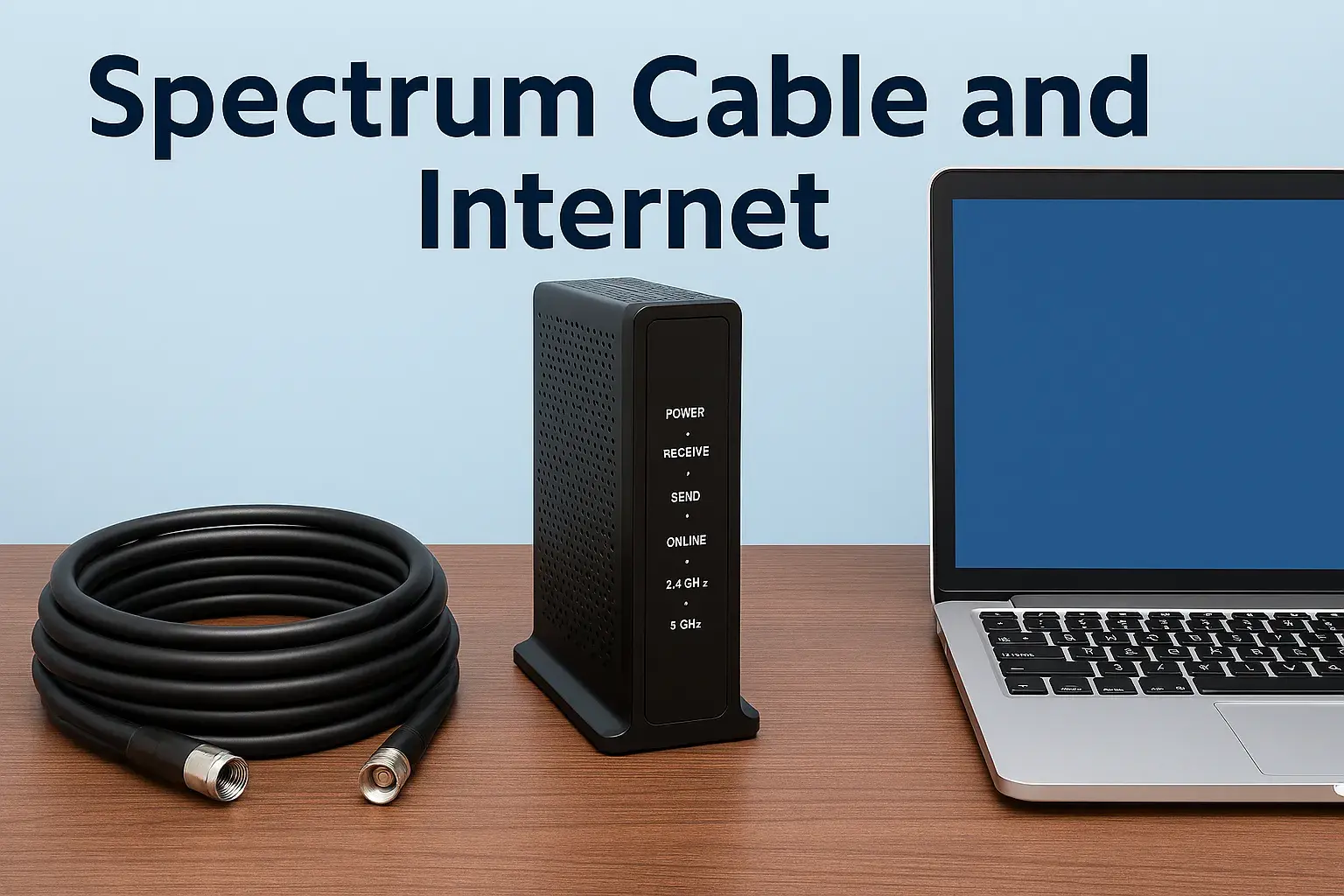
The modem is responsible for translating the signal from Spectrum's network into a format your devices can understand. If your modem is faulty, outdated, or not provisioned correctly for your speed tier, it can become a bottleneck. For instance, a modem rated for only 100 Mbps will cap your connection even if you're paying for a 300 Mbps plan. Spectrum often provides modems, but many users opt to purchase their own. It's crucial to ensure your modem is on Spectrum's approved modem list and supports the DOCSIS standard required for your speed tier. For example, DOCSIS 3.0 is generally sufficient for speeds up to 300-400 Mbps, but for plans exceeding 500 Mbps, a DOCSIS 3.1 modem is highly recommended to avoid throttling. In 2025-26, many users are opting for DOCSIS 3.1 modems even on lower-tier plans to future-proof their setup and ensure compatibility with higher speeds should they upgrade.
Router Bottlenecks
The router distributes the internet connection to your devices, typically via Wi-Fi. An older or underpowered router can struggle to handle the demands of multiple devices or high-speed data traffic. If your router's internal processor is weak, or its Wi-Fi standard is outdated (e.g., Wi-Fi 4 or 5), it might not be able to push data to your devices as quickly as your modem receives it from Spectrum. This is particularly noticeable when you have many devices connected simultaneously, each requesting data. A router that supports Wi-Fi 6 (802.11ax) or Wi-Fi 6E is becoming increasingly standard in 2025-26 for optimal performance, especially for households with many devices.
Outdated Equipment
Technology evolves rapidly. Equipment that was cutting-edge a few years ago might be obsolete today. If you're using a modem or router that is more than 3-5 years old, it's highly probable that it's not capable of supporting the latest internet speeds and Wi-Fi protocols. For example, a router from 2018 might only support Wi-Fi 5 (802.11ac), which has a theoretical maximum speed of around 3.5 Gbps but is significantly slower in real-world conditions, especially with multiple devices. Newer routers with Wi-Fi 6 or 6E offer better efficiency, higher speeds, and improved performance in congested environments, which is critical for maintaining fast Spectrum internet in 2025-26.
Network Congestion
Even with a great plan and top-notch equipment, your internet speed can suffer due to congestion, both within your home and on Spectrum's broader network.
Peak Hours and Neighborhood Usage
This is a common issue with cable internet services like Spectrum. During peak hours (typically evenings and weekends when most people are online), the shared bandwidth in your neighborhood can become saturated. Imagine your neighborhood's internet connection as a highway. During rush hour, traffic slows down for everyone. If many of your neighbors are streaming, gaming, or downloading large files simultaneously, your individual speed can decrease significantly. This is a shared resource problem inherent to cable internet infrastructure. While Spectrum works to manage this, it's a reality that speeds can fluctuate based on local demand. In 2025-26, with the proliferation of smart home devices and increased reliance on streaming services, this congestion can be more pronounced.
Spectrum Infrastructure Limitations
Spectrum, like all internet service providers (ISPs), relies on a vast network of cables, hubs, and servers. Sometimes, the infrastructure serving your specific area might be aging, overloaded, or undergoing maintenance. This can lead to slower speeds, especially if there's a bottleneck at a local node or if the cables in your area are not designed to handle the current demand. While Spectrum invests in upgrades, these can take time and may not reach every area simultaneously. If your neighborhood is experiencing rapid growth in population or internet usage without corresponding infrastructure upgrades, you might notice a persistent slowdown, particularly during peak times. This is a factor often outside of your direct control but can be reported to Spectrum.
Wi-Fi Signal Weakness
Your Wi-Fi signal is the wireless connection between your router and your devices. A weak or unstable Wi-Fi signal is a frequent cause of perceived slow internet, even if your modem is receiving a strong signal from Spectrum.
Distance from Router
The further your device is from the router, the weaker the Wi-Fi signal will be. Wi-Fi signals degrade over distance, and this degradation directly impacts your connection speed and stability. If you're trying to use the internet in a room far from your router, or on a different floor, you'll likely experience slower speeds than if you were right next to it. This is a fundamental limitation of wireless technology.
Physical Obstructions
Walls (especially those made of brick, concrete, or metal), large appliances (like refrigerators or microwaves), and even aquariums can interfere with and weaken Wi-Fi signals. These obstructions absorb or reflect the radio waves that carry your Wi-Fi signal, creating dead zones or areas with significantly reduced speed and reliability. The more dense the materials between your router and your device, the greater the signal attenuation.
Interference from Other Devices
Many common household electronics operate on the same radio frequencies as Wi-Fi (2.4 GHz and 5 GHz bands). Devices like microwaves, cordless phones, Bluetooth devices, and even some baby monitors can emit radio waves that interfere with your Wi-Fi signal, causing slowdowns and dropped connections. Newer routers that utilize the less crowded 5 GHz or 6 GHz bands (with Wi-Fi 6E) are generally less susceptible to this type of interference.
Too Many Connected Devices
Every device connected to your Wi-Fi network consumes a portion of your available bandwidth and router processing power. If you have numerous devices actively using the internet simultaneously – smartphones, tablets, laptops, smart TVs, gaming consoles, smart home gadgets – your router can become overwhelmed, leading to slower speeds for all connected devices. Even if a device isn't actively being used, it might be performing background updates or syncing data, consuming bandwidth. In 2025-26, with the average household having 20-30 connected devices, this is a significant factor.
Software and Device Issues
Sometimes, the problem isn't with Spectrum's service or your home network, but with the devices you're using to access the internet.
Outdated Device Drivers and Firmware
Your computer's network adapter drivers and your router's firmware are software that controls how your devices connect to the internet. If these are outdated, they might not be optimized for the latest network protocols or may contain bugs that hinder performance. Regularly updating these components can resolve performance issues. For example, a Wi-Fi driver update might improve the efficiency of your laptop's wireless card, leading to faster speeds.
Malware and Viruses
Malicious software (malware) and viruses can consume your device's resources and bandwidth without your knowledge. They can run in the background, sending and receiving data, which significantly slows down your internet connection. Running regular scans with reputable antivirus software is essential for maintaining optimal device performance and internet speed.
Background Applications and Downloads
Many applications and services on your computer or mobile devices can consume bandwidth in the background. This includes automatic software updates, cloud synchronization services (like Dropbox or Google Drive), peer-to-peer file sharing, and even certain browser extensions. If a large download or update is running, it will naturally consume a significant portion of your available bandwidth, making other internet activities appear slow.
DNS Server Issues
The Domain Name System (DNS) server translates human-readable website addresses (like google.com) into IP addresses that computers understand. If your ISP's default DNS server is slow or experiencing issues, it can cause websites to load slowly, making your internet feel sluggish. While less common, a slow DNS lookup can add noticeable latency to your browsing experience. You can sometimes improve browsing speed by switching to a faster, public DNS server like Google DNS or Cloudflare DNS.
Cable and Wiring Problems
The physical cables connecting your modem to the wall outlet and the coaxial cable running from the street to your home are critical. Damaged, frayed, or improperly connected coaxial cables can lead to signal degradation and intermittent connectivity issues, manifesting as slow speeds. Even internal wiring within your home, if old or poorly installed, can affect signal quality. Ensuring all connections are secure and that cables are in good condition is a vital troubleshooting step.
Troubleshooting Slow Spectrum Internet: Step-by-Step
Now that we've explored the potential causes, let's walk through a systematic approach to diagnose and fix your slow Spectrum internet. This guide is designed for 2025-26, incorporating current best practices.
Step 1: Run a Speed Test
Before doing anything else, get a baseline measurement. Use a reliable speed test tool like Speedtest.net by Ookla or Fast.com (powered by Netflix). Run the test at least three times during different times of the day (e.g., morning, afternoon, evening) to account for fluctuations. Compare the results to the speeds advertised in your Spectrum plan. Note down your download and upload speeds, as well as your ping (latency). If your speeds are consistently far below what you're paying for, it confirms there's an issue.
Step 2: Restart Your Modem and Router
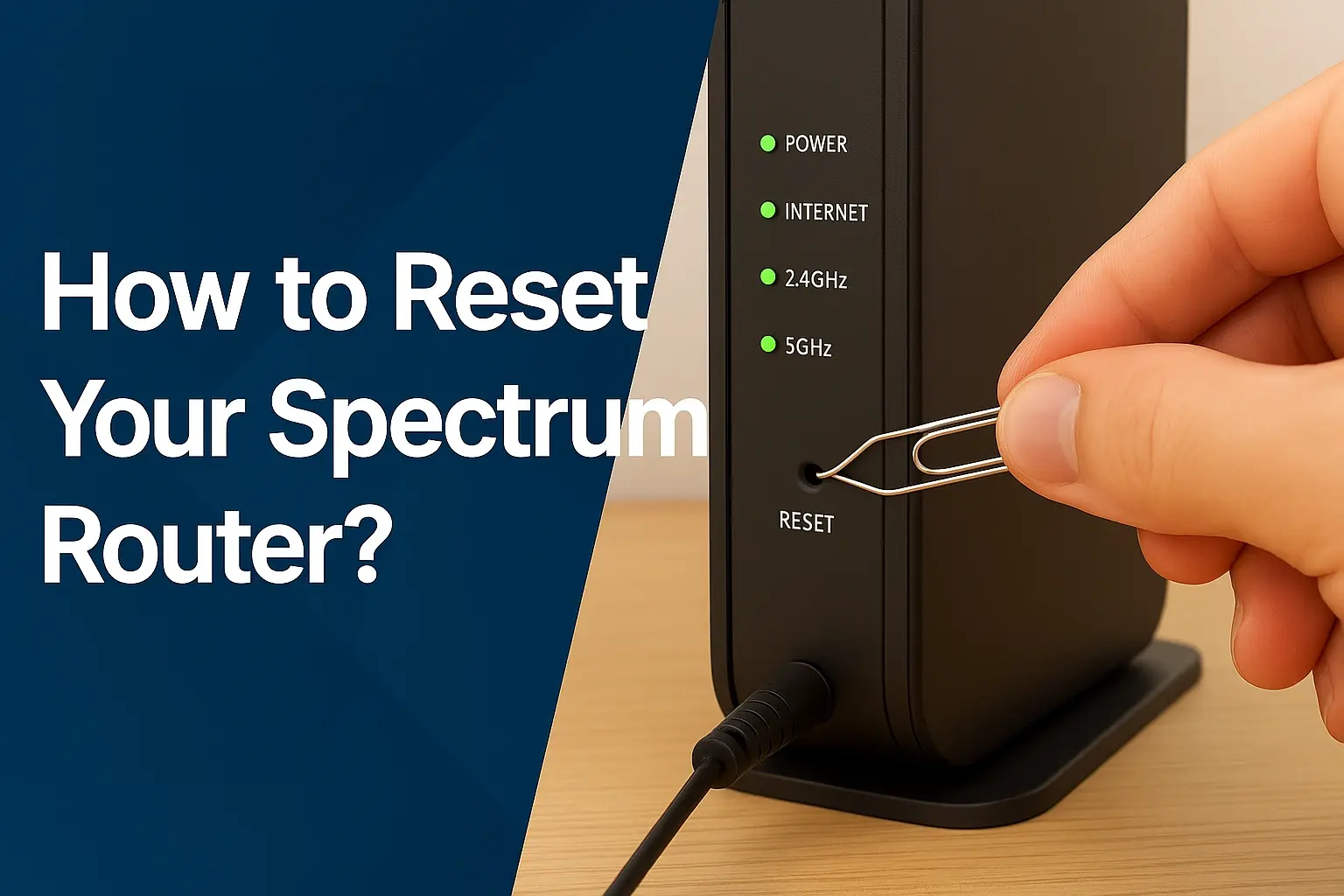
This is the classic "turn it off and on again" solution, and it often works wonders. Unplug both your modem and router from the power outlet. Wait for at least 30-60 seconds to allow them to fully discharge. Plug the modem back in first and wait for all its lights to stabilize (usually 1-2 minutes). Then, plug in your router and wait for its lights to stabilize. Once both are back online, run another speed test to see if performance has improved.
Step 3: Check Your Equipment
Modem: Verify that your modem is compatible with your Spectrum plan's speed tier. Check Spectrum's website for a list of approved modems and their supported speeds. If you're using an older DOCSIS 3.0 modem for a plan that exceeds 400 Mbps, it's likely a bottleneck. For 2025-26, a DOCSIS 3.1 modem is recommended for speeds above 500 Mbps. Check the modem's status lights; blinking lights can indicate a connection issue. If you rent a modem from Spectrum, ensure it's a recent model.
Router: Ensure your router is capable of handling your internet speed. If your plan is 300 Mbps or higher, a router that supports Wi-Fi 5 (802.11ac) is the minimum, but a Wi-Fi 6 (802.11ax) or Wi-Fi 6E router is highly recommended for optimal performance in 2025-26, especially with multiple devices. Check your router's specifications to confirm its maximum theoretical speeds.
Step 4: Optimize Your Wi-Fi Signal
Placement: Position your router in a central, open location in your home, away from walls, large furniture, and potential sources of interference like microwaves or cordless phones. Elevating the router can also help. For larger homes, consider a mesh Wi-Fi system or Wi-Fi extenders.
Frequency Band: If your router supports both 2.4 GHz and 5 GHz bands, try connecting your devices to the 5 GHz band for faster speeds, as it's less prone to interference and offers higher bandwidth. The 2.4 GHz band has a longer range but is slower and more susceptible to interference.
Channel Selection: Many routers automatically select the best Wi-Fi channel, but sometimes manual selection can improve performance. You can use Wi-Fi analyzer apps on your smartphone to identify less congested channels in your area.
Step 5: Test Wired vs. Wireless Connections
Connect a computer directly to your router using an Ethernet cable. Run a speed test. If the wired connection shows speeds close to your subscribed plan, the issue is likely with your Wi-Fi signal or router's wireless capabilities. If the wired connection is also slow, the problem is more likely with your modem, the incoming Spectrum signal, or network congestion.
Step 6: Check for Background Activity
On your computer, open Task Manager (Windows) or Activity Monitor (macOS) and look at the network usage. See if any applications are consuming significant bandwidth. On mobile devices, check app settings for background data usage. Pause or disable any large downloads, updates, or cloud syncs that are running. For example, Windows updates or cloud backups can consume a lot of bandwidth.
Step 7: Scan for Malware
Run a full system scan using a reputable antivirus and anti-malware program. Ensure your security software is up to date. If any threats are detected, remove them and restart your device. Then, run another speed test.
Step 8: Consider DNS Settings
If website loading is slow but speed tests are acceptable, try changing your DNS servers. You can switch to public DNS servers like Google DNS (8.8.8.8 and 8.8.4.4) or Cloudflare DNS (1.1.1.1 and 1.0.0.1). You can change this in your router's settings or on individual devices. This is a more advanced step but can sometimes yield noticeable improvements in browsing speed.
Step 9: Inspect Cables and Connections
Check the coaxial cable connecting your modem to the wall outlet. Ensure it's securely fastened at both ends and that the cable itself isn't visibly damaged, kinked, or frayed. If you have splitters, ensure they are high-quality and that all unused ports are terminated with a 75-ohm terminator. Damaged or old cabling is a common cause of signal degradation.
Step 10: Contact Spectrum Support
If you've gone through all the above steps and your internet is still slow, it's time to contact Spectrum. Be prepared to provide them with your speed test results, details about your equipment, and the troubleshooting steps you've already taken. They can check the signal strength to your home, identify any issues on their network in your area, and potentially schedule a technician visit if necessary.
Spectrum Internet Plans and Speed Expectations (2025-26)
In 2025-26, Spectrum continues to offer a range of internet plans designed to meet various user needs. Understanding the typical speeds associated with each plan is crucial for setting realistic expectations and diagnosing slow performance. Here's a general overview:
| Spectrum Plan Name | Advertised Download Speed (Up To) | Advertised Upload Speed (Up To) | Typical Use Cases | Notes for 2025-26 |
|---|---|---|---|---|
| Internet | 300 Mbps | 10 Mbps | Basic browsing, email, social media, standard-definition streaming, single-device HD streaming. | Sufficient for light users or individuals. May struggle with multiple simultaneous HD/4K streams or heavy gaming. |
| Internet Ultra | 500 Mbps | 20 Mbps | Multiple HD/4K streams, online gaming, video conferencing, larger file downloads, smart home devices. | A good balance for many households. Handles moderate to heavy usage well. |
| Gigabit Internet | 1 Gbps (1000 Mbps) | 35 Mbps | Heavy 4K streaming, demanding online gaming, large file transfers, multiple users with high bandwidth needs, professional remote work. | Ideal for power users and large, connected households. Requires compatible equipment (DOCSIS 3.1 modem, Wi-Fi 6/6E router). |
It's important to remember that these are "up to" speeds. Real-world speeds can be affected by factors discussed earlier, such as network congestion, Wi-Fi performance, and equipment capabilities. For instance, a 300 Mbps plan might realistically deliver 250-280 Mbps during off-peak hours and potentially drop to 150-200 Mbps during peak times, especially over Wi-Fi. Similarly, a Gigabit plan might see speeds in the 700-900 Mbps range on a wired connection during ideal conditions. By 2025-26, the demand for bandwidth continues to grow, making it increasingly important to choose a plan that aligns with your household's actual internet consumption.
Optimizing Your Spectrum Connection for Peak Performance
Beyond basic troubleshooting, several proactive steps can significantly improve and maintain your Spectrum internet speeds. These strategies are particularly relevant for 2025-26, as internet usage continues to evolve.
Upgrade Your Plan
If you've consistently run speed tests and found that your actual speeds are close to your plan's limit, and you still experience slowness during peak usage, the most direct solution is to upgrade your Spectrum internet plan. For households with multiple users, extensive streaming, or heavy online gaming, moving from a 300 Mbps plan to a 500 Mbps or Gigabit plan can make a substantial difference. Consider your current and future needs before making the upgrade.
Invest in Better Equipment
As discussed, outdated modems and routers are major bottlenecks.
- Modem: Ensure your modem is DOCSIS 3.1 certified if you have or plan to get a plan above 500 Mbps. This is critical for handling gigabit speeds efficiently. Check Spectrum's approved modem list to ensure compatibility.
- Router: Upgrade to a router that supports Wi-Fi 6 (802.11ax) or Wi-Fi 6E. These newer standards offer higher speeds, better efficiency in crowded Wi-Fi environments, and improved handling of multiple devices. For 2025-26, Wi-Fi 6 is becoming the standard for performance-conscious users.
Purchasing your own equipment can sometimes be more cost-effective in the long run than renting from Spectrum, provided you choose compatible and high-quality devices.
Strategic Router Placement
This is a free optimization that can yield significant results. Place your router in a central, elevated, and open location within your home. Avoid placing it in corners, behind furniture, or near large metal objects or appliances that can interfere with the signal. A good placement can extend your Wi-Fi range and strength to more areas of your home.
Consider a Mesh Wi-Fi System
For larger homes or homes with multiple floors and thick walls, a single router may not provide adequate coverage. A mesh Wi-Fi system consists of a main router and satellite nodes that work together to create a single, seamless Wi-Fi network throughout your home. This eliminates dead zones and ensures consistent speeds across a wider area. Mesh systems are particularly effective in 2025-26 for users with many connected devices spread throughout their living space.
Manage Device Usage
Be mindful of how many devices are actively using your internet connection simultaneously.
- Schedule Updates: Configure your devices and applications to download and install updates during off-peak hours or when you're not actively using the internet.
- Limit Background Processes: Close unnecessary applications and disable background syncing for services you don't need constantly running.
- Prioritize Devices: Some advanced routers allow you to prioritize bandwidth for specific devices or applications (Quality of Service or QoS settings). This can be useful for ensuring smooth performance for gaming or video conferencing.
- Use Wired Connections: For devices that are stationary and require the highest speeds and stability (like desktop computers or gaming consoles), use an Ethernet cable connection directly to the router whenever possible.
Conclusion: Solving Your Slow Spectrum Internet Issues
Experiencing slow Spectrum internet can stem from a variety of sources, ranging from your subscribed plan and equipment limitations to network congestion and Wi-Fi signal issues. By systematically troubleshooting, starting with simple steps like restarting your equipment and running speed tests, you can often pinpoint the cause. For 2025-26, it's increasingly important to have up-to-date DOCSIS 3.1 modems and Wi-Fi 6/6E routers to leverage the full potential of your Spectrum service. Don't overlook the impact of your home's Wi-Fi environment, device management, and potential malware. If you've exhausted all troubleshooting avenues, contacting Spectrum support is the next logical step. Implementing the strategies outlined in this guide will empower you to diagnose, resolve, and optimize your Spectrum internet connection for a smoother, faster online experience.