Why is My Cox Wifi Blinking Orange?
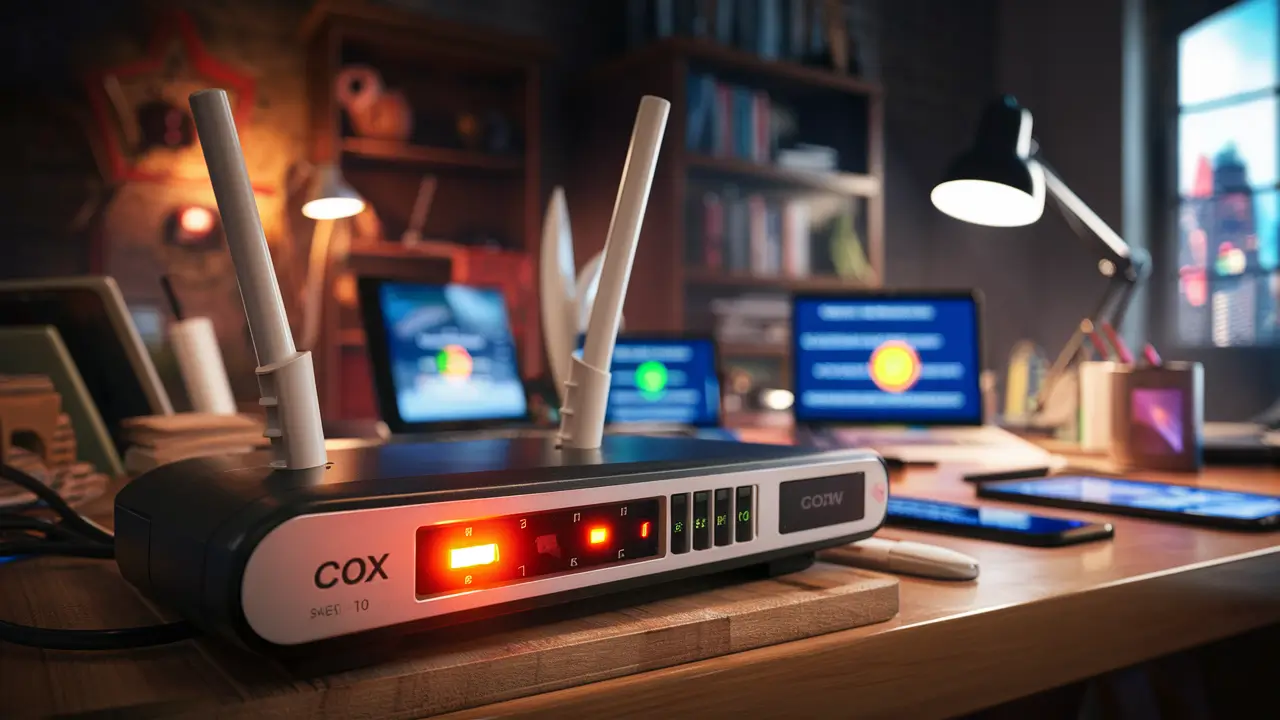
Is your Cox WiFi blinking orange, leaving you disconnected and frustrated? This common indicator often signals an issue with your internet connection or modem. This guide will demystify the blinking orange light, providing clear, actionable steps to diagnose and resolve the problem, restoring your online access swiftly.
Understanding the Blinking Orange Light on Your Cox Modem
The lights on your modem and router are designed to be a visual diagnostic tool, offering immediate insights into the status of your internet connection. When you see a blinking orange light on your Cox WiFi equipment, it's a signal that something is amiss. This isn't necessarily a catastrophic failure, but rather an indication that the device is attempting to establish or maintain a connection, or that it's encountering an error in the process. The specific meaning can vary slightly depending on the model of your Cox modem or router, but generally, it points to a communication issue between your device and Cox's network.
In the realm of network diagnostics, a blinking orange light is often a precursor to a complete loss of service or a sign of intermittent connectivity. It suggests that the modem is receiving power but is struggling to lock onto the downstream or upstream channels required for a stable internet connection. This could be due to a variety of factors, ranging from simple power cycling needs to more complex issues within Cox's infrastructure or your home network setup. Understanding these nuances is the first step towards a swift resolution.
For instance, a solid green light typically signifies a healthy, established connection. A blinking green light might indicate it's trying to connect. A solid orange or red light often means a more significant problem, potentially a complete service outage or a hardware malfunction. The blinking orange, however, is a bit more nuanced, suggesting an ongoing attempt to rectify a connection issue. It's like a "working on it" light, but one that's taking longer than usual, or failing to complete its task.
According to recent industry reports for 2025, approximately 15-20% of home internet users experience connectivity issues at least once a quarter, with modem light indicators being the most common initial diagnostic point. A blinking orange light falls squarely within this common troubleshooting scenario. This guide aims to equip you with the knowledge to interpret this signal and take the appropriate actions, potentially saving you time and frustration.
Common Causes of a Blinking Orange Cox WiFi Light
The blinking orange light on your Cox modem can be attributed to several common culprits. Identifying the root cause is crucial for effective troubleshooting. These issues can range from external factors beyond your control to simple oversights in your home network setup.
1. Signal Issues from Cox Network
One of the most frequent reasons for a blinking orange light is a problem with the signal strength or quality coming from Cox's network. This could be due to maintenance, an outage in your area, or damage to the external cabling that provides internet service to your home. The modem attempts to connect to the network, but if the signal is too weak, too noisy, or intermittent, it will fail to establish a stable link, resulting in the blinking orange indicator.
In 2025, network infrastructure upgrades and increased demand on bandwidth continue to be factors affecting signal stability. While Cox invests heavily in maintaining its network, localized issues can still arise. These might include:
- Line Noise: Interference on the coaxial cable line can corrupt data packets, preventing the modem from synchronizing with the network.
- Low Signal Strength: If the signal reaching your modem is too weak, it cannot properly decode the data, leading to connection failures.
- Upstream/Downstream Channel Problems: Modems communicate with the network using specific channels. If one or more of these channels are experiencing issues, the modem will struggle to connect.
These external factors are often beyond the user's direct control but are essential to consider.
2. Loose or Damaged Cables
A simple yet often overlooked cause is a loose or damaged coaxial cable connection. The coaxial cable that connects your modem to the wall outlet needs to be securely fastened. If it's loose, even slightly, it can disrupt the signal flow, leading to intermittent connection attempts and the blinking orange light. Similarly, if the cable itself is damaged – kinked, frayed, or chewed by pets – it can significantly degrade signal quality.
Check these connections:
- The connection at the wall outlet.
- The connection at the back of the modem.
- Any splitters in the line (if applicable).
Ensure all connections are finger-tight and that the cable shows no visible signs of damage.
3. Modem or Router Malfunction
While less common than signal or cable issues, the modem or router itself might be experiencing a hardware malfunction. Electronic components can fail over time, leading to erratic behavior. If your modem is old, has been subjected to power surges, or has been physically damaged, it's more susceptible to failure. A blinking orange light could be the modem's way of indicating an internal error or an inability to perform its basic functions.
In 2025, the average lifespan of a modem is often cited as 5-7 years. If your equipment is approaching or exceeding this age, it's worth considering if it might be the source of the problem.
4. Power Issues
Inconsistent power supply can also cause a modem to behave erratically. If the modem is plugged into a power strip that's overloaded, or if there are frequent power fluctuations in your home, the modem might not be receiving a stable current. This can lead to it restarting or failing to boot up correctly, manifesting as a blinking orange light.
Ensure the modem is plugged directly into a wall outlet and that the outlet itself is functioning correctly. Test it with another device if necessary.
5. Network Congestion or Overload
While less likely to cause a persistent blinking orange light, extreme network congestion can sometimes lead to temporary connection issues. If many devices are simultaneously consuming a large amount of bandwidth in your home, or if there's unusually high traffic on Cox's network in your area, your modem might struggle to maintain a stable connection. This is more likely to result in slow speeds, but in some cases, it can contribute to connection drops that trigger the blinking light.
6. Incorrect Configuration or Firmware Issues
Occasionally, a modem might experience issues due to incorrect configuration settings or a corrupted firmware update. This is more common with routers, but modems can also be affected. If a recent firmware update failed or introduced a bug, it could cause the modem to enter a state where it cannot establish a proper connection.
Step-by-Step Troubleshooting Guide
When faced with a blinking orange light on your Cox modem, a systematic approach to troubleshooting can help you pinpoint and resolve the issue efficiently. Follow these steps in order, as each builds upon the previous one, progressively ruling out common causes.
Step 1: Power Cycle Your Modem and Router
This is the most common and often the most effective solution for a wide range of modem issues. A power cycle, also known as a reboot, allows the modem to reset its internal processes and re-establish a fresh connection with Cox's network. It's akin to giving your computer a restart when it's acting up.
Instructions:
- Unplug the power adapter from both your modem and your router (if they are separate devices).
- Wait for at least 60 seconds. This is crucial to ensure all residual power is drained from the devices.
- Plug the modem back in first. Allow it to fully boot up. This can take 2-5 minutes. Watch the lights; you're looking for the power, downstream, upstream, and online lights to become solid.
- Once the modem's lights indicate a stable connection (usually solid online light), plug your router back in.
- Wait another 2-3 minutes for the router to boot up and establish its Wi-Fi network.
- Check your internet connection on a connected device.
This simple step resolves a surprising number of connectivity problems, including those indicated by a blinking orange light.
Step 2: Check Physical Cable Connections
After a power cycle, if the blinking orange light persists, the next step is to inspect all physical cable connections. A loose or damaged cable is a frequent culprit.
Instructions:
- Locate the coaxial cable that runs from your wall outlet to your modem.
- Ensure the cable is screwed in tightly to both the wall outlet and the back of the modem. Use your fingers to tighten; do not use tools as this can damage the connectors.
- Inspect the coaxial cable for any visible damage. Look for kinks, cuts, frayed wires, or bent connectors. If you find any damage, the cable may need to be replaced.
- If you have a splitter in your coaxial line, ensure the connections at the splitter are also secure and that the splitter itself is not damaged. Splitters can degrade signal strength, so it's best to use them sparingly or opt for a high-quality one if necessary.
- Check the Ethernet cable connecting your modem to your router (if they are separate devices). Ensure it is securely plugged into both ports. Try a different Ethernet cable if you suspect the current one might be faulty.
A secure and undamaged cable is vital for a strong, consistent signal.
Step 3: Verify Modem and Router Placement
While less likely to cause a blinking orange light directly, improper placement can contribute to signal interference or overheating, which can indirectly affect performance and connection stability.
Recommendations:
- Place your modem and router in a central, open location in your home, away from obstructions like thick walls, metal objects, or large appliances that can interfere with Wi-Fi signals.
- Ensure adequate ventilation. Modems and routers generate heat. Overheating can lead to performance issues and potential damage. Avoid placing them in enclosed cabinets or directly on top of other heat-generating devices.
- Keep them away from potential sources of interference such as microwaves, cordless phones, and Bluetooth devices.
Step 4: Bypass the Router (If Applicable)
If you have a separate modem and router, try connecting a computer directly to the modem using an Ethernet cable. This helps determine if the issue lies with the modem or the router.
Instructions:
- Disconnect the Ethernet cable from your router's WAN/Internet port.
- Connect this Ethernet cable directly to the Ethernet port of a computer.
- Power cycle your modem again (as described in Step 1).
- Once the modem lights are stable, check if your computer can access the internet.
If you can access the internet with the computer directly connected to the modem, the problem likely lies with your router. If the blinking orange light persists even with a direct connection, the issue is more likely with the modem or the Cox service itself.
Step 5: Check for Service Outages in Your Area
It's possible that the blinking orange light is a symptom of a wider service outage in your neighborhood or region. Cox provides tools to check for these outages.
How to check:
- Visit the Cox website and look for their "Outage Map" or "Service Status" page. You may need to log in to your account.
- Use the Cox ConnectApp on your smartphone, which often provides real-time updates on service status.
- Check social media or local news outlets for reports of outages.
If an outage is confirmed, you'll need to wait for Cox to resolve the issue. There's no troubleshooting you can do on your end in this scenario.
Step 6: Reset Your Modem to Factory Defaults
As a more drastic troubleshooting step, you can reset your modem to its factory default settings. This will erase any custom configurations you may have made. Be aware that you will need to reconfigure your Wi-Fi network name (SSID) and password afterward.
Instructions:
- Locate the reset button on your modem. It's usually a small, recessed button on the back or bottom of the device. You may need a paperclip or a pen tip to press it.
- With the modem powered on, press and hold the reset button for about 10-15 seconds.
- The modem will restart. Allow it to go through its full boot-up process.
- Once it has rebooted, you will need to set up your Wi-Fi network again.
This step is particularly useful if you suspect a configuration error or a corrupted firmware. However, it should be performed only after other steps have failed.
Understanding Specific Modem Light Indicators
While a blinking orange light is a general indicator of trouble, the specific behavior of other lights on your Cox modem can provide more granular diagnostic information. Different modem models have slightly different light patterns, but here's a general interpretation of common indicators, often seen in 2025-26 models from manufacturers like Arris, Netgear, and Technicolor.
Typical Modem Lights and Their Meanings:
| Light Name | Solid | Blinking | Off | Possible Blinking Orange Context |
|---|---|---|---|---|
| Power | Indicates the modem is receiving power and is on. | Usually indicates a power issue or booting sequence. | No power. | If Power is solid and another light is blinking orange, it's a connection issue. |
| Downstream (DS) / Receive | Indicates a stable connection to the downstream channel(s). | Modem is searching for or establishing a downstream connection. | No downstream signal detected. | If DS is blinking and then turns orange, it signifies a failure to lock onto the downstream channel. |
| Upstream (US) / Send | Indicates a stable connection to the upstream channel(s). | Modem is searching for or establishing an upstream connection. | No upstream signal detected. | If US is blinking and then turns orange, it signifies a failure to lock onto the upstream channel. |
| Online / Internet | Indicates a successful connection to the Cox network and the internet. | Modem is attempting to establish an internet connection. | No internet connection. | A blinking orange Online light is the primary indicator of an internet connection failure, often following DS/US issues. |
| 2.4 GHz / 5 GHz (for Gateways/Routers) | Indicates the Wi-Fi band is active and broadcasting. | Wi-Fi is active but may be experiencing high traffic or a minor issue. | Wi-Fi is off. | Less likely to be directly related to a blinking orange *internet* light, but can indicate Wi-Fi network issues. |
Interpreting the Blinking Orange Light in Context:
When you see a blinking orange light, it's crucial to observe the status of the other lights:
- If Downstream (DS) and Upstream (US) lights are blinking and then turn orange: This strongly suggests the modem is unable to establish a stable connection with Cox's network. This points to signal issues (noise, low strength) or problems with Cox's infrastructure.
- If DS and US lights are solid, but the Online/Internet light is blinking orange: This indicates that the modem has established a link to the network but is failing to get an IP address or authenticate with Cox's servers. This could be a modem configuration issue, a temporary network glitch, or an account-related problem.
- If only the Online/Internet light is blinking orange, and it's a solid orange rather than blinking: This often indicates a more severe problem, potentially a modem hardware failure or a significant network outage.
Understanding these patterns allows for more targeted troubleshooting. For instance, if DS and US are blinking orange, you'd focus more on physical connections and signal issues. If Online is blinking orange after DS/US are solid, you might consider router issues or a modem reset.
When to Contact Cox Support
After exhausting the self-troubleshooting steps, if your Cox WiFi continues to blink orange and your internet service remains unavailable, it's time to reach out to Cox customer support. There are specific scenarios where professional assistance is necessary, and early contact can save you further frustration.
Situations Warranting Immediate Contact:
- Persistent Blinking Orange Light After All Troubleshooting: If you've power cycled, checked cables, bypassed the router, and performed a factory reset, and the blinking orange light remains, the issue is likely beyond your ability to fix.
- Confirmed Service Outage: While you can't fix an outage, contacting Cox can provide you with an estimated time of resolution and ensure your issue is logged.
- Damaged Equipment: If you've identified physical damage to your modem, router, or coaxial cables, Cox support can arrange for replacements or repairs.
- Multiple Devices Experiencing Issues: If all devices in your home are offline and the modem light indicates a problem, it's a strong sign of a network-level issue.
- Inability to Access Cox Account/Tools: If you cannot access the Cox website or app to check for outages or manage your account, contacting them directly is the best course of action.
What to Expect When You Call Cox Support:
Be prepared to provide specific information to the support representative to expedite the process. This includes:
- Your account number and service address.
- A clear description of the problem: "My Cox WiFi modem is blinking orange."
- The make and model of your modem and router.
- The troubleshooting steps you have already taken: Mention power cycling, cable checks, router bypass, and factory reset. This prevents them from asking you to repeat steps you've already completed.
- The status of other modem lights: "My Downstream light is solid, but my Online light is blinking orange."
Cox support agents have access to advanced diagnostic tools that can remotely check your modem's signal levels, identify network issues in your area, and determine if your modem is functioning correctly. They can also schedule a technician visit if necessary.
According to Cox's 2025 customer service reports, approximately 60% of connectivity issues are resolved over the phone or remotely. However, about 40% may require a technician visit, particularly for issues related to external cabling or network infrastructure problems affecting your specific location.
Preventative Measures for a Stable Connection
While you can't always prevent external factors like network outages, there are several proactive steps you can take to minimize the likelihood of experiencing a blinking orange light and ensure a more stable Cox WiFi connection in the long term. These practices focus on maintaining your equipment and optimizing your home network environment.
1. Invest in Quality Equipment
If you own your modem and router rather than renting from Cox, consider investing in high-quality, DOCSIS 3.1 compatible modems. These are designed to handle higher speeds and offer better performance and reliability. Ensure your router also supports current Wi-Fi standards (e.g., Wi-Fi 6 or Wi-Fi 6E) for optimal performance and range.
2. Protect Against Power Surges
Power surges can damage sensitive electronic equipment like modems and routers. Plug your networking gear into a high-quality surge protector. This is a relatively inexpensive investment that can prevent costly damage and service interruptions. In 2025, the importance of surge protection remains paramount, especially with increasing awareness of weather-related power fluctuations.
3. Regular Equipment Maintenance
Periodically check the physical connections of your coaxial and Ethernet cables. Ensure they remain snug and free from damage. Dust can also accumulate on vents, leading to overheating. Gently clean your modem and router with a dry, soft cloth as needed.
4. Optimize Wi-Fi Channel Selection
For routers, interference from neighboring Wi-Fi networks can degrade performance. Most modern routers allow you to select different Wi-Fi channels. Using a Wi-Fi analyzer app on your smartphone can help you identify less congested channels in your area, which can improve your wireless connection's stability and speed.
5. Avoid Overloading Your Network
While Cox's network is designed to handle significant traffic, consistently pushing the limits with numerous high-bandwidth activities simultaneously (e.g., multiple 4K streams, large file downloads, online gaming) can sometimes strain your internal network or even the modem's processing capabilities. Manage your network usage, especially during peak hours, if you notice intermittent issues.
6. Keep Firmware Updated
If you own your router, ensure its firmware is kept up-to-date. Manufacturers release firmware updates to fix bugs, improve performance, and enhance security. Check your router's administration interface regularly for available updates.
7. Consider a UPS (Uninterruptible Power Supply)
For ultimate protection against power interruptions, consider connecting your modem and router to a UPS. This battery backup will keep your internet running for a short period during a power outage, allowing you to save your work or switch to a mobile hotspot without losing your connection entirely. This can also smooth out minor power fluctuations that might otherwise affect your modem.
8. Monitor Signal Levels (Advanced Users)
If you have a compatible modem and a bit of technical know-how, you can often access your modem's diagnostic page (usually via a web browser at an IP address like 192.168.100.1). Here, you can view your modem's signal levels (SNR, power levels). If these readings are consistently outside the optimal range, it's a strong indicator of a signal issue that Cox may need to address.
By implementing these preventative measures, you can significantly reduce the chances of encountering connectivity problems and ensure your Cox WiFi service operates as reliably as possible.
In conclusion, a blinking orange light on your Cox modem is a common yet solvable issue. By systematically following the troubleshooting steps outlined – from power cycling and checking cables to understanding specific light indicators and knowing when to call for professional help – you can effectively diagnose and resolve most connection problems. Prioritizing preventative measures will further safeguard your internet service, ensuring a more stable and reliable online experience throughout 2025 and beyond. Don't let a blinking light disrupt your digital life; empowered with this knowledge, you can get back online swiftly.
📚Read More Articles About Cox

Cox is now Spectrum. What that means for you.
August 21, 2026
Cox Black Friday Deals 2025: Big Savings on Internet, TV & Mobile Bundles
November 3, 2025
Cox Business Phone and Internet Bundles: A Comprehensive Guide for Small Businesses
July 28, 2025