Experiencing an outage with your Cox internet can be incredibly frustrating. This comprehensive guide will help you diagnose and resolve common issues, from simple modem reboots to understanding more complex network problems, getting you back online swiftly.
Common Causes of Cox Internet Outages
When your Cox internet connection suddenly drops, it's natural to feel a sense of panic, especially in today's hyper-connected world. In 2025, reliable internet is no longer a luxury but a necessity for work, education, communication, and entertainment. Understanding the potential culprits behind your internet woes is the first step toward a speedy resolution. These issues can range from minor glitches that are easily fixed with a quick reboot to more significant problems that might require Cox's intervention.
The most frequent reasons for a Cox internet outage can be broadly categorized. Often, the problem lies within your home network, specifically with your modem and router. However, external factors, including issues with Cox's infrastructure or even environmental conditions, can also disrupt your service. Let's break down these common causes to equip you with the knowledge to pinpoint the problem.
1. Local Network Equipment Malfunctions
Your modem and router are the gateways to the internet. If either of these devices is not functioning correctly, your internet will inevitably fail. This can be due to a variety of reasons:
- Overheating: Electronic devices generate heat, and if not properly ventilated, they can overheat, leading to performance issues or complete shutdowns. Ensure your modem and router have adequate airflow.
- Outdated Firmware: Like any software, router and modem firmware needs updates to maintain optimal performance and security. Outdated firmware can lead to compatibility issues or bugs that cause connection drops.
- Hardware Failure: Like any electronic device, modems and routers have a lifespan. Components can fail over time, rendering the device useless.
- Power Surges/Outages: While many devices have surge protection, sudden power fluctuations can still damage sensitive electronics.
2. Physical Connection Issues
The physical cables connecting your devices and bringing service into your home are critical. A loose or damaged cable can easily interrupt your internet signal.
- Loose Cables: Ensure all coaxial cables (connecting your modem to the wall outlet) and Ethernet cables (connecting your router to your modem, or your computer to your router) are securely fastened. A slight jiggle can sometimes be enough to lose connection.
- Damaged Cables: Over time, cables can become frayed, kinked, or chewed by pets. Inspect all visible cables for any signs of damage. Even minor damage can degrade signal quality.
- Faulty Wall Outlet/Splitters: The coaxial outlet in your wall or any splitters used to distribute the signal can also be a point of failure. A loose connection at the outlet or a faulty splitter can significantly impact your internet performance.
3. Cox Network Outages and Maintenance
Sometimes, the problem isn't within your home at all. Cox Communications, like any internet service provider (ISP), experiences outages due to various reasons:
- Scheduled Maintenance: ISPs often schedule maintenance to upgrade their network infrastructure. While usually announced, unexpected issues can arise.
- Unscheduled Outages: These can be caused by equipment failures at Cox's central offices, fiber cuts, or natural disasters impacting their network.
- High Network Traffic: In densely populated areas, especially during peak hours, the sheer volume of users can sometimes strain the network, leading to slower speeds or intermittent connectivity.
4. Wi-Fi Specific Problems
If your wired connections are working but your Wi-Fi isn't, the issue is likely with your wireless network.
- Router Placement: The location of your Wi-Fi router significantly impacts signal strength. Walls, large appliances, and even fish tanks can interfere with Wi-Fi signals.
- Interference: Other electronic devices, such as microwaves, cordless phones, and even neighboring Wi-Fi networks, can cause interference, leading to dropped connections or slow speeds.
- Router Overload: If too many devices are connected to your Wi-Fi simultaneously, it can overwhelm the router's capacity, leading to performance degradation.
- Outdated Wi-Fi Standards: Older routers may not support newer, faster Wi-Fi standards, leading to slower speeds and less reliable connections compared to modern devices.
5. Billing or Account Issues
While less common for sudden, complete outages, it's worth noting that unpaid bills or account discrepancies can sometimes lead to service interruptions. Ensure your account is up-to-date with Cox.
Step-by-Step Troubleshooting for Cox Internet Issues
When your Cox internet goes down, a systematic approach to troubleshooting is crucial. Instead of randomly trying different solutions, follow these steps to effectively diagnose and resolve the problem. This methodical process helps you isolate the issue, saving you time and frustration. We'll start with the simplest solutions and gradually move to more complex ones.
Step 1: Check for a Service Outage in Your Area
Before you touch any of your equipment, the first and most important step is to determine if Cox is experiencing a widespread outage in your neighborhood. This can save you a lot of unnecessary troubleshooting time.
- Cox Website/App: Visit the official Cox Communications website or use their mobile app. They typically have an outage map or a status checker where you can enter your address to see if there are known issues.
- Contact Cox Support: Call Cox customer service. They will be able to inform you about any reported outages or maintenance in your area.
- Social Media: Sometimes, local Cox social media accounts or community forums might have real-time updates on outages.
Why this is important: If there's a confirmed outage, all your troubleshooting efforts at home will be in vain until Cox resolves the external issue. In 2025, most ISPs provide robust online tools for outage detection.
Step 2: Restart Your Modem and Router (Power Cycle)
This is the most common and often effective fix for many internet connectivity problems. A power cycle clears temporary glitches and refreshes the connection to Cox's network.
- Unplug Power: Disconnect the power cord from both your modem and your router. If you have a combined modem/router unit, unplug that single device.
- Wait: Leave the devices unplugged for at least 60 seconds. This ensures that all residual power is drained and the devices fully reset.
- Plug In Modem: Plug the power cord back into your modem. Wait for its lights to stabilize. This can take 2-5 minutes. You're looking for a solid "Online" or "Internet" light.
- Plug In Router: Once the modem lights are stable, plug the power cord back into your router. Wait another 2-3 minutes for its lights to stabilize.
- Test Connection: Try connecting to the internet on one of your devices.
Tip: If you have a separate modem and router, always power cycle the modem first, wait for it to fully boot up, and then power cycle the router. This ensures the modem establishes a stable connection before the router attempts to connect.
Step 3: Check Physical Connections
Loose or damaged cables are a surprisingly common cause of internet problems.
- Coaxial Cable: Ensure the coaxial cable running from the wall outlet to your modem is screwed in tightly at both ends. Finger-tight is usually sufficient; do not overtighten.
- Ethernet Cables: If you have a separate modem and router, check the Ethernet cable connecting them. Ensure it's securely plugged into the correct ports on both devices. Also, check any Ethernet cables connecting your router to your computer or other wired devices.
- Inspect for Damage: Visually inspect all cables for any signs of wear, kinks, cuts, or damage. If you find a damaged cable, replace it.
Step 4: Test Your Connection with a Wired Device
This step helps differentiate between a Wi-Fi problem and a general internet connectivity issue.
- Connect Directly: Use an Ethernet cable to connect a laptop or computer directly to your router. If you have a combined modem/router, connect directly to that device.
- Test Internet: Try browsing the internet.
If wired connection works: The problem is likely with your Wi-Fi network. Proceed to Wi-Fi troubleshooting steps.
If wired connection does not work: The issue is likely with your modem, router, or the Cox service itself. Continue with the following steps.
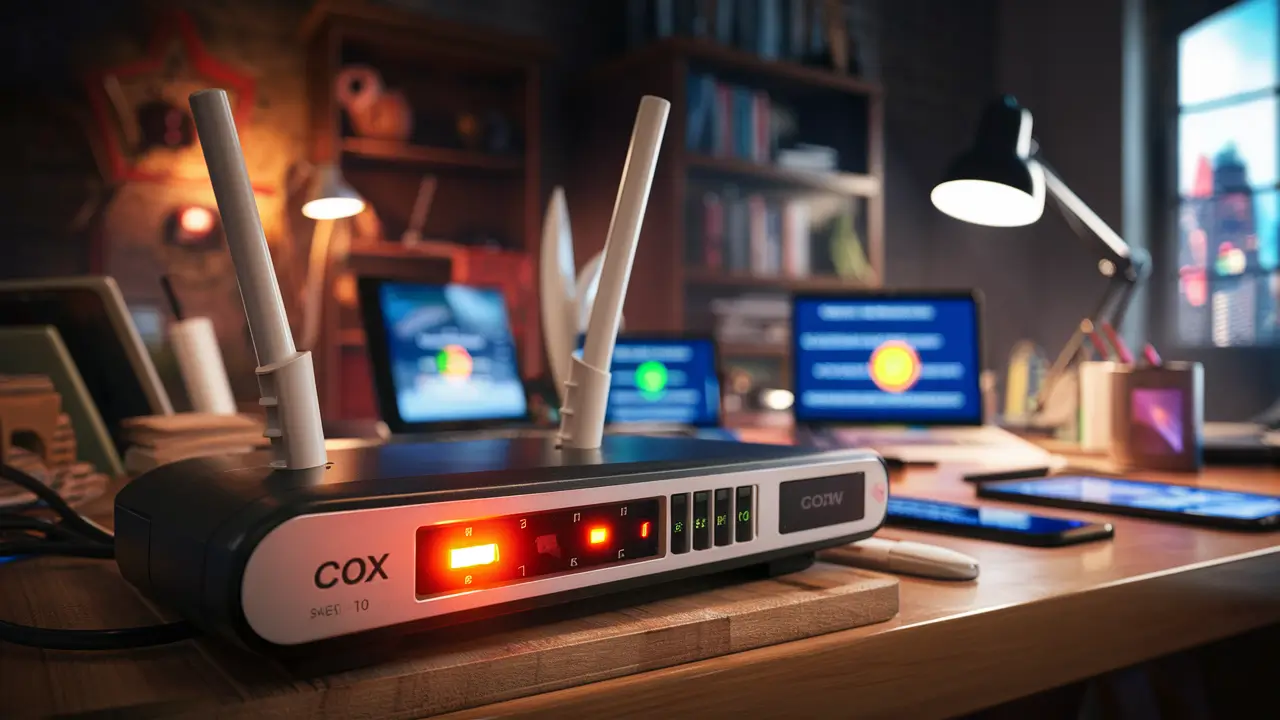
Step 5: Check Modem and Router Lights
The indicator lights on your modem and router provide valuable diagnostic information.
Modem Lights:
- Power: Should be solid.
- Downstream/Receive: Usually blinks during startup and then becomes solid. Indicates it's receiving data from Cox.
- Upstream/Send: Similar to downstream, blinks and then solidifies. Indicates it's sending data back to Cox.
- Online/Internet: This is the most critical light. It should be solid, indicating a stable connection to Cox's network. If it's off, blinking, or a different color (like red or orange), there's a problem with the connection to Cox.
Router Lights:
- Power: Should be solid.
- Internet/WAN: Indicates connection to the modem. Should be solid or blinking.
- Wi-Fi (2.4GHz/5GHz): Indicates Wi-Fi is broadcasting. Should be blinking.
- Ethernet Ports: Lights up when a device is connected via Ethernet.
Consult your modem and router manuals or the Cox website for specific light patterns and their meanings.
Step 6: Bypass the Router (If Applicable)
If you have a separate modem and router, and your wired connection to the router isn't working, you can test if the router is the culprit by bypassing it.
- Unplug Router: Disconnect the Ethernet cable from your router's WAN/Internet port and unplug the router's power.
- Connect Modem Directly to Computer: Connect your computer directly to the modem using an Ethernet cable.
- Restart Modem: Power cycle your modem again (unplug power, wait 60 seconds, plug back in).
- Test Connection: Once the modem lights are stable, try to access the internet on your computer.
If you get internet access: Your router is likely the issue. It might need to be reset to factory defaults, updated, or replaced.
If you still don't have internet access: The problem is likely with your modem or the Cox service itself.
Modem and Router Health Checks
Beyond basic troubleshooting, a deeper dive into the health of your modem and router can reveal underlying issues that might be causing intermittent or complete internet failures. In 2025, understanding these devices is more critical than ever, as they are the central hub of your digital life.
Understanding Your Modem
Your modem is the device that translates the signal from Cox's network (cable, fiber, DSL) into a format your home network can understand. It's the bridge between your home and the internet.
- Modem Lights: As mentioned earlier, the lights are your first indicator. A solid "Online" or "Internet" light is paramount. If it's blinking or off, it signifies a communication breakdown with Cox's network.
- Modem Signal Levels: Most modems allow you to access their internal status page, often via a web browser (e.g., 192.168.100.1). Here you can find diagnostic information like signal-to-noise ratio (SNR), downstream power levels, and upstream power levels. Out-of-spec signal levels can cause connectivity issues.
- Downstream Power: Typically between -10 dBmV and +10 dBmV.
- Upstream Power: Typically between +35 dBmV and +50 dBmV.
- SNR (Signal-to-Noise Ratio): For downstream, ideally above 33 dB. For upstream, ideally above 30 dB.
- Modem Age and Compatibility: Ensure your modem is DOCSIS 3.0 or DOCSIS 3.1 compliant, especially if you have a high-speed internet plan from Cox. Older modems may not be able to handle the speeds or technology used by Cox in 2025. Cox often provides a list of approved modems on their website.
If these levels are consistently outside the recommended ranges, it points to a problem with the cabling or Cox's infrastructure reaching your home.
Understanding Your Router
Your router manages your home network, assigning IP addresses to devices, directing traffic between them, and often providing Wi-Fi connectivity.
- Router Interface: Access your router's administrative interface (e.g., 192.168.1.1 or 192.168.0.1). Here you can check its status, connected devices, and settings.
- Firmware Updates: Ensure your router's firmware is up-to-date. Manufacturers release updates to fix bugs, improve performance, and patch security vulnerabilities. Outdated firmware can cause instability and connection issues. Many modern routers can update automatically, but it's good practice to check manually.
- Router Overheating: Like modems, routers can overheat. Ensure it's in a well-ventilated area, not covered by other devices or tucked away in a cabinet without airflow.
- Router Age and Wi-Fi Standards: If your router is several years old, it might be using older Wi-Fi standards (e.g., Wi-Fi 4/802.11n). In 2025, Wi-Fi 5 (802.11ac) and Wi-Fi 6/6E (802.11ax) are common and offer significantly better performance, stability, and capacity for multiple devices. An old router can be a bottleneck.
- Factory Reset: If your router is behaving erratically, a factory reset can often resolve software glitches. Be aware that this will erase all your custom settings, including your Wi-Fi name (SSID) and password, so you'll need to reconfigure it afterward.
Comparison of Modem/Router Issues
To help differentiate between modem and router problems, consider this table:
| Symptom | Likely Modem Issue | Likely Router Issue | Likely Cox Service Issue |
|---|---|---|---|
| No internet on any device (wired or wireless) | Yes (e.g., no "Online" light) | No (unless it's completely failed and not passing signal) | Yes (e.g., area outage) |
| Wired connections work, Wi-Fi does not | No | Yes (e.g., Wi-Fi radio failed, misconfiguration) | No |
| Slow speeds on all devices | Yes (e.g., signal levels, modem too old) | Yes (e.g., router is a bottleneck, Wi-Fi congestion) | Yes (e.g., network congestion, plan limitations) |
| Intermittent connection drops on all devices | Yes (e.g., unstable signal, faulty modem) | Yes (e.g., router overheating, firmware bug) | Yes (e.g., unstable network segment) |
| Specific devices can't connect to Wi-Fi | No | Yes (e.g., device incompatibility, router settings) | No |
Note: This table provides general guidance. Complex issues can sometimes involve interactions between all three components.
Cox-Specific Troubleshooting and Resources
While general troubleshooting applies to most ISPs, Cox Communications has its own set of tools, resources, and common issues that users might encounter. Understanding these Cox-specific elements can significantly speed up your resolution process.
Cox My Account and Support Tools
Cox provides several online tools to help customers manage their accounts and troubleshoot issues. These are invaluable resources in 2025.
- Cox My Account Portal: Log in to your account on the Cox website. Here you can:
- Check your billing status.
- View your current internet plan and modem compatibility.
- Access self-help guides and FAQs.
- Initiate a modem reset remotely.
- Schedule technician appointments.
- Cox App: The Cox mobile app offers similar functionality to the website portal, allowing you to manage your account and troubleshoot on the go. It often includes features like Wi-Fi analytics and network status checks.
- Cox Outage Map: As mentioned, this is crucial for checking if there's a known service disruption in your area. It's usually updated in near real-time.
- Cox Speed Test: Use Cox's official speed test tool to measure your current download and upload speeds. Compare these results to your subscribed plan to identify potential throttling or performance issues.
Cox Modem Compatibility
Cox has specific requirements for modems used on its network. Using an incompatible modem can lead to poor performance or no service at all.
- Approved Modem List: Cox maintains a list of modems that are certified to work on their network. You can usually find this list on their support website. Ensure your modem is on this list, especially if you purchased it independently.
- DOCSIS Standard: For most Cox internet plans in 2025, a DOCSIS 3.0 or DOCSIS 3.1 modem is required. DOCSIS 3.1 is necessary for their gigabit-speed plans.
- Renting vs. Buying: Cox offers modem rentals. While this can be more expensive over time, it guarantees compatibility and simplifies troubleshooting, as Cox can manage and replace their own equipment remotely. If you own your modem, you are responsible for its maintenance and compatibility.
Common Cox-Specific Issues
- Provisioning Errors: Sometimes, a new modem or a change in your service plan might not be correctly "provisioned" on Cox's network. This means the network doesn't fully recognize your modem, leading to connection problems. A remote reset from Cox or a technician visit might be needed.
- Signal Issues on Cox Network: Cox's network, like any cable provider, can be susceptible to signal degradation. This can be due to aging infrastructure, damage to lines in your neighborhood, or issues at the local node. Symptoms include slow speeds, intermittent drops, and high latency.
- Cox DNS Server Issues: Domain Name System (DNS) servers translate website names (like google.com) into IP addresses. If Cox's DNS servers are experiencing problems, you might be able to connect to the internet but unable to load websites. You can try switching to public DNS servers (like Google DNS or Cloudflare DNS) in your router settings as a temporary workaround.
When to Contact Cox Support
Despite your best troubleshooting efforts, some issues require Cox's direct intervention. You should contact Cox support if:
- Confirmed Area Outage: If Cox's tools indicate a widespread outage, you'll need to wait for them to resolve it.
- Modem Lights Indicate No Connection: If your modem's "Online" or "Internet" light is off, blinking, or red/orange, and you've confirmed your cables are secure, it's likely a Cox-side issue.
- Signal Levels are Consistently Poor: If your modem's diagnostic page shows consistently bad signal levels (SNR, power levels) despite secure connections.
- You've Tried All Self-Troubleshooting Steps: If you've power cycled, checked cables, bypassed the router, and still have no internet.
- Speed Test Results are Significantly Below Your Plan: And you've ruled out your own equipment as the bottleneck.
Preparing for the Call: When you call Cox, have your account number ready. Be prepared to explain the troubleshooting steps you've already taken. This will help the support agent diagnose the problem more efficiently.
Advanced Diagnostics and When to Call Support
If the basic troubleshooting steps haven't resolved your Cox internet issues, it's time to delve into more advanced diagnostics. These methods can help pinpoint more obscure problems and provide Cox support with crucial information, making their job easier and potentially leading to a faster resolution. In 2025, understanding these diagnostics empowers you to be a more informed consumer.
Using the Command Prompt/Terminal
For users comfortable with command-line interfaces, tools like `ping` and `traceroute` (or `tracert` on Windows) can offer valuable insights into network connectivity and latency.
- Ping: This command sends small packets of data to a specified server and measures the time it takes for the response to return. It helps test basic connectivity and measure latency (delay).
- How to use (Windows): Open Command Prompt, type
ping google.com, and press Enter. - How to use (macOS/Linux): Open Terminal, type
ping google.com, and press Enter.
Interpreting Results:
- Low Latency (e.g., under 50ms for local servers, under 100ms for distant servers): Indicates a good, responsive connection.
- High Latency (e.g., consistently over 200ms): Suggests a slow or congested connection.
- Packet Loss: If you see "Request timed out" or a percentage of packet loss, it indicates that some data packets are not reaching their destination, pointing to a significant connectivity issue.
- How to use (Windows): Open Command Prompt, type
- Traceroute/Tracert: This command maps the path (the series of routers) that your data packets take from your computer to a destination server. It can help identify where delays or packet loss are occurring along the route.
- How to use (Windows): Open Command Prompt, type
tracert google.com, and press Enter. - How to use (macOS/Linux): Open Terminal, type
traceroute google.com, and press Enter.
Interpreting Results: Look for hops (routers) where the latency significantly increases or where packet loss begins. If the first few hops show issues, it might be your local network. If issues appear further down the route, it could be Cox's network or beyond.
- How to use (Windows): Open Command Prompt, type
Checking Your IP Address and Gateway
Understanding your IP address and default gateway can be helpful for network diagnostics.
- Public IP Address: This is the IP address assigned to your modem by Cox. You can find it by searching "what is my IP" on Google or checking your router's status page.
- Default Gateway: This is the IP address of your router (or modem if it's a combo unit) on your local network. It's the device your computer sends traffic to when it needs to reach the internet. You can find it in your network settings or by using the command prompt (`ipconfig` on Windows, `ifconfig` on macOS/Linux).
If you can't ping your default gateway, the issue is definitely within your local network (modem, router, or cabling).
Wi-Fi Channel Interference and Optimization
If your wired connection is fine but Wi-Fi is problematic, interference is a common culprit. In 2025, with more connected devices than ever, Wi-Fi optimization is key.
- Wi-Fi Analyzer Apps: Use a Wi-Fi analyzer app on your smartphone or tablet. These apps scan for nearby Wi-Fi networks and show which channels they are using.
- Changing Wi-Fi Channels: Your router likely defaults to an automatic channel selection. However, if many nearby networks are on the same channel, it can cause congestion. Manually select a less crowded channel (channels 1, 6, and 11 are generally best for the 2.4GHz band as they don't overlap). Your router's interface will allow you to change this.
- 2.4GHz vs. 5GHz Bands: Most modern routers offer both 2.4GHz and 5GHz bands.
- 2.4GHz: Longer range, but more susceptible to interference and slower speeds.
- 5GHz: Shorter range, but faster speeds and less interference.
Try connecting devices that are closer to the router to the 5GHz band for better performance. For devices further away or that don't require high speeds, 2.4GHz might be more reliable.
- Router Placement: As mentioned before, place your router in a central, open location, away from obstructions and potential sources of interference (microwaves, cordless phones, thick walls).
When to Call Cox Support - The Tipping Point
You've exhausted your self-help options. The internet is still down, or performance is unacceptable. It's time to leverage Cox's expertise. You should definitively call Cox support if:
- Persistent "No Internet" Light: Your modem's internet light remains off, blinking, or red/orange after a power cycle and cable check.
- No Connectivity When Bypassing Router: If connecting a computer directly to the modem yields no internet access.
- Consistent Packet Loss or High Latency: Even after troubleshooting your local network, `ping` and `traceroute` reveal significant issues that don't resolve.
- Extremely Slow Speeds: Despite your modem and router appearing healthy, speed tests consistently show speeds far below your subscribed plan, and you've ruled out Wi-Fi interference.
- Cox Outage Confirmed: If their system indicates an outage, you'll need to wait for their resolution.
- Error Messages from Cox Tools: If Cox's My Account portal or app provides specific error codes or suggests contacting support.
- Physical Damage to External Lines: If you notice any visible damage to the coaxial cable line entering your home or to Cox's equipment outside your residence.
What to tell Cox: Be ready to provide your account number, the exact symptoms you're experiencing, and a detailed list of the troubleshooting steps you've already performed. Mentioning specific findings from advanced diagnostics (like poor signal levels or consistent packet loss on `traceroute` to a specific hop) can significantly help their technicians diagnose the issue remotely or prepare for a technician visit.
In 2025, internet service is a critical utility. While it's frustrating when Cox internet isn't working, a systematic approach, understanding your equipment, and knowing when to leverage your ISP's support can get you back online efficiently. Remember to always start with the simplest solutions and work your way up.
Final Recommendation: Regularly check your modem's signal levels via its web interface and keep your router's firmware updated. These proactive measures can prevent many common connectivity issues before they disrupt your service. If problems persist, don't hesitate to contact Cox support with detailed information about your troubleshooting efforts.