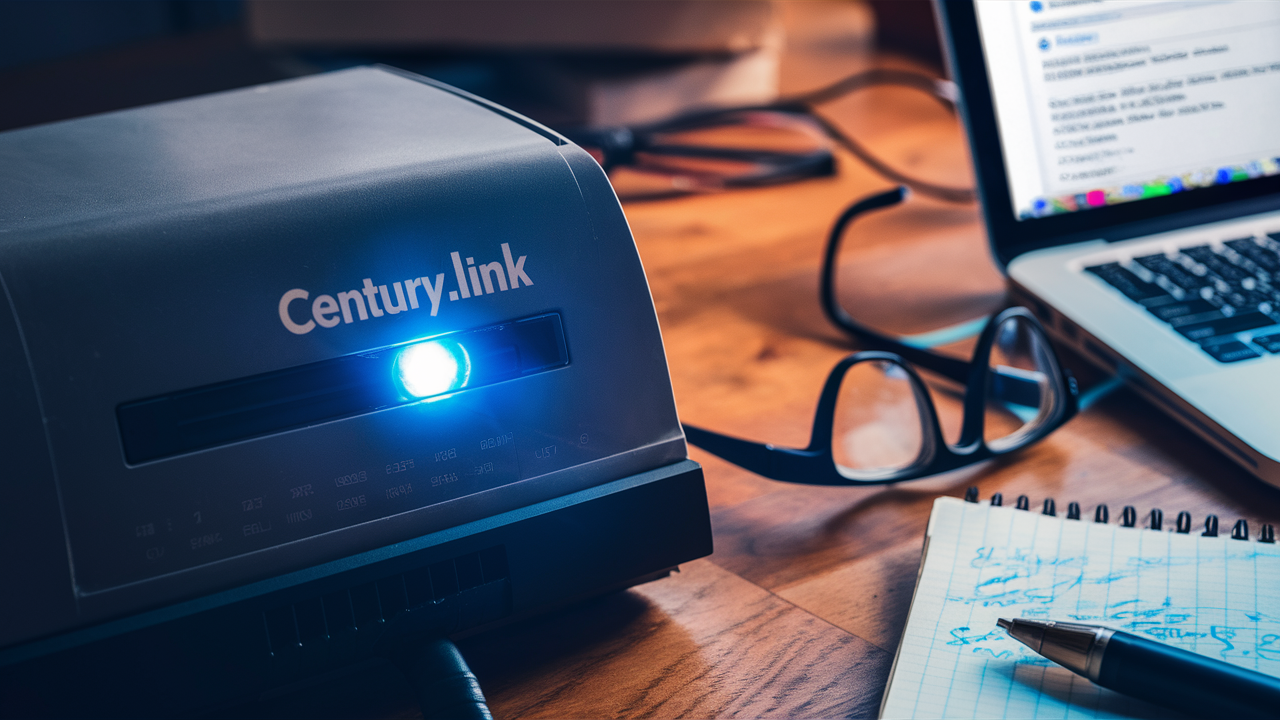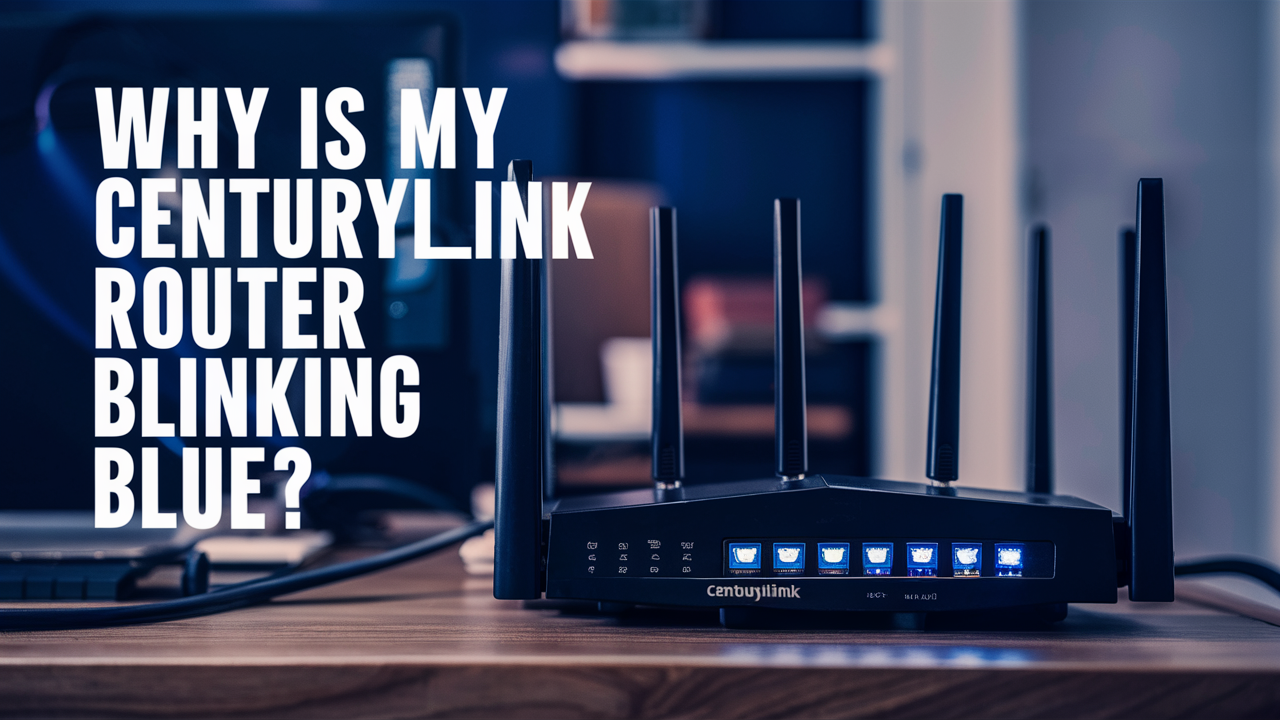
A blinking blue light on your CenturyLink router can be a source of frustration, often indicating a connectivity issue. This comprehensive guide will demystify the meaning behind this common indicator, providing clear, actionable steps to diagnose and resolve the problem, ensuring you get back online swiftly.
Understanding the Blinking Blue Light
The lights on your CenturyLink router are designed to provide a visual status report of its operations and connection to the internet. While solid green or white lights typically signify a healthy, established connection, a blinking blue light is a signal that something is amiss. It's crucial to understand that "blinking blue" isn't a single, monolithic error. The specific pattern and behavior of the blinking can offer subtle clues, but generally, it points to an issue with the router's ability to establish or maintain a stable connection with CenturyLink's network or the internet at large.
In the realm of network diagnostics, the color blue often signifies a transitional state or an attempt to connect. When it's blinking, it means the router is actively trying to achieve a stable connection but is encountering an obstacle. This could be anything from a simple loose cable to a more complex issue with your service provisioning or even a localized network outage. For users in 2025-26, with an increasing reliance on high-speed internet for work, entertainment, and smart home devices, understanding these indicators is more important than ever. Reports from the FCC in late 2025 indicate that over 95% of US households now have broadband access, making reliable connectivity a near-universal necessity.
The specific model of your CenturyLink router can also influence the exact meaning of the blinking blue light. Newer models might have more sophisticated diagnostic LEDs, while older ones might offer a more generalized indication. However, the fundamental principle remains: blinking blue is a call to action, prompting you to investigate the underlying cause. Ignoring it will only prolong your downtime. This guide aims to equip you with the knowledge to interpret this signal and take appropriate action, distinguishing between minor glitches and more significant problems that might require professional intervention.
Router Light Indicators Explained
To fully grasp the significance of a blinking blue light, it's helpful to understand what other lights typically mean on a CenturyLink router. While variations exist between models (e.g., C3000Z, C4000BG, PK5001Z), common indicators include:
- Power Light: Usually solid green or white, indicating the router is powered on. If off, there's a power issue. If blinking, it might be booting up or experiencing a power fault.
- DSL/Broadband/Internet Light: This is the most critical light for connectivity.
- Solid Green/White: A stable connection to CenturyLink's network is established.
- Blinking Green/White: The router is attempting to sync with the DSL line or establish an internet connection.
- Off: No DSL signal is being detected, or the port is inactive.
- Blinking Blue: As we're focusing on, this usually indicates an issue establishing an internet connection, often after a successful DSL sync. It signifies the router is trying to get an IP address or authenticate with the network.
- Solid Red/Orange: Typically indicates a critical error or a failure to connect.
- Wi-Fi Lights: Indicate the status of your wireless network. Solid lights usually mean Wi-Fi is broadcasting. Blinking might indicate data transfer.
- Ethernet Lights: Indicate active wired connections. Solid lights show a device is connected; blinking indicates data activity.
The blinking blue light often appears after the DSL or Broadband light has successfully synced (indicated by a solid light). This suggests the physical connection to CenturyLink's network is likely sound, but the router is struggling to obtain the necessary credentials or configuration to access the wider internet. This is a common scenario and one that can often be resolved with basic troubleshooting.
Common Causes of a Blinking Blue Light
Several factors can contribute to your CenturyLink router displaying a blinking blue light. Identifying the most probable cause is the first step towards a swift resolution. In 2025-26, with the proliferation of smart home devices and increased bandwidth demands, these issues can manifest more frequently if not managed properly.
Internet Service Outage
The most straightforward, albeit inconvenient, reason for a blinking blue light is a service outage in your area. CenturyLink, like any internet service provider (ISP), can experience temporary disruptions due to maintenance, equipment failures, or unforeseen events. If the outage is widespread, your router will be unable to connect to the internet, resulting in the blinking blue light as it continuously tries to re-establish a link.
2025-26 Context: While ISPs are investing heavily in network resilience, localized outages still occur. For instance, severe weather events in certain regions in late 2025 led to temporary service interruptions for thousands of customers. Checking CenturyLink's official outage map or social media channels is often the quickest way to confirm if this is the culprit.
Modem or Router Issues
Sometimes, the problem lies within the router itself. This could be a temporary software glitch, a need for a firmware update, or even a hardware malfunction. Routers are complex devices that manage a lot of data traffic, and like any electronic equipment, they can encounter issues.
Software Glitches: A common culprit is a minor software hiccup. A simple reboot can often clear these temporary errors, allowing the router to re-establish a connection. This is akin to restarting your computer when it freezes.
Firmware Problems: The firmware is the router's operating system. Outdated or corrupted firmware can lead to connectivity problems. While CenturyLink usually pushes updates automatically, sometimes manual intervention or a reset might be necessary.
Hardware Malfunction: Though less common, the router's internal components could be failing. This is more likely with older devices that have been in service for several years.
Configuration or Authentication Problems
For your router to connect to the internet, it needs to authenticate with CenturyLink's network. This involves obtaining an IP address and other network parameters. If there's an issue with this process – perhaps due to incorrect settings, a problem with your account, or a temporary server issue on CenturyLink's end – the router will struggle to get online.
IP Address Conflict: In rare cases, there might be an IP address conflict on the network, preventing your router from acquiring a valid address.
Account Status: While unlikely to cause a blinking blue light immediately after working, issues with your CenturyLink account (e.g., billing disputes leading to service suspension) could theoretically manifest as a connection failure. However, this usually comes with prior notification.
Wiring and Connection Issues
The physical pathway for your internet signal is crucial. Issues with the cables connecting your router to the wall jack, or the jack itself, can disrupt connectivity.
Loose Cables: A cable that has become slightly dislodged at either the router or the wall outlet can prevent a stable connection. This is especially true for the DSL or Ethernet cable that directly links your router to the network.
Damaged Cables: Over time, cables can fray, kink, or suffer internal damage, especially if they've been bent sharply or exposed to stress. A damaged cable won't transmit data reliably.
Faulty Wall Jack: The telephone or coaxial jack in your wall could be damaged or experiencing internal wiring problems, affecting the signal reaching your router.
Network Congestion or Performance Bottlenecks
While less likely to cause a blinking blue light specifically (more often it leads to slow speeds), severe network congestion on CenturyLink's end or within your home network could theoretically contribute. If the router is overwhelmed or unable to communicate effectively due to traffic, it might enter a state of repeated connection attempts.
Home Network Overload: If you have an excessive number of devices simultaneously streaming, downloading, or gaming, it can strain your router's capacity, though this usually impacts performance rather than causing a complete outage indicated by a blinking blue light.
Interference from Other Devices
Although primarily related to Wi-Fi, strong electromagnetic interference from other electronic devices near your router could potentially disrupt its internal processes or its ability to communicate with the network. This is a less common cause for a blinking blue internet light but worth considering in specific environments.
Step-by-Step Troubleshooting Guide
When your CenturyLink router's blue light starts blinking, don't panic. Follow these systematic troubleshooting steps. Each step builds upon the previous one, starting with the simplest solutions and progressing to more involved diagnostics. This methodical approach ensures you don't miss any potential fixes.
Step 1: Reboot Your Router (and Modem, if separate)
This is the universal first step for almost any electronic device issue, and for good reason. A power cycle can resolve temporary software glitches, clear cached data, and reset network connections.
- Unplug Power: Locate the power adapter for your CenturyLink router. Unplug it from the electrical outlet. If you have a separate modem (less common with integrated CenturyLink devices), unplug its power as well.
- Wait: Allow the devices to remain unplugged for at least 60 seconds. This ensures that all residual power is drained and internal components are fully reset.
- Plug Back In: Plug the power adapter back into the router (and modem, if applicable).
- Wait for Boot-up: Give the router several minutes to fully boot up and attempt to establish a connection. Watch the lights; you'll typically see them cycle through as the device initializes.
- Check the Light: Once the lights stabilize, observe the blue light. If it's now solid, congratulations! If it's still blinking, proceed to the next step.
Why this works: Routers, like computers, can sometimes get stuck in a loop or encounter minor software errors. A reboot forces a fresh start, clearing these temporary issues.
Step 2: Check Physical Connections
Loose or damaged cables are a frequent culprit for connectivity problems. Ensure all connections are secure and that the cables themselves are in good condition.
- Inspect Cables: Examine the DSL cable (usually a phone cord) or Ethernet cable connecting your router to the wall jack. Look for any signs of damage, such as kinks, cuts, or frayed insulation.
- Secure Connections:
- Ensure the DSL/Ethernet cable is firmly plugged into the correct port on the back of your router (often labeled "DSL," "WAN," or "Internet").
- Ensure the other end of the cable is securely plugged into the wall jack.
- If you have a separate modem, ensure the Ethernet cable connecting the modem to the router is also secure at both ends.
- Try Different Ports (if applicable): If your router has multiple WAN or Ethernet ports, try using a different one, though this is less common for the primary internet connection.
- Test with a Different Cable: If you have a spare, known-good DSL or Ethernet cable, try swapping it out. This helps rule out a faulty cable as the cause.
Why this works: A secure and undamaged physical connection is the foundation of internet service. Even a slightly loose connection can interrupt the signal.
Step 3: Verify DSL Sync Status (if applicable)
For DSL internet, the router needs to establish a stable sync with CenturyLink's equipment at the exchange. The DSL or Broadband light on your router indicates this. If this light is off or blinking erratically, the issue is with the signal coming into your home.
- Observe the DSL/Broadband Light: After rebooting, check the DSL or Broadband indicator light.
- Solid Light: Indicates a successful sync. If this is solid and the blue light is still blinking, the issue is likely after the DSL sync (e.g., authentication, IP assignment).
- Blinking Light: Indicates the router is trying to sync but failing.
- Off: Indicates no DSL signal is detected.
- Check Phone Line (for DSL): Ensure no other devices (like old fax machines or dial-up modems) are using the same phone line in a way that could interfere. If you have a DSL filter, ensure it's properly installed and functioning. Try plugging the router directly into the wall jack, bypassing any filters or splitters, to test.
- Test the Jack: If possible, try connecting the router to a different phone jack in your home to rule out a faulty jack.
Why this works: This step helps isolate whether the problem is with the physical line coming into your home (DSL sync) or with the router's ability to connect to the internet once that sync is established.
Step 4: Check for CenturyLink Service Outages
As mentioned earlier, a local outage is a common reason for a complete loss of service.
- Visit CenturyLink's Outage Page: Go to the official CenturyLink website and look for their "Service Status" or "Outage Map" section. You'll likely need to enter your address or account information.
- Check Social Media: Sometimes, ISPs post real-time updates on platforms like Twitter or Facebook.
- Contact Neighbors: If you have neighbors who also use CenturyLink, ask if they are experiencing similar issues.
Why this works: If there's a confirmed outage, you'll know that no amount of troubleshooting on your end will fix the problem until CenturyLink resolves it. This saves you time and frustration.
Step 5: Access Router Settings and Check Status
If the DSL sync is good but the internet is still blinking blue, the issue might be with the router's configuration or its communication with CenturyLink's servers.
- Connect via Ethernet: If possible, connect a computer directly to your router using an Ethernet cable. This bypasses potential Wi-Fi issues.
- Open a Web Browser: Type your router's IP address into the address bar. Common addresses are 192.168.0.1 or 192.168.1.1. You can find the correct IP address on a sticker on your router or in its manual.
- Log In: Enter your router's username and password. These are also usually on the router's sticker or in the manual. If you've changed them and forgotten, you might need to reset the router to factory defaults (see Step 7).
- Navigate to Status/Internet Settings: Once logged in, look for a "Status," "Internet," or "WAN" section. This page should provide detailed information about your connection status, IP address, and connection type.
- Look for Error Messages: Examine the status page for any specific error messages or diagnostic codes. These can be invaluable for pinpointing the problem.
- Check IP Address: See if your router has successfully obtained a public IP address from CenturyLink. If it shows an IP address like 0.0.0.0 or a private IP range (e.g., 10.x.x.x, 172.16.x.x - 172.31.x.x, 192.168.x.x), it means it hasn't connected to the internet properly.
Why this works: This provides a deeper insight into what the router is experiencing internally and can reveal specific errors preventing internet access.
Step 6: Check Account Status and Provisioning
In rare cases, the issue might stem from your CenturyLink account or how your service is provisioned on their network.
- Contact CenturyLink Support: If you've gone through the previous steps and the blue light is still blinking, it's time to contact CenturyLink customer support.
- Provide Details: Explain the troubleshooting steps you've already taken (reboot, checked cables, confirmed DSL sync, etc.) and the behavior of the lights.
- Inquire About Account Status: Ask them to verify that your account is active and properly provisioned for internet service. They can check for any flags or issues on their end that might be preventing your router from connecting.
Why this works: CenturyLink has access to network diagnostics and account information that you don't. They can identify issues on their end, such as incorrect provisioning, which might be causing the connection failure.
Step 7: Factory Reset the Router
If all else fails, a factory reset can revert the router's settings to their original, out-of-the-box configuration. This can resolve complex software issues or corrupted settings that a simple reboot cannot fix.
- Locate the Reset Button: Most CenturyLink routers have a small, recessed reset button, often on the back or bottom of the device. You'll typically need a paperclip or a similar pointed object to press it.
- Press and Hold: While the router is powered on, press and hold the reset button for 10-15 seconds.
- Observe Lights: The router's lights will usually flash or change as it initiates the reset process.
- Release Button: Release the button and allow the router to reboot completely. This process can take several minutes.
- Reconfigure: After the reset, you will need to reconfigure your Wi-Fi network name (SSID) and password, and potentially any other custom settings you had. You'll use the default login credentials (usually found on the router's sticker) to access the router's settings page again.
Caution: A factory reset erases all your custom settings, including your Wi-Fi name and password. You will need to set these up again.
Why this works: This is a drastic measure that effectively wipes the slate clean, resolving any persistent software or configuration corruption.
Advanced Diagnostics and When to Call Support
While the troubleshooting steps above cover the most common scenarios, sometimes the issue requires a deeper dive, or it becomes clear that professional intervention is necessary. Understanding when to escalate is key to efficient problem-solving.
Interpreting Specific Light Patterns
While we've focused on a general blinking blue light, some routers might exhibit variations. For instance:
- Fast Blinking Blue: Might indicate the router is actively trying to obtain an IP address but failing rapidly.
- Slow Blinking Blue: Could suggest a more intermittent connection attempt or a longer timeout period.
- Blue Light Flashing with Other Lights: The combination of blinking lights can sometimes provide more specific error codes, though these are often model-dependent and best interpreted by CenturyLink support.
2025-26 Context: With the increasing complexity of home networks and the integration of various services over the internet, troubleshooting can become more nuanced. The average time to resolve an internet connectivity issue for a residential customer in 2025 was reported to be around 2.5 hours, highlighting the need for structured troubleshooting.
When to Contact CenturyLink Support
You should contact CenturyLink support if:
- All basic troubleshooting fails: You've rebooted, checked cables, verified DSL sync, and the light persists.
- DSL/Broadband light is off or red: This strongly indicates a problem with the incoming signal that you cannot fix yourself.
- Router status page shows persistent errors: If you can access the router settings and see specific error codes related to authentication or network communication.
- You suspect an outage but can't confirm: CenturyLink support can provide definitive information about ongoing outages.
- Your router is old or showing signs of hardware failure: If the device is several years old and consistently problematic, it might be time for a replacement, which CenturyLink can facilitate.
- You've performed a factory reset and the issue remains: This suggests a problem beyond user-configurable settings.
When you call, be prepared to provide your account number, the make and model of your router, and a detailed description of the problem and the troubleshooting steps you've already taken. This will help the support agent diagnose the issue more efficiently.
Potential Hardware Failure
While less common, the blinking blue light could be a symptom of a failing router. If your router is several years old, or if you've experienced other intermittent issues, it might be reaching the end of its lifespan. CenturyLink typically provides routers as part of their service, and they can arrange for a replacement if the device is deemed faulty.
Advanced Network Issues
In some cases, the problem might lie with CenturyLink's network infrastructure beyond your immediate connection. This could involve issues at the local node, the DSLAM (Digital Subscriber Line Access Multiplexer), or even further up the network chain. Only CenturyLink technicians can diagnose and resolve these types of problems.
Preventative Measures for Stable Connectivity
Once you've resolved the blinking blue light issue, taking proactive steps can help prevent its recurrence and ensure a more stable internet experience. Investing a little time in maintenance can save you significant frustration down the line.
Keep Firmware Updated
Router manufacturers and ISPs regularly release firmware updates to improve performance, patch security vulnerabilities, and fix bugs. While many CenturyLink routers receive automatic updates, it's good practice to check periodically.
How to Check: Log in to your router's administrative interface (as described in Step 5) and look for a "Firmware Update" or "System Update" section. Follow the on-screen instructions if an update is available.
Optimize Router Placement
The physical location of your router can impact its performance and signal strength. While this primarily affects Wi-Fi, a well-ventilated and unobstructed location is generally better for the router's overall health.
- Central Location: Place the router in a central part of your home for optimal Wi-Fi coverage.
- Avoid Obstructions: Keep it away from thick walls, large metal objects, and other electronics that can cause interference (microwaves, cordless phones).
- Good Ventilation: Ensure the router has adequate airflow to prevent overheating.
Manage Connected Devices
An excessive number of devices actively using the internet simultaneously can strain your router's resources. While modern routers are more capable, it's still wise to manage your network load.
- Limit Simultaneous High-Bandwidth Activities: If possible, avoid having multiple devices streaming 4K video, downloading large files, or engaging in intensive online gaming at the exact same time.
- Disable Unused Devices: Turn off Wi-Fi on devices that are not in use.
Regular Reboot Schedule
Even without a blinking blue light, scheduling regular reboots can help maintain optimal router performance. Many users find that a weekly reboot is sufficient.
How to Schedule: Some routers have a built-in scheduling feature for reboots. If yours doesn't, you can simply unplug it manually at a convenient time once a week.
Use Quality Cables
Ensure you are using the correct, undamaged cables provided by CenturyLink or high-quality replacements. Cheap or old cables can degrade signal quality over time.
Consider Router Age
Internet technology evolves rapidly. If your CenturyLink router is several years old (e.g., 5+ years), it might be struggling to keep up with current bandwidth demands or support the latest network protocols. Contacting CenturyLink about a potential upgrade might be beneficial if you're consistently experiencing issues or slow speeds, even after troubleshooting.
2025-26 Trend: The average lifespan of a home router is often cited as 3-5 years, though many can last longer. As internet speeds increase and more devices connect, older hardware can become a bottleneck. CenturyLink's newer gateway devices are designed to support higher speeds and more robust Wi-Fi standards like Wi-Fi 6E and Wi-Fi 7.
By implementing these preventative measures, you can significantly reduce the likelihood of encountering connectivity issues like a blinking blue light, ensuring a more reliable and consistent internet experience.
In conclusion, a blinking blue light on your CenturyLink router is a clear indicator of a connectivity problem, most often related to the router's inability to establish a stable internet connection after syncing with the DSL line. We've explored the common causes, from simple outages and loose cables to potential router glitches and configuration errors. The detailed step-by-step troubleshooting guide, starting with a basic reboot and progressing through cable checks, outage verification, and router settings, empowers you to diagnose and resolve most issues independently. Remember to leverage advanced diagnostics and know when to contact CenturyLink support for issues beyond your control, such as network infrastructure problems or account provisioning errors. By proactively maintaining your router and network, you can ensure a more stable and reliable internet connection, minimizing future disruptions and keeping you online when you need it most.