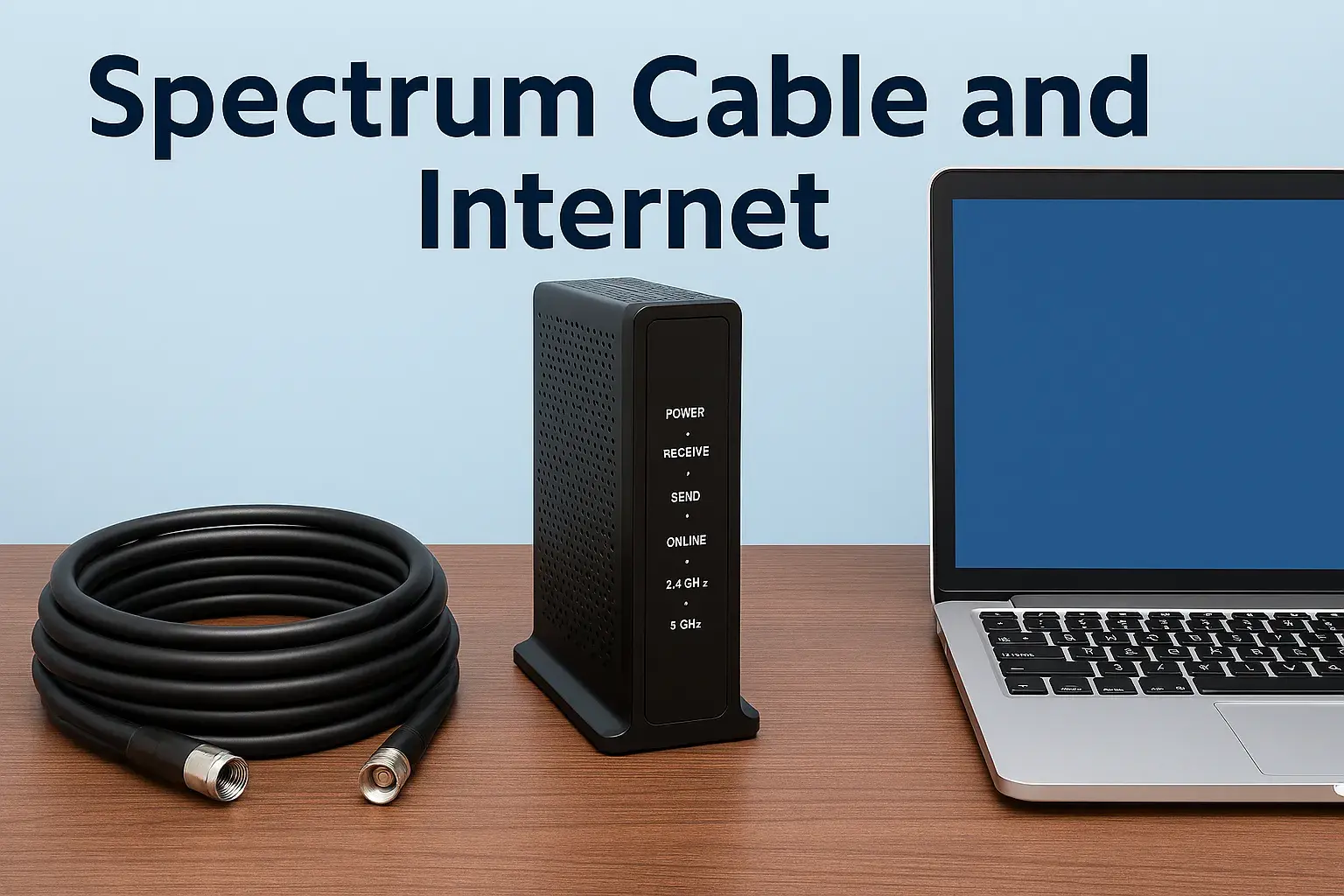
Why Does My Spectrum Internet Keep Going Out

Experiencing intermittent Spectrum internet outages can be incredibly frustrating. This comprehensive guide dives deep into the common culprits behind your connection dropping, offering practical solutions and insights to help you regain stable service. We'll explore everything from simple troubleshooting steps to understanding complex network issues.
Why Does My Spectrum Internet Keep Going Out?
It's a question that echoes through countless households: "Why does my Spectrum internet keep going out?" This recurring problem can disrupt work, entertainment, and essential communication, leading to significant frustration. Understanding the root causes is the first step toward a stable and reliable connection. Spectrum, like all internet service providers (ISPs), faces challenges that can impact service delivery. These issues can stem from your home equipment, the broader network, or even external environmental factors. This in-depth guide will dissect the most common reasons for intermittent Spectrum internet outages and provide actionable solutions to get you back online consistently.
Common Causes of Spectrum Internet Outages
The reasons behind your Spectrum internet connection dropping can be varied and complex. Pinpointing the exact cause often requires a systematic approach to troubleshooting. We'll break down the most frequent culprits into distinct categories, making it easier to identify where the problem might lie.
1. Equipment Issues: Your Modem and Router
Your modem and router are the gateways to your internet connection. If they aren't functioning optimally, your service will suffer. These devices are susceptible to a range of problems, from simple overheating to complete malfunction.
Modem and Router Overheating
Modems and routers generate heat during operation. If they are placed in an enclosed space, have dust buildup obstructing ventilation, or are exposed to high ambient temperatures, they can overheat. Overheating can cause devices to become unstable, leading to intermittent disconnections or complete shutdowns. Spectrum's provided equipment, like the Spectrum modem, is designed to operate within specific temperature ranges. Ensure your devices have adequate airflow. Consider moving them to a more open area, cleaning any dust from vents, and avoiding placing them near heat sources like direct sunlight or other electronics that generate significant heat.
Outdated or Malfunctioning Equipment
Technology evolves rapidly. An older modem or router might not be capable of handling the speeds or demands of modern internet usage, leading to bottlenecks and dropped connections. Even newer equipment can develop faults over time. If your modem or router is several years old, it might be a prime suspect. Spectrum typically provides DOCSIS 3.0 or DOCSIS 3.1 modems, which are generally robust. However, if you're using your own equipment, ensure it's compatible with Spectrum's network and supports the speeds you're paying for. A malfunctioning component within the modem or router can also cause erratic behavior. Signs of malfunctioning equipment include frequent reboots, indicator lights behaving unusually, or a general slowness that precedes a complete outage.
Power Supply Problems
Both your modem and router require a stable power source. A faulty power adapter, a loose power connection, or even a power surge can disrupt their operation. If the power supply is intermittent, the devices will repeatedly restart, causing your internet to drop. Check that the power cords are securely plugged into both the devices and the wall outlet. Try using a different outlet to rule out issues with the existing one. If you suspect the power adapter itself might be failing, consider replacing it, especially if it feels unusually hot or shows signs of physical damage.
Loose Cables and Connections
The coaxial cable connecting your modem to the wall outlet, and the Ethernet cable connecting your modem to your router (or directly to your computer), are crucial. If these cables are loose, damaged, or corroded, they can cause intermittent signal loss. Ensure all coaxial and Ethernet cables are tightly screwed into their respective ports on the modem, router, and wall outlet. Inspect the cables for any visible damage, such as kinks, cuts, or frayed wires. Even a slightly loose connection can degrade signal quality and lead to drops.
2. Network Congestion and Bandwidth Limitations
Your internet connection's performance isn't just about your equipment; it's also about how much data is trying to travel through the network at any given time.
Peak Usage Hours
Like traffic on a highway, internet networks experience congestion. During peak hours, typically in the evenings when most people are home from work and school, internet usage spikes. This increased demand can slow down your connection or, in severe cases, lead to intermittent drops as the network struggles to manage the load. Spectrum's infrastructure, while robust, can experience these fluctuations. If your internet consistently drops during specific times of the day, network congestion is a likely culprit.
Too Many Devices Connected
Every device connected to your network – smartphones, tablets, smart TVs, gaming consoles, smart home devices – consumes bandwidth. If you have a large number of devices active simultaneously, especially if they are all performing bandwidth-intensive tasks, you can exceed your plan's capacity. This can lead to slowdowns and disconnections. In 2025, the average household in the US has over 20 connected devices, a number that continues to grow. Managing your connected devices and ensuring your Spectrum plan meets your household's needs is crucial.
Bandwidth-Intensive Activities
Certain online activities consume significantly more bandwidth than others. Streaming 4K video, downloading large files, online gaming, and participating in video conferences are all bandwidth-intensive. If multiple users in your household are engaged in these activities simultaneously, it can strain your connection and lead to instability. Understanding which applications or devices are consuming the most bandwidth can help you manage your network more effectively.
3. External Factors Affecting Your Connection
Sometimes, the problem lies beyond your home and Spectrum's immediate network, involving broader environmental or infrastructure issues.
Adverse Weather Conditions
Severe weather, such as heavy rain, thunderstorms, high winds, or even extreme heat, can impact internet service. For cable internet like Spectrum's, physical infrastructure like poles, cables, and junction boxes can be affected. Lightning strikes can damage equipment, and high winds can cause cables to sway or break. While Spectrum's network is designed to be resilient, prolonged or severe weather events can lead to temporary outages or degraded service in affected areas.
Neighborhood or Area-Wide Outages
Sometimes, the issue isn't specific to your home but affects a larger area. These can be caused by various factors, including equipment failures at a local Spectrum hub, damage to main lines, or power outages affecting their infrastructure. Spectrum provides tools to check for known outages in your area, which is a vital step in troubleshooting. In 2025, major ISPs are investing heavily in network resilience, but localized outages remain a reality.
Construction or Accidental Damage to Infrastructure
Digging projects, vehicle accidents involving utility poles, or other forms of accidental damage to underground or aerial cables can cause widespread internet disruptions. These incidents often require significant repair work and can lead to extended downtime for affected customers. If you've noticed recent construction activity in your neighborhood, it might be related to your internet issues.
4. Spectrum-Specific Issues
While you can troubleshoot your home setup, some problems originate directly from Spectrum's network or service delivery.
Signal Strength Problems
The signal strength reaching your modem is critical for a stable connection. Issues with Spectrum's equipment, damaged cables along the distribution path, or problems at the local node can result in weak or fluctuating signal levels. This can manifest as slow speeds, intermittent drops, or a complete loss of connection. Spectrum technicians can diagnose and address signal strength issues from their end.
Scheduled Maintenance and Updates
ISPs regularly perform maintenance on their networks to improve performance, security, and reliability. This can sometimes require temporary service interruptions. Spectrum typically notifies customers in advance of scheduled maintenance that might affect their service. However, sometimes these notifications can be missed or are not provided for very localized, short-term work.
Software or Firmware Glitches
Your modem and router run on firmware, which is essentially their operating system. Like any software, firmware can sometimes develop glitches or bugs that cause performance issues. Spectrum regularly updates the firmware on their provided modems to address these issues. If you're using your own equipment, you might need to manually check for and install firmware updates.
5. Internal Wiring and Home Network Issues
The cabling within your home and how your network is configured can also be a source of problems.
Faulty Coaxial Cable
The coaxial cable that runs from the wall outlet to your modem is a critical component. Over time, these cables can degrade, become damaged (e.g., from pets chewing on them, sharp bends), or have poor connections at either end. A damaged or old coaxial cable can introduce noise into the signal, leading to intermittent connectivity issues. If the cable is visibly worn or you suspect it's old, replacing it with a new, high-quality coaxial cable can resolve the problem.
Issues with Splitters
If your internet signal is split to feed multiple devices or rooms, each splitter introduces a slight signal loss. Using too many splitters or using low-quality splitters can significantly degrade the signal strength reaching your modem, causing instability. It's best to minimize the number of splitters used and ensure they are rated for the frequencies Spectrum uses. Ideally, the modem should be connected directly to the wall outlet with minimal or no splitters in between.
Interference from Other Devices
While less common for wired connections, Wi-Fi signals from your router can be subject to interference from other electronic devices. Microwaves, cordless phones, Bluetooth devices, and even neighboring Wi-Fi networks can interfere with your wireless signal. This interference typically affects Wi-Fi performance rather than the wired internet connection itself, but it can be perceived as an internet outage if devices lose their Wi-Fi connection. For wired connections, ensure Ethernet cables are not running alongside power cables for extended distances, as this can sometimes induce noise.
Step-by-Step Troubleshooting Guide
When your Spectrum internet keeps dropping, it's time to take action. Follow these steps to systematically diagnose and resolve the issue.
1. Restart Your Modem and Router
This is the most common and often effective first step. It's like giving your devices a fresh start.
- Unplug the power cords from both your modem and your router.
- Wait for at least 30-60 seconds. This allows the devices to fully discharge and reset.
- Plug the power cord back into your modem first. Wait for it to fully boot up and establish a connection (usually indicated by stable lights).
- Once the modem is online, plug the power cord back into your router. Wait for it to boot up completely.
- Test your internet connection.
2. Inspect Cables and Connections
A loose or damaged cable is a frequent culprit.
- Ensure the coaxial cable is securely screwed into the back of the modem and the wall outlet.
- Check the Ethernet cable connecting your modem to your router (if you have a separate router) or directly to your computer. Make sure it's firmly seated in both ports.
- Inspect all cables for any signs of damage, kinks, or fraying. If you find any, replace the damaged cable.
3. Test Your Internet Speed
A speed test can reveal if the problem is with your speed or a complete outage.
- Connect a computer directly to your modem via an Ethernet cable if possible, bypassing your router.
- Go to a reputable speed test website (e.g., Speedtest.net, Fast.com).
- Run the test multiple times throughout the day to see if speeds fluctuate significantly.
- Compare the results to the speeds advertised in your Spectrum plan. Consistently low speeds, especially when connected directly to the modem, indicate a potential issue with Spectrum's service or your modem.
4. Bypass Your Router (If Applicable)
This helps determine if the router is the source of the problem.
- Disconnect your router from the modem.
- Connect a computer directly to the modem using an Ethernet cable.
- Restart both the modem and the computer.
- Test your internet connection. If the connection is stable when directly connected to the modem, your router is likely the issue.
5. Check Spectrum's Outage Map
Spectrum provides tools to check for known service interruptions.
- Visit the Spectrum website or use the Spectrum TV App.
- Look for an "Outage Map" or "Service Status" section.
- Enter your address to see if there are any reported outages in your area. This can save you a lot of troubleshooting time if the problem is widespread.
6. Update Router Firmware
Outdated firmware can cause connectivity issues.
- Access your router's administration page (usually by typing its IP address, like 192.168.1.1, into a web browser).
- Log in with your router's username and password.
- Navigate to the firmware update section.
- Check for and install any available updates. If you're using Spectrum's gateway (a combined modem/router), this process is usually handled automatically or through their support portal.
7. Reduce Network Load
Temporarily disconnect some devices to see if performance improves.
- Turn off Wi-Fi on several devices.
- Unplug smart home devices that are not essential.
- See if your internet connection stabilizes. If it does, you may need to consider upgrading your internet plan or managing your device usage more carefully.
8. Scan for Malware
Malware can consume bandwidth and disrupt your network.
- Run a full system scan on all your computers and devices using reputable antivirus and anti-malware software.
- Remove any detected threats.
9. Consider a New Router or Modem
If your equipment is old or consistently problematic, replacement might be necessary.
- Check the age and specifications of your current modem and router.
- If they are several years old or not meeting your needs, research compatible replacements. Spectrum provides a list of approved modems for their network.
- If you're renting equipment from Spectrum, consider upgrading to a newer model they offer.
When to Contact Spectrum Support
After exhausting the basic troubleshooting steps, if your Spectrum internet continues to go out, it's time to involve Spectrum's technical support. You should contact them if:
- You've performed all the troubleshooting steps above, and the issue persists.
- You've confirmed there are no area-wide outages.
- Your speed tests consistently show speeds far below your subscribed plan, even when directly connected to the modem.
- You observe unusual lights or behavior on your Spectrum-provided modem.
- You suspect a problem with the external cabling or the signal coming into your home.
When you call Spectrum, be prepared to provide them with the troubleshooting steps you've already taken. This will help their support agents diagnose the problem more efficiently. They can remotely check your modem's status, signal levels, and line quality. If necessary, they can schedule a technician visit to inspect your equipment and the outside network infrastructure.
Proactive Maintenance and Prevention
Preventing future outages is as important as fixing current ones. Here are some proactive measures:
- Regularly clean your modem and router: Dust buildup can cause overheating. Gently vacuum or use compressed air to clean vents.
- Ensure adequate ventilation: Don't place your equipment in confined spaces.
- Use a surge protector: Protect your modem and router from power surges and brownouts.
- Keep firmware updated: Regularly check for and install firmware updates for your router.
- Monitor your bandwidth usage: Be aware of how many devices are connected and what they are doing online. Consider upgrading your plan if your usage consistently exceeds your current bandwidth.
- Inspect cables periodically: Check for wear and tear on coaxial and Ethernet cables.
- Minimize splitters: If possible, reduce the number of coaxial splitters in your home.
Understanding Spectrum Service Levels and Speeds
Spectrum offers a range of internet plans with varying speeds. It's essential to understand what you're paying for and what your equipment is capable of. As of 2025, Spectrum's most popular plans include:
| Plan Name | Download Speeds (Up to) | Upload Speeds (Up to) | Ideal Use Cases |
|---|---|---|---|
| Spectrum Internet® | 300 Mbps | 10 Mbps | Basic browsing, email, standard-definition streaming, a few devices. |
| Spectrum Internet Gig | Up to 1 Gbps (1000 Mbps) | Up to 35 Mbps | Heavy streaming (4K), multiple users, online gaming, large file downloads, smart home integration. |
| Spectrum Internet Ultra | 500 Mbps | 20 Mbps | Multiple users, HD/4K streaming, gaming, moderate downloads. |
Note: Actual speeds may vary based on network conditions, equipment, and plan.
If your internet keeps going out, and you're on a lower-tier plan, it's possible that your current bandwidth is insufficient for your household's needs, especially with the increasing number of connected devices. Conversely, if you're on a high-tier plan and experiencing drops, it points more strongly towards equipment or network issues.
Conclusion
Experiencing intermittent Spectrum internet outages can be a significant disruption, but understanding the potential causes is key to resolving them. From overheating modems and loose cables to network congestion and external factors, the reasons are diverse. By systematically working through the troubleshooting steps outlined in this guide – restarting equipment, checking connections, testing speeds, and verifying Spectrum's outage status – you can often pinpoint the source of the problem. If self-troubleshooting doesn't yield results, don't hesitate to contact Spectrum support, armed with the information you've gathered. Proactive maintenance, such as keeping equipment clean and firmware updated, can also significantly reduce the likelihood of future interruptions. By taking a methodical approach, you can restore the stability and reliability of your Spectrum internet connection and enjoy uninterrupted online access.
📚Read More Articles About Spectrum

How to Find a Spectrum Store Near Me: A Comprehensive Guide
February 16, 2026
All About Spectrum Services: Internet, TV, Mobile Plans & Pricing Explained
January 19, 2026
Spectrum Store Locator for 43017: Hours, Services & What to Bring
December 22, 2025