Experiencing buffering with your fiber internet can be frustrating, especially when you expect lightning-fast speeds. This comprehensive guide explores the common culprits behind intermittent buffering and provides actionable solutions to restore your seamless online experience, ensuring you get the most from your high-speed connection.
Understanding Fiber Internet and Its Potential
Fiber optic internet, often lauded for its superior speed and reliability, utilizes thin strands of glass or plastic to transmit data as pulses of light. This technology allows for significantly higher bandwidth and lower latency compared to traditional copper-based DSL or cable internet. In 2025-2026, fiber is increasingly becoming the standard for high-speed internet, with average download speeds often exceeding 1 Gbps and upload speeds that are remarkably symmetrical. This means that streaming high-definition content, engaging in real-time online gaming, and participating in video conferences should theoretically be a seamless experience. When buffering occurs on a fiber connection, it signals a deviation from this expected performance, prompting a deeper investigation into the underlying causes.
Common Causes of Fiber Internet Buffering
While fiber optics offer a robust foundation for internet connectivity, several factors can still lead to frustrating buffering issues. Understanding these common culprits is the first step toward diagnosing and resolving the problem.
Network Congestion
Even with fiber, the network can experience congestion. This can happen at various points: within your home network, at your Internet Service Provider's (ISP) local node, or even further up the internet backbone. During peak hours (typically evenings and weekends), when more users are online simultaneously, the available bandwidth can be stretched thin. Imagine a highway with too many cars; traffic slows down for everyone. While fiber has a much higher capacity than older technologies, extreme usage spikes can still lead to temporary slowdowns, causing buffering. In 2025, with the continued rise of 8K streaming, cloud gaming, and the metaverse, network congestion remains a significant, albeit often transient, cause of buffering.
Router and Modem Problems
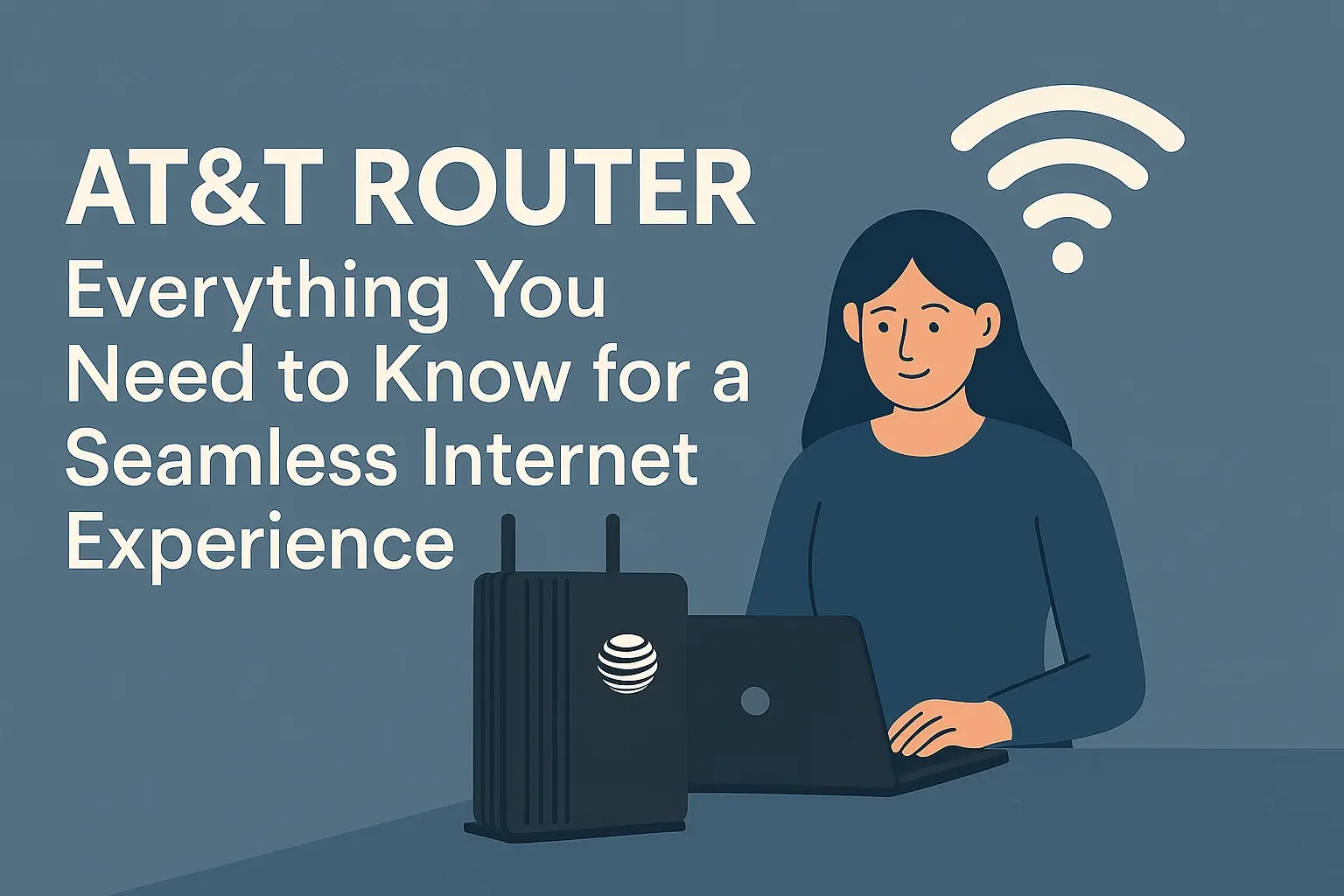
Your router and modem are the gateways to your internet. If they are outdated, malfunctioning, or not configured correctly, they can become bottlenecks. Older routers may not be capable of handling the speeds provided by your fiber plan, even if the fiber line itself is performing optimally. Overheating, firmware glitches, or simply being overloaded with too many connected devices can also cause these devices to slow down or intermittently drop connections, leading to buffering. Many modern fiber plans require specific types of modems or ONTs (Optical Network Terminals), and using an incompatible or underperforming device is a frequent cause of issues.
Device Limitations and Overload
The devices you use to access the internet—computers, smartphones, smart TVs, gaming consoles—also play a role. If your devices are older, have limited processing power, or are running too many applications simultaneously, they might struggle to decode and display streaming content at the required speed, even if the internet connection is strong. For instance, a smart TV from several years ago might not have the hardware to efficiently process a 4K HDR stream, leading to buffering. In 2025, the increasing complexity of web pages and streaming protocols means that even mid-range devices can sometimes struggle if not managed properly.
Wi-Fi Interference and Signal Strength
While fiber itself is not susceptible to Wi-Fi interference, the connection from your router to your devices often is. Wi-Fi signals can be degraded by distance, physical obstructions (walls, furniture), and interference from other electronic devices (microwaves, Bluetooth devices, cordless phones, even neighboring Wi-Fi networks). A weak or unstable Wi-Fi signal means your devices are receiving less data, resulting in buffering. For those using Wi-Fi extensively, this is a primary suspect. The proliferation of smart home devices in 2025 further exacerbates potential Wi-Fi interference.
ISP Throttling and Data Caps
Some ISPs may engage in network management practices that can lead to throttling, especially during peak hours or if you exceed certain data usage thresholds. While fiber is less prone to throttling than older technologies due to its higher capacity, it's not entirely immune. If your ISP has data caps (though less common with fiber plans, they can exist for specific tiers or promotional offers), exceeding them can result in significantly reduced speeds, causing buffering. It's crucial to understand your ISP's terms of service regarding data usage and potential throttling.
Software Issues and Malware
Outdated operating systems, browser issues, or problematic applications running in the background can consume significant bandwidth or processing power, leading to buffering. More critically, malware or viruses on your devices can hijack your internet connection for malicious purposes, slowing it down for legitimate use. Regularly scanning your devices for malware is a vital step in maintaining optimal performance.
Hardware Failures and Aging Equipment
While fiber optic cables themselves are quite durable, the equipment involved—your modem/ONT, router, and even the Ethernet cables connecting them—can degrade over time or experience hardware failures. A faulty Ethernet cable, a dying router's internal components, or an aging ONT can all lead to intermittent connectivity issues and buffering. For equipment that is several years old, this becomes an increasingly likely cause.
DNS Server Problems
The Domain Name System (DNS) acts like the internet's phonebook, translating website names (like google.com) into IP addresses. If your DNS server is slow to respond or experiences issues, it can delay the initial connection to a website or streaming service, which can sometimes manifest as buffering or slow loading times. While less common as a direct cause of *continuous* buffering, a sluggish DNS can contribute to a poor overall experience.
Step-by-Step Troubleshooting Guide
When buffering strikes, a systematic approach to troubleshooting can help you pinpoint the cause and implement the right solution. Here’s a comprehensive guide designed to help you diagnose and fix your fiber internet buffering issues.
Step 1: Restart Your Modem and Router
This is the most basic yet often effective troubleshooting step. Power cycling your modem (or ONT) and router can resolve temporary glitches, clear memory, and reset network connections.
- Unplug the power cords from both your modem (or ONT) and your router.
- Wait for at least 30-60 seconds. This allows the devices to fully discharge and reset.
- Plug the modem (or ONT) back in first. Wait for its indicator lights to stabilize, usually indicating a stable internet connection (this can take a few minutes).
- Once the modem is fully operational, plug your router back in. Wait for its lights to stabilize.
- Test your internet connection again to see if buffering has improved.
Step 2: Verify Physical Connections
Loose or damaged cables can disrupt your internet signal. Ensure all connections are secure and that there's no visible damage to the cables.
- Check the coaxial or Ethernet cable connecting your modem to the wall outlet.
- Ensure the Ethernet cable connecting your modem to your router is securely plugged into both devices.
- If you are using a wired connection to your device, ensure the Ethernet cable is firmly seated in both the router and your device's Ethernet port.
- Inspect all cables for any signs of fraying, kinks, or damage. Replace any suspect cables.
Step 3: Test Your Internet Speed
Use a reputable online speed test tool (like Speedtest.net by Ookla, Fast.com by Netflix, or your ISP's provided tool) to measure your current download and upload speeds. Perform this test at different times of the day, both wired and wirelessly, to get a comprehensive picture.
What to look for:
- Download Speed: This is crucial for streaming and downloading content.
- Upload Speed: Important for video calls, online gaming, and uploading files.
- Ping/Latency: Lower ping is better, especially for real-time applications like gaming and video conferencing. High ping can cause delays and perceived buffering.
Compare your results to the speeds advertised in your internet plan. If your speeds are consistently much lower than expected, this indicates a problem that needs further investigation, potentially with your ISP.
Step 4: Isolate the Issue (Wired vs. Wireless)
This is a critical step in determining if the problem lies with your Wi-Fi or the internet connection itself.
- Wired Connection: Connect a computer directly to your router using an Ethernet cable and run a speed test. If speeds are excellent and buffering disappears, the issue is likely with your Wi-Fi.
- Wireless Connection: If you experience buffering even on a wired connection, the problem might be with your router, modem, ISP, or the internet service itself.
If the wired connection is stable and fast, focus your troubleshooting efforts on your Wi-Fi setup.
Step 5: Assess Device Usage and Overload
Too many devices or bandwidth-hungry applications running simultaneously can overwhelm your network or individual devices.
- Identify Bandwidth Hogs: Check which devices or applications are consuming the most bandwidth. This could be large downloads, background updates, multiple streaming services running at once, or cloud backups.
- Limit Simultaneous Devices: Temporarily disconnect non-essential devices from your network and see if buffering improves.
- Close Unnecessary Applications: Ensure no background applications on your computer or mobile devices are hogging resources.
- Check Device Capabilities: For older smart TVs or streaming devices, ensure they are capable of handling the resolution and bitrate of the content you are trying to stream.
Step 6: Optimize Your Wi-Fi Environment
If your wired connection is fine, focus on improving your Wi-Fi signal.
- Router Placement: Position your router in a central, open location, away from walls, metal objects, and other electronics that can cause interference. Elevate it if possible.
- Reduce Interference: Identify and minimize potential sources of interference, such as microwaves, cordless phones, Bluetooth devices, and even neighboring Wi-Fi networks.
- Change Wi-Fi Channel: Access your router's settings and try switching to a less congested Wi-Fi channel. Many routers can automatically select the best channel, but manual selection can sometimes be better. For 2.4GHz networks, channels 1, 6, and 11 are generally recommended as they don't overlap.
- Use 5GHz Band: If your router and devices support it, use the 5GHz band, which offers faster speeds and less interference than the 2.4GHz band, though it has a shorter range.
- Consider a Mesh Wi-Fi System: For larger homes or areas with poor Wi-Fi coverage, a mesh Wi-Fi system can provide a more consistent and stronger signal throughout your home.
- Check Wi-Fi Signal Strength: Ensure your devices are within a reasonable range of the router. Weak signal strength directly impacts data reception.
Step 7: Update Router and Device Firmware
Manufacturers regularly release firmware updates to improve performance, fix bugs, and enhance security. Outdated firmware can lead to various issues, including buffering.
- Router Firmware: Log in to your router's administration interface (usually via a web browser using an IP address like 192.168.1.1 or 192.168.0.1) and check for available firmware updates. Follow the manufacturer's instructions carefully.
- Device Firmware: Ensure the firmware on your smart TVs, streaming devices, gaming consoles, and computers is also up to date.
Step 8: Scan for Malware and Viruses
Malware can significantly impact your internet speed and performance.
- Run a full system scan with reputable antivirus and anti-malware software on all your devices.
- Remove any detected threats and restart your devices.
Step 9: Contact Your Internet Service Provider (ISP)
If you've gone through the above steps and are still experiencing buffering, it's time to contact your ISP. They can perform remote diagnostics on your line and equipment.
- Be Prepared: Have your account information ready, describe the problem clearly, and mention the troubleshooting steps you've already taken.
- Ask Specific Questions: Inquire about any reported outages in your area, potential network congestion issues, or if your modem/ONT is up to their standards.
- Request a Technician: If they cannot resolve the issue remotely, request a technician visit to inspect your line and equipment.
In 2025, ISPs are increasingly investing in network upgrades, but local infrastructure issues can still arise. Understanding your service level agreement (SLA) can also be helpful.
Step 10: Consider Equipment Upgrades
If your modem, router, or ONT is several years old, it might be time for an upgrade. Newer equipment is designed to handle higher speeds and more connected devices.
- Router: Look for a router that supports Wi-Fi 6 (802.11ax) or Wi-Fi 6E for improved performance and efficiency, especially if you have many devices.
- Modem/ONT: Ensure your modem or ONT is compatible with the speeds your ISP provides and is not a bottleneck. Your ISP can advise on recommended models.
- Ethernet Cables: If using wired connections, ensure you are using Cat 5e or Cat 6 Ethernet cables, which support gigabit speeds.
Preventative Measures for Smooth Streaming
Beyond troubleshooting, adopting proactive measures can significantly reduce the likelihood of future buffering issues.
- Regularly Restart Equipment: Make it a habit to restart your modem and router weekly. This simple action can prevent many minor issues from escalating.
- Monitor Network Usage: Be mindful of how many devices are connected and what they are doing. Avoid running multiple bandwidth-intensive applications simultaneously if you notice performance dips.
- Optimize Wi-Fi: Periodically reassess your Wi-Fi environment. If you've added new smart devices or moved furniture, your signal strength might have changed.
- Keep Software Updated: Ensure your operating systems, browsers, and streaming applications are always up to date.
- Secure Your Network: Use a strong Wi-Fi password to prevent unauthorized access, which can consume your bandwidth.
- Consider a Wired Connection for Critical Devices: For devices like smart TVs or gaming consoles that are stationary and critical for entertainment, a direct Ethernet connection offers the most stable and fastest performance.
- Understand Your Plan: Know your internet plan's advertised speeds and any potential data caps or throttling policies.
- Invest in Quality Equipment: When purchasing new routers or modems, opt for reputable brands and models that are future-proofed for emerging technologies.
Implementing these practices helps maintain a robust and efficient home network, minimizing the chances of buffering disrupting your online activities.
Future Trends in Fiber Internet Performance (2025-2026)
The landscape of internet connectivity is constantly evolving, and the period of 2025-2026 is poised to see further advancements that will impact how we experience fiber internet. ISPs are continuing to invest heavily in expanding fiber optic networks, aiming to reach more underserved areas and upgrade existing infrastructure to higher capacity standards. We can anticipate a continued push towards multi-gigabit speeds becoming more commonplace, with plans offering 2 Gbps, 5 Gbps, and even 10 Gbps becoming more accessible to residential users. This increased capacity will be crucial for supporting the growing demands of immersive technologies like virtual reality (VR) and augmented reality (AR), the metaverse, and advanced cloud gaming services that require extremely low latency and high bandwidth. Furthermore, advancements in Wi-Fi technology, such as the continued adoption of Wi-Fi 7, will ensure that wireless devices can better leverage the full potential of these faster fiber connections, reducing the likelihood of Wi-Fi acting as a bottleneck. Network management techniques are also becoming more sophisticated, with AI-driven systems aiming to predict and mitigate congestion more effectively. However, the increasing complexity and number of connected devices in the average household will continue to necessitate careful network management and potentially more robust home networking solutions, such as advanced mesh systems, to ensure a consistently smooth online experience.
By understanding the potential causes of buffering on your fiber internet connection and systematically applying the troubleshooting steps outlined, you can effectively diagnose and resolve most issues. From simple equipment reboots to optimizing your Wi-Fi environment and understanding your ISP's services, a proactive approach is key. Regularly maintaining your network and staying informed about technological advancements will ensure you continue to enjoy the high-speed, reliable performance that fiber internet promises. Don't let buffering interrupt your digital life; take control and ensure a seamless online experience for work, entertainment, and everything in between.