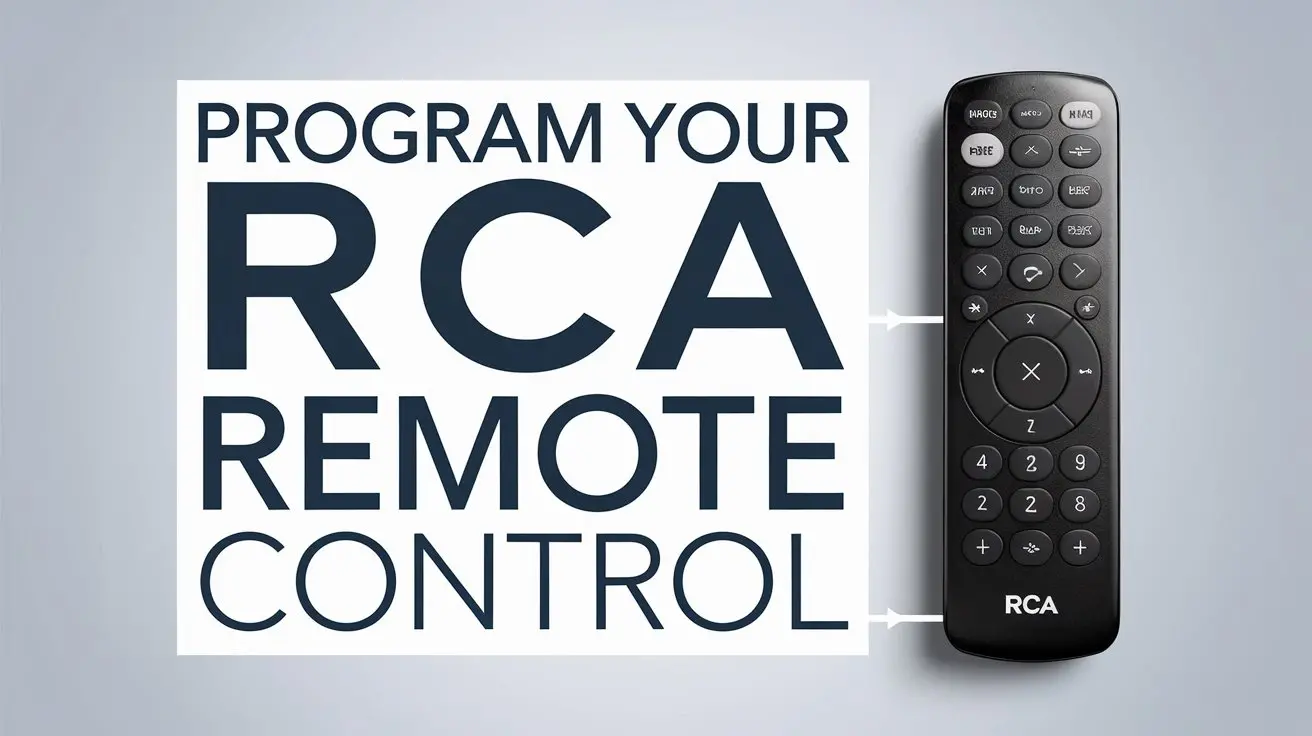
Unlock the full potential of your home entertainment system by mastering how to program your RCA universal remote control. This comprehensive guide will equip you with the knowledge to seamlessly control all your devices, eliminating clutter and simplifying your viewing experience. We cover everything from initial setup to advanced troubleshooting.
Getting Started with Your RCA Universal Remote
Before you can program your RCA universal remote, it's essential to understand its basic components and prepare for the process. Most RCA universal remotes are designed for ease of use, but a little preparation goes a long way. Ensure you have your remote, the devices you wish to control (TV, Blu-ray player, soundbar, etc.), and their respective manuals handy. The manuals often contain the specific codes needed for programming, or at least guide you to where you can find them. For many modern RCA models, the setup process is intuitive, often involving a few button presses. However, older models or specific device types might require a more detailed approach. It’s also crucial to ensure your remote has fresh batteries; low battery power can interfere with the programming process, leading to errors and frustration. Many users overlook this simple step, only to find themselves stuck. A quick check of the battery indicator, if your remote has one, or simply replacing them with new ones, can save significant time and effort. The primary goal is to consolidate multiple remotes into one, simplifying your living room setup and enhancing your overall home theater experience. This guide aims to demystify the process, making it accessible even for those who aren't tech-savvy.
Unboxing and Initial Inspection
Upon receiving your RCA universal remote, take a moment to inspect its contents. Typically, you'll find the remote itself, and often a small user manual or a quick-start guide. Some higher-end models might include batteries, but don't assume this. Check for any signs of damage from shipping. Familiarize yourself with the button layout. Key buttons to identify include the power button, device selection buttons (e.g., TV, DVD, AUX), the numeric keypad, navigation buttons (arrows, OK/Enter), and the programming-specific buttons like SETUP, CODE SEARCH, or LEARN. Understanding these will be fundamental to the programming steps that follow.
Gathering Necessary Information
The most critical piece of information you'll need is the list of codes for your specific devices. RCA provides these codes, and they are categorized by device type (TV, VCR, DVD, CBL/SAT, AUD, etc.) and brand. You can usually find these codes:
- In the user manual that came with your RCA remote.
- On the RCA website, often in a support or downloads section. Search for your specific remote model number.
- In third-party online databases that compile remote control codes.
It's a good idea to have the make and model number of each device you intend to control readily available. This will help you quickly find the correct code list. For instance, if you have a Samsung TV, you'll look for Samsung codes under the TV section. Having this information organized beforehand streamlines the entire programming process.
Battery Installation
As mentioned, fresh batteries are non-negotiable for successful programming. Most RCA universal remotes use standard AA or AAA batteries. Open the battery compartment on the back of the remote and insert the batteries, paying close attention to the polarity (+ and - markings). Once batteries are installed, the remote should power on, indicated by a small light or an LCD screen illuminating. If nothing happens, try reseating the batteries or try a different set. This is a fundamental step that, if overlooked, can lead to significant frustration.
Understanding RCA Universal Remote Codes
RCA universal remotes work by sending infrared (IR) signals that mimic the original remote control for each device. These signals are essentially digital codes. For a universal remote to control a specific device, it needs to know the correct sequence of IR signals for that device's brand and type. This is where remote control codes come in. These are numerical codes, typically 3 to 5 digits long, that tell the universal remote how to communicate with your TV, Blu-ray player, or other components.
How Codes Work
Each brand of television, DVD player, or soundbar is programmed at the factory to respond to a specific set of commands. When you press a button on the original remote, it sends a unique code. A universal remote needs to be "taught" these codes. It does this by storing a library of codes for various manufacturers. When you input a code, you're telling the remote to access the commands for a particular brand within its internal library. For example, a code for a Sony TV will instruct the RCA remote to send the specific signals that a Sony TV understands for functions like power, volume, and channel changes. The challenge is that different models within the same brand might use slightly different code sets, which is why you often find multiple codes listed for a single brand.
Code Structure and Length
RCA universal remotes commonly use 3-digit, 4-digit, or 5-digit codes. The length and structure of the code depend on the remote's model and the complexity of the devices it's designed to control. Newer, more advanced remotes might support longer codes or more sophisticated programming methods. When you consult the code list, you'll see entries like:
- TV - SONY: 005, 010, 015, 020, 031, 045, 052, 060, 071, 083, 099, 103, 115, 120, 135, 140, 152, 160, 171, 183, 199, 205, 210, 225, 230, 245, 250, 261, 275, 280, 291, 300, 310, 320, 330, 340, 350, 360, 370, 380, 390, 400, 410, 420, 430, 440, 450, 460, 470, 480, 490, 500, 510, 520, 530, 540, 550, 560, 570, 580, 590, 600, 610, 620, 630, 640, 650, 660, 670, 680, 690, 700, 710, 720, 730, 740, 750, 760, 770, 780, 790, 800, 810, 820, 830, 840, 850, 860, 870, 880, 890, 900, 910, 920, 930, 940, 950, 960, 970, 980, 990
- DVD - PANASONIC: 0010, 0011, 0012, 0013, 0014, 0015, 0016, 0017, 0018, 0019, 0020
As you can see, the number of available codes varies by device type and brand. The more codes listed, the higher the chance of finding one that works for your specific device.
Finding the Right Codes
The primary challenge in programming a universal remote is finding the correct code. If the codes provided in your manual don't work, your next step is to visit the RCA support website. Search for your remote's model number (usually found on the back or battery compartment). Most manufacturers have a dedicated section where you can download code lists or use an online tool to find codes based on your device's brand and type. In 2025, these online resources are more comprehensive than ever. If all else fails, consider using the auto-code search function, which systematically tries different codes until it finds one that controls your device. This method can be time-consuming but is often effective when direct code entry fails.
Common Programming Methods for RCA Universal Remotes
RCA universal remotes typically offer several methods for programming. The method you choose often depends on the sophistication of your remote and your comfort level with technology. The most common methods are direct code entry, auto code search, and the learning function. Understanding these methods will help you select the most efficient way to set up your remote.
Choosing the Right Method
For users who have their device manuals or can easily find the codes online, direct code entry is usually the fastest and most reliable method. If you're unsure of the codes or have a less common device, the auto code search is a good alternative, though it requires more patience. The learning function is a powerful feature for controlling devices that aren't supported by codes or for replicating specific, less common functions from an original remote. Many modern RCA remotes support at least two of these methods, offering flexibility.
Overview of Programming Techniques
Let's break down each of these methods in detail. Each has its own set of advantages and disadvantages, and the best approach can vary from user to user and device to device. We'll guide you through the steps for each, ensuring you can get your remote working with your entertainment system.
Method 1: Direct Code Entry
This is often the quickest way to program your RCA universal remote, provided you have the correct codes. It involves manually entering a numerical code that corresponds to your device's brand and type. This method is preferred because it directly tells the remote which set of commands to use.
Step-by-Step Guide for Direct Code Entry
- Turn on the device you want to program (e.g., your TV).
- Press and hold the SETUP button on your RCA universal remote until the LED indicator light stays on. Release the button.
- Press and release the device button you want to control (e.g., TV, DVD, CBL). The LED indicator light will turn off.
- Enter the first 3-digit (or 4-digit, depending on your remote) code from the code list for your device's brand. For example, if you're programming a Sony TV and the first code listed is '045', press the '0', '4', and '5' buttons.
- Point the remote at the device and press the POWER button.
- If the device turns off, the code is likely correct. Press the DEVICE button (e.g., TV) to lock in the code. The LED indicator should flash twice to confirm.
- If the device does not turn off, repeat steps 2-5 using the next code in the list for your device's brand. Continue this process until you find a code that works.
Important Considerations for Direct Code Entry:
- Code Lists: Always refer to the official RCA code list for your remote model. Generic lists found online might not be accurate.
- Device Buttons: Ensure you press the correct device button (TV, VCR, DVD, SAT, etc.) before entering the code.
- LED Indicator: Pay close attention to the LED indicator light. Its behavior (staying on, turning off, flashing) provides crucial feedback during the programming process.
- Testing: After entering a code, test multiple functions (power, volume, channel, menu) to ensure the code controls all essential operations. If some functions don't work, you might need to try another code.
Example Scenario: You want to program your RCA universal remote to control a Samsung TV. You find the code list for your remote and see that for Samsung TVs, the codes are 006, 012, 018, etc. You would follow the steps above, entering '006' first. If the TV doesn't turn off, you'd try '012', and so on, until you find a code that successfully powers off the TV. Once found, test volume, channel up/down, and menu buttons.
Method 2: Auto Code Search
This method is ideal when you can't find the specific code for your device or when direct code entry fails. The auto code search function systematically cycles through all the codes stored in the remote's memory until it finds one that operates your device. This can be a lengthy process but is highly effective.
Step-by-Step Guide for Auto Code Search
- Turn on the device you want to program.
- Press and hold the SETUP button on your RCA universal remote until the LED indicator light stays on. Release the button.
- Press and release the device button you want to control (e.g., TV, DVD). The LED indicator light will turn off.
- Press and hold the POWER button on the remote. The remote will start sending power-off signals, one code at a time.
- Watch your device closely. As soon as the device turns off, immediately release the POWER button.
- Press the DEVICE button (e.g., TV) to lock in the code. The LED indicator should flash twice to confirm.
- Test the remote by pressing various buttons (power, volume, channel). If it controls the device adequately, you're done.
- If the remote doesn't control the device properly, or if you released the POWER button too late and it cycled past the correct code, you'll need to repeat the process. To go back one code, press and release the REWIND button, then press and release the DEVICE button. To advance to the next code, press and release the FAST FORWARD button, then press and release the DEVICE button.
Tips for Auto Code Search:
- Patience is Key: This process can take several minutes, as the remote might cycle through hundreds of codes.
- Be Ready: Have your finger poised over the POWER button. The moment the device turns off, release it.
- Device Specificity: The auto code search might find a code that turns the device off but doesn't control other functions well. In such cases, you might need to perform the search again or try a different method.
- Interference: Ensure there are no other IR devices nearby that could interfere with the signal.
Example Scenario: You have an older, obscure brand of Blu-ray player and can't find its code. You initiate the auto code search. You hold down the POWER button, and after about 30 seconds, the Blu-ray player turns off. You immediately release the POWER button and press the DVD button to lock it in. You then test playback controls, menu navigation, and power. If these work, you've successfully programmed it. If not, you might have released the button too late and need to go back or start over.
Method 3: The Learning Function (If Applicable)
Some RCA universal remotes, particularly higher-end models, feature a "learning" function. This allows the universal remote to directly copy commands from your original device remote. This is incredibly useful for devices that don't have codes available or for specific functions not covered by standard codes.
Step-by-Step Guide for Learning Function
- Place the RCA universal remote and the original device remote face-to-face, with their IR emitters pointing directly at each other. Ensure they are close, typically 1-3 inches apart.
- On the RCA remote, press and hold the SETUP button until the LED indicator stays on. Release the SETUP button.
- Press and hold the LEARN button (or a similar designated button, check your manual) until the LED indicator turns on. Release the LEARN button.
- Press and release the button on the RCA remote that you want to program (e.g., POWER, VOL+). The LED indicator will blink once.
- Press and hold the corresponding button on the original device remote until the LED indicator on the RCA remote blinks twice. This indicates the command has been learned.
- Repeat steps 4 and 5 for each button you want to program onto the RCA remote.
- Once you have programmed all desired buttons, press the DEVICE button (e.g., TV) to exit learning mode. The LED indicator should flash twice.
Important Notes for Learning Function:
- IR Emitters: The alignment of the IR emitters is critical. Ensure they are directly facing each other.
- Battery Strength: Both remotes should have strong batteries.
- Button Mapping: You can map any button on the original remote to any programmable button on the RCA remote.
- Device Specificity: The learning function is device-specific. You'll need to program buttons for each device individually.
- Limited Functions: Some devices have complex command sequences or proprietary signals that may not be learnable.
Example Scenario: Your soundbar has a unique EQ setting button on its original remote that you can't find a code for. You decide to use the learning function. You place the original soundbar remote and your RCA universal remote facing each other. You press the LEARN button on the RCA remote, then press the EQ button on the RCA remote. Immediately, you press and hold the EQ button on the original soundbar remote. The RCA remote's LED blinks twice, confirming it has learned the command. You can then assign this learned command to any button on the RCA remote.
Troubleshooting Common Programming Issues
Even with the best guides, programming a universal remote can sometimes present challenges. Understanding common issues and their solutions can save you a lot of frustration. Whether it's a persistent error message, a device not responding, or intermittent functionality, there's usually a fix.
Device Not Responding to Codes
Issue: After entering a code or performing an auto-search, your device (TV, Blu-ray player, etc.) doesn't power on or respond to any commands.
Solutions:
- Verify Code List: Double-check that you are using the correct code list for your specific RCA remote model and your device's brand and type. Online resources can sometimes list codes for similar, but not identical, remote models.
- Try All Codes: If a code doesn't work, don't give up after the first try. Many brands have multiple codes listed. Systematically try each one.
- Correct Device Button: Ensure you pressed the correct device button (TV, DVD, etc.) on the RCA remote before entering the code or starting the search.
- Battery Check: Low batteries in the RCA remote are a common culprit. Replace them with fresh ones.
- Obstructions: Make sure there's a clear line of sight between the remote and the device's IR receiver. Remove any objects blocking the path.
- Device Power: Confirm the device itself is powered on and functioning correctly with its original remote.
Partial Functionality
Issue: The remote powers the device on and off, but other functions like volume, channel, or menu don't work.
Solutions:
- Try Another Code: The code you found might only control basic functions. Try the next code in the list for your device's brand. Often, a different code will unlock full functionality.
- Auto Code Search: If direct code entry yields partial results, perform an auto code search. This method is more likely to find a code that controls all essential functions.
- Learning Function: If your remote has a learning function, use it to copy the specific buttons (like volume or menu) from your original remote that aren't working.
- Device Manual: Consult your device's original manual. It might have specific instructions for universal remote compatibility or mention limitations.
Remote Not Entering Programming Mode
Issue: The LED indicator light on the remote doesn't turn on or stay on when you press and hold the SETUP button.
Solutions:
- Battery Check: This is almost always a battery issue. Ensure the batteries are inserted correctly and are fresh.
- Button Press Duration: Make sure you are pressing and holding the SETUP button long enough. Some remotes require holding it for 3-5 seconds.
- Remote Model Specifics: Consult your RCA remote's manual. Some models might have a slightly different sequence for entering programming mode.
- Reset the Remote: If possible, try resetting the remote. This often involves removing the batteries for a minute or two, or there might be a specific reset button or sequence outlined in the manual.
Learning Function Errors
Issue: The learning function isn't copying commands correctly, or the LED indicator behaves unexpectedly.
Solutions:
- Alignment: Ensure the IR emitters of both remotes are perfectly aligned and very close to each other (1-3 inches).
- Original Remote Functionality: Test the specific button on the original remote you are trying to learn. If it doesn't work on the original remote, it won't be learned.
- Battery Strength: Both remotes need strong batteries for the learning process.
- Interference: Ambient light or other IR signals can sometimes interfere. Try performing the learning process in a dimmer environment.
- Clear Learned Codes: If you've attempted to learn codes multiple times, it might be beneficial to clear any previously learned codes and start fresh. Check your manual for instructions on how to do this.
Comparison of Programming Methods
To help you decide which method to try first, here's a quick comparison:
| Method | Pros | Cons | Best For |
|---|---|---|---|
| Direct Code Entry | Fastest, most reliable if codes are known. | Requires accurate code list; may not work for all devices. | Devices with readily available codes. |
| Auto Code Search | Effective when codes are unknown or lost. | Can be time-consuming; may find codes that don't offer full functionality. | Obscure devices, unknown codes. |
| Learning Function | Controls unsupported devices/functions; replicates original remote precisely. | Requires original remote; can be finicky with alignment. | Unique functions, devices without codes, custom setups. |
Exploring Advanced Features and Customization
Beyond basic programming, many RCA universal remotes offer advanced features that can significantly enhance your home entertainment experience. These features allow for greater customization and control, making your remote truly your own. Understanding these capabilities can unlock a new level of convenience.
Macro Functionality (Punch-Through)
A macro is a sequence of commands that can be executed with a single button press. For example, you could program a "Movie Mode" macro that:
- Turns on your TV.
- Sets the TV to the correct HDMI input for your Blu-ray player.
- Turns on your Blu-ray player.
- Turns on your soundbar and sets it to the correct input.
This eliminates the need to press multiple buttons in sequence every time you want to watch a movie. The process for programming macros varies by remote model, but it generally involves entering a macro programming mode, recording the sequence of button presses, and assigning it to a specific button.
Punch-Through Controls
Punch-through allows you to assign certain functions, like volume or channel control, to always control a specific device, regardless of which device mode you are currently in. For instance, you might want your universal remote to always control your soundbar's volume, even when you're operating your Blu-ray player. This feature is often called "Volume Punch-Through" or "Channel Punch-Through." To set this up, you typically enter a specific programming mode, select the device whose controls you want to "punch through" (e.g., your soundbar for volume), and then activate the punch-through feature. Consult your remote's manual for the exact procedure, as it can differ significantly between models.
Device Naming and LCD Displays
Many modern RCA universal remotes feature LCD screens that can display the name of the currently selected device (e.g., "TV," "DVD," "STREAMER"). Some advanced models allow you to customize these names. This visual cue helps you confirm which device your remote is currently controlling, reducing errors. If your remote has an LCD screen, look for options related to "Device Naming" or "Display Settings" in its manual. This can make managing multiple devices much more intuitive.
Backlighting and Button Layout Customization
Some higher-end RCA remotes offer backlit buttons, which are incredibly useful for operating your remote in a dark home theater environment. While you usually can't program the backlighting itself, you might be able to adjust its duration or brightness. Additionally, some advanced remotes allow for limited button remapping, letting you assign a function to a different button. This is less common but can be a lifesaver if a crucial button on your original remote is in an awkward position.
Statistics on Universal Remote Usage (2025)
As of 2025, the adoption of universal remotes continues to grow, driven by the increasing number of connected devices in the average home. Data from industry analysts suggests that the average household now owns upwards of 10 connected entertainment devices, making remote clutter a significant pain point. Studies indicate that over 65% of consumers who own a universal remote report increased satisfaction with their home entertainment setup. Furthermore, the demand for remotes with voice control and smart home integration capabilities is soaring, with RCA actively developing models that incorporate these features. The market for universal remotes is projected to grow by approximately 7% annually, highlighting their enduring relevance and the ongoing need for user-friendly programming solutions like those provided by RCA.
Maintaining Your RCA Universal Remote
Once programmed, proper maintenance ensures your RCA universal remote continues to function reliably for years to come. Simple care practices can prevent common issues and extend the life of your device.
Cleaning Your Remote
Over time, remotes can accumulate dust, fingerprints, and grime. To clean your RCA remote:
- Power Down: Remove the batteries before cleaning to prevent accidental button presses or damage.
- Soft Cloth: Use a soft, dry microfiber cloth to wipe down the exterior.
- Damp Cloth (Optional): For stubborn smudges, slightly dampen the cloth with water. Avoid using harsh chemicals, solvents, or abrasive cleaners, as these can damage the plastic or remove markings.
- Buttons: For cleaning around buttons, a cotton swab lightly dampened with water or rubbing alcohol (used sparingly) can be effective. Be careful not to let any liquid seep into the remote's interior.
Battery Management
As established, fresh batteries are crucial for programming and operation. Here are some tips:
- Replace Batteries Annually: Even if your remote seems to be working, replace the batteries at least once a year to ensure optimal performance and prevent potential leakage.
- Use Quality Batteries: Opt for reputable brands of alkaline or lithium batteries. Avoid mixing old and new batteries, or different types of batteries.
- Remove Batteries for Long Storage: If you plan to store the remote for an extended period (e.g., if you're replacing your system), remove the batteries to prevent corrosion and leakage.
Preventing Physical Damage
Treat your remote with care to avoid physical damage:
- Avoid Drops: Keep the remote away from edges of tables or counters where it could easily fall. Consider a remote caddy or a designated spot.
- Keep Away from Liquids: Spills can be fatal to electronics. Keep drinks and other liquids away from your remote control.
- Extreme Temperatures: Do not leave the remote in direct sunlight or in excessively hot or cold environments, as extreme temperatures can damage internal components and the battery.
Software Updates (for Smart Remotes)
If you have a more advanced RCA universal remote with smart capabilities or Wi-Fi connectivity, check the manufacturer's website periodically for firmware or software updates. These updates can sometimes improve performance, add new features, or fix bugs. The process for updating will be detailed in your remote's manual or on the RCA support website.
Conclusion: Master Your Entertainment with RCA
Programming your RCA universal remote control is a straightforward process that unlocks unparalleled convenience for your home entertainment system. By understanding the different programming methods—direct code entry, auto code search, and the learning function—you can efficiently connect your TV, Blu-ray player, soundbar, and other devices. Remember to always have your device manuals and the correct code lists ready, and don't underestimate the importance of fresh batteries. Troubleshooting common issues is also key; whether it's a device not responding or partial functionality, the solutions are often simple fixes like trying alternative codes or ensuring clear line-of-sight. As of 2025, the need for consolidated control is greater than ever, with households managing an average of 10 connected devices. RCA universal remotes are designed to meet this demand, offering robust features and intuitive setup. Take the time to explore advanced functions like macros and punch-through controls to truly customize your experience. With this comprehensive guide, you are now well-equipped to program your RCA universal remote and enjoy a streamlined, clutter-free entertainment hub. Invest a little time now, and reap the rewards of effortless control for years to come.