Understanding the distinction between a modem and a router is crucial for a stable and efficient home network. This guide clarifies their roles, explains why you likely need both, and helps you optimize your internet connection for the demands of 2025 and beyond.
Modem vs. Router: The Core Difference
In the ever-evolving digital landscape of 2025-26, a robust home network is no longer a luxury but a necessity. Many users grapple with the fundamental question: "What’s the difference between a modem and a router, and do I need both?" While often bundled together or mistaken for one another, these devices perform distinct, yet complementary, functions. Understanding their roles is the first step to achieving seamless internet connectivity for all your devices.
What Exactly Is a Modem?
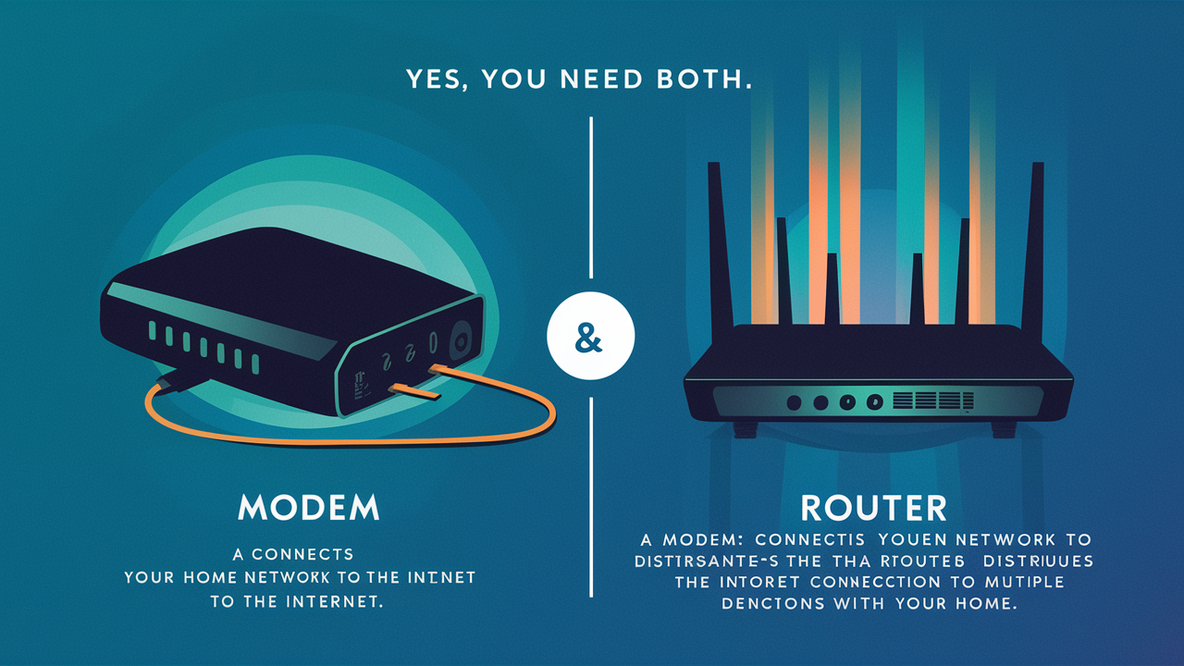
At its heart, a modem is the gateway to the internet. It's the device that bridges your home network to your Internet Service Provider's (ISP) network. Without a modem, your home devices would have no way to communicate with the vast expanse of the World Wide Web.
Modem Functionality: The Translator
The word "modem" is a portmanteau of "modulator-demodulator." This name perfectly describes its primary function: translating signals. Your ISP sends internet data to your home using specific types of signals that travel over cables (like coaxial, fiber optic, or telephone lines). These signals are not directly understandable by your digital devices, which communicate using digital data packets.
The modem's job is to:
- Modulate: Convert the digital data from your devices into analog signals that can travel over the ISP's infrastructure.
- Demodulate: Convert the incoming analog signals from your ISP back into digital data that your devices can understand and process.
Think of it as a universal translator. It takes the language of your ISP's network and translates it into the language your computer, smartphone, or smart TV speaks, and vice versa. It establishes and maintains the physical connection to your ISP.
Types of Modems
The type of modem you need depends on the type of internet service you subscribe to. Here are the most common:
- Cable Modems: These use coaxial cables, the same type used for cable television. They are prevalent for high-speed internet services. In 2025, DOCSIS 3.1 is the standard, offering speeds up to 10 Gbps downstream and 1-2 Gbps upstream, with DOCSIS 4.0 starting to roll out for even higher throughput.
- DSL Modems: These use traditional telephone lines. DSL (Digital Subscriber Line) technology offers varying speeds depending on the distance from the ISP's central office and the specific DSL standard (e.g., ADSL, VDSL). Speeds typically range from a few Mbps to over 100 Mbps.
- Fiber Optic Modems (ONTs): Fiber optic internet uses light signals transmitted through glass or plastic fibers. The device that terminates the fiber optic cable and converts light signals to electrical signals is often called an Optical Network Terminal (ONT), which essentially functions as a fiber modem. Fiber offers the highest speeds, often reaching symmetrical gigabit speeds (1 Gbps download and 1 Gbps upload) and beyond, making it ideal for demanding applications in 2025.
- Dial-Up Modems: While largely obsolete for home internet in 2025, these were the original modems that used phone lines and made a distinctive sound. They offered very slow speeds, typically under 56 Kbps.
It's crucial to ensure your modem is compatible with your ISP's technology and the service plan you've chosen. Your ISP will usually specify which modems are supported or provide one themselves.
The Modem-Only Scenario
In a setup with only a modem, you would connect a single device (like a computer) directly to the modem via an Ethernet cable. This device would then have direct access to the internet. However, this setup is highly impractical for modern households for several reasons:
- Limited Connectivity: Only one device can be connected at a time.
- No Network Sharing: You cannot share the internet connection with other devices in your home.
- Lack of Security: Your single connected device would be directly exposed to the internet, lacking the basic firewall and security features a router provides.
This scenario is essentially a relic of the early internet days and is not suitable for today's multi-device environments.
What Exactly Is a Router?
If the modem is the gateway, the router is the intelligent traffic director within your home network. It takes the single internet connection provided by the modem and distributes it to multiple devices, creating your local area network (LAN).
Router Functionality: The Traffic Director
A router's primary function is to manage and direct data traffic between your devices and the internet, as well as between your devices themselves. It acts as a central hub, creating a private network for your home. Here's how it works:
- Assigns IP Addresses: When devices connect to your router (either via Wi-Fi or Ethernet), the router assigns each device a unique local IP address. This allows the router to keep track of which device is requesting what data.
- Routes Data Packets: It determines the most efficient path for data packets to travel between your devices and the internet, ensuring that information reaches the correct destination.
- Network Address Translation (NAT): This is a critical function. NAT allows multiple devices on your private network to share a single public IP address provided by your modem. It translates your private IP addresses into the public IP address when sending data to the internet and vice versa when receiving data. This also provides a basic layer of security by hiding your internal network structure.
- Provides Wi-Fi: Most modern routers are wireless routers, broadcasting a Wi-Fi signal that allows devices to connect wirelessly.
- Acts as a Firewall: Routers typically include a built-in firewall that helps protect your network from unauthorized access and malicious traffic from the internet.
Key Router Features
Modern routers offer a range of features that enhance your home networking experience:
- Wi-Fi Standards: Routers support different Wi-Fi standards (e.g., Wi-Fi 5/802.11ac, Wi-Fi 6/802.11ax, Wi-Fi 6E, and the emerging Wi-Fi 7/802.11be). Wi-Fi 6 and 6E are common in 2025, offering faster speeds, better performance in crowded environments, and improved battery efficiency for connected devices. Wi-Fi 7 promises even greater speeds and lower latency.
- Ethernet Ports: Most routers have multiple Ethernet ports (typically Gigabit Ethernet) for wired connections, which are generally faster and more stable than Wi-Fi.
- Guest Networks: This feature allows you to create a separate Wi-Fi network for visitors, keeping your main network secure and private.
- Quality of Service (QoS): QoS settings allow you to prioritize certain types of traffic (e.g., video streaming, online gaming) over others, ensuring a smoother experience for critical applications.
- Parental Controls: Many routers offer features to manage internet access for children, such as scheduling internet availability or blocking specific websites.
- Mesh Wi-Fi Capabilities: For larger homes, mesh Wi-Fi systems (often built into or compatible with advanced routers) use multiple nodes to create a single, seamless Wi-Fi network, eliminating dead zones.
- Security Features: Advanced routers may offer WPA3 encryption, VPN support, intrusion detection, and regular security updates.
The Router-Only Scenario
It's technically possible to have a router without a modem, but it wouldn't provide internet access. A router connects devices to each other and manages local traffic. If it's not connected to a modem (which is connected to the ISP), it can only create a local network without any external connectivity. This might be used in specific business or lab environments for isolated network testing, but it's not relevant for home internet access.
Why You Almost Certainly Need Both a Modem and a Router
The synergy between a modem and a router is what creates a functional, secure, and versatile home internet network. They are two distinct pieces of hardware that work in tandem to bring the internet into your home and distribute it effectively.
The Internet Connection Chain
Imagine the journey of internet data to your home:
- ISP Network: Your Internet Service Provider has a vast network of servers and infrastructure.
- Modem: This is the first point of contact for the internet signal entering your home. It translates the ISP's signal into a format your devices can use. It typically has one Ethernet port to output this internet connection.
- Router: The router connects to the modem's Ethernet port. It takes that single internet feed and "routes" it to all your connected devices. It creates your local network (LAN) and manages traffic between your devices and the internet.
- Devices: Your computers, smartphones, smart TVs, gaming consoles, and smart home gadgets connect to the router (via Wi-Fi or Ethernet) to access the internet.
Without the modem, there's no internet signal entering your home. Without the router, that single internet signal can't be shared, managed, or secured for multiple devices.
Security and Control
This is a critical differentiator. A modem, by itself, offers very little in terms of network security. It's primarily a signal converter.
A router, on the other hand, is your network's first line of defense. Its built-in firewall screens incoming traffic, blocking potentially malicious attempts to access your network. It also uses Network Address Translation (NAT) to mask your internal IP addresses, making it harder for external entities to target individual devices. Furthermore, routers allow you to manage access, set up guest networks, and enforce security protocols like WPA3 encryption for your Wi-Fi, which is essential in 2025 with the proliferation of connected devices.
Device Connectivity
Most modems are designed to provide internet access to only one device via a single Ethernet port. This is insufficient for modern households where multiple people use multiple devices simultaneously. A router, especially a wireless router, is designed to connect numerous devices wirelessly and via Ethernet ports. This allows everyone in the household to be online at the same time, streaming, gaming, working, and browsing without direct competition for a single connection.
Performance Optimization
While the modem determines the maximum speed you can receive from your ISP, the router plays a significant role in how that speed is distributed and experienced within your home. A good router can:
- Manage Bandwidth: Using QoS, it can prioritize critical traffic, ensuring smooth streaming or lag-free gaming even when other devices are using the internet.
- Improve Wi-Fi Coverage: Advanced routers and mesh systems ensure strong Wi-Fi signals throughout your home, reducing dead spots and dropped connections.
- Handle Multiple Devices: Modern routers are built to handle the demands of many connected devices simultaneously, a common scenario in 2025 with the rise of IoT devices.
In essence, the modem brings the internet to your doorstep, and the router intelligently distributes it throughout your home, managing access, security, and performance.
Modem/Router Combo Units: Convenience vs. Control
To simplify setup and reduce clutter, many ISPs offer modem/router combo units, also known as gateways. These devices integrate both modem and router functionalities into a single hardware box.
Pros of Combo Units
- Simplicity: One device to set up and manage.
- Reduced Clutter: Fewer cables and power adapters.
- ISP Support: Often easier to get support from your ISP as they typically manage and provide these devices.
- Cost-Effective: Sometimes cheaper than buying separate units, especially if bundled with your internet plan.
Cons of Combo Units
- Limited Customization: Less control over advanced network settings compared to separate, higher-end routers.
- Performance Limitations: The integrated router may not be as powerful or feature-rich as a dedicated, standalone router, especially for Wi-Fi performance in larger homes.
- Firmware Updates: You are dependent on your ISP for firmware updates, which can sometimes be slow or non-existent, leaving you with outdated security features.
- Single Point of Failure: If the combo unit fails, both your internet connection and your local network go down.
- Upgrade Difficulty: If you want to upgrade just the router part (e.g., for better Wi-Fi), you often have to replace the entire unit or put it in bridge mode and add a separate router.
When a Combo Unit is Suitable
Combo units are often a good choice for:
- Basic Users: Households with only a few devices and minimal need for advanced network configuration.
- Small Homes/Apartments: Where Wi-Fi coverage is less of a concern.
- Budget-Conscious Users: When cost savings and simplicity are the top priorities.
- Users Who Prefer ISP Management: Those who want their ISP to handle all aspects of their home network equipment.
However, for users who require the best performance, advanced features, greater control over their network security, or have larger homes, investing in separate, high-quality modem and router units is generally recommended.
Choosing the Right Modem and Router for 2025-26
Selecting the appropriate modem and router is crucial for ensuring you get the most out of your internet service and can support the increasing demands of modern digital life. Here's a guide to help you make informed choices in 2025-26.
Modem Selection Criteria
When choosing a modem, consider the following:
- ISP Compatibility: This is paramount. Your ISP must support the modem you choose. Check their website or contact them for a list of approved modems.
- Internet Speed Plan: Ensure the modem's maximum supported speeds (downstream and upstream) meet or exceed your ISP plan's speeds. For example, if you have a 1 Gbps plan, you'll need a modem capable of at least that speed (e.g., a DOCSIS 3.1 modem for cable). Over-provisioning is common, meaning your plan might be slightly faster than advertised, so a modem rated for slightly higher is beneficial.
- Technology Type: Match the modem to your ISP's service: Cable (DOCSIS 3.1 is standard), DSL (VDSL2 is common), or Fiber (ONT).
- Number of Channels (Cable Modems): More downstream and upstream channels generally mean better performance and stability, especially during peak usage times. Look for at least 16 downstream and 4 upstream channels for DOCSIS 3.0, and ideally DOCSIS 3.1 for higher speeds.
- Future-Proofing: While DOCSIS 3.1 is the current standard for cable, DOCSIS 4.0 is emerging. If you plan to keep your modem for several years and anticipate speed upgrades, consider a DOCSIS 4.0 compatible modem if available and supported by your ISP. For fiber, ensure the ONT is rated for your subscribed speed.
2025-26 Tip: With gigabit and multi-gigabit internet plans becoming more common, ensure your modem can handle these speeds. A DOCSIS 3.1 modem is a minimum for speeds above 500 Mbps on cable. For fiber, the ISP usually provides the ONT.
Router Selection Criteria
Choosing a router involves considering your household's needs:
- Wi-Fi Standard:
- Wi-Fi 6 (802.11ax): Highly recommended for 2025. Offers significant improvements over Wi-Fi 5 in terms of speed, efficiency, and performance in crowded wireless environments (many devices).
- Wi-Fi 6E: Adds the 6 GHz band, providing a less congested spectrum for even faster speeds and lower latency, ideal for compatible devices.
- Wi-Fi 7 (802.11be): The latest standard, promising multi-gigabit speeds, lower latency, and improved reliability. It's still emerging in 2025, so compatibility with devices might be limited initially, but it's the future.
- Speed and Bandwidth: Look for routers rated for speeds that match or exceed your internet plan. For multi-gigabit plans, consider routers with multi-gigabit Ethernet ports (2.5 Gbps or 10 Gbps) and Wi-Fi 6E or Wi-Fi 7 capabilities.
- Coverage Area: Consider the size of your home. For larger homes, a single powerful router might suffice, or a mesh Wi-Fi system (which often uses a primary router and satellite nodes) might be necessary for consistent coverage.
- Number of Devices: If you have many smart home devices, IoT gadgets, and multiple users, a router with MU-MIMO (Multi-User, Multiple Input, Multiple Output) and OFDMA (Orthogonal Frequency Division Multiple Access) technologies (found in Wi-Fi 6 and later) is essential for efficient handling of simultaneous connections.
- Ports: Ensure the router has enough Ethernet ports for your wired devices, and check if they are Gigabit Ethernet (1 Gbps) or faster.
- Security Features: Look for WPA3 encryption support, a robust built-in firewall, and regular firmware updates. Some routers offer advanced security suites.
- Advanced Features: Consider QoS for traffic prioritization, VPN support, parental controls, and the ability to create guest networks.
Internet Speed Considerations
The speed of your internet connection is determined by your ISP plan and the capabilities of your modem. However, your router's performance dictates how that speed is delivered to your devices.
2025-26 Internet Speeds:
- Average Home Download Speed: Globally, average speeds are increasing. In developed nations, averages often exceed 150-200 Mbps, with many households subscribing to gigabit plans (1000 Mbps).
- Average Home Upload Speed: Traditionally lower than download speeds, but fiber optic services are increasingly offering symmetrical speeds (e.g., 1 Gbps down/1 Gbps up).
- Impact of Multiple Devices: With the average household having 20+ connected devices in 2025, the aggregate demand on bandwidth is high. Streaming 4K video, online gaming, video conferencing for remote work, and cloud backups all consume significant bandwidth.
Example: If you have a 1 Gbps internet plan, but your router only supports Wi-Fi 5 and has limited processing power, you might not experience those full speeds on your wireless devices, especially if multiple devices are active. A Wi-Fi 6 or 6E router with a strong processor will do a much better job of distributing that gigabit speed effectively across your devices.
Future-Proofing Your Network
Investing in a modem and router that are slightly ahead of your current needs can save you money and hassle in the long run. Consider:
- Speed Tiers: If you anticipate upgrading your internet speed in the next 2-3 years, get a modem that can handle those higher speeds.
- Wi-Fi Standards: Opting for Wi-Fi 6 or Wi-Fi 6E now will ensure better performance with newer devices and provide a smoother transition as more devices adopt these standards. Wi-Fi 7 is the next frontier, but widespread adoption and device support will take time.
- Mesh Systems: If you have a large or complex home layout, a mesh system is a wise investment for guaranteed coverage.
By carefully selecting your modem and router, you can build a reliable, fast, and secure network that meets your current demands and is ready for the evolving technological landscape of 2025 and beyond.
Troubleshooting Common Modem and Router Issues
Even with the best equipment, network issues can arise. Understanding how to troubleshoot common problems can save you time and frustration.
Internet Outages
Symptoms: No internet connection on any device, or the modem/router status lights indicate a problem.
Troubleshooting Steps:
- Check ISP Status: Visit your ISP's website or app (using cellular data if necessary) to see if there's a known outage in your area.
- Power Cycle Modem and Router: This is the most common fix.
- Unplug the power from both your modem and your router.
- Wait for at least 30-60 seconds.
- Plug the modem back in first. Wait for its lights to stabilize (indicating it has connected to the ISP). This can take a few minutes.
- Once the modem is fully online, plug the router back in. Wait for its lights to stabilize.
- Test your internet connection.
- Check Cables: Ensure all cables (coaxial, Ethernet, power) are securely connected to the correct ports on both the modem and router, and to the wall outlet.
- Contact ISP: If power cycling doesn't resolve the issue and there's no known outage, contact your ISP. The problem might be with their service or the line coming into your home.
Slow Internet Speeds
Symptoms: Websites load slowly, videos buffer, downloads take a long time.
Troubleshooting Steps:
- Test Speed Directly from Modem: If possible, connect a computer directly to the modem via Ethernet cable and run a speed test (e.g., Speedtest.net, Fast.com). This helps determine if the issue is with the modem/ISP or the router/Wi-Fi.
- Test Speed from Router (Wired): Connect a computer to one of the router's Ethernet ports and run a speed test. If speeds are significantly lower than modem-direct tests, the router might be the bottleneck.
- Test Speed from Router (Wireless): Run speed tests on different devices, in different locations within your home.
- Proximity: Move closer to the router.
- Interference: Minimize interference from other electronics (microwaves, cordless phones).
- Band Selection: If your router supports 2.4 GHz and 5 GHz bands, test both. 5 GHz is faster but has shorter range; 2.4 GHz has better range but is slower and more prone to interference. Wi-Fi 6E and Wi-Fi 7 add the 6 GHz band.
- Check Router Load: Are many devices actively using the internet? High simultaneous usage can slow things down.
- Update Router Firmware: Outdated firmware can impact performance.
- Restart Router: Sometimes a simple restart can resolve temporary performance glitches.
- Consider Router Upgrade: If your router is old (e.g., Wi-Fi 4 or older) or doesn't support your internet speed, it might be time for an upgrade.
- Contact ISP: If speeds are consistently slow even when connected directly to the modem, the issue may be with your ISP's service or network congestion.
Connectivity Problems
Symptoms: Devices can't connect to Wi-Fi, Wi-Fi keeps dropping, specific devices can't get an IP address.
Troubleshooting Steps:
- Check Router Wi-Fi Lights: Ensure the Wi-Fi indicator light on your router is on.
- Restart Device: Try restarting the device that's having trouble connecting.
- Forget and Reconnect to Wi-Fi: On the device, go to Wi-Fi settings, "forget" your network, and then try to reconnect by entering the password again.
- Check Router's DHCP Settings: Ensure the router's DHCP server is enabled, as this is what assigns IP addresses.
- Check for IP Address Conflicts: If multiple devices are trying to use the same IP address, it can cause issues. A router restart usually resolves this.
- Router Channel Congestion: In crowded areas, Wi-Fi channels can become congested. Access your router's settings and try changing the Wi-Fi channel (especially for the 2.4 GHz band).
- Firmware Update: Ensure your router's firmware is up to date.
- Factory Reset Router: As a last resort, you can factory reset your router. This will erase all custom settings, so you'll need to reconfigure your network name (SSID), password, and any other custom settings.
Router Firmware Updates
Firmware is the software that runs on your router. Keeping it updated is crucial for security and performance.
How to Update:
- Access Router Settings: Log in to your router's web-based administration interface (usually by typing its IP address, like 192.168.1.1 or 192.168.0.1, into a web browser).
- Find Firmware Update Section: Look for a section labeled "Firmware Update," "Administration," "System," or "Advanced Settings."
- Check for Updates: Most routers have an option to automatically check for updates online.
- Manual Update: If automatic updates aren't available or don't work, you may need to download the latest firmware file from the router manufacturer's website (ensure you download the correct version for your specific router model) and upload it through the router's interface.
- Important: Never interrupt the firmware update process (e.g., by unplugging the router or losing power), as this can permanently damage the router.
Regularly checking for and applying firmware updates is one of the easiest ways to maintain a secure and efficient home network.
The Future of Home Networking
The landscape of home networking is constantly evolving, driven by the insatiable demand for faster speeds, lower latency, and seamless connectivity for an ever-increasing number of devices. In 2025 and beyond, we're seeing several key trends:
- Ubiquitous Multi-Gigabit Speeds: With the widespread availability of fiber optic internet and advancements in cable technology (like DOCSIS 4.0), multi-gigabit internet plans are becoming the norm, not the exception. This necessitates modems and routers capable of handling these immense data rates.
- Wi-Fi 7 Adoption: While Wi-Fi 6 and 6E are current standards, Wi-Fi 7 (802.11be) is poised to become the next dominant wireless technology. It promises speeds up to 46 Gbps, significantly lower latency, and improved reliability through features like multi-link operation. This will be crucial for bandwidth-intensive applications like immersive AR/VR experiences, cloud gaming, and high-definition streaming across multiple devices simultaneously.
- AI-Powered Networking: Artificial intelligence is increasingly being integrated into routers and network management systems. AI can optimize Wi-Fi performance, predict and prevent network issues, automatically adjust settings for optimal user experience, and enhance security by detecting anomalies.
- Enhanced Security: As our homes become more connected, network security becomes paramount. Expect routers to feature more robust built-in security suites, advanced threat detection, and easier integration with home security systems. WPA3 encryption will become standard.
- Mesh and Whole-Home Solutions: The demand for seamless Wi-Fi coverage throughout larger homes continues to drive the popularity of mesh Wi-Fi systems. These systems offer a single, unified network that adapts to device movement and minimizes dead zones.
- Increased IoT Integration: The Internet of Things (IoT) will continue to expand, with more smart home devices connecting to our networks. Routers will need to efficiently manage and secure these diverse devices, often with lower bandwidth requirements but requiring reliable connectivity.
The distinction between modems and routers will likely remain, but the capabilities of both will continue to advance. Routers, in particular, will become more intelligent, secure, and powerful, acting as the central nervous system of our increasingly connected digital lives. Understanding the foundational roles of modems and routers, as detailed in this guide, provides the essential knowledge to navigate this evolving landscape and ensure you have the right setup for your needs in 2025-26 and beyond.
Conclusion
In summary, the modem is your internet's translator, converting signals from your ISP into a usable format. The router is your network's conductor, distributing that internet connection to all your devices, managing traffic, and providing essential security. While combo units offer convenience, separate modem and router setups generally provide superior performance, flexibility, and control, especially for demanding users in 2025-26. To ensure optimal performance, select a modem compatible with your ISP and internet speed plan, and choose a router that supports modern Wi-Fi standards like Wi-Fi 6 or 6E, offers sufficient coverage, and meets your household's connectivity needs. By understanding and properly equipping your home network with both a modem and a router, you lay the foundation for a fast, secure, and reliable internet experience, ready to embrace the digital demands of today and tomorrow.