Experiencing internet disruptions with Cox Communications? This guide provides immediate solutions and comprehensive troubleshooting steps if you suspect your Cox WiFi is down. We'll help you diagnose the issue, find out if it's a widespread outage, and get your service back online quickly.
Checking for Cox Service Outages
The first and most crucial step when your Cox WiFi is down is to determine if the problem lies with your equipment or if it's a larger, regional outage affecting Cox services. Identifying a widespread outage can save you a significant amount of troubleshooting time and frustration.
Official Cox Outage Information
Cox Communications provides several channels to check for service outages in your area. It's essential to utilize these official resources before diving into personal troubleshooting.
1. Cox Website and Account Portal
Cox's official website is your primary resource. Log in to your Cox My Account portal. Often, there will be a prominent banner or notification if there's a known service outage impacting your address. This portal also allows you to check your service status, view billing information, and manage your account. For 2025, Cox is expected to enhance its digital self-service tools, making outage notifications even more immediate and accessible through the app and web portal.
2. Cox Communications App
Download the Cox app on your smartphone or tablet. Similar to the website, the app usually displays real-time service status updates, including any active outages. This is a convenient way to stay informed, especially if your home internet is completely inaccessible.
3. Cox Social Media Channels
Many internet service providers, including Cox, use their official social media accounts (like Twitter/X) to communicate important service updates, including widespread outages. Following Cox on these platforms can provide rapid information, especially during critical events. For 2025, expect more proactive social media engagement from ISPs regarding service disruptions.
4. Third-Party Outage Detectors
Websites like DownDetector aggregate user-reported outages. While not official Cox channels, these sites can offer a quick snapshot of whether other Cox customers in your vicinity are experiencing similar issues. If a significant number of users are reporting problems, it strongly suggests a broader outage. In 2025, these platforms are expected to refine their data analysis to provide even more granular location-based outage insights.
What to Look for When Checking for Outages
- Geographic Scope: Is the outage reported for your specific neighborhood, city, or a wider region?
- Estimated Restoration Time: If an outage is confirmed, Cox may provide an estimated time for service restoration. This can help you manage expectations.
- Cause of Outage: Sometimes, the cause (e.g., weather, equipment failure, maintenance) is communicated, which can offer context.
If No Outage is Reported
If Cox's official channels and third-party detectors show no widespread outage affecting your area, then the problem is likely localized to your home network. This means it's time to move on to troubleshooting your own equipment.
Troubleshooting Your Modem and Router
When your Cox WiFi is down and there's no reported outage, the most common culprits are your modem and router. These devices are the gateway to your internet service, and they can experience temporary glitches or require a reset. This section provides a step-by-step guide to effectively troubleshoot these devices.
The Power Cycle: Your First Line of Defense
A power cycle, often referred to as a reboot or restart, is the simplest yet most effective troubleshooting step for most electronic devices, including modems and routers. It clears temporary memory and can resolve minor software or hardware glitches.
Step-by-Step Power Cycle Guide
- Unplug Both Devices: Locate your Cox modem and your WiFi router (if they are separate units). Unplug the power cord from both devices. If you have a combined modem/router unit, unplug that single device.
- Wait Patiently: This is a critical step. Wait for at least 60 seconds. This allows the devices to fully discharge any residual power and clear their internal memory. Rushing this step can negate its effectiveness.
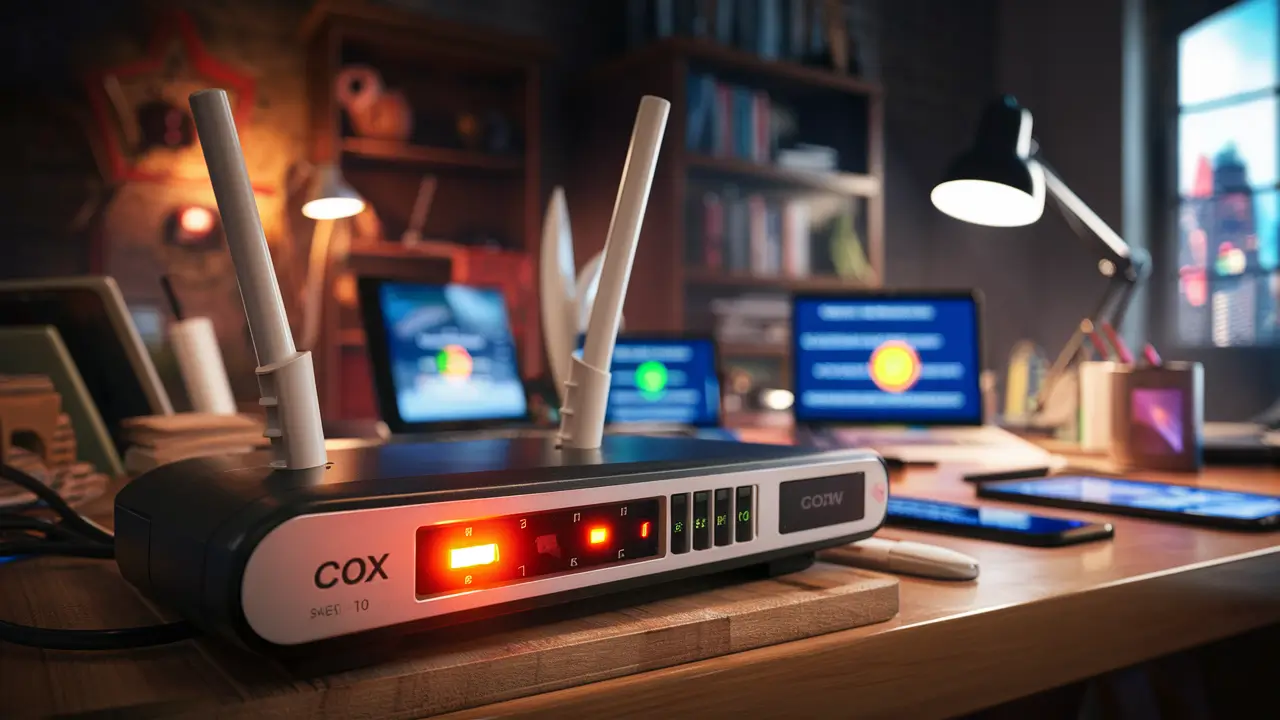
- Plug in the Modem First: Reconnect the power cord to your Cox modem. Wait for the modem to fully boot up. This can take several minutes. You'll know it's ready when the indicator lights stabilize (typically showing solid power, downstream, upstream, and online/internet lights). Consult your modem's manual for specific light indicators.
- Plug in the Router: Once the modem is fully online, plug in the power cord to your WiFi router. Allow the router to boot up completely. This also takes a few minutes, indicated by its power and WiFi indicator lights.
- Test Your Connection: After both devices have fully restarted, try connecting to your WiFi network and accessing the internet. You can test this on multiple devices (laptop, smartphone) to ensure it's not a single device issue.
Checking Physical Connections
Loose or damaged cables can interrupt your internet signal. Ensure all connections are secure and in good condition.
Cable Connections to Verify:
- Coaxial Cable: Ensure the coaxial cable is screwed tightly into the back of your Cox modem and the wall outlet. Check for any visible damage to the cable itself.
- Ethernet Cables: If you use a separate router, ensure the Ethernet cable connecting the modem to the router is securely plugged into the correct ports on both devices. Also, check Ethernet cables connecting devices directly to the router, if applicable.
- Power Cables: Confirm that power cables are firmly seated in both the devices and the power outlet or surge protector.
Understanding Modem and Router Lights
The lights on your modem and router are diagnostic indicators. Their status can tell you a lot about the health of your connection.
Common Modem Lights and Their Meanings:
| Light Name | Status (Solid) | Status (Flashing) | Status (Off) |
|---|---|---|---|
| Power | Device is powered on and functioning. | Booting up or error. | Device is not powered on. |
| Downstream | Receiving data from Cox network. | Acquiring downstream channel. | No downstream signal detected. |
| Upstream | Sending data to Cox network. | Acquiring upstream channel. | No upstream signal detected. |
| Online/Internet | Connected to the Cox network and internet. | Attempting to connect to the network. | Not connected to the network. |
Note: Specific light names and behaviors can vary slightly between modem models. Refer to your Cox-provided modem manual for exact details.
Common Router Lights:
- Power: Indicates the router is powered on.
- Internet/WAN: Shows a connection to the modem.
- WiFi (2.4GHz/5GHz): Indicates the wireless bands are active.
- LAN Ports: Lights up when a device is connected via Ethernet.
If your modem lights indicate a connection issue (e.g., "Online" light is off or flashing), the problem is likely with the signal coming into your home or with the modem itself. If the modem lights look good but your WiFi is still down, the issue is more likely with your router.
Factory Reset (Use as a Last Resort)
If a power cycle and cable check don't resolve the issue, a factory reset of your modem and/or router can sometimes help. This reverts the device to its original settings, clearing any misconfigurations.
Caution:
Performing a factory reset will erase all custom settings, including your WiFi network name (SSID) and password. You will need to set these up again after the reset. For a combined modem/router unit, this will reset both functions.
How to Factory Reset:
- Locate the Reset Button: Most modems and routers have a small, recessed reset button, often on the back or bottom of the device. You'll typically need a paperclip or a similar pointed object to press it.
- Press and Hold: With the device powered on, press and hold the reset button for 10-30 seconds (refer to your device's manual for the exact duration).
- Release and Wait: Release the button. The device will restart and return to its factory default settings. This process can take several minutes.
- Reconfigure: Once the device has rebooted, you will need to reconfigure your network settings, including setting a new WiFi name and password.
Common Cox WiFi Issues and Solutions
Beyond complete outages, users often encounter specific problems that make their Cox WiFi seem "down" or unreliable. These can range from slow speeds to devices not connecting. Understanding these common issues and their solutions is key to maintaining a stable internet experience.
Issue 1: Slow Internet Speeds
If your internet is technically working but is painfully slow, it can feel like it's down. This is a frequent complaint for many ISPs, including Cox.
Potential Causes and Solutions:
- Too Many Devices: In 2025, the average household has more connected devices than ever before. Each device consumes bandwidth.
- Solution: Disconnect devices not actively in use. Consider upgrading your Cox internet plan if your needs consistently exceed your current bandwidth.
- Router Placement: The physical location of your router significantly impacts WiFi signal strength.
- Solution: Place your router in a central, open location, away from obstructions like thick walls, metal objects, and other electronics (microwaves, cordless phones) that can cause interference.
- Outdated Router: Older routers may not support the latest WiFi standards (like WiFi 6/6E) and can become a bottleneck.
- Solution: Consider upgrading to a newer router that supports current standards. Cox offers rental options, or you can purchase your own compatible router.
- Bandwidth Congestion: During peak hours (evenings and weekends), more users in your neighborhood are online, potentially slowing down speeds.
- Solution: Schedule bandwidth-intensive activities like large downloads or streaming during off-peak hours.
- Malware or Viruses: Infected devices can consume bandwidth in the background.
- Solution: Run regular scans with reputable antivirus software on all your connected devices.
- ISP Throttling: While less common for general use, some plans might have data caps or speed restrictions after a certain usage threshold.
- Solution: Review your Cox plan details to understand any potential data limitations.
Issue 2: Specific Devices Cannot Connect to WiFi
Sometimes, your internet connection is fine, but one or more devices refuse to connect to your WiFi network.
Potential Causes and Solutions:
- Incorrect Password: A simple typo can prevent connection.
- Solution: Double-check that you are entering the correct WiFi password. Passwords are case-sensitive.
- Device WiFi is Off: Ensure WiFi is enabled on the device itself.
- Solution: Check the network settings on the problematic device and ensure WiFi is toggled on.
- Device Needs Reboot: Like modems and routers, devices can benefit from a restart.
- Solution: Turn off the WiFi on the device, wait a few seconds, and turn it back on. A full device reboot is also recommended.
- Router Channel Congestion: Your router broadcasts on specific channels. If many nearby networks use the same channel, it can cause interference.
- Solution: Access your router's settings and try changing the WiFi channel. Many modern routers have an "auto" setting that can optimize this, or you can manually select a less congested channel (e.g., 1, 6, or 11 for 2.4GHz).
- MAC Filtering Enabled: Some advanced routers allow you to restrict network access to only specific devices based on their MAC address.
- Solution: Check your router's security settings to ensure MAC filtering is either disabled or that the problematic device's MAC address is added to the allowed list.
- Outdated Device Drivers: For computers, outdated network adapter drivers can cause connection problems.
- Solution: Update the network drivers for your computer through its operating system or the manufacturer's website.
Issue 3: WiFi Signal is Weak or Intermittent
You can connect, but the signal strength fluctuates, leading to dropped connections or slow speeds in certain areas of your home.
Potential Causes and Solutions:
- Distance from Router: WiFi signals weaken with distance.
- Solution: Move closer to the router. If this is not practical, consider a WiFi range extender or a mesh WiFi system. For 2025, mesh systems are becoming increasingly affordable and effective for covering larger homes.
- Physical Obstructions: Walls (especially brick or concrete), large appliances, and even aquariums can block or degrade WiFi signals.
- Solution: Relocate the router to a more central and open location. If you have a particularly large home or many signal-blocking materials, a mesh system is often the best solution.
- Interference from Other Devices: Microwaves, cordless phones, Bluetooth devices, and even some neighboring WiFi networks can interfere.
- Solution: Identify potential sources of interference and move them away from the router or the device you are using. Changing the WiFi channel on your router can also help.
- Router Firmware Outdated: Router manufacturers release firmware updates to improve performance and fix bugs.
- Solution: Check your router's administrative interface for firmware updates and install them.
Issue 4: Router Not Detected or Not Broadcasting SSID
Your devices cannot see your WiFi network name (SSID) at all.
Potential Causes and Solutions:
- Router is Off: Ensure the router is powered on and its power light is illuminated.
- WiFi Broadcasting Disabled: The WiFi broadcast feature might have been accidentally turned off in the router settings.
- Solution: Access your router's settings and ensure the "Enable Wireless" or "Broadcast SSID" option is checked.
- Router Malfunction: The router itself may have failed.
- Solution: If other troubleshooting steps fail, and the router is old, it may be time to replace it.
Optimizing Your WiFi Performance
Once you've confirmed your Cox WiFi is operational, optimizing its performance ensures you get the best possible speeds and coverage throughout your home. This section delves into practical strategies for maximizing your wireless network's efficiency, especially relevant in the increasingly connected landscape of 2025-26.
Understanding WiFi Bands (2.4GHz vs. 5GHz)
Most modern routers broadcast on two frequency bands: 2.4GHz and 5GHz. Understanding their differences can help you connect devices optimally.
- 2.4GHz Band:
- Pros: Longer range, better penetration through walls and obstacles.
- Cons: Slower speeds, more susceptible to interference from other devices (microwaves, Bluetooth, older cordless phones).
- Best For: Devices further from the router, smart home devices with lower bandwidth needs, general browsing.
- 5GHz Band:
- Pros: Faster speeds, less interference.
- Cons: Shorter range, less effective at penetrating solid objects.
- Best For: Devices closer to the router, high-bandwidth activities like streaming HD/4K video, online gaming, large file downloads.
Optimization Tip:
If your router broadcasts separate SSIDs for each band (e.g., "MyHomeWiFi_2.4" and "MyHomeWiFi_5"), manually connect devices to the appropriate band based on their location and usage. Many newer routers offer "band steering," where a single SSID is used, and the router automatically directs devices to the best band.
Router Placement: The Foundation of Good WiFi
As mentioned, this is critical. In 2025, with more smart home devices, consistent signal strength everywhere is paramount.
- Central Location: Place your router as close to the center of your home as possible.
- Elevated Position: Mount your router on a shelf or wall, not on the floor.
- Avoid Obstructions: Keep it away from thick walls, large metal objects (filing cabinets, refrigerators), and other electronics that emit radio waves.
- Antenna Orientation: If your router has external antennas, experiment with their orientation. For broad coverage, try pointing them in different directions (e.g., one vertical, one horizontal).
Managing Network Congestion
Even with a good signal, too many devices demanding bandwidth simultaneously can slow things down.
- Quality of Service (QoS): Many routers offer QoS settings that allow you to prioritize certain devices or types of traffic (e.g., prioritize video streaming over background downloads).
- Solution: Access your router's settings and configure QoS to prioritize your most critical applications.
- Limit Background Activity: Be mindful of automatic updates, cloud syncing, and other background processes that consume bandwidth.
- Solution: Schedule these activities for off-peak hours or pause them when you need maximum speed for active tasks.
Firmware Updates for Your Router
Router manufacturers regularly release firmware updates to improve performance, patch security vulnerabilities, and add new features. Keeping your router's firmware up-to-date is essential for optimal and secure operation.
How to Update:
- Access Router Settings: Log in to your router's web-based administrative interface (usually by typing an IP address like 192.168.1.1 or 192.168.0.1 into your browser).
- Find Firmware Update Section: Look for a section labeled "Firmware Update," "Administration," or "System Tools."
- Check for Updates: Most routers have an option to automatically check for new firmware online.
- Install Update: Follow the on-screen prompts to download and install the update. Ensure the router is powered on and stable during the update process, as an interruption can brick the device.
Note: If you are renting a modem/router combo from Cox, they often manage firmware updates remotely.
Consider a Mesh WiFi System or Extender
For larger homes or those with dead spots, a single router might not be sufficient. In 2025-26, mesh systems are becoming the preferred solution for seamless whole-home coverage.
- WiFi Extenders: These devices pick up your existing WiFi signal and rebroadcast it. They are generally less expensive but can sometimes halve the available bandwidth and create a separate network name.
- Mesh WiFi Systems: These consist of a main router and one or more satellite nodes that work together to create a single, unified WiFi network. They offer better performance and seamless roaming between nodes.
If you're experiencing consistent dead zones, investing in a mesh system is a highly recommended solution for 2025.
When to Contact Cox Support
Despite your best troubleshooting efforts, some issues require direct intervention from Cox Communications. Knowing when to escalate your problem can save you time and frustration.
Signs You Should Contact Cox:
- Confirmed Widespread Outage: If Cox's own outage map or app confirms a service interruption in your area, there's little you can do until they resolve it. You can still contact them to report your specific location or inquire about restoration timelines.
- Modem Lights Indicate No Signal: If your modem's "Online" or "Internet" light remains off or is flashing continuously after a power cycle, and there's no reported outage, it suggests a problem with the signal coming to your home or with the modem itself.
- Persistent Slow Speeds After Troubleshooting: If you've tried all the optimization steps, reset your equipment, and your speeds are still significantly below what your plan promises, it's time to call Cox.
- No Internet After Multiple Resets: If you've performed power cycles and even factory resets on your modem and router (if rented from Cox) and still have no internet connection, Cox support needs to investigate.
- Billing or Account Issues: If you suspect an issue with your billing related to your internet service, or if your account status is preventing service, contact Cox customer service.
- Equipment Malfunction: If your Cox-provided modem or router appears to be physically damaged or is behaving erratically beyond what a reset can fix, Cox will likely need to replace it.
How to Contact Cox Support Effectively:
- Have Your Account Information Ready: This includes your account number, name, and the service address.
- Document Your Troubleshooting Steps: Be prepared to tell the support agent what you've already tried (e.g., "I've power cycled the modem and router," "I checked all cable connections," "I verified there are no reported outages"). This prevents them from asking you to repeat basic steps.
- Note Modem/Router Light Status: Knowing the status of the lights on your modem can be very helpful for diagnostics.
- Be Clear and Concise: Explain the problem clearly and describe the symptoms you are experiencing.
- Ask Specific Questions: Don't hesitate to ask for clarification or to understand the next steps. For example, "What is the estimated time for restoration?" or "Will I need a technician visit?"
Cox Support Channels:
- Phone Support: This is often the most direct way to speak with a representative for complex issues.
- Online Chat: Many users find the online chat feature on the Cox website convenient for less urgent inquiries or to get quick answers.
- Cox App: The Cox app may offer support options or direct you to the best channel for your issue.
In 2025, Cox is expected to continue investing in AI-powered chatbots and improved self-service tools within their app and website, which can resolve many common queries before you even need to speak to a human agent.
Understanding Internet Speed and Reliability
When your Cox WiFi is down or performing poorly, it's easy to get frustrated. Understanding what "internet speed" and "reliability" truly mean, and what factors influence them, can set realistic expectations and help you communicate effectively with your ISP.
What is Internet Speed?
Internet speed is typically measured in megabits per second (Mbps) or gigabits per second (Gbps). It refers to the rate at which data can be transferred to and from your device over your internet connection.
- Download Speed: This is the speed at which data is transferred from the internet to your device. It's crucial for activities like streaming video, downloading files, and browsing websites.
- Upload Speed: This is the speed at which data is transferred from your device to the internet. It's important for activities like uploading photos or videos, video conferencing, and online gaming.
Cox offers various internet plans with different speed tiers. For example, plans in 2025 might range from 100 Mbps for basic use to over 1 Gbps for heavy users and businesses.
What is Internet Reliability?
Reliability refers to the consistency and uptime of your internet connection. A reliable connection means you can depend on it to be available when you need it, without frequent drops or interruptions.
- Uptime: The percentage of time your internet service is operational. Most ISPs aim for "five nines" (99.999%) uptime, though achieving this consistently can be challenging.
- Latency (Ping): This measures the time it takes for a small packet of data to travel from your device to a server and back. Lower latency is better, especially for real-time applications like online gaming and video calls. High latency can make an internet connection feel sluggish, even if speeds are high.
- Jitter: This is the variation in latency over time. High jitter can cause choppy audio or video during calls and lag in games.
Factors Affecting Speed and Reliability with Cox:
Several factors can influence the speed and reliability you experience with your Cox internet service:
- Your Internet Plan: The advertised speeds are "up to" these speeds. Your actual speeds will depend on your subscribed plan.
- Network Congestion: As discussed, more users online in your area, especially during peak hours, can slow down speeds for everyone. This is a common characteristic of cable internet infrastructure.
- Equipment Quality: The age and capability of your modem and router play a significant role. Outdated equipment can bottleneck even the fastest Cox plans.
- Home Network Setup: The number of devices connected, their placement, and potential interference within your home can impact performance.
- Cox's Infrastructure: The health and capacity of Cox's local network infrastructure, including the cables and equipment serving your neighborhood, are critical.
- External Factors: Weather events, construction, or accidental damage to network lines can cause temporary outages or performance degradation.
Understanding Speed Test Results
When troubleshooting, running speed tests is essential. Use reputable sites like Speedtest.net or Fast.com. Remember:
- Test on Multiple Devices: To rule out device-specific issues.
- Test Wired vs. Wireless: A wired Ethernet connection to your router typically provides more accurate results than WiFi, as it bypasses potential WiFi interference. If wired speeds are good but WiFi speeds are poor, the issue is likely with your router or WiFi setup.
- Test at Different Times: To see how congestion affects your speeds.
- Compare to Your Plan: Your results should be reasonably close to the speeds advertised for your Cox plan, especially when tested via Ethernet during off-peak hours.
In 2025, Cox, like other ISPs, is continually upgrading its network infrastructure to support higher speeds and better reliability. However, the factors above still play a crucial role in your day-to-day experience.
Future-Proofing Your Cox Connection
The digital landscape is constantly evolving, with increasing demands for bandwidth and connectivity. To ensure your Cox internet service remains robust and meets your needs in the coming years, consider these future-proofing strategies.
1. Choosing the Right Cox Plan
As you evaluate your current internet usage, think about future needs. The proliferation of 4K/8K streaming, cloud gaming, virtual reality, and an ever-growing number of connected smart home devices means bandwidth demands will only increase.
- Assess Current Usage: Monitor your data consumption and identify peak usage times.
- Anticipate Future Needs: Consider how many more smart devices you might add, if family members will be working or studying from home more, or if you plan to adopt new technologies like VR.
- Consider Speed Tiers: While you might be satisfied with your current speed, a plan with higher download and upload speeds will better accommodate future demands. For instance, a gigabit-speed plan (if available and affordable) offers significant headroom.
- Look at Upload Speeds: With the rise of content creation, video conferencing, and cloud backups, upload speeds are becoming increasingly important. Don't overlook them when selecting a plan.
2. Investing in Modern Networking Equipment
Your modem and router are the gateways to your internet. Outdated equipment can severely limit the performance of even the fastest Cox plans.
- Wi-Fi 6 (802.11ax) and Wi-Fi 6E Routers: By 2025, Wi-Fi 6 is becoming standard, and Wi-Fi 6E (which adds the 6GHz band) is gaining traction. These standards offer higher speeds, better efficiency, and improved performance in crowded wireless environments. Ensure your router supports the latest standards for optimal performance with your Cox service and your devices.
- DOCSIS 3.1 Modems: If you own your modem, ensure it's DOCSIS 3.1 compatible. This standard is designed to handle higher speeds and is crucial for maximizing gigabit-level internet plans. Cox typically requires or recommends specific modem types for their higher-tier plans.
- Mesh Wi-Fi Systems: For larger homes or those with complex layouts, a mesh system provides seamless, whole-home coverage, eliminating dead zones and ensuring consistent performance everywhere. This is a key investment for future-proofing your home network.
3. Smart Home Device Management
The Internet of Things (IoT) is expanding rapidly. Managing these devices efficiently is crucial for network health.
- Segment Your Network: If your router supports it, consider creating a separate guest network or IoT network for your smart home devices. This can enhance security and prevent less secure IoT devices from impacting your main network's performance.
- Prioritize Devices: Utilize Quality of Service (QoS) settings on your router to prioritize critical devices and applications, ensuring they receive adequate bandwidth even when other devices are active.
- Regular Audits: Periodically review the smart devices connected to your network. Remove any that are no longer used or that you don't recognize.
4. Understanding ISP Infrastructure Upgrades
Internet Service Providers like Cox are continuously investing in their network infrastructure. Keeping informed about their rollout plans can be beneficial.
- Fiber-to-the-Home (FTTH): While cable internet is robust, fiber optic technology offers superior speed and reliability. Keep an eye on Cox's plans for fiber expansion in your area.
- Network Enhancements: ISPs are always working to increase capacity and efficiency. Staying aware of general upgrades in your region can give you confidence in your service's future.
By taking a proactive approach to your internet plan, equipment, and network management, you can ensure your Cox WiFi connection is not only reliable today but also well-equipped for the technological advancements of tomorrow.
In conclusion, when your Cox WiFi appears to be down, a systematic approach is key. Start by checking for official Cox service outages. If none are reported, proceed to power cycle your modem and router, verify cable connections, and understand the status lights. Common issues like slow speeds or device connectivity problems can often be resolved with targeted troubleshooting and optimization techniques, such as strategic router placement and managing WiFi bands. For persistent problems or when basic steps fail, contacting Cox support with detailed information about your troubleshooting efforts is the next logical step. By understanding your internet speed, reliability factors, and implementing future-proofing strategies like upgrading equipment and choosing appropriate plans, you can ensure a consistently strong and dependable Cox internet experience. Don't let connectivity issues disrupt your digital life; follow these steps to diagnose, resolve, and optimize your Cox WiFi.