Is your Cox internet connection suddenly gone dark? This guide provides immediate steps to diagnose if Cox internet is down in your area, offers solutions for common issues, and helps you navigate the situation efficiently. We'll cover outage detection, troubleshooting, and what to do next.
Cox Internet Outage Detection: Is It Just You?
The sinking feeling of a dropped internet connection is all too familiar. When your Cox internet goes offline, the first and most crucial step is to determine if the issue is widespread or isolated to your home. This involves a multi-pronged approach, leveraging official channels and community reports to get a clear picture. Understanding how to accurately detect an outage saves you time and frustration.
Official Cox Outage Reporting Tools
Cox Communications, like most major internet service providers (ISPs), has dedicated resources for reporting and checking outages. These are your primary go-to tools for official information.
The Cox Website and My Account Portal
The most direct way to check for outages is through the official Cox website. Navigate to their support section, which often features a dedicated outage map or status checker. You'll typically need to log in to your My Account portal. This personalized dashboard can provide specific information about your service area, including any known disruptions. In 2025, these portals are more sophisticated, often offering real-time updates and estimated restoration times. The My Account app, available on most smartphones, also provides similar functionality.
Cox Customer Service Phone Line
If you can't access the internet to check online, or if the online tools are inconclusive, calling Cox customer service is the next logical step. While wait times can sometimes be long, especially during widespread outages, their automated systems are often updated with information about ongoing service disruptions. Be prepared to provide your account information or service address. Many customers report that calling can confirm if an outage is affecting their neighborhood.
Community-Based Outage Detection
While official channels are reliable, they can sometimes lag behind the reality on the ground. Community-sourced information can offer a quicker, albeit less official, indication of an outage.
Downdetector and Similar Platforms
Websites like Downdetector aggregate user-reported issues. When many Cox customers in the same geographic area report problems simultaneously, it strongly suggests a localized or regional outage. These platforms often display a real-time graph of reported problems and a map highlighting affected areas. In 2025, these sites are highly effective due to the sheer volume of users reporting issues. It’s a quick way to see if others are experiencing the same "Is Cox internet down?" problem.
Social Media Monitoring
Platforms like X (formerly Twitter) can be surprisingly effective. Searching for terms like "Cox outage," "Cox internet down," or your specific city/region followed by "Cox" can reveal real-time discussions among users experiencing connectivity issues. Many people will tweet their frustrations or confirmations of an outage. While not always definitive, a pattern of similar complaints from your area is a strong indicator.
Isolating the Problem: Home vs. Area
Before concluding it's a Cox-wide issue, it's essential to rule out problems within your own home.
Check Other Devices
If your desktop computer can't connect, can your smartphone (using Wi-Fi, not cellular data) connect? If other devices can connect, the problem likely lies with the specific device that's offline, not the Cox service itself.
Test Your Modem and Router
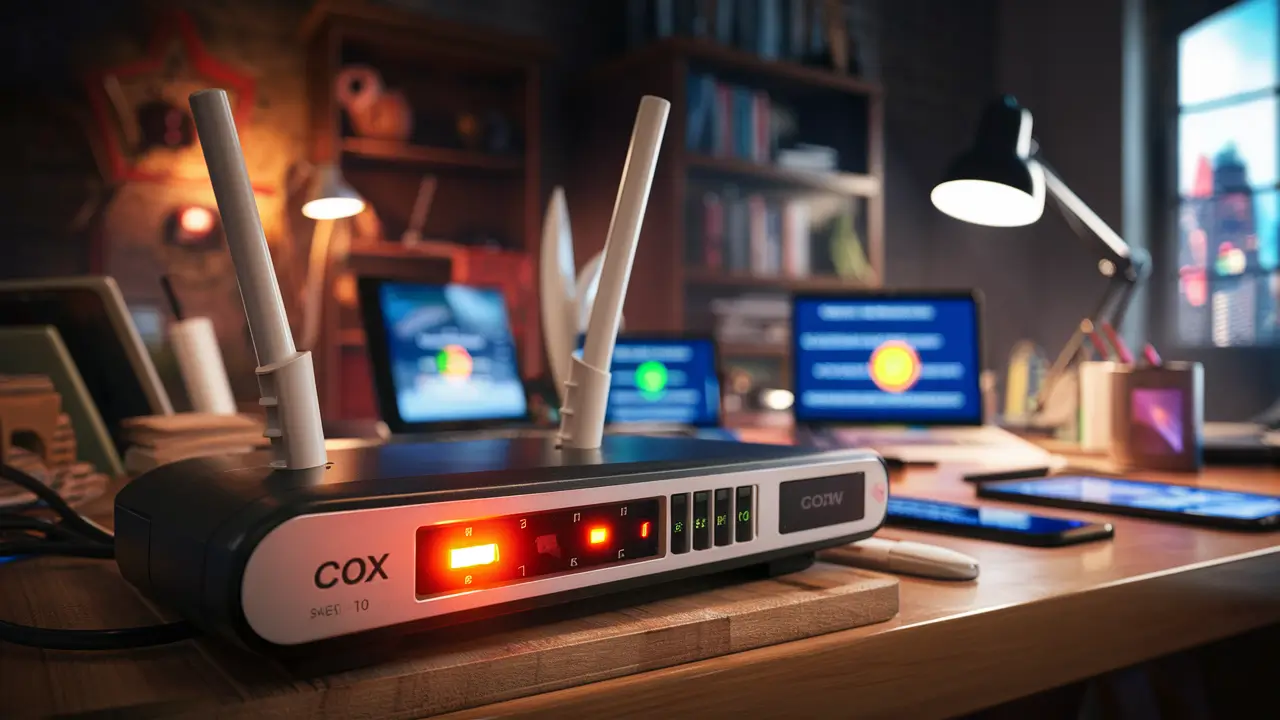
Are the lights on your modem and router behaving as expected? A solid "online" or "internet" light usually indicates a connection to Cox's network. Blinking or off lights can signify a problem with your equipment or the signal. We'll delve deeper into troubleshooting these devices later.
Ask Neighbors
If you have a friendly relationship with your neighbors, a quick text or knock can confirm if they are also experiencing Cox internet issues. If they are, it significantly increases the likelihood of a local outage.
Common Cox Internet Problems and Solutions
While a complete outage is a significant issue, many "Is Cox internet down?" searches stem from more localized problems that can often be resolved with simple troubleshooting. Understanding these common culprits can save you time and potentially avoid unnecessary support calls.
Modem and Router Issues
The gateway to your internet connection, your modem and router, are frequent sources of problems.
Modem Not Syncing
A modem's primary job is to establish a connection with Cox's network. If the "online" or "sync" light is off or blinking continuously, it means the modem isn't communicating with the ISP. This could be due to a signal issue from Cox, a problem with the coaxial cable connection, or a faulty modem.
Router Malfunctions
Your router distributes the internet signal wirelessly (Wi-Fi) and via Ethernet cables to your devices. If your modem is online but you still can't connect, the router might be the issue. Common router problems include needing a reboot, firmware issues, or hardware failure.
Wi-Fi Connectivity Problems
Even if your internet service is active, you might experience connection issues due to Wi-Fi problems.
Weak Signal Strength
Physical obstructions (walls, furniture), distance from the router, or interference from other electronic devices can weaken your Wi-Fi signal, leading to slow speeds or dropped connections.
Interference
Microwave ovens, cordless phones, Bluetooth devices, and even neighboring Wi-Fi networks can interfere with your signal.
Incorrect Wi-Fi Password or Network Settings
A simple typo when entering your Wi-Fi password or a change in network settings can prevent devices from connecting.
Device-Specific Issues
Sometimes, the problem isn't with Cox or your network, but with the individual device you're using.
Outdated Network Drivers
Your computer's network adapter relies on drivers to communicate with your router. Outdated or corrupted drivers can cause connectivity problems.
Firewall or Antivirus Blocking
Overly aggressive firewall or antivirus software can sometimes mistakenly block internet access.
IP Address Conflicts
Rarely, two devices on your network might be assigned the same IP address, causing connectivity issues for one or both.
Service Area Congestion
During peak usage hours (evenings and weekends), the demand on Cox's network in your area can increase. While not a full outage, this can lead to slower speeds and intermittent connectivity. This is a common complaint in densely populated urban areas in 2025, as internet usage continues to climb.
Billing and Account Issues
Although less common, an unpaid bill can lead to service suspension. Always ensure your account is in good standing.
Troubleshooting Your Cox Connection: A Step-by-Step Guide
When you suspect your Cox internet is down, or experiencing issues, a systematic troubleshooting process can help you pinpoint the problem and often resolve it yourself. This guide walks you through the essential steps.
Step 1: The Power Cycle (Reboot)
This is the most common and often most effective first step for any electronic device, including your modem and router. It clears temporary glitches and refreshes the connection.
- Unplug the power to both your modem and your router. If you have a combined modem/router unit, unplug that single device.
- Wait for at least 60 seconds. This is crucial to allow the devices to fully discharge and reset.
- Plug the modem back in first. Wait for its lights to stabilize (usually indicating it has connected to Cox's network – typically the "online" or "internet" light should be solid). This can take a few minutes.
- Plug the router back in. Wait for its lights to stabilize.
- Test your connection on a device.
This simple reboot resolves a surprising number of intermittent connectivity issues.
Step 2: Check Physical Connections
Loose or damaged cables are a common cause of internet problems.
- Coaxial Cable: Ensure the coaxial cable connecting your modem to the wall outlet is securely screwed in at both ends. Check for any visible damage to the cable itself.
- Ethernet Cables: If you use Ethernet cables to connect devices to your router, ensure they are firmly plugged into both the device and the router. Try swapping out an Ethernet cable if you suspect it might be faulty.
Step 3: Inspect Modem and Router Lights
The status lights on your equipment provide valuable diagnostic information. While the exact pattern can vary by model, here are general indicators:
Modem Lights:
- Power: Should be solid.
- Send/Receive (or Upstream/Downstream): Should be solid or blinking as it establishes a connection.
- Online/Internet: This is the most critical light. It should be solid, indicating a successful connection to Cox's network. If it's off, blinking, or red/orange, there's a problem with the signal or the modem itself.
Router Lights:
- Power: Should be solid.
- Internet/WAN: Should be solid or blinking, indicating it's receiving a signal from the modem.
- Wi-Fi (2.4GHz/5GHz): Should be solid or blinking, indicating the Wi-Fi network is broadcasting.
- Ethernet Ports: Lights will typically illuminate when a device is connected via Ethernet.
Consult your modem and router's manual or Cox's support site for specific light meanings for your model.
Step 4: Test with a Wired Connection
To differentiate between a Wi-Fi issue and a broader internet problem, connect a computer directly to your router using an Ethernet cable.
If you have internet access via Ethernet but not Wi-Fi, the problem is almost certainly with your router's wireless settings or its configuration. If you still have no internet via Ethernet, the issue is likely with the modem, the signal from Cox, or the router itself.
Step 5: Check Your Device Settings
If other devices are working but one isn't, investigate that specific device.
- Restart the Device: A simple restart can resolve many temporary software glitches.
- Forget and Rejoin Wi-Fi Network: On your device's Wi-Fi settings, "forget" your home network and then reconnect, re-entering the password.
- Check IP Address Settings: Ensure your device is set to obtain an IP address automatically (DHCP).
- Disable VPN or Proxy: If you use a VPN or proxy server, temporarily disable it to see if it's causing the issue.
- Update Network Drivers/OS: Ensure your device's operating system and network drivers are up to date.
Step 6: Bypass the Router (Advanced)
For advanced users, you can try connecting a computer directly to the modem via Ethernet (after powering down both devices). This bypasses the router entirely. If you get internet access this way, your router is likely the source of the problem. Remember to power cycle your modem again after reconnecting your router.
Step 7: Contact Cox Support
If you've gone through these steps and still have no internet, or if your modem lights indicate a signal issue, it's time to contact Cox.
When you call, be prepared to:
- Provide your account number and service address.
- Describe the problem in detail.
- Explain the troubleshooting steps you've already taken.
- Note the status of your modem and router lights.
This information will help the support representative diagnose the issue more quickly and efficiently. They may be able to remotely diagnose your modem or schedule a technician visit if necessary.
Cox Service Status and Updates: Staying Informed
When your internet is down, staying informed about the status of the outage and estimated restoration times is crucial for managing expectations and planning accordingly. Cox provides several avenues for obtaining this information, especially during widespread disruptions.
Utilizing the Cox Outage Map and Alerts
As mentioned earlier, the Cox website and My Account portal are your primary sources for official updates. In 2025, these tools are more advanced than ever.
Real-time Outage Maps
Cox often features interactive outage maps that visually represent areas experiencing service disruptions. These maps typically show the location and extent of the outage, along with a status indicator (e.g., "Investigating," "Repairing," "Service Restored").
Text and Email Alerts
Many users opt-in to receive text or email notifications from Cox regarding service status. If you haven't already, consider signing up for these alerts through your My Account portal. This ensures you're notified proactively when an outage is reported in your area and when service is restored.
Estimated Restoration Times (ETRs)
During an outage, Cox aims to provide an Estimated Restoration Time (ETR). It's important to understand that ETRs are estimates and can change based on the complexity of the repair. Factors like weather, accessibility to equipment, and the scope of the damage can influence how long repairs take. While frustrating, these ETRs offer a timeline to work with.
What to Expect During a Widespread Outage
Widespread outages, often caused by severe weather, equipment failure, or major infrastructure damage, can affect thousands of customers.
Increased Call Volume
Expect longer wait times when calling Cox customer service. Their phone lines and online chat support will likely be overwhelmed. Patience is key.
Community Information Sharing
As discussed, community platforms like Downdetector and social media can provide real-time, though unofficial, updates from fellow affected customers. These can sometimes offer insights before official channels are updated.
Technician Deployment
Cox will dispatch technicians to address the issue. The speed of their response depends on the severity of the outage and the availability of crews. For major events, restoration efforts can continue around the clock.
When Service is Restored
Once Cox reports that service has been restored to your area, you may still need to perform a quick reboot of your modem and router to re-establish your connection. Test your internet on multiple devices to confirm it's working correctly. If you continue to experience issues after restoration, it might indicate a problem specific to your home's connection or equipment.
Alternative Internet Options During Outages
If you rely heavily on your internet for work or communication, a prolonged outage can be disruptive.
Mobile Hotspot
Your smartphone can often serve as a temporary internet connection via its hotspot feature. Be mindful of your data plan limits.
Public Wi-Fi
Libraries, coffee shops, and community centers often provide free public Wi-Fi. This can be a viable option for essential tasks.
Satellite Internet (Long-Term Consideration)
For critical connectivity needs, especially in areas prone to outages, some users consider a backup satellite internet service. However, these typically have higher latency and different performance characteristics than cable internet.
Preparing for Future Outages: Proactive Measures
While you can't prevent all internet outages, you can take steps to mitigate their impact and ensure you're better prepared for the next time your Cox internet goes down. Proactive preparation can save you significant stress and inconvenience.
Essential Equipment and Tools
Having the right tools on hand can make troubleshooting much easier.
Backup Power Solutions
Consider a Uninterruptible Power Supply (UPS) for your modem and router. A UPS provides battery backup power, keeping your internet running for a limited time during power outages. This is invaluable if you work from home or need to stay connected for emergencies. In 2025, with increasing reliance on home networks, a UPS is becoming a standard recommendation.
Spare Ethernet Cables
Keep a few spare Ethernet cables of various lengths. They are inexpensive and can quickly replace a faulty cable that might be causing connectivity issues.
Basic Toolkit
A small toolkit with screwdrivers and cable testers can be helpful for checking and securing physical connections.
Optimizing Your Home Network
A well-configured home network is more resilient.
Router Placement
Position your Wi-Fi router in a central location in your home, away from obstructions and potential sources of interference. This maximizes Wi-Fi coverage and signal strength.
Mesh Wi-Fi Systems
For larger homes or areas with dead spots, a mesh Wi-Fi system can provide more consistent and reliable coverage than a single router.
Regular Firmware Updates
Ensure your router's firmware is up to date. Manufacturers release updates to improve performance, security, and fix bugs. Many routers can be configured to update automatically.
Communication and Information Strategy
Having a plan for communication during an outage is vital.
Save Important Contact Information
Keep a list of essential contact numbers (Cox support, family, emergency services) accessible offline, perhaps in a printed format or saved on a device that doesn't rely on home internet.
Download Offline Maps
If you rely on online maps for navigation, download offline maps for your area on your smartphone.
Understand Your Mobile Plan
Know your mobile carrier's data limits and hotspot capabilities. This will help you gauge how long you can rely on your phone as a backup internet source.
Documentation and Records
Keep records that can help you if you need to contact Cox or file a claim.
Record Your Equipment Details
Note the make, model, and serial numbers of your Cox-provided modem and router, as well as any personal equipment. This information is essential for troubleshooting and support.
Keep Records of Outages
If you experience frequent or prolonged outages, keep a log of dates, times, and durations. This documentation can be useful if you need to discuss service reliability with Cox.
Consider a Backup Internet Solution
For critical needs, a secondary internet connection can be a lifesaver.
Secondary ISP
In some areas, it might be feasible to have a secondary internet service from a different provider (e.g., DSL, fiber, or fixed wireless) as a backup.
Satellite Internet
As mentioned, satellite internet can be an option, though it comes with its own set of performance characteristics and potential weather-related limitations.
Business Internet Plans
If your livelihood depends on constant connectivity, a business internet plan from Cox or another provider might offer more robust service level agreements (SLAs) and priority support.
By implementing these proactive measures, you can significantly reduce the impact of future Cox internet outages, ensuring you remain connected and productive when disruptions occur.
Conclusion
Experiencing an "Is Cox internet down?" situation can be frustrating, but understanding the potential causes and knowing how to troubleshoot effectively are your greatest assets. We've covered how to detect an outage using official Cox channels and community resources, explored common problems from modem malfunctions to Wi-Fi interference, and provided a detailed, step-by-step guide to troubleshooting your connection. Furthermore, we've emphasized the importance of staying informed during outages and offered practical advice for preparing for future disruptions. By following these guidelines, you can quickly diagnose issues, resolve many common problems independently, and minimize downtime. Remember to always start with a power cycle, check your physical connections, and utilize your modem's status lights for clues. If issues persist, don't hesitate to contact Cox support with detailed information about your troubleshooting efforts. Proactive preparation, including backup power and communication strategies, will ensure you're better equipped to handle any connectivity challenges that arise.