Experiencing a Cox Cable outage? This guide provides immediate steps to check if Cox Cable is out in your area, troubleshoot common issues, and understand what to do next. We'll help you get back online quickly.
Checking for Cox Cable Outages
When your internet, TV, or phone service from Cox Cable suddenly stops working, the first and most critical question is: "Is Cox Cable out in my area?" This is a common concern for millions of subscribers. This section will guide you through the most effective ways to confirm if a widespread outage is the culprit, rather than a localized issue with your equipment.
Why It's Important to Confirm an Outage
Before diving into troubleshooting your modem or router, it's essential to determine if the problem lies with Cox's network. Spending time trying to fix your home equipment when there's a regional outage is unproductive and can be frustrating. Confirming an outage allows you to manage your expectations and focus on finding information about restoration times.
Initial Checks: The Simplest Solutions
Sometimes, the simplest solutions are overlooked. Before assuming a major outage, consider these quick checks:
- Check Other Devices: Are all your internet-connected devices offline, or just one? If only one device is affected, the problem is likely with that specific device.
- Check Other Services: If you have both internet and TV with Cox, are both services down? If only one is affected, it might point to a specific service issue rather than a general network outage.
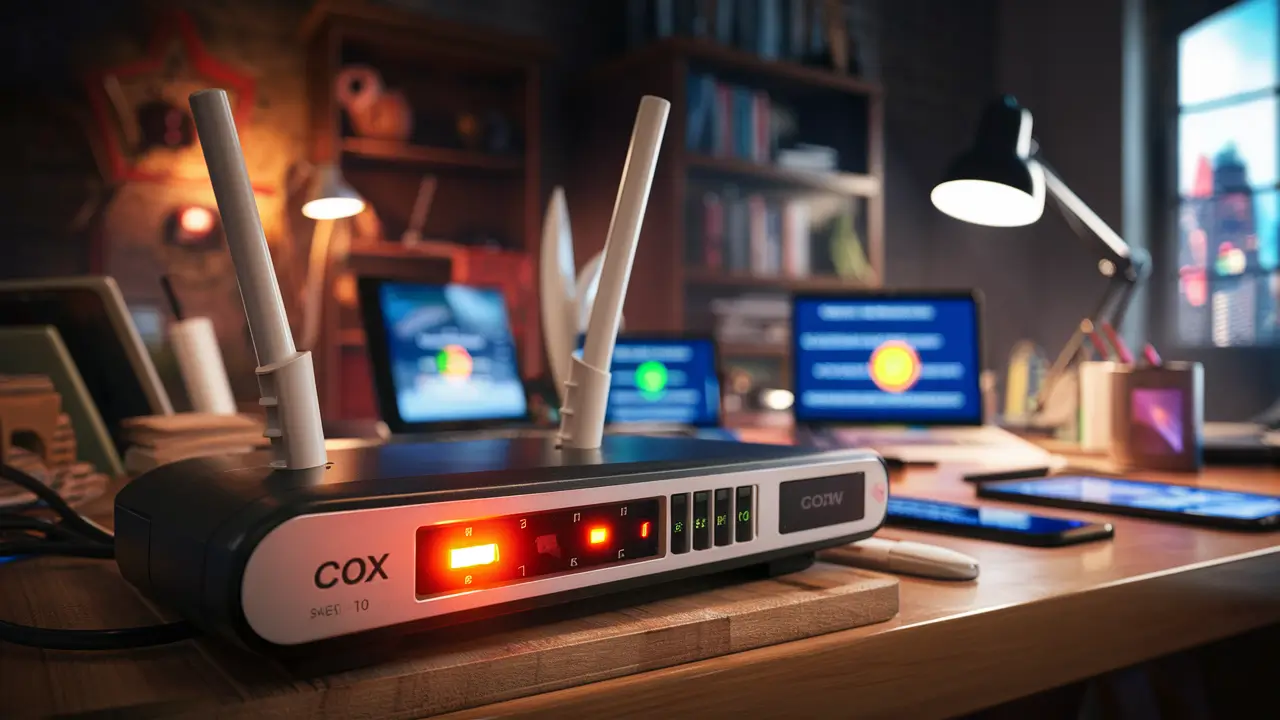
- Check Your Equipment Lights: Look at the lights on your Cox modem and router. Are they blinking erratically, solid red, or completely off? This can provide clues. A solid power light and blinking internet/online light often indicate a connection issue.
Cox Outage Detection Methods
Cox Communications, like other major internet service providers (ISPs), has established methods for subscribers to check for service disruptions. Understanding these channels is key to getting accurate and timely information.
Using the Official Cox Website and App
The most reliable source of information is Cox itself. They invest heavily in communication channels to keep customers informed during outages.
-
Cox My Account Portal:
Visit the official Cox Communications website and log in to your "My Account" portal. Many ISPs provide a dashboard that displays the status of your services. If there's a known outage in your area, it will often be prominently displayed here. You might also find estimated restoration times.
-
Cox App:
Cox offers a mobile application that often mirrors the functionality of the website's account portal. Downloading and logging into the Cox app on your smartphone can provide quick access to outage information, allowing you to check even if your home internet is down.
-
Outage Map (if available):
Some ISPs provide interactive outage maps on their websites. While Cox may not always have a publicly accessible, real-time outage map for all regions, their support pages often list major outages. Keep an eye on their official outage support page for updates.
Social Media and Community Forums
While not official channels for immediate outage confirmation, social media and community forums can offer real-time anecdotal evidence from other users in your vicinity.
-
Twitter (X):
Search for "Cox outage" or "Cox [your city/zip code]" on Twitter. You'll often find other users reporting issues. Cox's official support handle (@CoxHelp) might also post updates during widespread events. This can be a good way to gauge the extent of an outage.
-
Reddit and Local Forums:
Subreddits dedicated to your city or region, or general ISP forums, can be sources of user-reported information. However, treat this information with caution, as it's not verified by Cox.
Third-Party Outage Detectors
Several websites aggregate user-reported outage data from various ISPs. These can be helpful for a quick overview.
-
DownDetector:
Websites like DownDetector collect user reports of service outages. If many users in your area are reporting issues with Cox, it's a strong indicator of a problem. These sites often show a graph of reported outages over time, which can help you see if the issue is recent or ongoing.
-
Other Aggregators:
Other similar services exist, and a quick web search for "Cox outage checker" will reveal them. Remember that these rely on user submissions and may not be as precise as official Cox channels.
Contacting Cox Customer Support
If online methods are inconclusive or you prefer direct communication, contacting Cox support is a viable option.
-
Phone Support:
Call Cox customer service. Be prepared for potentially longer wait times during widespread outages, as many customers will be doing the same. Have your account information ready.
-
Live Chat:
If available, Cox's live chat feature can be a quicker way to get in touch with a representative and inquire about outages without a lengthy phone call.
Troubleshooting Your Cox Connection
Once you've confirmed that there might be an outage, or if you suspect the issue is localized to your home, it's time to troubleshoot your equipment. This section provides a step-by-step guide to help you resolve common connectivity problems.
Step 1: Power Cycle Your Modem and Router
This is the most common and often effective troubleshooting step for any internet issue. It essentially resets your network equipment and re-establishes a connection with Cox's network.
- Unplug Power: Disconnect the power cords from both your Cox modem and your Wi-Fi router. If you have a combined modem/router unit, unplug that one device.
- Wait: Allow at least 60 seconds for the devices to fully discharge. This is crucial for a complete reset.
- Plug In Modem First: Plug the power cord back into your Cox modem. Wait for it to fully boot up. This can take several minutes. You'll typically see a sequence of lights indicating it's establishing a connection (e.g., power, downstream, upstream, online lights should become solid).
- Plug In Router: Once the modem lights indicate a stable connection, plug the power cord back into your Wi-Fi router. Allow it to boot up completely.
- Test Connection: Try connecting to the internet on one of your devices.
Step 2: Check Physical Connections
Loose or damaged cables can disrupt your internet service.
- Coaxial Cable: Ensure the coaxial cable is securely screwed into the back of your Cox modem and the wall outlet. Check for any visible damage to the cable.
- Ethernet Cables: If you're using an Ethernet cable to connect your router to your modem, or your computer to your router, ensure both ends are firmly plugged in. Try using a different Ethernet cable if possible.
Step 3: Bypass the Router (for Internet Issues)
If you have a separate modem and router, and you're still experiencing internet issues after a power cycle, try connecting a computer directly to the modem using an Ethernet cable. This helps determine if the router is the source of the problem.
- Disconnect Router: Unplug the Ethernet cable connecting your router to your modem.
- Connect Computer Directly: Connect one end of an Ethernet cable to the modem and the other end to your computer's Ethernet port.
- Restart Modem: You may need to power cycle your modem again for it to recognize the new direct connection.
- Test: See if you can access the internet. If you can, the issue likely lies with your router.
Step 4: Check Your Router Settings
While less common for sudden outages, incorrect router settings can cause connectivity problems.
- Access Router Interface: You can usually access your router's settings by typing its IP address (often 192.168.1.1 or 192.168.0.1) into a web browser. Consult your router's manual for the specific IP address and login credentials.
- Verify WAN/Internet Settings: Ensure your router is configured to obtain an IP address automatically from the modem (DHCP).
- Firmware Updates: Check if your router has any available firmware updates. Outdated firmware can sometimes cause compatibility issues.
Step 5: Check for Service Outages in Your Specific Location
Even if there isn't a widespread outage, there might be an issue affecting a smaller segment of Cox's network in your immediate vicinity. This could be due to local maintenance, construction, or equipment failure.
- Cox Website/App: Revisit the Cox My Account portal or app. Sometimes, localized issues are flagged there.
- Contact Cox: If none of the above steps resolve your issue, it's time to contact Cox customer support. They can check the status of the network in your specific neighborhood and diagnose any line or equipment problems on their end.
Understanding Common Cox Outage Causes
Knowing why outages happen can help you understand the situation better and what to expect regarding restoration. Cox Cable services, like any complex network, can be affected by a variety of factors.
Infrastructure Issues
The physical network infrastructure is susceptible to damage and failure.
- Equipment Malfunction: Like any electronic device, Cox's network equipment (switches, routers, amplifiers, etc.) can fail due to age, manufacturing defects, or wear and tear.
- Cable Damage: The coaxial and fiber optic cables that carry Cox's services can be damaged by construction accidents, severe weather (falling trees, lightning strikes), rodents, or even vandalism.
- Power Outages: Cox's network relies on a robust power supply. If a local power grid experiences an outage, it can affect Cox's equipment that isn't on backup power, leading to service disruptions.
Environmental Factors
The environment plays a significant role in service reliability.
- Severe Weather: High winds, heavy rain, snowstorms, ice, and lightning can all cause physical damage to Cox's infrastructure or disrupt signal transmission. For example, downed power lines can also take down Cox lines.
- Natural Disasters: Earthquakes, floods, and wildfires can cause widespread damage to network infrastructure, leading to extended outages.
Maintenance and Upgrades
Sometimes, service interruptions are planned.
- Scheduled Maintenance: Cox may schedule maintenance or upgrades to its network to improve performance or add new features. These are typically announced in advance, but sometimes unexpected issues arise.
- Network Upgrades: Installing new technology or upgrading existing infrastructure can temporarily disrupt service in certain areas.
High Demand and Network Congestion
While less common for complete outages, extreme demand can sometimes lead to performance degradation.
- Peak Usage Times: During periods of exceptionally high internet usage (e.g., major sporting events, holidays), network congestion can occur, leading to slower speeds or intermittent connectivity. This is more likely to cause slowdowns than complete outages but can contribute to perceived service issues.
Cybersecurity Incidents
Though rare, malicious attacks can impact service.
- DDoS Attacks: Distributed Denial of Service (DDoS) attacks can overwhelm network infrastructure, making services unavailable. ISPs like Cox have robust security measures, but such attacks remain a potential, albeit infrequent, cause of outages.
Reporting a Cox Cable Outage
If you've exhausted troubleshooting steps and confirmed that Cox Cable is indeed out in your area, reporting the outage is crucial. This helps Cox identify the problem and allocate resources for repair.
Why Reporting Matters
Your report is a valuable piece of data for Cox. It helps them:
- Identify the Scope: Multiple reports from the same area confirm a localized or regional outage.
- Prioritize Repairs: Knowing where issues are occurring helps dispatch technicians efficiently.
- Track Restoration Progress: Your report contributes to the overall understanding of the outage's impact.
How to Report an Outage
Cox provides several ways to report service issues:
- Through the Cox App or Website: The most efficient method is often through your "My Account" portal or the Cox mobile app. Look for options like "Report an Issue," "Service Status," or "Outage Reporting." This often allows you to report an outage without needing to speak to a representative.
- By Phone: Call Cox customer support. Be ready to provide your account number and address. Explain the problem clearly and state that you suspect an outage.
- Via Text Message (if available): Some ISPs offer text-based reporting. Check Cox's support pages or your account settings to see if this option is available in your region.
What Information to Provide
When reporting, be prepared to give:
- Your full name and account number.
- Your service address.
- A clear description of the problem (e.g., "No internet, TV, and phone service since [time]").
- Any troubleshooting steps you've already taken (e.g., "I've power-cycled my modem and router").
- The status of the lights on your modem.
What to Do After Reporting
Once you've reported the outage:
- Be Patient: Repairs can take time, especially for widespread or complex issues.
- Check for Updates: Regularly check the Cox website, app, or social media for updates on the outage status and estimated restoration times.
- Avoid Repeatedly Calling: Unless you have new information, avoid calling customer service repeatedly, as this can overwhelm their lines and delay assistance for others.
What to Expect During a Cox Outage
When Cox Cable is out in your area, understanding the typical process and what you can expect can help manage expectations and reduce frustration. The duration and impact of an outage can vary significantly.
Duration of Outages
Outages can range from brief, localized disruptions to extended regional problems.
- Short-Term Outages: These might last from a few minutes to a couple of hours. They are often caused by minor equipment glitches or temporary network issues that Cox can resolve quickly.
- Medium-Term Outages: These could last several hours. They might be due to more significant equipment failures or localized damage that requires technician intervention.
- Long-Term Outages: These can last for many hours or even a day or more. They are typically caused by major infrastructure damage (e.g., from severe weather, accidents) requiring extensive repairs.
Communication from Cox
Cox aims to keep customers informed, but communication effectiveness can vary.
- Website and App Updates: As mentioned, the Cox website and app are primary sources for outage information, including estimated restoration times (ETRs).
- Automated Calls/Texts: In some cases, Cox may send automated calls or text messages to affected customers with updates.
- Social Media: Official Cox support channels on social media might post updates.
- No Communication: In some instances, especially for very short or localized outages, you might not receive direct communication.
Important Note on ETRs: Estimated Restoration Times (ETRs) provided by Cox are just that – estimates. They can change as more information becomes available or as repair complexities are discovered. It's best to view them as a guideline rather than a guarantee.
Impact on Services
An outage typically affects all services tied to your Cox connection.
- Internet: No Wi-Fi or wired internet access. This means no browsing, streaming, online gaming, or remote work.
- TV: If you use Cox's cable TV service, you'll likely lose all channels. If you rely on streaming apps for TV, these will also be inaccessible without internet.
- Home Phone: If you have Cox Digital Telephone service, your landline will likely not work. This is a critical point, as it means you cannot call out for help (unless you have a separate landline provider or use a mobile phone).
Potential for Credits
For significant or prolonged outages, you may be eligible for service credits.
- Contact Cox: After service is restored, you can contact Cox customer service to inquire about credits for the downtime. Be prepared to provide the dates and approximate duration of the outage.
- Policy Varies: Cox's policy on service credits can vary based on the length of the outage and your specific service agreement.
Preparing for Future Outages
While you can't prevent all outages, you can take steps to mitigate their impact and ensure you're better prepared for the next time Cox Cable is out in your area.
Have a Backup Plan
Don't rely solely on one service for critical needs.
- Mobile Hotspot: Ensure your mobile phone plan includes a generous data allowance or offers hotspot capabilities. This can serve as a temporary internet connection for essential tasks during an outage. Test your hotspot's performance beforehand.
- Alternative Internet: Consider a backup internet solution, such as a mobile hotspot device or a secondary fixed wireless or satellite internet service if available and feasible in your area. This is particularly important for those who work from home or have critical online needs.
- Backup Landline: If you rely on your Cox home phone for emergencies, consider having a traditional landline service from a different provider or ensuring your mobile phone is always charged and functional.
Keep Your Equipment in Good Condition
Well-maintained equipment is less likely to fail.
- Regularly Check Connections: Periodically inspect coaxial and Ethernet cables for wear and tear. Ensure they are securely connected.
- Update Router Firmware: Keep your Wi-Fi router's firmware up to date to ensure optimal performance and security.
- Consider a UPS: A Uninterruptible Power Supply (UPS) can provide battery backup for your modem and router during short power outages, allowing your internet to remain online while the power grid is being restored.
Stay Informed
Be proactive in staying updated on Cox's communications.
- Download the Cox App: Ensure you have the Cox app installed and are logged in. This provides quick access to account information and outage alerts.
- Follow Cox on Social Media: Follow official Cox support accounts on platforms like Twitter (X) for real-time updates.
- Sign Up for Alerts: Check if Cox offers text or email alert systems for service disruptions in your area and sign up if available.
Essential Supplies for Extended Outages
Beyond connectivity, prepare for broader disruptions.
- Emergency Kit: Assemble a basic emergency kit with items like flashlights, batteries, a first-aid kit, non-perishable food, and water.
- Charged Devices: Keep power banks and car chargers handy for your mobile devices.
- Important Documents: Have digital or physical copies of important documents readily accessible.
Understanding Service Level Agreements (SLAs)
Familiarize yourself with Cox's service level agreements. While residential plans often don't have strict uptime guarantees like business plans, understanding what Cox promises regarding service reliability can be helpful, especially when seeking credits for extended outages.
By implementing these preparation strategies, you can significantly reduce the inconvenience and disruption caused by future Cox Cable outages. Being prepared transforms a potentially frustrating situation into a manageable one.
Conclusion
When facing a Cox Cable outage, the immediate priority is to confirm if the issue is widespread. Utilizing the Cox website, app, and third-party outage checkers are the most efficient ways to determine if Cox Cable is out in your area. If a localized problem is suspected or confirmed, a systematic troubleshooting approach, starting with power cycling your equipment, can often resolve the issue. Understanding the common causes of outages, from infrastructure failures to environmental factors, helps set realistic expectations for restoration times. Reporting the outage through the appropriate Cox channels is crucial for them to address the problem effectively. While Cox aims for reliable service, preparedness is key. Having backup connectivity options, maintaining your equipment, and staying informed through official channels will ensure you're ready for any future disruptions. By following these steps, you can minimize downtime and regain your connection as quickly as possible.