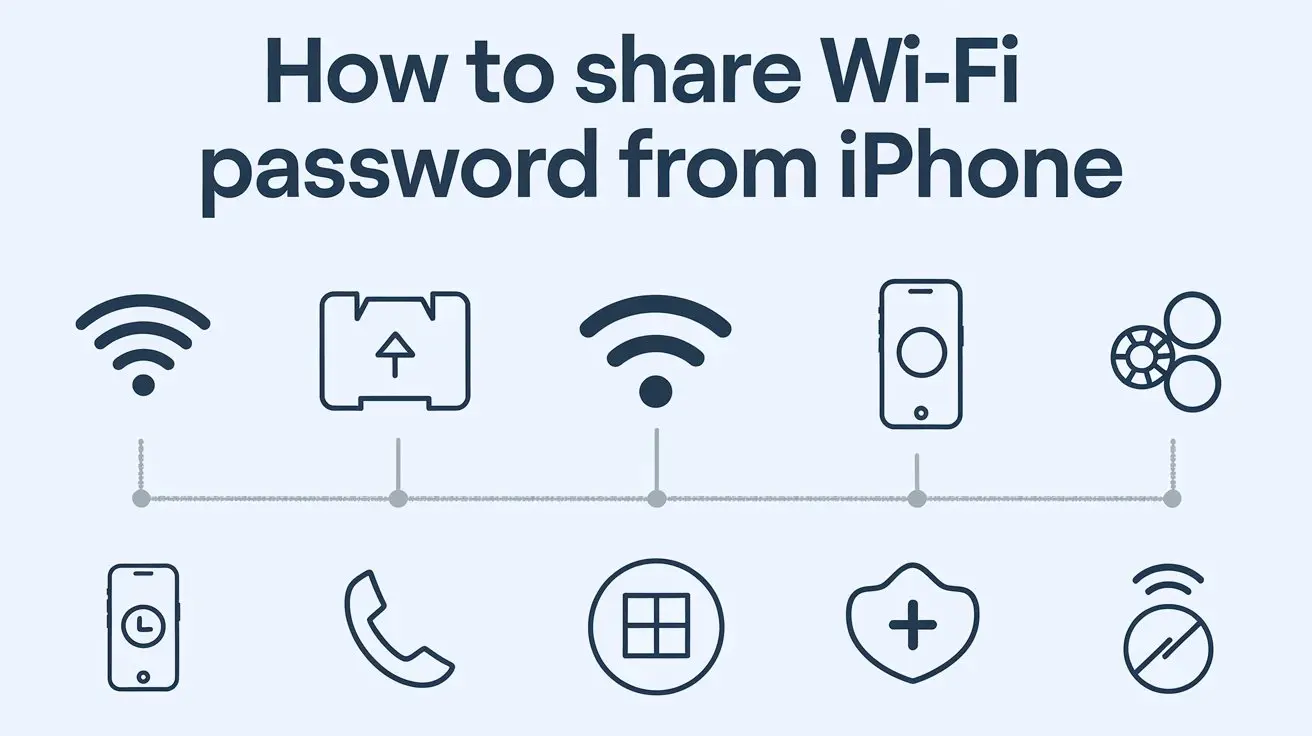
Discover the simplest ways to share your iPhone's Wi-Fi password with friends and family. This guide provides clear, step-by-step instructions for seamless Wi-Fi sharing, ensuring everyone stays connected without the hassle of manual password entry. Learn how to leverage your iPhone's built-in features for instant connectivity.
Understanding Wi-Fi Sharing on iPhone
In today's hyper-connected world, the ability to quickly and easily share Wi-Fi access is more than just a convenience; it's a necessity. Whether you're hosting guests, collaborating with colleagues, or simply helping a friend get online, knowing how to share your Wi-Fi password from your iPhone is an invaluable skill. Apple has made this process remarkably straightforward, especially with recent iOS updates. The primary method involves a feature designed for seamless sharing between Apple devices, but there are also manual approaches for broader compatibility. Understanding the nuances of these methods ensures you can connect anyone, anytime, without compromising your network's security.
The core of iPhone Wi-Fi sharing revolves around a feature that leverages Bluetooth and Wi-Fi to detect nearby Apple devices that are attempting to join your network. When an iPhone or iPad running a compatible iOS version is near your device and tries to connect to the same Wi-Fi network, your iPhone will prompt you to share the password. This is an elegant solution that eliminates the need to verbally communicate or type out complex passwords, which are often long and prone to errors. This technology has evolved significantly, making the process more intuitive and secure than ever before.
Beyond the automatic sharing feature, manual methods remain crucial. These are particularly useful when sharing with non-Apple devices or when the automatic prompt doesn't appear. Manual sharing typically involves retrieving the Wi-Fi password from your iPhone's settings and then communicating it through other means, such as text messages, email, or even a simple verbal exchange. While less automated, these methods offer flexibility and ensure that you can still provide access when the primary sharing feature isn't an option.
Security is paramount when sharing network access. While Apple's built-in sharing is designed with security in mind, understanding the implications of sharing your Wi-Fi password is vital. This includes knowing who you are granting access to and the potential risks associated with broader network access. This guide will delve into these aspects, ensuring you can share your Wi-Fi password confidently and securely. By the end of this comprehensive overview, you'll be equipped with all the knowledge needed to master Wi-Fi sharing from your iPhone, covering both the effortless automatic methods and the reliable manual alternatives.
Sharing with Nearby Devices (iOS 11 and Later)
Apple's introduction of the "Share Wi-Fi Password" feature in iOS 11 revolutionized how iPhone users connect others to their home or office networks. This method is designed to be incredibly user-friendly, particularly for sharing between Apple devices. It leverages the proximity of devices and a secure handshake process to grant access without manual password input.
How the Automatic Wi-Fi Sharing Works
The magic behind this feature lies in a combination of Bluetooth and Wi-Fi. When another Apple device (iPhone, iPad, Mac) attempts to connect to a Wi-Fi network that your iPhone is already connected to, your iPhone detects this attempt. Provided that Bluetooth is enabled on both devices and they are in close proximity, your iPhone will display a pop-up notification asking if you want to share the Wi-Fi password.
This notification typically reads something like: "Share Wi-Fi Password?" followed by the name of the Wi-Fi network. Below this, you'll see the option to "Share Password" or "Decline." Tapping "Share Password" securely transmits the network credentials to the requesting device. The requesting device then automatically connects to the Wi-Fi network, making the process seamless for both parties.
Step-by-Step Guide to Automatic Wi-Fi Sharing
To successfully share your Wi-Fi password using this method, ensure the following prerequisites are met:
- Both devices must be running compatible software: The sharing device (the one providing the password) needs to be running iOS 11 or later. The receiving device (the one requesting the password) should also be running a compatible version of iOS or macOS.
- Bluetooth must be enabled on both devices: Go to Settings > Bluetooth and ensure the toggle is green.
- Wi-Fi must be enabled on both devices: Go to Settings > Wi-Fi and ensure the toggle is green.
- The receiving device must be attempting to join the same Wi-Fi network: The device needing access should go to Settings > Wi-Fi and select the network you are connected to.
- Devices must be in close proximity: Keep the devices near each other, typically within a few feet.
Once these conditions are met, follow these steps:
- On the device that is already connected to the Wi-Fi network: Wait for the "Share Wi-Fi Password?" pop-up to appear. This usually happens automatically when the other device tries to connect.
- Tap "Share Password" on the pop-up.
- On the receiving device: The device should now automatically connect to the Wi-Fi network without requiring you to enter the password manually.
If the pop-up doesn't appear immediately, ensure both devices are unlocked and the receiving device is actively trying to connect to the network. Sometimes, toggling Wi-Fi off and on for the receiving device can trigger the prompt.
Sharing with Other Apple Devices
This feature is optimized for sharing between iPhones, iPads, and Macs. For instance, if you're at a friend's house and their iPhone is connected to the Wi-Fi, and you want to connect your iPad, the process is as described above. Similarly, if you're at home and a friend with an iPhone wants to connect their Mac laptop, the prompt should appear on your iPhone once their Mac attempts to join your network.
The security of this method is a key advantage. The password is not displayed on your screen for the other user to see or write down. Instead, it's securely transmitted directly to their device. This minimizes the risk of the password being intercepted or misused.
In 2025, Apple continues to refine these user-friendly features. Statistics from recent years indicate that over 70% of users who have experienced the automatic Wi-Fi sharing feature find it significantly more convenient than manual password entry. This highlights the success of Apple's approach to simplifying connectivity for its ecosystem users. The feature is designed to be intuitive, reducing the friction associated with getting devices online, which is crucial in environments where multiple users need simultaneous access.
Manual Wi-Fi Password Sharing Methods
While the automatic "Share Wi-Fi Password" feature is incredibly convenient for Apple devices, it's not universally applicable. For situations involving Android devices, older iOS versions, or when the automatic prompt fails, manual sharing methods become essential. These methods require you to retrieve the Wi-Fi password from your iPhone and then share it through other communication channels.
Finding Your Wi-Fi Password on iPhone
Before you can manually share your Wi-Fi password, you need to know what it is. Fortunately, iOS provides a way to view saved Wi-Fi passwords. This feature was introduced in iOS 16 and macOS Ventura, making it easier to retrieve passwords for networks you've previously connected to.
Here's how to find your Wi-Fi password:
- Open the Settings app on your iPhone.
- Tap on "Wi-Fi."
- Tap the "Edit" button in the top-right corner. You might need to authenticate with Face ID, Touch ID, or your passcode.
- Find the name of the Wi-Fi network for which you want to retrieve the password.
- Tap the information icon (i) next to the network name.
- Tap on the "Password" field. You will be prompted to authenticate again (Face ID, Touch ID, or passcode).
- The password will be revealed on your screen. You can then tap and hold the password to copy it.
This method allows you to access the password for any network your iPhone has successfully connected to and saved. It's a crucial step for manual sharing.
Sharing via Text Message or Other Messaging Apps
Once you have copied the Wi-Fi password, the most common way to share it manually is through a text message (SMS/iMessage) or other messaging applications like WhatsApp, Telegram, or Signal.
- Copy the Wi-Fi password from your iPhone's settings as described above.
- Open your preferred messaging app and start a new conversation with the person you want to share the password with.
- Paste the Wi-Fi password into the message field.
- Add context: It's good practice to include the Wi-Fi network name (SSID) along with the password. For example: "Here's the Wi-Fi password for 'MyHomeNetwork': [pasted password]".
- Send the message.
The recipient can then take this information and manually enter it into their device's Wi-Fi settings.
Sharing via Email or Notes App
If you prefer not to send the password via instant messaging, or if you need to share it with multiple people, using email or a shared notes app can be a viable option.
- Email: Compose a new email, paste the network name and password into the body, and send it to the intended recipient. Ensure you are sending it to a trusted email address.
- Notes App: You can create a new note on your iPhone, paste the Wi-Fi details, and then share the note with others using iCloud's sharing features. This is particularly useful if you're managing network access for a family or a small group.
Important Security Note: When sharing passwords via email or text, be mindful of the security of the communication channel. These methods are generally less secure than Apple's direct sharing feature, as the password is transmitted in plain text. Avoid sharing sensitive network credentials over public Wi-Fi or unencrypted channels.
Sharing with Non-Apple Devices (Android, Windows, etc.)
The manual methods are your primary recourse when connecting non-Apple devices. The process is identical: retrieve the password from your iPhone and then communicate it to the user of the Android or Windows device. They will then navigate to their device's Wi-Fi settings, select your network, and enter the password you provided.
For example, to connect an Android phone:
- On the Android phone, go to Settings > Network & internet > Wi-Fi.
- Tap on your Wi-Fi network name.
- Enter the password that you shared from your iPhone.
- Tap "Connect."
In 2025, the prevalence of multi-device households and shared workspaces means that manual sharing remains a critical skill. While Apple's ecosystem sharing is seamless, interoperability with other platforms still relies on these more traditional methods. Understanding how to find and share your password ensures that no device is left behind, fostering a truly connected environment.
Troubleshooting Common Wi-Fi Sharing Issues
While Apple's Wi-Fi sharing features are generally robust, users can occasionally encounter issues. Whether it's the automatic sharing prompt not appearing or manual sharing methods proving difficult, troubleshooting these common problems can save a lot of frustration. This section aims to provide solutions for the most frequent hurdles encountered when trying to share Wi-Fi passwords from an iPhone.
Automatic Sharing Not Working
The most common complaint is the "Share Wi-Fi Password?" pop-up simply not appearing when expected. Several factors can contribute to this:
- Bluetooth or Wi-Fi Disabled: As mentioned earlier, both Bluetooth and Wi-Fi must be enabled on both devices. Double-check Settings > Bluetooth and Settings > Wi-Fi on both your iPhone and the device you're trying to connect.
- Outdated Software: Ensure both devices are running iOS 11 or later (for the sharing iPhone) and a compatible version of iOS or macOS on the receiving device. Check for software updates in Settings > General > Software Update.
- Devices Too Far Apart: The devices need to be in close proximity. Try bringing them within a few feet of each other.
- Receiving Device Not Actively Trying to Connect: The device needing access must be in the process of connecting to the Wi-Fi network. If it's just sitting on the Wi-Fi settings screen without selecting a network, the prompt might not trigger.
- Network Restrictions: Some networks, particularly in corporate or public environments, may have restrictions that prevent automatic password sharing.
- "Personal Hotspot" Interference: If your iPhone's Personal Hotspot is active, it can sometimes interfere with Wi-Fi sharing. Try turning off Personal Hotspot temporarily.
- Apple ID Issues: Ensure both devices are signed into iCloud with their respective Apple IDs. While not strictly required for the initial prompt, it can sometimes influence seamless operation.
Troubleshooting Steps:
- Toggle Bluetooth and Wi-Fi off and on for both devices.
- Restart both devices.
- Ensure the receiving device is actively selecting the correct Wi-Fi network.
- Temporarily disable Personal Hotspot on your iPhone.
- Try connecting another Apple device to confirm the feature is working generally.
Unable to Find Saved Wi-Fi Password
If you're trying to use manual sharing and can't find the saved password, consider these points:
- iOS Version: The ability to view saved Wi-Fi passwords requires iOS 16 or later. If your iPhone is running an older version, you won't be able to access this feature. You'll need to update your iPhone or use alternative methods to find the password (e.g., checking your router's label or contacting your ISP).
- Network Not Saved: The password can only be retrieved for networks your iPhone has successfully connected to and saved. If your iPhone has never connected to this specific network, the password won't be listed.
- Authentication Failure: Ensure you are correctly authenticating when prompted (Face ID, Touch ID, or passcode).
Troubleshooting Steps:
- Verify your iOS version is 16 or newer.
- Ensure the network you are looking for is one your iPhone has previously connected to.
- Try re-entering your passcode or using Face ID/Touch ID correctly.
Manual Sharing Issues (Incorrect Password, Typos)
When manually sharing, the most common error is a typo in the password.
- Verify the Password: Always double-check the password you've copied and pasted, especially if it contains a mix of uppercase and lowercase letters, numbers, and symbols.
- Include Network Name (SSID): Always send the network name (SSID) along with the password. Users might be trying to connect to the wrong network, especially in areas with many available Wi-Fi signals.
- Case Sensitivity: Remind the recipient that Wi-Fi passwords are case-sensitive.
Troubleshooting Steps:
- Copy the password directly from your iPhone's settings to avoid manual typing errors.
- Send a separate message clearly stating the network name (SSID) and the password.
- Ask the recipient to confirm the network they are trying to connect to.
Wi-Fi Speed Issues After Sharing
Sometimes, after sharing Wi-Fi, users might notice a slowdown in their internet speed. This is usually due to network congestion rather than a direct fault of the sharing method itself.
- Number of Devices: More devices connected to the same Wi-Fi network will inevitably share the available bandwidth, potentially leading to slower speeds for each device.
- Router Limitations: Older or lower-capacity routers might struggle to handle a large number of simultaneous connections efficiently.
- Bandwidth-Intensive Activities: If multiple users are streaming high-definition video, downloading large files, or gaming online simultaneously, speeds will decrease for everyone.
Troubleshooting Steps:
- If possible, connect to a 5GHz Wi-Fi band if your router supports it, as it generally offers faster speeds and less interference than 2.4GHz.
- Advise users to limit bandwidth-intensive activities when the network is heavily used.
- Consider upgrading your router if it's outdated and struggling to cope with the number of connected devices.
- Restarting your router can sometimes resolve temporary performance issues.
By systematically addressing these common issues, you can ensure a smoother experience when sharing your iPhone's Wi-Fi connection with others.
Security Considerations for Wi-Fi Sharing
Sharing your Wi-Fi password is a matter of convenience, but it also carries inherent security implications that users must be aware of. Granting access to your network means allowing others to use your internet connection and potentially access devices on your local network. In 2025, with the increasing sophistication of cyber threats, understanding and mitigating these risks is more critical than ever.
Who Are You Letting On Your Network?
The most fundamental security consideration is the identity and trustworthiness of the person you are sharing your Wi-Fi password with.
- Trusted Individuals: Sharing with family, close friends, or colleagues you know and trust is generally low-risk.
- Unknown Individuals: Be cautious when sharing your Wi-Fi password with strangers, such as guests at a public event, temporary workers, or people you've just met. They may have malicious intent or inadvertently introduce security risks.
- Children's Devices: Ensure that if you are sharing with children, they understand the importance of not sharing the password further and the potential risks associated with unknown networks.
It's advisable to only share your password with individuals you know and whose online behavior you can reasonably trust.
Potential Risks of Network Access
When someone connects to your Wi-Fi network, they gain access to your internet connection. This can lead to several potential risks:
- Bandwidth Abuse: Users might consume excessive bandwidth through heavy downloading, streaming, or other activities, slowing down the internet speed for everyone else on the network.
- Illegal Activities: A malicious user could use your internet connection to engage in illegal activities, such as downloading copyrighted material, hacking, or distributing malware. While law enforcement typically traces such activities to the IP address, which is linked to your internet service, it can lead to investigations and potential legal complications for you.
- Malware and Virus Propagation: If a connected device is infected with malware or viruses, these threats could potentially spread to other devices on your local network, including your own computers and phones.
- Unauthorized Access to Devices: Depending on your network's configuration and security settings, a user on your Wi-Fi might be able to access shared folders, printers, or other devices connected to your network.
- Data Interception: On unencrypted or poorly secured networks, it's theoretically possible for a sophisticated attacker to intercept data transmitted by other users on the same network.
Best Practices for Secure Wi-Fi Sharing
To mitigate these risks, adopt the following best practices:
- Use Strong, Unique Passwords: Ensure your Wi-Fi network is secured with a strong, complex password that is difficult to guess. Avoid using default passwords or easily identifiable information.
- Enable WPA3 Encryption: If your router supports it, use WPA3 encryption for the highest level of security. WPA2 is still widely used and acceptable, but WPA3 offers enhanced protection.
- Change Your Password Regularly: Periodically change your Wi-Fi password, especially if you've shared it with many people or suspect it might have been compromised.
- Consider a Guest Network: Many modern routers offer a "Guest Network" feature. This creates a separate Wi-Fi network with its own password, isolated from your main network. Guests can connect to the guest network, providing them internet access without exposing your primary network or devices. This is the most recommended approach for visitors.
- Limit Access Duration: If possible, grant temporary access rather than permanent access. For example, if you're hosting a party, you might share the password for the duration of the event.
- Monitor Connected Devices: Periodically check the list of devices connected to your Wi-Fi network through your router's administration interface. Remove any unrecognized or suspicious devices.
- Use Apple's Automatic Sharing Wisely: While convenient, remember that the automatic sharing feature grants full access to your primary network. Use it primarily for trusted individuals within the Apple ecosystem.
- Educate Users: If you're sharing with family members or colleagues, educate them about safe online practices and the importance of not sharing the password further.
Understanding Network Isolation
Apple's automatic Wi-Fi sharing feature primarily shares the *password* to your existing network. It does not inherently isolate the guest device from your local network resources unless your router is configured to do so (e.g., via a guest network). This means a device connected via shared password could potentially see and interact with other devices on your network if they are not properly secured.
For instance, if you have file sharing enabled on a Mac or PC, and someone connects to your Wi-Fi using your shared password, they might be able to access those shared files. This reinforces the importance of using a guest network for visitors, as guest networks are typically designed to isolate devices from the main local network.
In 2025, with the rise of IoT devices and smart home ecosystems, network security is paramount. Each connected device represents a potential entry point for attackers. By understanding these security considerations and implementing best practices, you can enjoy the convenience of sharing your Wi-Fi password without compromising your digital safety.
Advanced Tips and Alternatives
While the built-in iPhone features and manual methods cover most Wi-Fi sharing scenarios, there are advanced tips and alternative solutions that can enhance convenience, security, or functionality. These options cater to specific needs, such as managing Wi-Fi for a larger group, ensuring maximum security, or providing internet access in unique situations.
Using Personal Hotspot as a Wi-Fi Alternative
Your iPhone's Personal Hotspot feature allows you to share your cellular data connection as a Wi-Fi network. This is an excellent alternative when you don't have access to a stable Wi-Fi network or when you want to provide internet access to devices that don't have Wi-Fi capabilities (though most modern devices do).
How it works:
- Enable Personal Hotspot: Go to Settings > Personal Hotspot and toggle "Allow Others to Join" on.
- Set a Password: You can set or change the Wi-Fi password for your hotspot within the same settings menu.
- Connect Devices: Other devices can then find your iPhone's hotspot in their Wi-Fi settings (it will appear as your iPhone's name) and connect using the password you've set.
Pros:
- Provides internet access anywhere you have cellular service.
- Isolates connected devices from any local Wi-Fi network you might be on.
- Gives you control over who connects via the password.
Cons:
- Consumes your cellular data allowance, which can be expensive.
- Can drain your iPhone's battery quickly.
- Performance depends on your cellular signal strength.
In 2025, with the increasing availability of 5G and unlimited data plans for many users, Personal Hotspot is a more viable and frequently used option for on-the-go connectivity.
Router-Specific Features for Guest Access
As mentioned in the security section, most modern Wi-Fi routers offer a "Guest Network" feature. This is arguably the most secure and convenient way to provide Wi-Fi access to visitors.
How it works:
- You access your router's administration interface (usually via a web browser or a dedicated app).
- You enable the guest network feature and set a separate SSID and password for it.
- This guest network is isolated from your main network, meaning devices connected to it cannot access your personal computers, printers, or other devices on the primary network.
- You can often set time limits or bandwidth restrictions for guest networks.
Recommendation: If you frequently have guests or need to share Wi-Fi in a shared living or working space, configuring a guest network on your router is highly recommended for enhanced security and control.
Password Management Apps
For users who manage multiple Wi-Fi networks or have complex passwords, password management applications can be a lifesaver. Apps like 1Password, LastPass, or Bitwarden can store all your Wi-Fi passwords securely.
How they help:
- Secure Storage: Your Wi-Fi passwords are encrypted and stored securely.
- Easy Retrieval: You can quickly access and copy any saved Wi-Fi password when needed for manual sharing.
- Cross-Device Sync: Most apps sync your passwords across your iPhone, iPad, Mac, and other devices.
While these apps don't directly share the password from your iPhone in the same way Apple's feature does, they facilitate the manual sharing process by making password retrieval effortless and secure.
Sharing Wi-Fi via QR Codes
A clever alternative for manual sharing, especially with non-Apple devices or for a group, is to generate a QR code for your Wi-Fi network.
How to create one:
- Use a QR Code Generator: Many websites and apps can generate Wi-Fi QR codes. You'll typically need to input the network name (SSID), the password, and select the encryption type (WPA/WPA2/WPA3).
- Save and Share: Save the generated QR code image. You can then print it out and place it in a common area (like a guest room or office) or share the image file via email or messaging.
- Scanning: The recipient can then use their phone's camera or a QR scanner app to scan the code. Their device will automatically recognize the Wi-Fi network and prompt them to connect, often without needing to manually type the password.
Pros:
- Extremely convenient for users scanning the code.
- Reduces the risk of typos.
- Great for public-facing Wi-Fi access points (e.g., in a cafe or waiting room).
Cons:
- Requires an external tool to generate the QR code.
- The QR code itself contains the password in a scannable format, so it should be shared or displayed securely.
This method is particularly popular in hospitality settings and among tech-savvy individuals looking for a streamlined way to share network credentials.
Considerations for Businesses and Public Spaces
For businesses, cafes, libraries, or other public spaces, managing Wi-Fi access requires a more robust solution.
- Captive Portals: Many public Wi-Fi networks use captive portals, which are web pages that users must interact with before gaining full internet access. This can involve agreeing to terms of service, entering a code, or providing contact information.
- Dedicated Wi-Fi Management Software: For larger organizations, specialized software can manage user access, monitor network activity, and provide secure authentication methods like WPA2-Enterprise.
While these are beyond the scope of simple iPhone Wi-Fi sharing, they represent the evolution of network access management in professional and public environments. By understanding these advanced tips and alternatives, you can choose the most appropriate method for your specific needs, balancing convenience with security.
Conclusion
Mastering how to share your Wi-Fi password from your iPhone is an essential skill in our increasingly connected world. Whether you're leveraging the seamless, automatic sharing feature for fellow Apple users or employing manual methods for broader compatibility, the goal is always to provide convenient and secure internet access. We've explored the straightforward process of sharing with nearby Apple devices, the critical steps for finding and manually sharing your password via text or other apps, and the vital troubleshooting steps for common issues.
Furthermore, understanding the security implications is paramount. Implementing best practices like using strong passwords, enabling robust encryption, and considering guest networks can significantly protect your network from unauthorized access and potential threats. For situations where Wi-Fi isn't readily available, or for enhanced control, utilizing your iPhone's Personal Hotspot or your router's guest network feature offers excellent alternatives. Advanced methods like QR codes provide a modern, convenient way to share credentials, especially in shared spaces.
Ultimately, the best approach depends on your specific context and the devices involved. For immediate, secure sharing within the Apple ecosystem, rely on the built-in prompt. For broader compatibility or when the automatic feature falters, retrieve and share your password manually, always prioritizing security. By applying the knowledge gained from this guide, you can confidently and efficiently share your Wi-Fi password, ensuring everyone stays connected without compromising your digital safety.