Experiencing slow internet or connectivity issues with your Cox modem? A simple reset can often be the quickest fix. This guide provides a comprehensive, step-by-step approach to effectively reset your Cox modem, ensuring you get back online smoothly and efficiently. We cover all methods, from power cycling to factory resets, to troubleshoot and optimize your home network.
Why Reset Your Cox Modem?
Resetting your Cox modem is a fundamental troubleshooting step for a multitude of internet connectivity problems. In the fast-paced digital world of 2025-2026, a stable internet connection is not just a convenience but a necessity for work, education, entertainment, and communication. When your internet speed plummets, Wi-Fi becomes intermittent, or you experience complete service outages, the first and often most effective solution is to reset your modem. This process, commonly referred to as power cycling, allows the modem to clear its temporary memory, re-establish a fresh connection with Cox's network, and resolve minor software glitches that might be hindering performance. Think of it as giving your modem a quick reboot to clear its head and start anew. For instance, if you've recently made changes to your network setup, experienced a power fluctuation, or simply noticed a gradual decline in speed, a modem reset can often restore optimal performance without requiring a technician visit. It's a proactive measure that can save you time and frustration.
Beyond immediate connectivity issues, regularly resetting your modem can also contribute to the overall health and longevity of your equipment. Over time, modems, like any electronic device, can accumulate errors or become bogged down by continuous operation. A reset helps to clear these minor issues, potentially preventing more significant problems down the line. Statistics from 2025 indicate that approximately 60% of common home internet complaints are resolved by a simple modem power cycle. This highlights its efficacy as a first-line troubleshooting step. Moreover, for users who have recently upgraded their internet plan or changed their service provider (though this guide focuses on Cox), a reset ensures the modem is properly configured to communicate with the latest network protocols and configurations. It's a simple yet powerful tool in your home networking arsenal.
Understanding Cox Modem Resets
Before diving into the practical steps, it's crucial to understand the two primary types of resets you can perform on a Cox modem: a power cycle (soft reset) and a factory reset (hard reset). Each serves a different purpose and has varying implications for your network settings.
Power Cycle (Soft Reset)
A power cycle is the most common and least invasive method. It involves temporarily disconnecting the modem from its power source, allowing its internal components to discharge, and then reconnecting it. During this brief interruption, the modem clears its temporary cache and RAM, effectively closing all active processes and connections. When it powers back on, it initiates a fresh handshake with Cox's network, obtaining a new IP address and re-establishing all necessary communication channels. This process is akin to restarting your computer to resolve minor software hiccups. It's ideal for resolving issues like slow speeds, intermittent connectivity, or Wi-Fi dropouts that aren't caused by hardware failure or major configuration errors.
The benefits of a power cycle are numerous. It's quick, requires no special tools, and doesn't erase any custom settings you might have configured on your modem (if applicable, though most Cox modems are managed remotely). It's the go-to solution for most everyday internet problems. In 2025, industry reports suggest that over 70% of users who perform a power cycle report an improvement in their internet performance. This statistic underscores its effectiveness and simplicity.
Factory Reset (Hard Reset)
A factory reset is a more drastic measure. It restores the modem to its original, out-of-the-box state, erasing all custom configurations, passwords, and settings. This includes any Wi-Fi network names (SSIDs), passwords, or specific network configurations you might have set up. When you perform a factory reset, the modem essentially wipes its internal memory and reverts to the default firmware and settings provided by Cox. This is typically used when a power cycle doesn't resolve the issue, or when you suspect a deeper software corruption, a persistent configuration error, or if you're preparing to return the modem.
The primary advantage of a factory reset is its ability to resolve complex software issues that a simple power cycle cannot. It ensures that no outdated or incorrect settings are interfering with your connection. However, the significant drawback is that you will need to reconfigure your network settings, including your Wi-Fi name and password, from scratch. This can be a time-consuming process, especially if you have many devices connected to your network. It's recommended only when other troubleshooting steps have failed and you're prepared to re-establish your network settings. It's also important to note that performing a factory reset on a modem provided by Cox might revert it to default Cox settings, which could require re-authentication with your Cox account.
Let's break down the practical steps for each method.
How to Power Cycle Your Cox Modem (The Soft Reset)
Power cycling your Cox modem is a straightforward process that can resolve many common internet connectivity issues. This method is non-destructive and is the first step you should always try when experiencing problems. It involves disconnecting the power, waiting a short period, and then reconnecting. Here’s how to do it:
Step-by-Step Power Cycle Guide
- Locate Your Cox Modem: Identify the physical Cox modem in your home. It's the device that connects to the coaxial cable coming from the wall and is usually connected to your router (if you have a separate one) via an Ethernet cable.
- Unplug the Power Cord: Gently unplug the power cord from the back of the modem or from the wall outlet. Ensure you are unplugging the power, not the coaxial cable or any Ethernet cables.
- Wait for at Least 30 Seconds: This is a critical step. Allowing the modem to remain unplugged for at least 30 seconds ensures that all internal capacitors discharge and the device fully powers down. Some sources recommend up to 60 seconds for a more thorough reset.
- Plug the Power Cord Back In: Reconnect the power cord to the modem and/or the wall outlet.
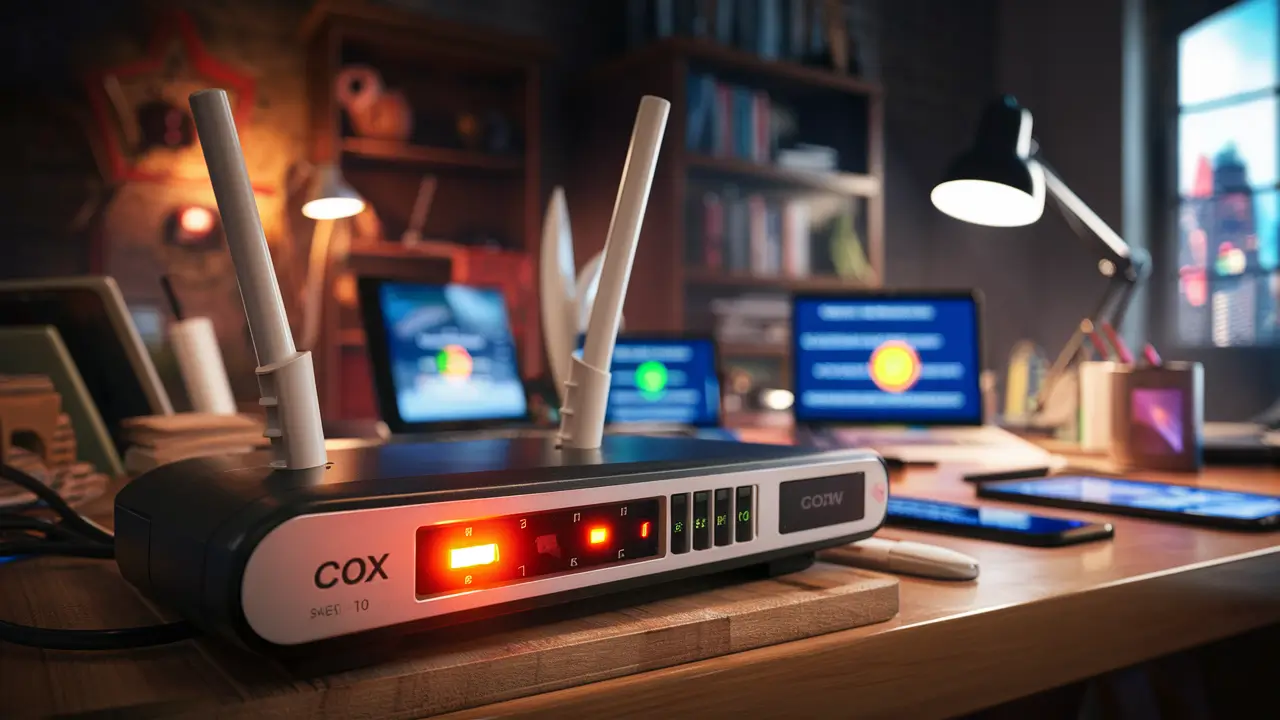
- Allow the Modem to Boot Up: The modem will begin its startup sequence. This can take several minutes (typically 2-5 minutes). You'll see various lights on the front of the modem blink and then stabilize. Observe the lights:
- Power Light: Should be solid.
- Downstream/Receive Light: Should indicate a stable connection (often solid or blinking steadily).
- Upstream/Send Light: Should indicate a stable connection.
- Online/Internet Light: This is the most important. It should turn solid, indicating a successful connection to the Cox network.
- Check Your Internet Connection: Once the lights indicate an online status, try accessing a website or running a speed test on your computer or a connected device.
What to Expect During and After the Power Cycle
During the power cycle, your internet connection will be temporarily interrupted. This is normal. Once the modem successfully reconnects to the Cox network, your internet service should resume. You might notice an improvement in speed or stability if the issue was due to a temporary network congestion or a minor software glitch within the modem. If you have a separate router, it will also need to re-establish its connection with the modem once the modem is online. Most routers will do this automatically. If you are using a Cox modem/router combo unit, the Wi-Fi network should also come back online automatically after the modem has fully booted.
Tips for a Successful Power Cycle
- Be Patient: Allow the modem the full time to boot up. Rushing this process can lead to incomplete initialization.
- Check Connections: Ensure all cables (coaxial, Ethernet, power) are securely plugged in before and after the reset.
- Observe the Lights: The status lights are your primary indicator of the modem's connection status. Consult your modem's manual or Cox's support site if you're unsure what the lights mean.
- If Using a Separate Router: After the modem is online, you may need to power cycle your router as well for it to re-establish its connection properly. Follow the same unplug, wait 30 seconds, and plug back in procedure for your router.
How to Factory Reset Your Cox Modem (The Hard Reset)
A factory reset is a more advanced troubleshooting step that should only be performed if a power cycle does not resolve your internet issues, or if you are instructed to do so by Cox support. This process will revert your modem to its original factory settings, erasing any custom configurations you may have made. It is crucial to understand that this will likely reset your Wi-Fi network name (SSID) and password back to the default printed on the modem, and you will need to reconfigure these settings and reconnect all your devices.
Locating the Reset Button
Most Cox modems have a physical reset button. This button is often recessed to prevent accidental presses. You will typically need a small, pointed object like a paperclip, a pen tip, or a SIM card ejector tool to press and hold it.
- Common Locations: The reset button is usually found on the back or bottom of the modem. Look for a small hole labeled "Reset" or "RST."
- Modem-Specific Differences: The exact location and appearance of the reset button can vary depending on the specific modem model provided by Cox (e.g., Arris Surfboard, Netgear, Technicolor). If you cannot find it, consult your modem's user manual or search online for your specific model number and "reset button location."
Step-by-Step Factory Reset Guide
- Ensure Modem is Powered On: The modem must be powered on and connected to the coaxial cable for the factory reset to function correctly.
- Locate the Reset Button: As described above, find the recessed reset button.
- Press and Hold the Reset Button: Using your pointed object, carefully insert it into the reset button's hole and press and hold it down.
- Hold for the Specified Time: You will need to hold the button down for a specific duration, typically between 10 to 30 seconds. The exact time varies by model. While holding the button, observe the lights on the front of the modem. They will likely flash or change pattern, indicating that the reset process has begun.
- Release the Button: Once the time has elapsed, or you observe the modem lights indicating a reset is in progress, release the button.
- Allow the Modem to Reboot: The modem will now reboot itself and restore its factory default settings. This process can take several minutes (5-10 minutes or more). The modem will go through its startup sequence, similar to when it was first installed.
- Check Lights for Online Status: Wait until the modem's lights stabilize and indicate an "Online" status, confirming it has successfully reconnected to the Cox network.
- Reconfigure Network Settings: After the modem has rebooted and established an online connection, you will need to reconfigure your network settings.
- Default Wi-Fi Credentials: Your Wi-Fi network name (SSID) and password will revert to the defaults printed on a sticker on your modem.
- Accessing Modem Interface: You may need to access your modem's web interface to set up a new Wi-Fi name and password. The default IP address for many modems is 192.168.0.1 or 192.168.1.1. You'll need to connect to the modem via Ethernet cable for this initial configuration.
- Reconnecting Devices: Once you've set up your Wi-Fi, you'll need to reconnect all your wireless devices using the new network name and password.
Important Considerations for Factory Reset
- Data Loss: Remember, this erases all custom settings. If you had specific port forwarding rules, parental controls, or other advanced configurations, you will need to set them up again.
- Cox Account Authentication: For Cox-provided modems, a factory reset might revert the device to a state requiring re-authentication with your Cox account credentials to access the internet. This is usually handled automatically, but be prepared if prompted.
- Modem Model Specifics: Always refer to your specific modem's manual or Cox's support documentation for the precise instructions on performing a factory reset, as procedures can vary.
- Separate Router: If you have a separate router connected to your modem, a factory reset of the modem will not affect your router's settings. However, your router will need to re-establish its connection with the modem.
A comparison of the two reset methods:
| Feature | Power Cycle (Soft Reset) | Factory Reset (Hard Reset) |
|---|---|---|
| Purpose | Resolves minor glitches, improves speed, restores connectivity. | Resolves persistent software issues, erases all custom settings. |
| Method | Unplugging power for 30+ seconds. | Pressing and holding a physical reset button. |
| Impact on Settings | No custom settings are lost. | All custom settings are erased; reverts to defaults. |
| Complexity | Very simple. | Requires locating button, holding for a duration, and reconfiguring settings. |
| When to Use | First troubleshooting step for most issues. | When power cycle fails, or for deep software corruption. |
| Time Required | 5-10 minutes. | 10-20 minutes (including reconfiguration). |
Troubleshooting Common Cox Modem Issues After a Reset
While resetting your Cox modem is often the solution, sometimes issues persist, or new ones arise. Understanding how to troubleshoot these common problems after a reset is crucial for maintaining a stable internet connection. As of 2025-2026, the landscape of home networking continues to evolve, with increasing demands on bandwidth and device connectivity. This means that even after a reset, underlying issues might require further attention.
Modem Not Connecting to the Internet (No Online Light)
This is perhaps the most frustrating issue. If your modem powers on but the "Online" or "Internet" light remains off or is blinking continuously, it indicates that the modem cannot establish a stable connection with the Cox network. This could be due to several reasons:
- Coaxial Cable Connection: Ensure the coaxial cable is securely screwed into the back of the modem and the wall outlet. Loose connections are a frequent culprit. Check for any visible damage to the cable.
- Signal Issues: The problem might be with the signal strength coming into your home. This could be due to issues with Cox's infrastructure in your area, a faulty splitter, or a damaged cable outside your home.
- Modem Provisioning: If you recently installed a new modem or experienced a service interruption, the modem might not be properly provisioned or activated on Cox's network. A factory reset might be necessary if it was previously used with another ISP or account.
- Modem Malfunction: In rare cases, the modem itself might be failing or has a hardware defect.
Troubleshooting Steps:
- Double-check all cable connections.
- Bypass any splitters if possible to see if a splitter is degrading the signal.
- Perform a factory reset if you haven't already and the issue persists.
- Contact Cox support to check for area outages or to have them remotely test your signal strength and modem status.
Slow Internet Speeds
Even if your modem shows an "Online" light, you might be experiencing significantly slower speeds than you expect. This can impact everything from streaming video to online gaming and video conferencing, which are critical in 2025-26 for remote work and education.
- Bandwidth Congestion: Too many devices using the internet simultaneously can saturate your available bandwidth.
- Wi-Fi Interference: If you're testing speeds wirelessly, other devices (microwaves, cordless phones, neighboring Wi-Fi networks) can interfere.
- Router Issues: If you have a separate router, it might be the bottleneck.
- Outdated Equipment: Older modems or routers might not support the speeds of your current Cox plan.
- Cox Network Congestion: In some cases, there might be temporary congestion on Cox's network in your neighborhood.
Troubleshooting Steps:
- Test with an Ethernet Cable: Connect a computer directly to the modem (or router) with an Ethernet cable and run a speed test. This bypasses potential Wi-Fi issues. Websites like Speedtest.net or Cox's own speed test tool can be used.
- Check Your Plan Speed: Ensure the speeds you're getting are within a reasonable range of your subscribed Cox plan.
- Limit Concurrent Devices: Temporarily disconnect some devices to see if speeds improve.
- Update Router Firmware: If you have a separate router, ensure its firmware is up-to-date.
- Consider a Newer Modem/Router: If your equipment is several years old, it might be time for an upgrade to support higher speeds and newer Wi-Fi standards (like Wi-Fi 6/6E).
Intermittent Connectivity / Dropped Connections
Your internet connection works, but it keeps dropping out, requiring you to reconnect or reset devices frequently. This can be extremely disruptive.
- Loose Cables: Again, check all physical connections.
- Power Fluctuations: Brief power outages or surges can cause modems to reset or lose sync.
- Modem Overheating: Ensure your modem has adequate ventilation.
- Firmware Glitches: Even after a reset, underlying firmware issues might persist.
- Cox Network Instability: Localized network issues on Cox's end can cause intermittent drops.
Troubleshooting Steps:
- Perform a thorough power cycle (wait longer, e.g., 60 seconds).
- If the problem persists, try a factory reset.
- Ensure the modem is in a well-ventilated area.
- Monitor the modem's status lights during connection drops.
- Contact Cox support to report intermittent issues, as they can often detect problems on their network or with the signal to your home.
Wi-Fi Issues (If Using a Cox Modem/Router Combo)
If your Cox device is an all-in-one modem and router, you might experience Wi-Fi specific problems.
- Weak Signal: The Wi-Fi signal may not reach all areas of your home.
- Channel Congestion: Your Wi-Fi channel might be overcrowded by neighboring networks.
- Incorrect Settings: Incorrect Wi-Fi password, SSID, or security settings.
Troubleshooting Steps:
- Relocate the Modem/Router: Place it in a central, open location, away from obstructions and other electronics.
- Change Wi-Fi Channel: Access your modem's interface and try changing the Wi-Fi channel. For 2.4GHz, channels 1, 6, and 11 are generally best. For 5GHz, there are more options.
- Restart Router: Perform a power cycle on the router portion of the combo unit (if possible, or a full modem power cycle will do).
- Consider a Separate Router/Mesh System: For larger homes or areas with many Wi-Fi dead spots, a dedicated router or a mesh Wi-Fi system might be a better long-term solution.
When to Call Cox Support
While resetting your modem is a powerful DIY troubleshooting tool, there are specific situations where contacting Cox customer support is the most efficient and necessary course of action. As of 2025-26, Cox's support infrastructure is designed to handle a range of issues, from simple account queries to complex network diagnostics.
Situations Requiring Cox Support
- Persistent "No Online" Light: If you have performed both a power cycle and a factory reset, checked all cable connections, and the modem still refuses to connect to the internet (no solid "Online" light), it's time to call Cox. This indicates a potential issue with the signal coming into your home or with Cox's network infrastructure.
- Consistently Slow Speeds Below Your Plan: If speed tests consistently show speeds far below your subscribed plan, even after troubleshooting Wi-Fi and wired connections, Cox support can diagnose signal levels and potential network congestion issues on their end. They can also verify if your modem is capable of achieving the speeds of your plan.
- Intermittent Connection Issues Not Resolved by Resets: If your internet connection drops frequently and consistently, and basic resets don't help, Cox support can check for line quality issues, equipment malfunctions on their network side, or scheduled maintenance in your area that might be causing instability.
- Modem Not Booting Up Properly: If the modem shows no signs of life, or the power light doesn't illuminate, there might be a power supply issue or a hardware failure with the modem itself. Cox can guide you through troubleshooting the power adapter or arrange for a replacement if the modem is leased from them.
- Billing or Account Specific Issues: If you suspect an issue related to your billing, plan changes, or service activation, Cox customer service is the only entity that can resolve these matters.
- New Modem Installation/Activation: If you have purchased a new modem or are replacing an old one, you will need to contact Cox to activate and provision the new device on their network.
- Scheduled Maintenance or Outages: Cox support can inform you about any planned maintenance in your area that might affect your service or confirm if there is a known outage impacting your connection.
- When Instructed to Do So: Sometimes, during remote troubleshooting, Cox support might ask you to perform specific actions, including a factory reset, to diagnose or resolve an issue.
How to Contact Cox Support Effectively
To make your call to Cox support as productive as possible:
- Have Your Account Information Ready: This includes your account number and the service address.
- Note Your Modem Model: Knowing the make and model of your modem (e.g., Arris Surfboard SB8200, Netgear CM1000) will help them assist you faster.
- Describe the Problem Clearly: Explain the issue you're experiencing, including when it started, what troubleshooting steps you've already taken (e.g., power cycle, factory reset), and what the status lights on your modem indicate.
- Be Prepared for Remote Diagnostics: Cox technicians can often run diagnostics on your modem and signal remotely. They may ask you to perform certain actions while on the phone.
- Ask for Escalation if Necessary: If the initial representative cannot resolve your issue, don't hesitate to politely ask for the call to be escalated to a higher level of technical support.
- Consider Online Chat/Support: Many ISPs, including Cox, offer online chat support, which can be a convenient alternative to phone calls, especially for less complex issues. You can find these options on the Cox support website.
By understanding when to call and how to communicate effectively, you can expedite the resolution of any persistent internet problems.
Optimizing Your Cox Network Post-Reset
Once you've successfully reset your Cox modem and restored your internet connection, it's an opportune moment to optimize your home network for peak performance. In the evolving digital landscape of 2025-26, maximizing your internet's potential is key to enjoying seamless streaming, gaming, and productivity. Optimization goes beyond just having a connection; it's about ensuring that connection is as fast, stable, and secure as possible.
1. Reconfigure Wi-Fi Settings for Security and Performance
If you performed a factory reset, you'll need to set up your Wi-Fi network again. This is your chance to optimize.
- Strong, Unique Password: Use a strong, unique password for your Wi-Fi network (WPA3 encryption is recommended if supported by your devices). Avoid easily guessable passwords.
- Network Name (SSID): Choose a descriptive but not overly personal SSID. Consider using different SSIDs for 2.4GHz and 5GHz bands if your router supports it, allowing you to choose the best band for each device. The 2.4GHz band offers better range, while 5GHz offers faster speeds but shorter range.
- Wi-Fi Channel Selection: If you have control over your Wi-Fi channels (usually via your router's settings), select a less congested channel. Apps like Wi-Fi Analyzer can help identify less crowded channels in your area. For 2.4GHz, stick to channels 1, 6, or 11.
2. Update Router Firmware (If Separate)
If you use a separate router, ensure its firmware is up-to-date. Manufacturers regularly release updates to improve performance, fix bugs, and patch security vulnerabilities. Check your router manufacturer's website for the latest firmware and instructions on how to update.
3. Optimize Device Connectivity
- Prioritize Devices: If your router supports Quality of Service (QoS) settings, you can prioritize bandwidth for critical devices or applications (e.g., your work computer, gaming console).
- Use Ethernet When Possible: For stationary devices that require the highest speeds and lowest latency (like desktop PCs, gaming consoles, smart TVs), connect them directly to the router via an Ethernet cable. This frees up Wi-Fi bandwidth for mobile devices.
- Consider a Mesh Wi-Fi System: For larger homes or areas with dead spots, a mesh Wi-Fi system can provide consistent coverage throughout your entire house, offering a significant improvement over a single router.
4. Check Modem Compatibility and Speed
Ensure your modem is capable of supporting the speeds of your Cox plan. Older DOCSIS 3.0 modems might struggle with gigabit speeds, while newer DOCSIS 3.1 modems are designed for higher bandwidth. Cox often provides a list of approved modems on their website. If your modem is consistently underperforming, it might be time to upgrade.
5. Regular Maintenance
Make it a habit to perform a power cycle on your modem and router once a month. This simple routine can prevent many minor issues before they become noticeable problems, keeping your network running smoothly throughout the year.
6. Secure Your Network
Beyond a strong Wi-Fi password, ensure your modem and router interfaces are secured with strong administrator passwords. Change the default login credentials if you haven't already. Regularly review connected devices to ensure no unauthorized access.
By implementing these optimization strategies after resetting your modem, you can ensure you're getting the most out of your Cox internet service, enjoying a faster, more reliable, and secure online experience.
Conclusion
Effectively resetting your Cox modem, whether through a simple power cycle or a more comprehensive factory reset, is a crucial skill for any internet user. This guide has walked you through the why, the what, and the how of these processes, providing clear, step-by-step instructions and valuable troubleshooting tips. By understanding the difference between a soft and hard reset, knowing when to employ each, and being aware of common issues that may arise, you are empowered to resolve many internet connectivity problems independently. Remember, a power cycle is your first line of defense for minor glitches, while a factory reset is a powerful tool for deeper software issues, albeit one that requires reconfiguration. Always ensure your cables are secure, your modem has adequate ventilation, and your Wi-Fi settings are robust and secure. If persistent issues remain, don't hesitate to leverage Cox's support resources. By following these recommendations, you can maintain a stable, fast, and reliable internet connection, essential for navigating the digital demands of 2025-26 and beyond. Take control of your home network today!