Looking to set up your new Verizon Fios G3100 router? This guide provides a clear, step-by-step walkthrough for a seamless installation, ensuring you get online quickly and efficiently. We'll cover everything from unboxing to troubleshooting common issues, making the process straightforward for any user.
Introduction to the Verizon Fios G3100
The Verizon Fios G3100, often referred to as the Fios Home Router, is a powerful and advanced piece of networking equipment designed to deliver high-speed internet and robust Wi-Fi performance for your home. As the gateway to your Fios service, understanding how to properly install and configure it is crucial for a seamless online experience. This guide aims to demystify the process of installing your Verizon Fios G3100 router, providing detailed, step-by-step instructions that cater to both novice and experienced users. We'll delve into the physical connections, initial software setup, and essential configuration options, ensuring you can leverage the full capabilities of your Fios network.
What You'll Need Before You Begin
Before embarking on the installation of your Verizon Fios G3100 router, it's essential to gather all the necessary components and information. Having everything ready beforehand will significantly streamline the setup process and prevent potential delays. Here's a comprehensive checklist:
- Verizon Fios G3100 Router: This is the primary device you'll be installing. Ensure it's the correct model provided by Verizon.
- Power Adapter: The router comes with a specific power adapter. Do not substitute it with another adapter, as this could damage the device.
- Ethernet Cable: You'll need at least one Ethernet cable. Typically, Verizon provides one. This cable will connect your router to the ONT (Optical Network Terminal).
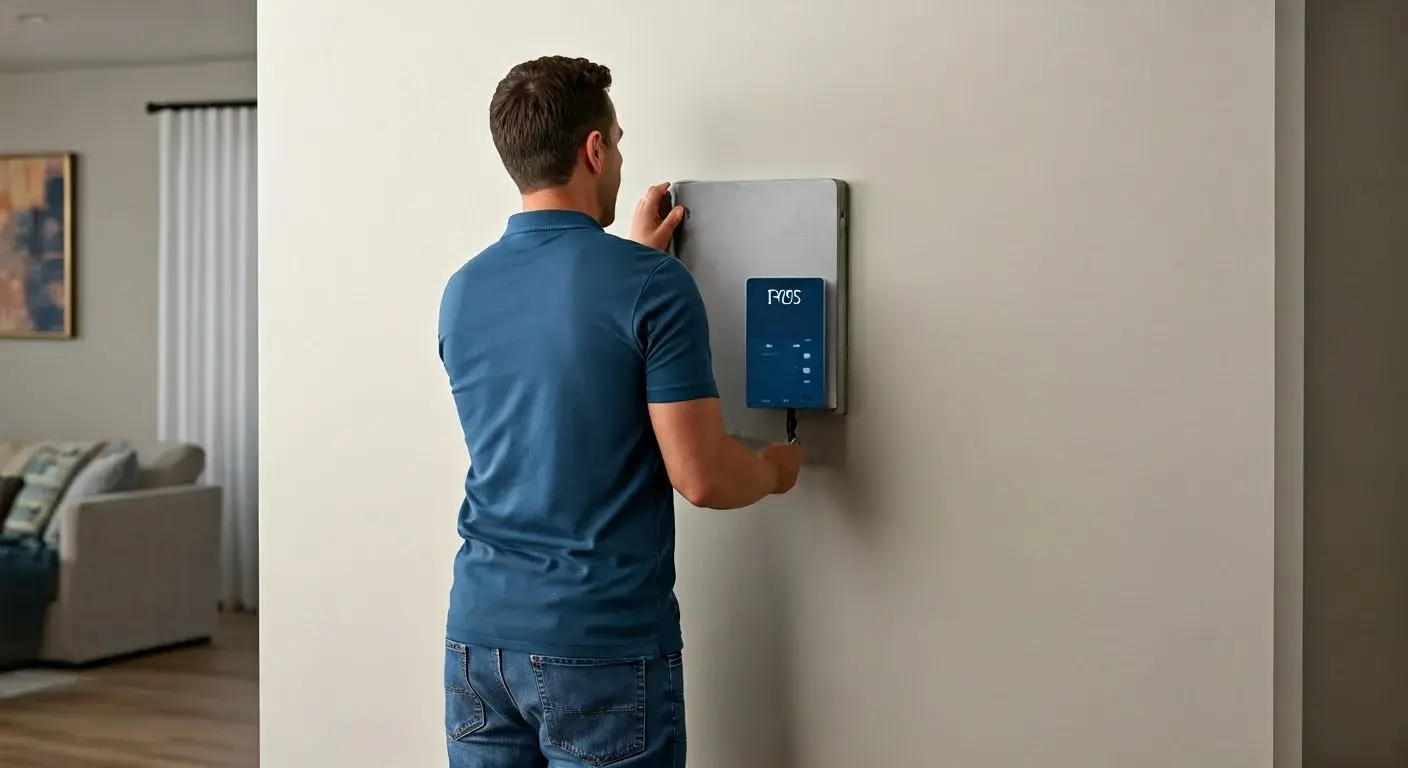
- Existing Verizon Fios ONT: This is the device that brings the fiber optic internet into your home. It's usually a small box mounted on a wall.
- Your Fios Account Information: While not always strictly necessary for basic setup, having your Verizon Fios username and password handy can be useful for advanced configurations or if prompted during the initial activation.
- A Computer or Mobile Device: You'll need a device with a web browser to access the router's configuration interface. A laptop connected via Ethernet is often the most reliable for initial setup.
- Optional: Network Cables: If you plan to connect wired devices directly to the router, have additional Ethernet cables of appropriate lengths.
- Optional: Wi-Fi Password and Network Name (SSID): It's good practice to have your desired Wi-Fi network name and password decided upon before you start configuring the wireless settings.
Having these items readily available will ensure a smooth and efficient installation process. For users upgrading from an older router, ensure any old equipment is disconnected and powered off before proceeding.
Unboxing and Initial Setup
The unboxing process for the Verizon Fios G3100 is straightforward. Carefully open the packaging and ensure all listed components are present. Inside the box, you should find the G3100 router itself, its power adapter, and an Ethernet cable. Some packages may also include a quick start guide. Take a moment to familiarize yourself with the router's physical layout. You'll notice several ports on the back, including power input, Ethernet ports (for connecting to your ONT and wired devices), and potentially a USB port for future use or firmware updates. The router is designed to stand upright, often with indicator lights on the front or top that will provide visual feedback during the setup and operation phases.
Before connecting the router, identify the location of your Verizon Fios ONT. This device is the crucial link between Verizon's fiber network and your home's internal network. It typically has a coaxial cable or an Ethernet port where the router will connect. Ensure the ONT is powered on and functioning correctly; often, it has its own power indicator light.
Connecting the Verizon Fios G3100 Router
This section details the physical connections required to get your Verizon Fios G3100 router up and running. Proper connection is the foundation for a stable internet service.
Connecting to the ONT (Optical Network Terminal)
The most critical connection is between your G3100 router and your Verizon Fios ONT. This connection establishes your internet gateway.
- Locate the Ethernet Port on the ONT: Your ONT will have at least one Ethernet port. It's usually labeled or easily identifiable.
- Connect One End of the Ethernet Cable to the ONT: Take the provided Ethernet cable (or a new one if needed) and plug one end firmly into the Ethernet port on your ONT.
- Connect the Other End of the Ethernet Cable to the Router: Locate the WAN (Wide Area Network) or Internet port on the back of your Verizon Fios G3100 router. This port is typically colored differently or labeled specifically for the internet connection. Plug the other end of the Ethernet cable into this WAN/Internet port.
Important Note: For Verizon Fios installations, the connection from the ONT to the router is almost always via Ethernet. Older Fios setups might have used coax, but the G3100 is designed for Ethernet WAN.
Powering On the Router
Once the Ethernet cable is securely connected between the ONT and the router, it's time to power on the G3100.
- Connect the Power Adapter: Plug the small end of the power adapter into the power input port on the back of the G3100 router.
- Plug the Power Adapter into a Wall Outlet: Connect the other end of the power adapter into a functioning electrical outlet.
- Observe the Indicator Lights: The router will begin its boot-up sequence. You should see the indicator lights on the front or top of the router illuminate. This process can take a few minutes. Typically, there will be a power light, an internet connectivity light, and Wi-Fi lights. Wait until the lights indicate a stable connection (consult your router's manual or Verizon's support for specific light patterns). The internet light should eventually turn solid green, indicating a successful connection to Verizon's network.
If the internet light does not turn solid green after several minutes, double-check your Ethernet connection to the ONT and ensure the ONT itself is powered on and operational.
Router Configuration and Initial Setup
With the physical connections established, the next step is to configure your Verizon Fios G3100 router. This involves accessing its administrative interface and setting up your wireless network. This process is typically done using a web browser on a computer or mobile device connected to the router.
Accessing the Admin Interface
To manage your router's settings, you need to access its web-based administration panel. Here's how:
- Connect a Device to the Router: You can connect a computer or smartphone to the G3100. For the initial setup, using an Ethernet cable from your computer directly to one of the LAN ports on the router is recommended for stability. Alternatively, you can connect wirelessly using the default Wi-Fi network name (SSID) and password, which are usually printed on a sticker on the router itself.
- Open a Web Browser: Launch your preferred web browser (e.g., Chrome, Firefox, Safari, Edge).
- Enter the Router's IP Address: In the browser's address bar, type the default IP address for the Verizon Fios G3100. This is typically 192.168.1.1. Press Enter.
- Log In: You will be prompted to enter a username and password. The default credentials are often printed on the router's sticker as well. Common defaults include:
- Username: admin
- Password: password (or sometimes a unique password printed on the sticker)
Once logged in, you'll be presented with the router's control panel, where you can manage all its settings.
Setting Up Your Wi-Fi Network
Personalizing your Wi-Fi network is crucial for both security and ease of use. The G3100 supports dual-band Wi-Fi (2.4 GHz and 5 GHz), offering flexibility for different devices and needs.
- Navigate to Wireless Settings: Within the router's admin interface, look for a section labeled "Wi-Fi," "Wireless," or "Network Settings."
- Configure the 2.4 GHz Network:
- SSID (Network Name): Change the default SSID to something unique and recognizable. Avoid using personal information.
- Security: Select WPA2-PSK or WPA3 (if available and supported by your devices) for the strongest security.
- Password: Create a strong, unique password. It should be at least 12 characters long and include a mix of uppercase and lowercase letters, numbers, and symbols.
- Configure the 5 GHz Network: The 5 GHz band offers faster speeds but has a shorter range. It's recommended to set up this band similarly to the 2.4 GHz band, potentially with a slightly different SSID (e.g., "MyHomeWiFi_5G") to easily distinguish between the two. Use the same strong security settings and password.
- Enable/Disable Guest Network (Optional): The G3100 usually has a guest network feature. You can enable this to provide internet access to visitors without giving them access to your main network devices. Configure its SSID and password separately.
- Apply Changes: After making your desired changes, click "Apply" or "Save" to implement the new settings. Your router may restart.
Remember to reconnect your devices to the new Wi-Fi network using the SSID and password you just created.
Changing Default Credentials
For enhanced security, it's imperative to change the default administrator username and password for accessing the router's settings. This prevents unauthorized access to your network configuration.
- Locate Administration/Security Settings: In the router's admin interface, find a section related to "Administration," "System," or "Security."
- Change Administrator Password: Look for an option to "Change Administrator Password" or "Set New Password." Enter the current password (if prompted) and then set a new, strong password that you will remember.
- Change Default Username (Optional but Recommended): Some routers allow you to change the default administrator username as well. If available, do so for an extra layer of security.
- Apply Changes: Save your new credentials. You will likely be logged out and will need to log back in using the new username and password.
Keep these credentials in a secure place. Losing them can make it difficult to reconfigure your router in the future.
Exploring Advanced Settings
The Verizon Fios G3100 offers several advanced features that can enhance your network's performance, security, and functionality. Understanding these can help you tailor your network to your specific needs.
Guest Network Setup
A guest network is a separate Wi-Fi network that allows visitors to access the internet without connecting to your primary home network. This is a significant security feature.
- Access Guest Network Settings: Navigate to the "Guest Network" or "Wi-Fi Settings" section in the router's interface.
- Enable Guest Network: Toggle the guest network feature on.
- Configure SSID and Password: Set a unique SSID and a strong password for your guest network. This password can be different from your main Wi-Fi password.
- Set Access Restrictions (Optional): Some routers allow you to restrict guest network access to only the internet, preventing guests from accessing other devices on your local network.
- Set Duration (Optional): You might be able to set a time limit for the guest network's availability.
By offering a guest network, you enhance security and provide a better experience for your visitors.
Port Forwarding
Port forwarding is an advanced technique that allows specific traffic from the internet to be directed to a particular device on your local network. This is often necessary for online gaming, running servers, or accessing certain applications remotely.
- Understand Port Forwarding: You need to know the specific port numbers and the internal IP address of the device you want to forward traffic to.
- Access Port Forwarding Settings: Look for "Port Forwarding," "NAT," or "Virtual Servers" in the router's advanced settings.
- Create a New Rule: You'll typically need to specify:
- Service Name: A descriptive name for the rule (e.g., "Game Server," "Remote Desktop").
- Protocol: TCP, UDP, or Both.
- External Port(s): The port(s) that incoming traffic will use from the internet.
- Internal Port(s): The port(s) on your local device that the traffic will be directed to.
- Internal IP Address: The IP address of the device on your local network. It's highly recommended to assign a static IP address to this device within your router's DHCP settings to prevent it from changing.
- Save the Rule: Apply the changes.
Caution: Improperly configured port forwarding can create security vulnerabilities. Only forward ports if you understand the risks and necessity.
Quality of Service (QoS) Settings
Quality of Service (QoS) allows you to prioritize certain types of network traffic over others. This is particularly useful for ensuring smooth performance for activities like video streaming, online gaming, or video conferencing, especially when your internet connection is heavily utilized.
- Locate QoS Settings: Find the QoS section within the router's advanced settings.
- Enable QoS: Turn the QoS feature on.
- Configure Bandwidth: You may need to input your total upload and download bandwidth. This information can usually be found through an internet speed test.
- Prioritize Devices or Applications: The G3100 may allow you to prioritize specific devices (by MAC address or IP address) or specific types of traffic (e.g., gaming, streaming, VoIP). You can often assign priority levels (e.g., High, Medium, Low).
- Apply Changes: Save your QoS configurations.
By prioritizing critical traffic, you can reduce buffering and lag, leading to a more consistent and enjoyable online experience.
Troubleshooting Common Issues
Even with a smooth installation, you might encounter occasional issues. Here are some common problems and their solutions for the Verizon Fios G3100.
No Internet Connection
This is the most common issue. Before diving into router settings, perform these checks:
- Check Indicator Lights: Ensure the internet light on the G3100 is solid green. If it's off, blinking, or red, there's a problem with the connection to Verizon's network.
- Verify Physical Connections: Double-check that the Ethernet cable is securely plugged into both the ONT and the router's WAN port. Try a different Ethernet cable if possible.
- Restart Equipment: Power cycle your ONT and router. Unplug the power from both devices, wait 30-60 seconds, then plug the ONT back in first. Once the ONT is fully booted (indicator lights are stable), plug the router back in.
- Check ONT Status: Ensure your ONT is powered on and its indicator lights suggest it's functioning correctly.
- Contact Verizon Support: If the issue persists after these steps, there might be an outage in your area or a problem with your Fios service that requires Verizon's intervention.
Slow Wi-Fi Speeds
Several factors can contribute to slow Wi-Fi speeds:
- Router Placement: Ensure the router is in a central location, away from obstructions like thick walls, metal objects, and other electronics that can cause interference (microwaves, cordless phones).
- Distance from Router: Wi-Fi signal strength decreases with distance. If you're far from the router, speeds will be slower. Consider a Wi-Fi extender or mesh system for larger homes.
- Number of Connected Devices: Too many devices competing for bandwidth can slow down the network. Disconnect devices that are not in use.
- Interference: Other Wi-Fi networks in your vicinity can cause interference. Try changing the Wi-Fi channel in your router's settings (within the 2.4 GHz band, channels 1, 6, and 11 are generally recommended).
- Use 5 GHz Band: If your device supports it and is close to the router, connect to the 5 GHz network for faster speeds.
- Run a Speed Test: Connect a device directly to the router via Ethernet and run a speed test (e.g., Ookla Speedtest) to see if you're getting the speeds you expect from your Fios plan. If wired speeds are also slow, the issue might be with your service or the ONT.
- Firmware Update: Ensure your router's firmware is up to date. Check the router's admin interface for firmware update options.
Router Not Powering On
If your G3100 router shows no signs of life:
- Check Power Adapter: Ensure the power adapter is securely plugged into both the router and a working electrical outlet. Try a different outlet.
- Inspect Power Adapter: Check the power adapter for any visible damage. If it appears damaged, it may need to be replaced.
- Test with Another Device (If Possible): If you have another compatible power adapter, try using it to see if the router powers on.
- Contact Verizon Support: If the router still doesn't power on, it might be defective and require replacement.
Resetting the Router
A factory reset will restore your Verizon Fios G3100 to its original default settings, erasing all custom configurations. This is often a last resort for troubleshooting persistent issues.
- Locate the Reset Button: The reset button is usually a small, recessed button on the back or bottom of the router.
- Use a Paperclip or Similar Tool: You'll need a pointed object (like a paperclip) to press and hold the button.
- Press and Hold: While the router is powered on, press and hold the reset button for about 10-15 seconds.
- Observe Lights: The router's indicator lights will likely flash or change pattern, indicating the reset process has begun.
- Release Button: Release the button. The router will reboot with its factory default settings.
- Reconfigure: After the reset, you will need to go through the initial setup process again, including reconfiguring your Wi-Fi network and changing administrator credentials.
A reset can resolve software glitches but will require you to set up your network from scratch.
Verizon Fios G3100 vs. Other Routers
The Verizon Fios G3100 is a robust, carrier-provided router designed to work seamlessly with Verizon's Fios network. It offers Wi-Fi 6 (802.11ax) technology, providing faster speeds, better performance in crowded environments, and improved battery life for connected devices compared to older Wi-Fi standards like Wi-Fi 5 (802.11ac).
| Feature | Verizon Fios G3100 | Generic Wi-Fi 6 Router (Example) | Older Wi-Fi 5 Router |
|---|---|---|---|
| Wi-Fi Standard | Wi-Fi 6 (802.11ax) | Wi-Fi 6 (802.11ax) | Wi-Fi 5 (802.11ac) |
| Max Theoretical Speed | Up to 2.5 Gbps (combined) | Varies by model (e.g., AX3000, AX5400) | Up to 3.5 Gbps (combined, typically lower in real-world) |
| Frequency Bands | Dual-Band (2.4 GHz & 5 GHz) | Dual-Band or Tri-Band | Dual-Band |
| Ports | Gigabit Ethernet WAN/LAN, often 2.5 Gbps WAN | Varies (Gigabit or Multi-Gigabit WAN/LAN) | Gigabit Ethernet WAN/LAN |
| Management Interface | Web-based, Verizon App | Web-based, Mobile App | Web-based |
| Carrier Integration | Optimized for Fios | General purpose | General purpose |
| Advanced Features | Guest Network, Basic QoS, Port Forwarding | Often more advanced QoS, VPN support, parental controls, advanced security features | Basic features |
Key Advantages of G3100:
- Seamless Fios Integration: Designed and tested by Verizon to ensure optimal compatibility and performance with their Fios network.
- Wi-Fi 6 Performance: Offers the latest Wi-Fi technology for faster speeds and better handling of multiple devices.
- Ease of Use: Generally straightforward setup and management, especially with Verizon's support resources.
Considerations:
- Limited Customization: Compared to high-end third-party routers, carrier-provided routers may offer fewer advanced customization options.
- Rental Fees: If rented from Verizon, there's a monthly fee, which can be more expensive than purchasing a router outright over time.
- Performance Caps: While the G3100 supports high speeds, its overall performance might be slightly less robust than top-tier enthusiast routers for very demanding home networks.
For most Fios users, the G3100 provides an excellent balance of performance, features, and ease of use. However, power users or those with extremely large homes or complex networking needs might consider purchasing a high-end third-party router and configuring it for Fios service, though this can be more complex.
Tips for Optimal Performance
To ensure your Verizon Fios G3100 router performs at its best, consider these tips:
- Keep Firmware Updated: Regularly check for and install firmware updates. These often include performance improvements, security patches, and new features. You can usually do this through the router's admin interface.
- Strategic Router Placement: As mentioned, central placement is key. Avoid placing it near large metal objects, aquariums, or other electronic devices that can cause interference. Elevate the router if possible.
- Utilize the 5 GHz Band: For devices that are close to the router and require high speeds (e.g., streaming devices, gaming consoles, laptops), connect them to the 5 GHz network. The 2.4 GHz band is better for devices further away or those that don't require high bandwidth.
- Secure Your Network: Always use a strong, unique password for both your main Wi-Fi network and your administrator login. Enable WPA2/WPA3 encryption.
- Manage Connected Devices: Periodically review the list of connected devices in your router's settings. Disconnect any unknown or unnecessary devices.
- Consider a Wired Connection: For stationary devices that demand consistent high speeds and low latency (like desktop computers, smart TVs, or gaming consoles), using an Ethernet cable directly to the router will always provide superior performance and reliability compared to Wi-Fi.
- Reboot Periodically: Like any electronic device, routers can benefit from occasional reboots. A weekly or bi-weekly reboot can help clear temporary glitches and maintain optimal performance.
- Understand Your Internet Plan: Ensure your router's capabilities align with your Fios internet speed tier. The G3100 is capable of handling multi-gigabit speeds, but your actual performance is limited by your subscription.
- Use the Verizon App: Verizon often provides a mobile app for managing your Fios services, including your router. This can offer a user-friendly way to monitor your network, check speeds, and manage connected devices.
By implementing these practices, you can maximize the speed, reliability, and security of your home network powered by the Verizon Fios G3100.
Conclusion
Installing and configuring your Verizon Fios G3100 router is a fundamental step towards enjoying your high-speed internet service. By following the detailed steps outlined in this guide, from unboxing and physical connections to accessing the admin interface, setting up Wi-Fi, and exploring advanced features, you can ensure a smooth and successful setup. Remember the importance of securing your network with strong passwords and up-to-date firmware, and utilize troubleshooting tips for any issues that may arise. The G3100 is a capable device designed to deliver excellent performance, and with proper installation and configuration, it will serve as the reliable backbone of your digital life. For optimal performance, always keep your router updated and consider placement and device management. If you encounter persistent problems, don't hesitate to reach out to Verizon support for assistance.