How To Connect Spectrum Internet
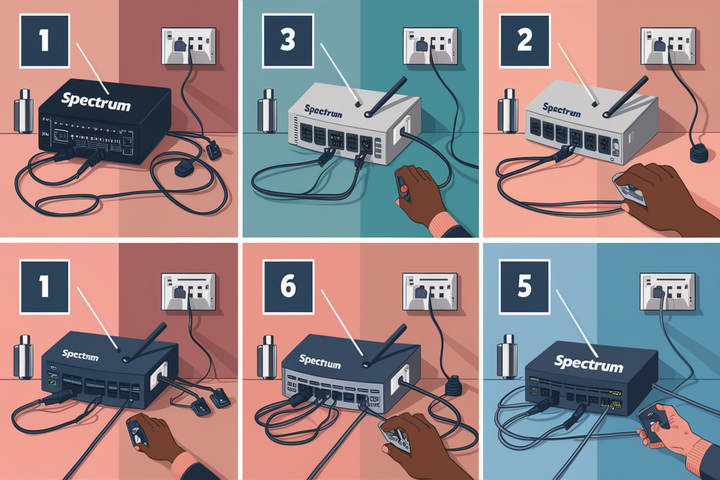
Connecting your Spectrum Internet is a straightforward process, and this guide will walk you through every step. We'll cover everything from understanding your equipment to troubleshooting common issues, ensuring a smooth and reliable online experience. Get ready to get connected with Spectrum!
Understanding Your Spectrum Internet Equipment
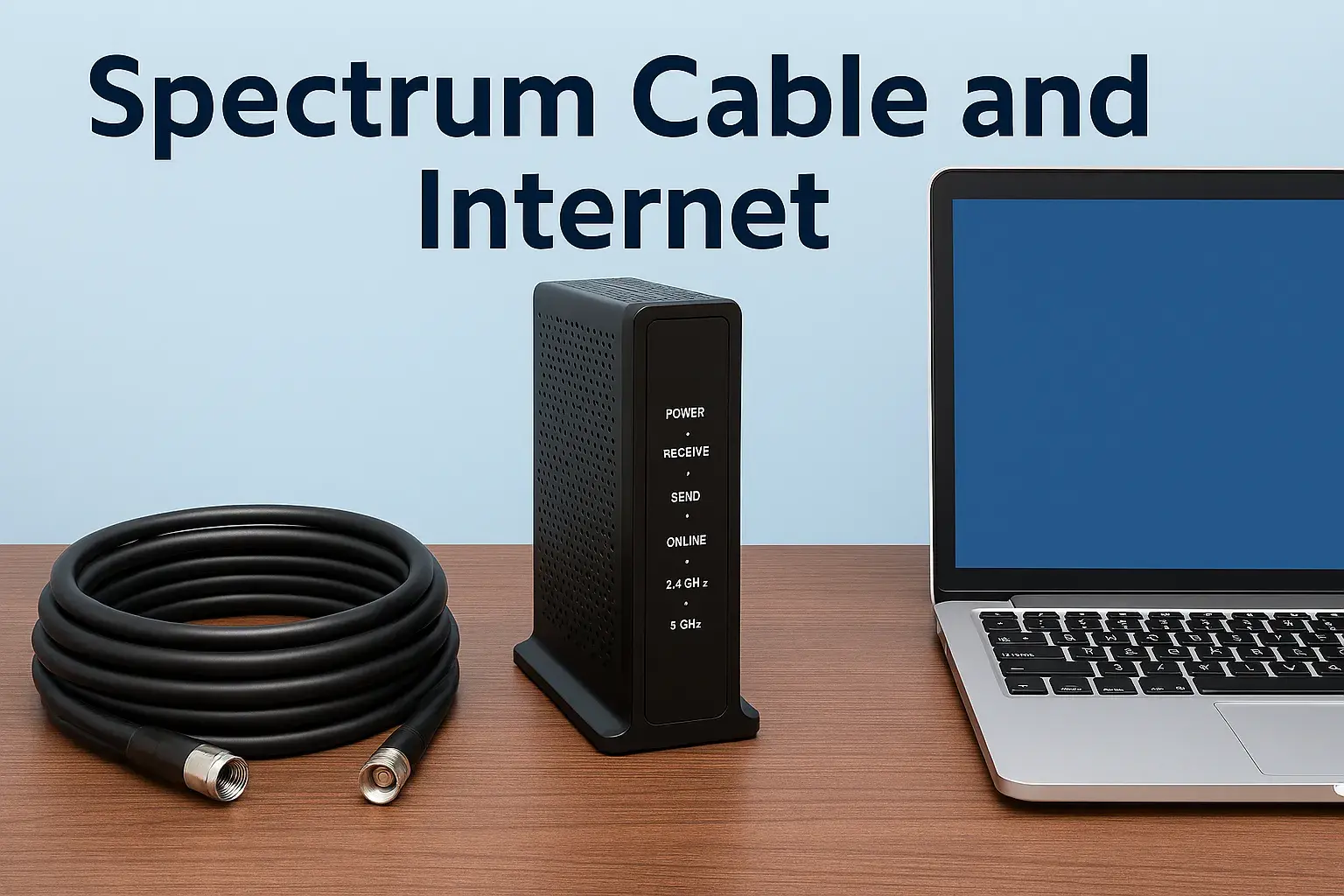
Before you can successfully connect to Spectrum Internet, it's crucial to understand the equipment involved. Spectrum typically provides or recommends specific devices to ensure optimal performance and compatibility. These can include modems, routers, or a combination modem/router unit, often referred to as a gateway. Knowing what you have and how it works is the first step to a seamless connection.
Spectrum Modems
The modem is the device that bridges your home network to Spectrum's network. It translates the digital signals from your devices into signals that can travel over Spectrum's cable lines, and vice versa. Spectrum offers both DOCSIS 3.0 and the newer, faster DOCSIS 3.1 modems. The type of modem you receive often depends on the internet speed tier you subscribe to. For instance, higher speed plans, like those exceeding 300 Mbps, will generally require a DOCSIS 3.1 modem to achieve their full potential. It's important to ensure your modem is compatible with the speeds you've ordered.
Key Modem Features to Consider:
- DOCSIS Version: DOCSIS 3.1 offers significantly higher speeds and lower latency than DOCSIS 3.0, making it essential for gigabit-level internet.
- Number of Channels: More bonded channels mean a modem can utilize more of Spectrum's bandwidth, leading to faster and more stable connections.
- Compatibility: Always verify that the modem is certified for use with Spectrum's network.
Spectrum Routers and Wi-Fi Gateways
While a modem connects you to the internet, a router is responsible for creating your home Wi-Fi network and allowing multiple devices to share the internet connection. Many Spectrum customers opt for a Wi-Fi gateway, which is a single device that combines both modem and router functionalities. This simplifies setup and reduces the number of devices and cables in your home. If you choose to use your own router, ensure it's compatible with your modem and supports the latest Wi-Fi standards (like Wi-Fi 6 or Wi-Fi 6E) for the best performance.
Gateway Benefits:
- All-in-One Solution: Simplifies installation and reduces clutter.
- Optimized Performance: Often designed to work seamlessly with Spectrum's network.
- Built-in Wi-Fi: Provides wireless connectivity for all your devices.
Spectrum-Provided vs. Customer-Owned Equipment
Spectrum offers equipment for rent, which is convenient as it's guaranteed to be compatible and supported. However, renting equipment comes with a monthly fee that can add up over time. Many users choose to purchase their own compatible modem and router to save money in the long run. If you decide to buy your own equipment, it's imperative to check Spectrum's list of approved modems to ensure it will work with their service. This can be found on Spectrum's support website. For 2025-26, Spectrum continues to recommend DOCSIS 3.1 modems for their higher-tier plans to leverage speeds up to 1 Gbps and beyond.
Statistics Note (2025-26): As of early 2025, the average home internet speed subscription in the US has surpassed 200 Mbps, with a growing demand for gigabit speeds. This makes having compatible DOCSIS 3.1 equipment increasingly important for a robust connection.
Spectrum Internet Installation Options
Spectrum understands that customers have different needs and preferences when it comes to setting up their internet service. They offer flexible installation options to accommodate various situations, from those who are comfortable with DIY projects to those who prefer professional assistance. Understanding these options will help you choose the best path for your Spectrum Internet connection.
Self-Installation
For many customers, self-installation is the most convenient and cost-effective option. If your home already has active Spectrum cable outlets and you're receiving new equipment, you can typically set up your internet service yourself. This involves connecting the modem to the cable outlet and power, then activating it through Spectrum's online portal or app. Spectrum provides detailed instructions and often includes all the necessary cables and tools in their self-installation kits. This option is generally available for new activations and service transfers within the same service area.
Benefits of Self-Installation:
- Cost Savings: Avoids professional installation fees, which can range from $50 to $100 or more.
- Flexibility: Schedule the installation at your own convenience without waiting for an appointment window.
- Speed: You can often get connected the same day you receive your equipment.
Professional Installation
If you're not comfortable with technical setups, if your home doesn't have existing cable outlets, or if you're moving into a new construction property, a professional installation is the recommended choice. A certified Spectrum technician will visit your home to assess your wiring, install any necessary outlets, set up your modem and router, and ensure everything is working correctly. They can also advise on the best placement for your equipment to maximize Wi-Fi coverage.
When to Consider Professional Installation:
- No Existing Outlets: If your home lacks suitable coaxial cable outlets.
- New Construction: Homes that have not had internet service installed before.
- Complex Setups: If you have a large home, multiple floors, or specific networking needs.
- Technical Uncertainty: If you prefer an expert to handle the setup to guarantee it's done right.
Transferring Service
If you're moving within the Spectrum service area, transferring your service is usually a simpler process. In many cases, you can opt for self-installation at your new address, especially if the existing outlets are in good condition. Spectrum will guide you through the process of disconnecting service at your old address and setting it up at your new one. If you're moving to an area not currently serviced by Spectrum, you'll need to set up new service as if you were a brand-new customer.
Transferring Service Tips:
- Notify Spectrum Early: Start the transfer process at least two weeks before your move date.
- Check Availability: Confirm that Spectrum service is available at your new address.
- Equipment: Determine if you'll need new equipment or if you can bring your existing compatible devices.
Statistics Note (2025-26): Industry surveys indicate that approximately 60-70% of new internet installations are now self-installed, highlighting the increasing comfort level of consumers with DIY tech setups. However, professional installations remain vital for approximately 30-40% of users who require specialized assistance or face complex wiring scenarios.
Self-Installation Guide for Spectrum Internet
Self-installing Spectrum Internet is designed to be user-friendly. By following these steps, you can get your service up and running quickly and efficiently. This guide assumes you have received your Spectrum-provided equipment (modem/gateway) and any necessary activation instructions.
Step 1: Unpack Your Equipment
Carefully unpack your Spectrum modem or gateway and any accompanying accessories. You should find the main device, a power cord, and a coaxial cable. If you purchased your own modem, ensure it's on Spectrum's approved list and that you have the necessary cables. You may also need an Ethernet cable to connect your router or computer directly to the modem/gateway.
Step 2: Choose a Location for Your Modem/Gateway
Select a central location in your home, preferably near where your main internet usage will occur. It should be close to a coaxial cable outlet and a power outlet. Avoid placing the modem/gateway in enclosed spaces, near large metal objects, or close to other electronic devices that might cause interference. For optimal Wi-Fi performance, a slightly elevated and open spot is best.
Step 3: Connect the Coaxial Cable
Locate the coaxial cable outlet on your wall. Screw one end of the coaxial cable securely onto the outlet. Then, screw the other end of the coaxial cable onto the corresponding "Cable In" or "RF In" port on the back of your Spectrum modem or gateway. Ensure the connections are finger-tight; do not overtighten.
Step 4: Connect the Power Cord
Plug the power cord into the back of your modem/gateway and then into a nearby electrical outlet. The device will begin to power on. You'll typically see a series of lights on the front of the modem/gateway start to illuminate and blink.
Step 5: Wait for the Modem/Gateway to Boot Up
This is a crucial step. The modem/gateway needs time to establish a connection with Spectrum's network. This process can take anywhere from 5 to 20 minutes. Watch the indicator lights on the front of the device. You're looking for a stable "Online," "Internet," or "WAN" light, which signifies a successful connection. Consult your equipment's manual or Spectrum's quick start guide for specific light patterns indicating a successful connection.
Understanding Modem Lights:
- Power: Should be solid.
- Downstream/Receive: Blinks during sync, then solid.
- Upstream/Send: Blinks during sync, then solid.
- Online/Internet: The most important light; should be solid once connected to Spectrum's network.
- Wi-Fi (if applicable): Blinks when data is being transmitted wirelessly.
Step 6: Activate Your Service
Once the modem/gateway is online, you need to activate your service. Spectrum typically provides a dedicated website or app for this. You'll usually need your Spectrum account number or the MAC address of your modem/gateway (found on a sticker on the device). Follow the on-screen prompts to complete the activation. This process links your equipment to your specific internet plan.
Activation Methods:
- Online Portal: Visit the activation website provided by Spectrum.
- Spectrum App: Use the My Spectrum app on your smartphone or tablet.
- Phone: In some cases, you may need to call Spectrum's activation line.
Step 7: Connect Your Devices
If you have a gateway, your Wi-Fi network should now be active. The Wi-Fi network name (SSID) and password are often printed on a sticker on the gateway itself. Connect your wireless devices (laptops, smartphones, tablets) by selecting your network name and entering the password. If you are using a separate router connected to your modem, you'll need to configure your router according to its manufacturer's instructions and then connect your devices to your router's Wi-Fi.
Step 8: Test Your Connection
Open a web browser on a connected device and try visiting a few websites. You can also run an internet speed test (e.g., by searching "internet speed test" on Google) to verify you're receiving the speeds outlined in your plan. If you encounter issues, refer to the troubleshooting section of this guide.
Statistics Note (2025-26): Successful self-installations are reported to be over 95% for customers with existing, functional cable outlets. The primary reasons for self-install failures are typically incorrect cable connections or insufficient time allowed for modem boot-up.
Professional Installation: What to Expect
While self-installation is often preferred for its convenience, a professional installation by a Spectrum technician ensures that your internet service is set up correctly, especially in more complex scenarios. Understanding the process will help you prepare and make the most of the technician's visit.
Before the Technician Arrives
Schedule Your Appointment: When you order Spectrum Internet and opt for professional installation, you'll be given appointment windows. Be sure to choose a time that works best for you and ensure someone over 18 is present during the entire window.
Prepare Your Home:
- Clear Access: Ensure the technician has clear access to the exterior of your home (where the cable enters), the location where you want the modem/gateway installed, and any potential wiring paths.
- Identify Outlet Location: If you have a preferred location for your modem/gateway and a coaxial outlet nearby, point it out. If there isn't one, the technician will assess the best place to install it.
- Power Source: Make sure there's a working electrical outlet near where the modem/gateway will be placed.
- Pets: If you have pets, ensure they are secured or kept in a separate area to avoid interfering with the technician's work.
- Existing Equipment: If you're replacing old equipment, have it disconnected and ready to be removed or set aside.
During the Technician's Visit
Arrival and Assessment: The technician will typically call when they are en route. Upon arrival, they will introduce themselves and discuss your internet service needs and the installation plan. They will assess your home's existing wiring and determine the best approach.
Wiring and Outlet Installation (if necessary): If your home lacks a suitable coaxial outlet, the technician will run a new cable from the demarcation point (where Spectrum's line enters your property) to your desired location. They will install a new wall plate for the coaxial connection.
Modem/Gateway and Router Setup: The technician will connect your Spectrum modem or gateway to the coaxial outlet and power. They will ensure the device boots up correctly and establishes a stable connection with Spectrum's network. If you are using your own router, they can connect it to the modem/gateway and assist with basic configuration.
Wi-Fi Setup: For Spectrum gateways, the technician will set up the Wi-Fi network, providing you with the network name (SSID) and password. They can help you connect a few of your primary devices to demonstrate how it works.
Testing and Verification: Before leaving, the technician will perform speed tests and ensure all your connected devices are functioning properly. They will confirm that you are receiving the speeds associated with your subscribed plan.
Explanation and Q&A: The technician will explain how your service works, how to access your Wi-Fi network, and provide information on how to manage your account through the My Spectrum app. They will also answer any questions you may have.
After the Technician Leaves
Connect Remaining Devices: Use the Wi-Fi network name and password provided by the technician to connect all your remaining devices.
Download the My Spectrum App: This app is invaluable for managing your account, paying bills, checking for outages, and accessing support.
Keep Documentation: The technician may leave behind documentation, such as a receipt or a summary of the installation. Keep this for your records.
Statistics Note (2025-26): Professional installations typically take between 1 to 3 hours, depending on the complexity. Customer satisfaction ratings for professional installations remain high, often exceeding 90%, due to the assurance of a correctly configured service.
Connecting Your Devices to Spectrum Wi-Fi
Once your Spectrum Internet is set up and your modem/gateway is online, the next step is to connect your various devices to your home Wi-Fi network. This process is generally straightforward, whether you're using a Spectrum-provided gateway or your own router.
Finding Your Wi-Fi Network Name (SSID) and Password
If you're using a Spectrum-provided Wi-Fi gateway, the default network name (SSID) and password are usually printed on a sticker on the device itself. Look for labels like "Wi-Fi Network Name," "SSID," "Password," or "Key." If you've changed these settings, you'll need to use the custom credentials you set up.
If you're using your own router, the default credentials will be on the router's sticker or in its manual. It's highly recommended to change these default credentials to something unique and secure to protect your network.
Connecting Wireless Devices (Smartphones, Tablets, Laptops, Smart TVs, etc.)
The process is similar across most devices:
- Open Settings: On your device, go to the Wi-Fi or Network settings.
- Scan for Networks: Your device will scan for available Wi-Fi networks.
- Select Your Network: Find your Spectrum Wi-Fi network name (SSID) in the list and select it.
- Enter Password: You'll be prompted to enter your Wi-Fi password. Type it in carefully, as passwords are case-sensitive.
- Connect: Tap or click "Connect" or "Join."
Once connected, your device should indicate it has a Wi-Fi connection. You can then open a web browser to test your internet access.
Connecting Devices via Ethernet Cable
For devices that require the most stable and fastest connection, or for devices that don't have Wi-Fi capabilities, you can use an Ethernet cable. This involves plugging one end of the Ethernet cable into a LAN port on your Spectrum gateway or router and the other end into the Ethernet port on your device (e.g., desktop computer, gaming console, smart TV).
Benefits of Ethernet Connection:
- Speed: Often provides faster and more consistent speeds than Wi-Fi.
- Stability: Less prone to interference, leading to a more reliable connection.
- Security: A wired connection is generally more secure than a wireless one.
Customizing Your Wi-Fi Network Name and Password
For security and ease of use, it's a good idea to change your default Wi-Fi network name and password. This prevents unauthorized access to your network and makes it easier to remember your credentials.
To do this, you'll typically need to access your router's or gateway's administrative interface:
- Access Router Settings: Open a web browser and enter your router's IP address (commonly 192.168.0.1 or 192.168.1.1). You may need to consult your router's manual or Spectrum's support site for the correct address and login credentials.
- Log In: Enter the administrator username and password for your router/gateway.
- Navigate to Wireless Settings: Look for sections labeled "Wireless," "Wi-Fi," or "Network Settings."
- Change SSID and Password: Update the "Network Name (SSID)" and "Password" fields. Choose a strong, unique password that is difficult to guess.
- Save Changes: Apply the changes. Your router will likely restart, and you'll need to reconnect all your devices using the new network name and password.
Statistics Note (2025-26): In 2025, over 90% of households utilize Wi-Fi for their primary internet access. The adoption of Wi-Fi 6 and Wi-Fi 6E standards is increasing, offering better performance for multiple devices, which is crucial in today's connected homes.
Troubleshooting Common Spectrum Internet Connection Issues
Even with the best setup, you might occasionally encounter issues with your Spectrum Internet connection. Don't worry; most common problems can be resolved with a few simple troubleshooting steps. This section covers the most frequent issues and how to address them.
No Internet Connection
This is the most common problem. If none of your devices can access the internet:
- Check Modem/Gateway Lights: Examine the indicator lights on your modem or gateway. Are the "Online" or "Internet" lights solid? If not, there might be an issue with the signal coming into your home or with the device itself.
- Restart Your Modem/Gateway: This is the universal first step for most tech problems. Unplug the power cord from your modem/gateway, wait for at least 30 seconds, and then plug it back in. Allow 5-10 minutes for it to fully reboot and re-establish a connection.
- Check Cable Connections: Ensure the coaxial cable is securely screwed into both the wall outlet and the modem/gateway. Also, check that the Ethernet cable between the modem and router (if separate) is firmly plugged in.
- Verify Account Status: Log in to your My Spectrum account or call Spectrum to ensure your account is active and there are no billing issues that might have caused a service interruption.
- Check for Local Outages: Visit the My Spectrum app or website to see if there are any reported outages in your area.
Slow Internet Speeds
If your internet is connected but running slower than expected:
- Run a Speed Test: Use a reliable speed test tool (search "internet speed test" on Google) while connected via Ethernet for the most accurate results. Compare the results to your subscribed plan speed.
- Restart Devices: Sometimes, a simple restart of your modem/gateway, router, and the device you're using can resolve speed issues.
- Check Wi-Fi Signal Strength: If you're on Wi-Fi, move closer to the router or gateway. Obstructions like walls and distance can degrade signal strength and speed.
- Reduce Network Congestion: Too many devices using the internet simultaneously can slow things down. Try disconnecting some devices to see if performance improves.
- Check for Malware: Malware on your computer can consume bandwidth and slow down your connection. Run a scan with reputable antivirus software.
- Consider Your Equipment: If you're using older equipment (e.g., a DOCSIS 3.0 modem with a gigabit plan), it might be a bottleneck. Consider upgrading to a DOCSIS 3.1 modem.
Wi-Fi Connectivity Issues (Intermittent Drops, Weak Signal)
If your Wi-Fi is unreliable:
- Restart Router/Gateway: As with modem issues, rebooting your Wi-Fi router or gateway can often fix temporary glitches.
- Check Router Placement: Ensure your router is in a central, open location, away from potential sources of interference like microwaves, cordless phones, and thick walls.
- Change Wi-Fi Channel: Routers operate on different channels. If your channel is crowded by nearby networks, it can cause interference. Access your router's settings and try switching to a less congested channel (often 1, 6, or 11 for 2.4 GHz).
- Update Router Firmware: Ensure your router's firmware is up to date. Check your router manufacturer's website for instructions.
- Consider a Wi-Fi Extender or Mesh System: For larger homes or areas with weak Wi-Fi signals, a Wi-Fi extender or a mesh Wi-Fi system can significantly improve coverage.
Specific Device Not Connecting
If only one device is having trouble connecting:
- Restart the Device: Turn the specific device off and on again.
- Forget and Rejoin Network: On the device, go to Wi-Fi settings, "forget" your Spectrum network, and then search for it again and reconnect using the password.
- Check Device's Network Settings: Ensure the device's Wi-Fi is enabled and that it's not in airplane mode.
- Try an Ethernet Connection: If possible, try connecting the device via Ethernet to see if the issue is with the Wi-Fi connection or the device itself.
When to Contact Spectrum Support
If you've tried these troubleshooting steps and are still experiencing issues, it's time to contact Spectrum support. Be prepared to provide them with details about the problem, the steps you've already taken, and the status of your modem/gateway lights. They can remotely diagnose your connection and schedule a technician visit if necessary.
Statistics Note (2025-26): Approximately 70% of common internet issues are resolved by the user through basic troubleshooting steps like restarting equipment. Only about 30% of issues necessitate a call to customer support or a technician visit.
Optimizing Your Spectrum Internet Performance
Once your Spectrum Internet is connected and running smoothly, you might want to fine-tune your setup for the best possible performance. Optimizing your connection ensures you get the most out of your subscribed speeds and enjoy a seamless online experience, whether you're streaming, gaming, or working from home.
1. Choose the Right Internet Plan
The foundation of good performance is having an internet plan that meets your household's needs. If you find yourself consistently experiencing slow speeds or buffering, it might be time to consider an upgrade. Spectrum offers a range of plans, from basic browsing speeds to gigabit connections. Assess how many devices you typically have connected and what activities they're used for (e.g., streaming 4K video, online gaming, large file downloads) to determine the appropriate speed tier.
2. Invest in Quality Equipment
As discussed earlier, your modem and router play a significant role. For 2025-26, if you're subscribing to speeds above 300 Mbps, a DOCSIS 3.1 modem is almost essential. For Wi-Fi, consider a router that supports the latest Wi-Fi standards like Wi-Fi 6 (802.11ax) or Wi-Fi 6E. These offer:
- Higher Speeds: Capable of delivering faster data transfer rates.
- Increased Capacity: Better at handling multiple devices simultaneously without performance degradation.
- Improved Efficiency: More efficient use of available bandwidth, especially in congested environments.
If you have a large home or multiple floors, a single router might not provide adequate coverage. In such cases, a Wi-Fi mesh system is an excellent solution, creating a unified network with multiple nodes that blanket your home in strong Wi-Fi signals.
3. Optimize Router Placement
The physical location of your router is critical for Wi-Fi performance:
- Central Location: Place the router in a central part of your home to distribute the signal evenly.
- Elevated Position: Routers tend to broadcast signals downwards. Placing it on a shelf or table rather than the floor can improve coverage.
- Avoid Obstructions: Keep the router away from thick walls (especially brick or concrete), large metal objects (like refrigerators or filing cabinets), and appliances that emit electromagnetic interference (microwaves, cordless phones, Bluetooth devices).
- Open Space: Ensure the router has unobstructed space around it for optimal signal propagation.
4. Secure Your Wi-Fi Network
An unsecured Wi-Fi network is an invitation for unauthorized users to consume your bandwidth, slowing down your connection and posing security risks. Ensure you have:
- Strong, Unique Password: Use a complex password that combines uppercase and lowercase letters, numbers, and symbols.
- WPA3 Encryption: If your router supports it, use WPA3 encryption for the highest level of security. WPA2 is still widely used and acceptable.
- Change Default Credentials: Always change the default administrator username and password for your router's settings interface.
5. Manage Network Congestion
In a multi-device household, it's easy for network congestion to occur. Consider these strategies:
- Quality of Service (QoS): Many routers offer QoS settings that allow you to prioritize certain types of traffic or specific devices. For example, you can prioritize video streaming or online gaming over background downloads.
- Schedule Large Downloads: If you need to download large files or perform system updates, schedule them for times when network usage is typically lower (e.g., overnight).
- Limit Bandwidth-Heavy Activities: If multiple people are streaming 4K video simultaneously, it can strain your connection. Encourage users to adjust streaming quality or stagger their usage.
6. Keep Firmware Updated
Manufacturers regularly release firmware updates for routers and modems that can improve performance, patch security vulnerabilities, and add new features. Check your router's administrative interface periodically for available updates and install them. Spectrum gateways are often updated automatically, but it's good practice to check.
7. Consider Wired Connections for Key Devices
For devices that are stationary and require the most reliable and fastest connection (e.g., desktop computers, gaming consoles, smart TVs), using an Ethernet cable directly to your router or gateway is often the best option. This bypasses potential Wi-Fi interference and provides a stable, high-speed link.
8. Regular Speed Tests and Monitoring
Periodically run speed tests to ensure you're consistently getting the speeds you're paying for. If you notice a significant drop in performance, it could indicate an issue with your equipment, your plan, or Spectrum's network. The My Spectrum app can also provide insights into your connection status.
Statistics Note (2025-26): Households with an average of 10-15 connected devices are increasingly common. Implementing QoS and ensuring Wi-Fi 6 compatibility can improve perceived speeds by up to 20% in such environments.
Spectrum Internet Plans and Upgrades
Choosing the right Spectrum Internet plan is crucial for meeting your household's needs and budget. Spectrum offers a variety of plans with different speed tiers, and understanding these options will help you make an informed decision. Additionally, knowing when and how to upgrade can ensure you always have the performance you require.
Understanding Spectrum's Speed Tiers
Spectrum's internet plans are primarily differentiated by download and upload speeds. Speeds are typically measured in Megabits per second (Mbps). The most common plans available in 2025-26 include:
Spectrum Internet® (Standard Speed)
This is often Spectrum's entry-level plan, suitable for basic internet usage like browsing, email, and social media. Speeds typically range from 100-300 Mbps download, with upload speeds being a fraction of that. This plan is generally sufficient for single users or small households with minimal streaming needs.
Spectrum Internet Ultra
This plan offers a significant speed boost, often ranging from 300-500 Mbps download. It's ideal for households with multiple users, moderate streaming of HD content, online gaming, and video conferencing. The improved upload speeds also benefit those who frequently upload files or participate in video calls.
Spectrum Internet Gig
This is Spectrum's highest-speed tier, offering download speeds of up to 1 Gbps (1000 Mbps). This plan is designed for power users, large households with many connected devices, and those who engage in bandwidth-intensive activities like streaming 4K/8K video, competitive online gaming, large file transfers, and supporting multiple smart home devices. It often comes with more symmetrical upload speeds, which are beneficial for content creators and heavy users of cloud services.
Factors to Consider When Choosing a Plan
- Number of Devices: How many smartphones, tablets, computers, smart TVs, and other connected devices will be in use simultaneously?
- Internet Activities: What will your household primarily use the internet for? (e.g., web browsing, email, social media, streaming HD/4K video, online gaming, video conferencing, large file downloads/uploads).
- Household Size: More users generally mean higher demand for bandwidth.
- Budget: Compare the monthly costs of different plans, including any potential equipment rental fees.
- Upload vs. Download Speeds: While download speeds are crucial for consuming content, upload speeds are important for sending data (e.g., video calls, uploading photos/videos, cloud backups).
Spectrum's Pricing and Contracts
Spectrum typically offers promotional pricing for new customers, which may last for a specific period (e.g., 12 or 24 months). After the promotional period, the price will revert to the standard rate. Spectrum generally does not require long-term contracts for its internet services, offering more flexibility than some competitors. Always review the terms and conditions, including any data caps (though Spectrum generally offers unlimited data) and equipment fees.
When and How to Upgrade Your Spectrum Internet Plan
You might consider upgrading your plan if you experience any of the following:
- Persistent Slow Speeds: If your current plan consistently fails to meet your needs, even after optimizing your network.
- Increased Device Usage: If your household has recently added more connected devices.
- New Bandwidth-Intensive Activities: If you've started new activities like regular 4K streaming, competitive online gaming, or working from home with heavy video conferencing.
- Buffering and Lag: Frequent buffering during video streaming or lag during online gaming are clear indicators that your current speed might be insufficient.
How to Upgrade:
- My Spectrum App/Website: The easiest way to upgrade is usually through your My Spectrum account online or via the mobile app. You can browse available plans and initiate an upgrade.
- Contact Spectrum Customer Service: You can call Spectrum directly to discuss your needs and upgrade options.
- In-Store Visit: Visit a local Spectrum store to speak with a representative.
When upgrading, be aware that you might need to ensure your modem and router are capable of handling the new, higher speeds. Spectrum may provide new equipment or advise you on compatible models if your current ones are insufficient.
Statistics Note (2025-26): The average advertised internet speed in the US is projected to exceed 250 Mbps by early 2026. Spectrum's Gig plan is becoming increasingly popular, with adoption rates growing by an estimated 15-20% annually as more users demand higher bandwidth for advanced applications.
In conclusion, connecting your Spectrum Internet is a process designed for ease and flexibility. Whether you choose the convenience of self-installation or the assurance of professional setup, understanding your equipment and following the steps outlined in this guide will lead to a successful connection. Remember to optimize your Wi-Fi, troubleshoot any issues proactively, and select the internet plan that best suits your household's evolving needs. With Spectrum, you're on your way to a reliable and fast online experience.
📚Read More Articles About Spectrum
How to Find a Spectrum Store Near Me: A Comprehensive Guide
February 16, 2026
All About Spectrum Services: Internet, TV, Mobile Plans & Pricing Explained
January 19, 2026
Spectrum Store Locator for 43017: Hours, Services & What to Bring
December 22, 2025