Unlock the full potential of your Verizon Fios internet by mastering your router configuration. This guide provides a comprehensive, step-by-step walkthrough to optimize your network, enhance security, and troubleshoot common issues, ensuring you get the most out of your Fios service.
Understanding Your Verizon Fios Router
Verizon Fios utilizes advanced fiber-optic technology to deliver high-speed internet directly to your home. At the heart of this service is your Fios router, a crucial piece of equipment that manages your network, distributes internet access to your devices, and often provides Wi-Fi connectivity. Understanding its role and basic functions is the first step towards effective configuration. The router acts as a gateway, translating the signals from Verizon's network into a format your devices can understand. It assigns IP addresses to each connected device, allowing them to communicate with each other and the internet. For most users, the router's primary function is to provide a stable and fast internet connection, both wired and wireless. However, the true power of your Fios router lies in its configurable settings, which can significantly impact your online experience, security, and network performance. In 2025, with the increasing demand for bandwidth from streaming, gaming, and remote work, optimizing your router settings is more important than ever. Many users overlook the potential of their router, settling for default settings that may not be ideal for their specific needs. This guide aims to demystify these settings and empower you to take control of your home network.
The Role of the Fios Router
Your Fios router is more than just a modem; it's a sophisticated device that performs several critical functions:
- Internet Gateway: It connects your home network to Verizon's fiber-optic network, enabling internet access.
- Network Management: It assigns unique IP addresses to all connected devices, ensuring seamless communication within your home network.
- Wi-Fi Distribution: It broadcasts a wireless signal, allowing devices like smartphones, laptops, and smart TVs to connect without cables.
- Security Hub: It provides basic firewall protection and allows for advanced security configurations to protect your network from unauthorized access.
- DHCP Server: It automatically assigns IP addresses to devices joining your network.
In 2025, the average household has over 20 connected devices, from smart home gadgets to multiple streaming devices. This increased complexity necessitates a well-configured router to ensure optimal performance and prevent bottlenecks. Understanding these roles helps in appreciating why specific settings matter.
Key Components of a Fios Router
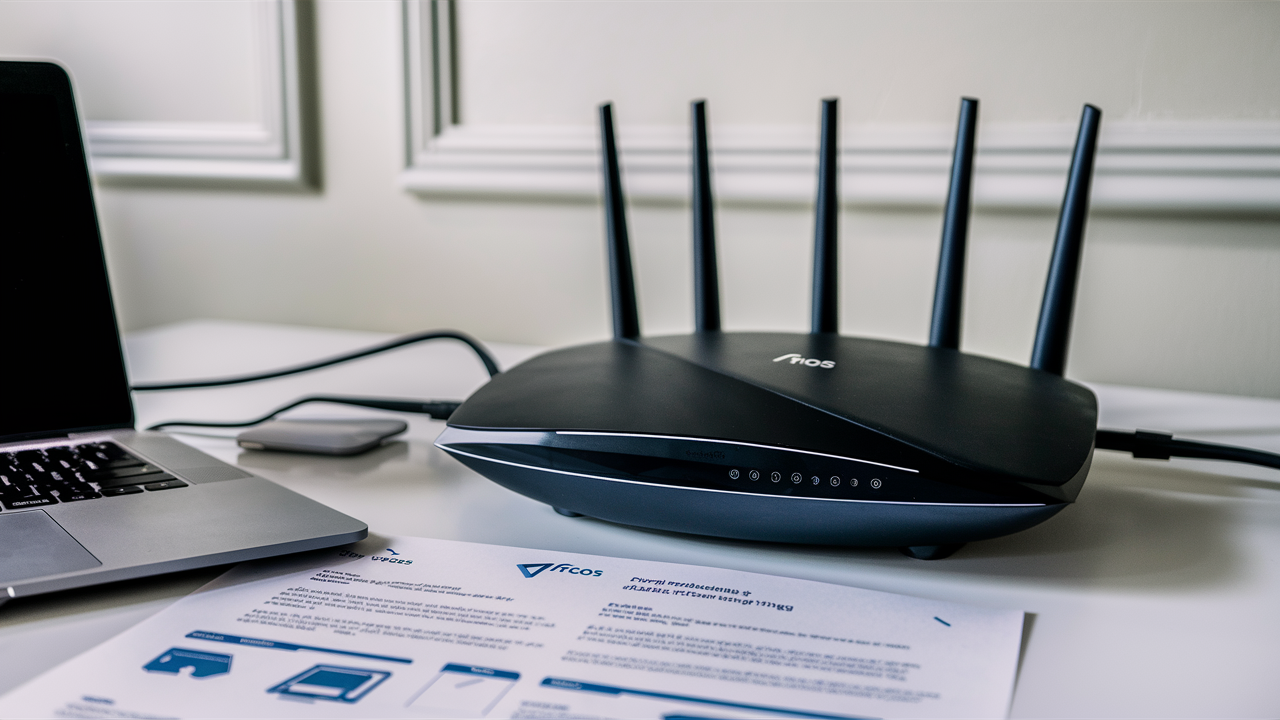
While models may vary, most Fios routers share common components and indicators:
- Power Button/Port: For turning the router on/off and connecting the power adapter.
- Ethernet Ports (LAN): Typically 4 ports for wired connections to computers, game consoles, or other devices.
- WAN/Internet Port: Connects to the ONT (Optical Network Terminal) provided by Verizon.
- Wi-Fi Antennas: For broadcasting the wireless signal (internal or external).
- Status Lights: Indicate power, internet connectivity, Wi-Fi status, and wired connections. Understanding these lights is crucial for basic troubleshooting. For instance, a steady internet light signifies a good connection to Verizon's network, while a blinking light might indicate an issue.
- Reset Button: Usually a small, recessed button used to restore the router to factory default settings.
Knowing these components will help you physically identify and interact with your router when performing configurations.
Accessing Your Fios Router Settings
The gateway to configuring your Fios router is its web-based interface. This is where you'll find all the options to customize your network. Accessing this interface is a straightforward process, but it requires knowing the router's IP address and your administrative login credentials. In 2025, Verizon continues to provide a consistent method for accessing these settings, though the exact IP address might differ slightly depending on your router model and network setup. The most common IP address for Verizon routers is 192.168.1.1. However, some models might use 192.168.0.1 or a custom domain. It's essential to verify the correct IP address for your specific router. You'll also need the username and password. Often, these are printed on a sticker on the router itself. If you've changed them and forgotten, a factory reset is usually the only way to regain access, which will revert all settings to their defaults.
Finding Your Router's IP Address
If you're unsure of your router's IP address, you can find it easily through your connected devices:
- On Windows:
- Open the Command Prompt (search for "cmd").
- Type
ipconfigand press Enter. - Look for the "Default Gateway" under your active network adapter (usually Wi-Fi or Ethernet). This is your router's IP address.
- On macOS:
- Go to System Preferences > Network.
- Select your active connection (Wi-Fi or Ethernet).
- Click "Advanced..." then the "TCP/IP" tab.
- The router's IP address will be listed as "Router."
- On Mobile Devices (iOS/Android):
- Connect to your Fios Wi-Fi network.
- Go to your Wi-Fi settings.
- Tap on the network name or the info icon (i) next to it.
- Look for the "Router" or "Gateway" IP address.
Knowing this IP is fundamental. For instance, if you're troubleshooting connectivity issues, confirming you can reach this IP address from your devices is a critical first step.
Logging In to the Router Interface
Once you have the IP address:
- Open a web browser (Chrome, Firefox, Edge, Safari).
- Type the router's IP address into the address bar and press Enter.
- A login screen will appear. Enter the username and password. Common defaults are "admin" for the username and "password" or the Wi-Fi password for the password, but always check your router's label or Verizon documentation.
- If you've forgotten your credentials or suspect they've been compromised, you may need to perform a factory reset. This is typically done by pressing and holding a small reset button on the back or bottom of the router for about 10-15 seconds. Be aware that a reset will erase all custom configurations.
Navigating the interface can seem daunting at first, with numerous options and submenus. However, by understanding the purpose of each section, you can confidently make the necessary adjustments.
Basic Configuration Essentials
Before diving into advanced settings, it's crucial to configure the basics to ensure your network is secure and functional. These settings are typically the most frequently accessed and adjusted by users. In 2025, with the rise of sophisticated cyber threats, securing your Wi-Fi network with a strong password and changing default credentials is paramount. This section will guide you through the essential steps to get your Fios router up and running optimally, covering Wi-Fi name and password, administrative password, and basic network settings.
Changing Your Wi-Fi Network Name (SSID) and Password
The default SSID (network name) and password are often generic and easily guessable, making your network vulnerable. Changing them is a fundamental security measure.
- Log in to your Fios router's web interface (using the IP address and credentials).
- Navigate to the Wireless settings section. This might be labeled "Wi-Fi," "Wireless," or "WLAN."
- SSID: Look for an option to change the "SSID" or "Network Name." Choose a unique name that doesn't reveal personal information (e.g., avoid your name or address).
- Password (WPA2/WPA3): Find the security settings. Ensure you select WPA2 or WPA3 encryption (WPA3 is more secure if supported by all your devices). Create a strong, unique password that is at least 12 characters long, combining uppercase and lowercase letters, numbers, and symbols. Avoid common words or easily guessable patterns.
- Save your changes. Your router will likely reboot, and you'll need to reconnect all your devices using the new SSID and password.
Example: Instead of "Verizon_Fios_1234," you might choose "QuantumLink_HomeNet." For the password, instead of "Password123," use something like "Q#L@Hn7!pZ@x9." This makes it significantly harder for unauthorized users to access your network.
Changing the Router's Administrative Password
Just as you change your Wi-Fi password, it's vital to change the password used to access the router's settings. This prevents unauthorized individuals from logging in and altering your network configuration.
- Log in to your Fios router's web interface.
- Look for a section labeled "Administration," "System," "Security," or "Management."
- Find the option to change the "Router Password" or "Administrator Password."
- Enter your current password (if prompted) and then create a new, strong password.
- Save your changes.
Tip: Use a password manager to generate and store strong, unique passwords for both your Wi-Fi and router administration.
Setting the Correct Time and Date
Ensuring your router has the correct time and date is important for several reasons, including accurate logging of events and proper functioning of features like parental controls or scheduled network access.
- Log in to your Fios router's web interface.
- Navigate to the "System," "Administration," or "Date & Time" settings.
- Set the correct time zone for your location.
- Enable automatic time synchronization (NTP) if available. This will keep your router's clock accurate by syncing with an internet time server.
- Save your changes.
Accurate time logs can be invaluable when troubleshooting connectivity issues, helping you pinpoint when a problem might have started.
Advanced Router Settings for Power Users
For users who want to fine-tune their network performance, enhance security, or enable specific functionalities, advanced router settings offer a wealth of possibilities. These settings can significantly impact how your network operates, from prioritizing traffic to managing connected devices. In 2025, with the proliferation of smart home devices and the increasing demand for low-latency gaming and high-definition streaming, understanding these advanced options can provide a tangible benefit. This section delves into features like Quality of Service (QoS), port forwarding, and firewall settings, empowering you to customize your network to your exact needs.
Quality of Service (QoS) Configuration
Quality of Service (QoS) allows you to prioritize certain types of network traffic over others. This is particularly useful if you experience slowdowns during peak usage times or if you have bandwidth-intensive applications like VoIP calls, online gaming, or high-definition video streaming. By prioritizing these activities, you can ensure a smoother experience even when your network is heavily utilized.
- How it works: QoS typically works by assigning priority levels to different applications or devices. For example, you can set gaming traffic to have a higher priority than background downloads.
- Configuration Steps (General):
- Log in to your Fios router's web interface.
- Navigate to the QoS section, often found under "Advanced Settings" or "Network Settings."
- Enable QoS.
- You may have options to prioritize by application type (e.g., gaming, streaming, browsing) or by device (by MAC address or IP address).
- Configure the bandwidth limits or priority levels according to your needs. For instance, you might allocate a certain percentage of your upload/download bandwidth to gaming.
- Save your changes.
Example: If you're experiencing lag during online gaming, you can use QoS to give gaming traffic a higher priority, ensuring that your game data packets are processed before less time-sensitive traffic like software updates. According to recent studies in 2025, proper QoS configuration can reduce latency by up to 30% for prioritized applications.
Port Forwarding and Port Triggering
Port forwarding allows you to direct incoming internet traffic to a specific device on your local network. This is essential for applications that require direct access from the internet, such as hosting a game server, running a personal web server, or accessing security cameras remotely. Port triggering is similar but opens ports dynamically when a specific outgoing connection is detected.
- Port Forwarding:
- Log in to your Fios router's web interface.
- Find the "Port Forwarding" or "NAT/Port Forwarding" section, usually under "Advanced Settings."
- You'll need to specify:
- Service Name: A descriptive name (e.g., "Minecraft Server").
- Protocol: TCP, UDP, or Both.
- External Port(s): The port number(s) that will be accessible from the internet.
- Internal Port(s): The port number(s) on your device that the traffic will be directed to (often the same as external).
- Internal IP Address: The static IP address of the device you want to forward the port to. It's crucial to assign a static IP address to this device within your router's DHCP settings to prevent it from changing.
- Add the rule and save.
- Port Triggering: This is a more dynamic approach where you define an "open" port (trigger port) that, when accessed from the internet, automatically opens another set of ports (forwarded ports) for a limited time. This can be more secure than static port forwarding if used correctly.
Example: To host a Minecraft server, you might need to forward TCP port 25565. You would create a rule in your router's port forwarding section, specifying TCP, external port 25565, internal port 25565, and the static IP address of the computer running the server. For 2025, ensure you are only forwarding ports that are absolutely necessary and for trusted applications.
Firewall Settings and Network Security
Your Fios router has a built-in firewall that acts as a barrier between your home network and the internet, blocking unauthorized access and malicious traffic. While the default settings are generally robust, you can further customize them for enhanced security.
- Firewall Levels: Many routers offer different firewall levels (e.g., Low, Medium, High). A higher level provides more protection but might block legitimate traffic.
- Port Blocking: You can manually block specific incoming ports if you identify them as a security risk.
- DMZ (Demilitarized Zone): Placing a device in the DMZ forwards all incoming traffic to that device. This is generally NOT recommended for security reasons unless absolutely necessary and you understand the risks.
- Access Control Lists (ACLs): More advanced routers allow you to create ACLs to permit or deny traffic based on IP addresses, MAC addresses, or port numbers.
Best Practice: Keep your firewall enabled and set to a medium or high level. Only disable specific firewall features or place devices in the DMZ if you fully understand the security implications. Regularly review your router's logs for any suspicious activity. In 2025, with increased state-sponsored cyber threats, a strong firewall is a primary line of defense.
DHCP Server Settings
The Dynamic Host Configuration Protocol (DHCP) server automatically assigns IP addresses to devices that connect to your network. While the default settings are usually sufficient, you might need to adjust them for specific scenarios.
- DHCP Range: This defines the pool of IP addresses your router can assign. You can adjust this range if you have a large number of devices or if you need to reserve specific IP addresses.
- Static IP Addresses (DHCP Reservation): As mentioned in port forwarding, you can reserve specific IP addresses for certain devices. This ensures that a device always receives the same IP address, which is crucial for services that rely on a fixed IP, like network printers or servers.
- Lease Time: This is the duration for which a device is assigned an IP address. A shorter lease time can be useful in environments with many transient devices, while a longer lease time reduces DHCP traffic.
Example: If you have a network printer that you always want to access via the same IP address, you can go into the DHCP settings, find the printer's MAC address, and assign it a static IP address (e.g., 192.168.1.100) within the DHCP reservation section. This ensures the printer's IP never changes.
Optimizing Wireless Performance
A strong and stable Wi-Fi signal is crucial for a seamless internet experience. Your Fios router's wireless settings play a significant role in achieving this. In 2025, with the widespread adoption of dual-band and tri-band routers, understanding how to leverage these technologies can dramatically improve speeds and reduce interference. This section focuses on optimizing your Wi-Fi by selecting the right channels, adjusting channel width, and understanding the benefits of different Wi-Fi bands.
Understanding Wi-Fi Bands (2.4 GHz vs. 5 GHz)
Most modern Fios routers are dual-band, meaning they broadcast on two different frequency bands: 2.4 GHz and 5 GHz.
- 2.4 GHz:
- Pros: Longer range, better penetration through walls and obstacles.
- Cons: Slower speeds, more susceptible to interference from other devices (microwaves, Bluetooth devices, cordless phones).
- 5 GHz:
- Pros: Faster speeds, less interference, more available channels.
- Cons: Shorter range, signal struggles with obstructions.
For 2025, the 5 GHz band is generally preferred for devices that are close to the router and require high speeds (e.g., streaming 4K video, online gaming). The 2.4 GHz band is better for devices further away or for less demanding tasks. Some routers allow you to give these bands different SSIDs (e.g., "MyNetwork_2.4G" and "MyNetwork_5G") or use a single SSID with band steering, where the router automatically directs devices to the optimal band.
Selecting the Best Wi-Fi Channels
Wi-Fi operates on specific channels within each band. If too many networks in your area are using the same channel, it can lead to interference and slow speeds. This is especially true for the crowded 2.4 GHz band.
- 2.4 GHz Channels: Channels 1, 6, and 11 are generally recommended because they do not overlap with each other. Using other channels can lead to significant interference.
- 5 GHz Channels: The 5 GHz band has more non-overlapping channels, offering more flexibility.
- How to Choose:
- Log in to your Fios router's web interface.
- Go to the Wireless settings.
- Find the channel selection option for each band.
- You can manually select channels 1, 6, or 11 for 2.4 GHz. For 5 GHz, you might experiment with different channels to find the least congested one.
- Some routers have an "Auto" channel selection feature, which can be effective, but manual selection often yields better results if you're experiencing issues.
Tools: You can use Wi-Fi analyzer apps on your smartphone or computer to scan for nearby networks and see which channels are most congested. This data is invaluable for making informed channel choices in 2025.
Adjusting Channel Width
Channel width determines how much spectrum your Wi-Fi signal uses. Wider channels can offer higher speeds but are also more prone to interference and have a shorter range.
- 2.4 GHz: Typically uses 20 MHz channels. While 40 MHz is an option, it's often not recommended due to increased interference.
- 5 GHz: Can use 20 MHz, 40 MHz, 80 MHz, or even 160 MHz channels (depending on the router and Wi-Fi standard). Wider channels (e.g., 80 MHz) are ideal for maximizing speed if interference is minimal.
Recommendation: For 2.4 GHz, stick to 20 MHz. For 5 GHz, start with 80 MHz. If you experience instability, try reducing it to 40 MHz. Always test your speeds and stability after making changes. In 2025, Wi-Fi 6 and Wi-Fi 6E standards increasingly utilize wider channels for faster throughput.
Wi-Fi Security Protocols (WPA2/WPA3)
As mentioned earlier, using strong encryption is vital. Ensure your router is set to WPA2-PSK (AES) or, if supported by all your devices, WPA3. WPA3 offers enhanced security features like stronger encryption and protection against brute-force attacks. If you have older devices that don't support WPA3, you may need to use WPA2 or a WPA2/WPA3 mixed mode.
Network Security Best Practices
Securing your home network is paramount in today's digital landscape, where threats are constantly evolving. Beyond changing default passwords, there are several layers of security you can implement through your Fios router's settings. In 2025, with the increasing interconnectedness of devices and the rise of IoT vulnerabilities, a proactive approach to network security is essential. This section covers crucial security measures such as disabling remote management, setting up a guest network, and understanding MAC filtering.
Disabling Remote Management
Remote management allows you to access your router's settings from outside your home network. While this can be convenient, it also opens up a potential vulnerability if not properly secured. For most users, disabling remote management is a recommended security practice.
- Log in to your Fios router's web interface.
- Look for a setting related to "Remote Management," "Remote Access," or "Web Access from WAN."
- Ensure this option is disabled or unchecked.
- Save your changes.
If you absolutely need remote access, ensure you use a very strong, unique password and consider enabling features like IP address restrictions to limit access to specific trusted IP addresses. However, for the vast majority of users, disabling it is the safest option in 2025.
Setting Up a Guest Network
A guest network is a separate Wi-Fi network that you can provide to visitors. It allows them to access the internet without giving them access to your main network and the devices connected to it.
- Benefits:
- Security: Isolates guest devices from your private network, protecting sensitive data on your computers, NAS drives, or smart home devices.
- Convenience: You can provide guests with a separate password that is easy to share, without compromising your main network's security.
- Bandwidth Control: Some routers allow you to limit the bandwidth available to the guest network, preventing guests from consuming all your internet resources.
- Configuration Steps (General):
- Log in to your Fios router's web interface.
- Find the "Guest Network" or "Guest Wi-Fi" settings.
- Enable the guest network.
- Set a unique SSID and a strong password for the guest network.
- Configure any bandwidth limitations or access restrictions if available.
- Save your changes.
Example: You can name your guest network "MyGuestWiFi" and set a password like "Welcome123!" This allows friends and family to connect easily when they visit, while your personal devices remain protected on your main "QuantumLink_HomeNet" network.
MAC Address Filtering
MAC (Media Access Control) filtering allows you to create a list of approved devices that can connect to your Wi-Fi network. Only devices with MAC addresses on this list will be allowed to join. While it can add a layer of security, it's not foolproof and can be cumbersome to manage.
- How it works: Each network interface card (NIC) has a unique MAC address. You can find a device's MAC address in its network settings.
- Configuration Steps (General):
- Log in to your Fios router's web interface.
- Find the "MAC Filtering" or "Access Control" section.
- Enable MAC filtering.
- Choose the mode: "Allow" (only listed devices can connect) or "Deny" (listed devices are blocked). "Allow" is more secure.
- Add the MAC addresses of your trusted devices to the list.
- Save your changes.
Caveat: MAC addresses can be spoofed (faked) by determined attackers, so MAC filtering should be used in conjunction with strong WPA2/WPA3 encryption and a strong password, not as a standalone security measure. In 2025, it's often considered more of a nuisance than a robust security solution for most home users, but it can be useful in specific controlled environments.
UPnP (Universal Plug and Play) - To Enable or Disable?
UPnP allows devices on your network to automatically discover and communicate with each other, and it can also allow devices to open ports on your router without manual configuration. This is convenient for applications like gaming consoles and some streaming devices.
- Pros: Simplifies setup for many applications.
- Cons: Can be a security risk if malicious software on a device exploits UPnP to open ports and expose your network.
Recommendation for 2025: If you don't use many applications that rely on UPnP (like gaming consoles), it's generally safer to disable it and manually configure port forwarding for any services that require it. If you do use UPnP, ensure you have strong security measures in place, such as a robust firewall and up-to-date antivirus software on your devices. Many security experts recommend disabling UPnP if you are not actively using it.
Troubleshooting Common Fios Router Issues
Even with optimal configuration, you might encounter issues with your Fios router. Knowing how to troubleshoot common problems can save you time and frustration. In 2025, many issues can be resolved with simple steps like rebooting, checking connections, or verifying settings. This section provides practical solutions for frequent problems, from slow internet speeds to Wi-Fi connectivity issues.
Slow Internet Speeds
Slow internet speeds can be frustrating, especially when you're paying for a high-speed Fios plan. Here are steps to diagnose and resolve this:
- Restart Your Router and Modem (ONT): This is the first and often most effective step. Unplug both your router and the ONT (if separate), wait 30 seconds, and then plug them back in, starting with the ONT.
- Test Wired vs. Wireless: Connect a computer directly to the router using an Ethernet cable and run a speed test (e.g., Speedtest.net). If wired speeds are good but wireless is slow, the issue is likely with your Wi-Fi.
- Check for Interference: Ensure your router is not placed near other electronics that can cause interference (microwaves, cordless phones, Bluetooth devices).
- Too Many Devices: If you have a large number of devices actively using the internet, it can strain your bandwidth. Try disconnecting some devices to see if speeds improve.
- Router Placement: Ensure your router is in a central, open location, away from obstructions.
- Outdated Router Firmware: Check if there's a firmware update available for your router.
- Contact Verizon: If none of these steps resolve the issue, there might be a problem with your Fios service or the ONT. Contact Verizon support.
2025 Insight: With increasing demand for bandwidth, ensure your router is capable of handling your Fios plan's speeds. Older routers might not support the latest Wi-Fi standards or throughput required for gigabit speeds.
No Internet Connection
If you have no internet access at all, follow these steps:
- Check Router Lights: Look at the status lights on your Fios router and ONT. Consult your router's manual or Verizon's support site to understand what each light indicates. A solid "Internet" or "Online" light is usually required.
- Restart Equipment: As mentioned above, a power cycle of your ONT and router is the first step.
- Check Cables: Ensure all cables (power, Ethernet, coax) are securely connected to the router, ONT, and wall outlets.
- Bypass the Router: If possible, connect a computer directly to the ONT via Ethernet. If you get internet access this way, the problem is with your router. If not, the issue is likely with Verizon's service or the ONT.
- Check for Outages: Visit Verizon's website or app to see if there are any reported service outages in your area.
- Contact Verizon: If you suspect a service issue, contact Verizon support.
Wi-Fi Connectivity Issues (Devices Can't Connect)
If your devices can't connect to the Wi-Fi network:
- Check Wi-Fi is Enabled: Ensure Wi-Fi is turned on for the device you're trying to connect.
- Correct SSID and Password: Double-check that you are trying to connect to the correct network name (SSID) and entering the password accurately. Passwords are case-sensitive.
- Router Reboot: Restart your Fios router.
- Device Reboot: Restart the device you are trying to connect.
- Signal Strength: Ensure the device is within range of the router.
- Too Many Devices: If your router has reached its maximum number of connected devices, new connections may be rejected.
- Check Guest Network: If you're trying to connect a guest, ensure they are using the guest network credentials.
- Router Settings: Log into your router and verify that the Wi-Fi is enabled and broadcasting. Check for any MAC filtering rules that might be blocking the device.
Intermittent Wi-Fi Drops
If your Wi-Fi connection frequently drops:
- Interference: This is a common cause. Try changing your Wi-Fi channel (as discussed in the optimization section).
- Router Overheating: Ensure your router has adequate ventilation.
- Firmware Update: Check for router firmware updates.
- Signal Degradation: If the issue occurs only at a distance, consider a Wi-Fi extender or mesh system.
- Router Age: Older routers may struggle to maintain stable connections with many devices.
Fios Router Models and Differences
Verizon has offered several Fios router models over the years, each with varying capabilities and features. Understanding your specific model can help you leverage its full potential and troubleshoot effectively. In 2025, most Fios subscribers are likely using newer models that support advanced Wi-Fi standards and higher speeds. However, some older models might still be in use, which could limit performance for modern internet plans.
Common Fios Router Models
While Verizon periodically updates its hardware, here are some common models you might encounter:
- Fios Home Router (G1100): A popular dual-band router supporting Wi-Fi 5 (802.11ac). It offers good performance for many Fios plans.
- Fios Home Router (G3100): A newer model, often provided with gigabit Fios plans. It supports Wi-Fi 6 (802.11ax), offering faster speeds, better capacity, and improved performance in crowded environments.
- Fios Home Router (CR1000A/CR1000B): These are typically Verizon's latest offerings, often incorporating Wi-Fi 6 capabilities and advanced features designed for gigabit+ internet speeds.
The primary differences lie in their Wi-Fi standards, processing power, and the number of devices they can efficiently handle. Newer models are generally more capable of supporting the higher speeds offered by Verizon's gigabit and multi-gigabit plans in 2025.
Key Differences and Features
When comparing router models, consider these factors:
| Feature | Older Models (e.g., G1100) | Newer Models (e.g., G3100, CR1000A/B) |
|---|---|---|
| Wi-Fi Standard | Wi-Fi 5 (802.11ac) | Wi-Fi 6 (802.11ax) |
| Speed Potential | Good, suitable for up to 500 Mbps plans | Excellent, designed for gigabit and multi-gigabit plans |
| Device Capacity | Handles a moderate number of devices | Handles a large number of devices efficiently |
| Interference Management | Basic | Advanced (e.g., OFDMA, MU-MIMO) |
| Security Features | Standard WPA2 | WPA3 support (often) |
| Ports | Typically 4 Gigabit Ethernet LAN ports | Typically 4 Gigabit Ethernet LAN ports, sometimes with faster uplink |
For users with gigabit Fios plans in 2025, upgrading to a Wi-Fi 6 router like the G3100 or CR1000 series is highly recommended to experience the full benefits of their internet speed. Older routers might become a bottleneck, preventing you from reaching advertised speeds, especially over Wi-Fi.
When to Consider Upgrading
You might want to consider upgrading your Fios router if:
- You have a Fios plan faster than 500 Mbps.
- You experience frequent Wi-Fi slowdowns or dropped connections, especially with many devices.
- You have a large number of smart home devices that are constantly connected.
- Your current router is several years old and doesn't support the latest Wi-Fi standards.
- You're experiencing issues that cannot be resolved through configuration changes.
Verizon often offers newer routers as part of their service packages, or you may have the option to purchase one outright. Always check with Verizon for the latest compatible models and any associated costs or rental fees.
In conclusion, mastering the configuration of your Verizon Fios router is an achievable goal that can significantly enhance your home internet experience. By understanding basic settings like Wi-Fi names and passwords, delving into advanced options such as QoS and port forwarding, and implementing robust security measures, you can create a faster, more secure, and more reliable network. Regularly reviewing and optimizing these settings, especially in 2025 with the ever-increasing demands on home networks, will ensure you're getting the most value from your Fios service. Don't hesitate to explore your router's interface; the power to control and optimize your digital life is at your fingertips.