Looking to personalize your home network or enhance its security? This comprehensive guide will walk you through exactly how to change your Wi-Fi name (SSID) on Cox Internet. We'll cover the essential steps, common challenges, and best practices to ensure a smooth and successful process, empowering you to take control of your Cox Wi-Fi settings.
Why Change Your Cox Wi-Fi Name (SSID)?
Your Wi-Fi network name, technically known as the Service Set Identifier (SSID), is the name you see when you scan for available wireless networks. While Cox assigns a default SSID to your router, changing it offers several benefits. Primarily, it allows for personalization, making your network easily identifiable among neighbors' signals. More importantly, it can be a proactive security measure. A custom SSID can deter casual intruders who might target default network names associated with known router models. In 2025, with the increasing prevalence of smart home devices and the constant threat of cyberattacks, taking control of your network's identity is a crucial step in maintaining a secure and personalized online environment. It’s a simple yet effective way to differentiate your network and add a layer of obscurity.
Understanding Your Cox Equipment
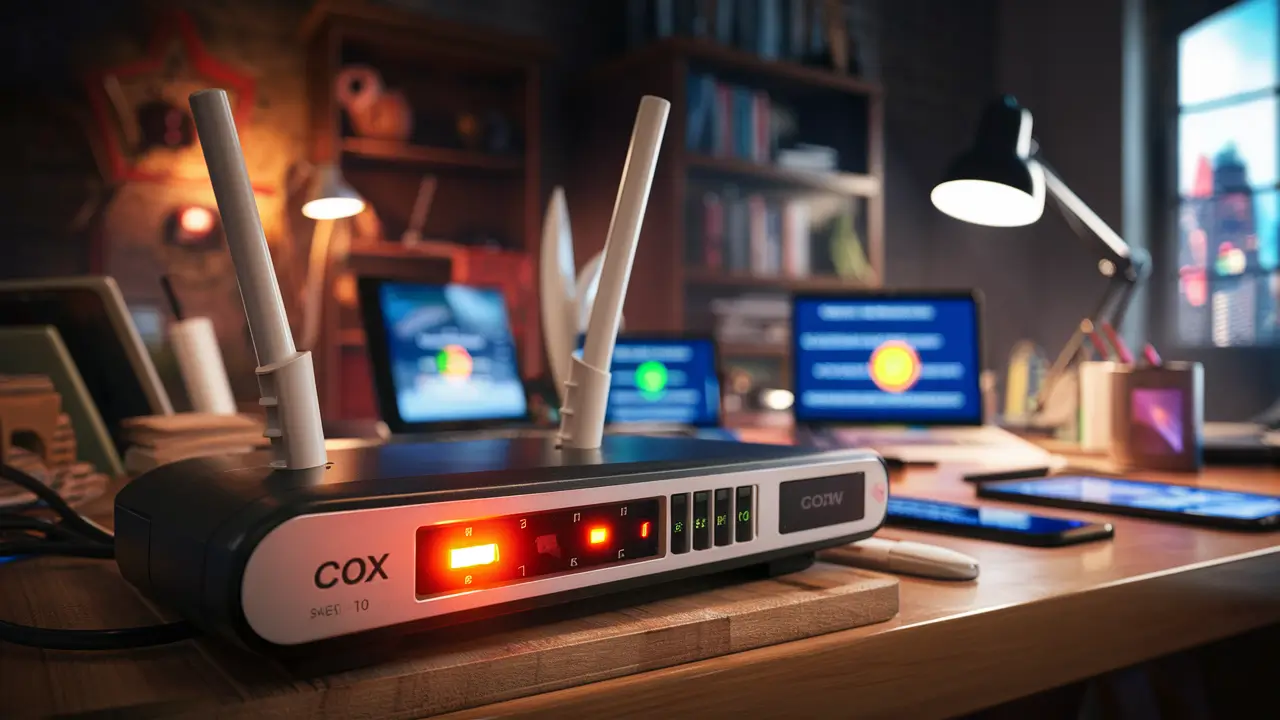
Cox provides a range of modem and router combinations, often referred to as gateways. These devices manage your internet connection and broadcast your Wi-Fi signal. The specific model you have will influence the exact steps to access its settings. Most Cox customers will be using a Cox-branded gateway. These devices typically combine a modem (which connects you to the Cox network) and a router (which creates your Wi-Fi network) into a single unit. Understanding whether you have a standalone modem and a separate router, or a combined gateway, is the first step. For most users, Cox will have provided a gateway, simplifying the process as you only need to access one device's interface.
As of 2025, common Cox gateways include models like the Netgear CM1100, Arris SURFboard SB8200 (often paired with a separate router), or integrated gateways such as the Arris TG1672G, Technicolor CGM4140, or Panoramic Wifi gateways. The interface for changing the SSID will be consistent across most of these devices, usually accessed through a web browser. Knowing your specific model can be helpful if you encounter unique issues, but the general process remains the same for accessing the router's administrative panel.
Accessing Your Cox Modem/Router Settings
To change your Wi-Fi name, you need to access the administrative interface of your Cox modem or gateway. This is typically done through a web browser on a device connected to your home network (either via Wi-Fi or an Ethernet cable). The most common way to access this interface is by typing a specific IP address into your browser's address bar. For Cox devices, this IP address is usually 192.168.0.1 or 192.168.1.1. It's crucial to be connected to your Cox network when attempting this. If you're unsure of your gateway's IP address, you can often find it printed on a sticker on the device itself, or by checking your connected device's network settings (e.g., under "Default Gateway" in Windows or "Router" in macOS/iOS/Android network details).
Once you've navigated to the IP address, you'll be prompted to log in. You'll need a username and password. The default credentials for Cox gateways are often printed on the device itself. Common default usernames include "admin" or "user," and default passwords might be "password," "admin," or a unique string of characters also found on the device's sticker. If you've previously changed these credentials and forgotten them, you may need to perform a factory reset on your gateway, which will revert all settings to their defaults, including the Wi-Fi name and password. Be aware that a factory reset will require you to reconfigure your entire network. For security reasons, it is highly recommended to change these default login credentials after you've successfully updated your Wi-Fi name.
Step-by-Step Guide: How to Change Your Wi-Fi Name (SSID) on Cox
Follow these detailed steps to successfully change your Cox Wi-Fi name (SSID). This guide is designed to be comprehensive, covering the most common Cox gateway interfaces. Remember, consistency in network settings is key to a stable connection.
Step 1: Connect to Your Cox Network
Ensure the device you are using to change the settings (e.g., laptop, smartphone, tablet) is connected to your Cox Wi-Fi network. You can connect wirelessly or via an Ethernet cable directly to the gateway for a more stable connection. A wired connection is often recommended to avoid losing your connection mid-process if the Wi-Fi signal is unstable.
Step 2: Open a Web Browser
Launch your preferred web browser (e.g., Chrome, Firefox, Safari, Edge) on your connected device.
Step 3: Navigate to Your Gateway's IP Address
In the browser's address bar, type the IP address of your Cox gateway. The most common addresses are:
- 192.168.0.1
- 192.168.1.1
Press Enter. If neither of these works, check the sticker on your gateway or your device's network settings for the correct IP address. For instance, if you're using the Cox Panoramic Wifi app, it might guide you through this process or use a different access method.
Step 4: Log In to Your Gateway's Interface
You will be presented with a login screen. Enter the username and password for your Cox gateway. Default credentials are often found on the device's sticker. If you have changed them previously, use your custom credentials. Common default usernames are admin or user, and passwords can be password, admin, or a unique string.
Example Default Credentials (Check your device for accuracy):
| Username | Password |
|---|---|
| admin | password |
| admin | admin |
| user | password |
Step 5: Locate the Wireless Settings
Once logged in, navigate through the interface to find the wireless or Wi-Fi settings. The exact location varies by gateway model and firmware version, but it's typically found under sections like:
- "Wireless"
- "Wi-Fi"
- "Network Settings"
- "Advanced Settings"
- "Setup"
Look for options related to "SSID," "Network Name," or "Wi-Fi Name."
Step 6: Change the Wi-Fi Name (SSID)
You will see fields for your Wi-Fi network name. There may be separate fields for the 2.4 GHz and 5 GHz bands if your gateway is dual-band. You can set different names for each band or the same name. Enter your desired new Wi-Fi name in the designated field(s). Avoid using personal information. For example, instead of "JohnSmith_Home," consider "SecureNet_XYZ789" or "CozyAbode_Wifi."
Step 7: Save Your Changes
After entering your new Wi-Fi name, look for a "Save," "Apply," or "Submit" button. Click this to confirm your changes. Your gateway will likely restart or reconfigure its wireless settings, which may take a few minutes.
Step 8: Reconnect Your Devices
Once the gateway has applied the changes, your Wi-Fi network will disappear from your devices' available networks list. You will need to reconnect each of your devices using the new Wi-Fi name (SSID) and your Wi-Fi password. You may be prompted to re-enter your password for each device. This is a crucial step to ensure all your smart devices and computers can access the internet again.
Important Note on Passwords:
If you also wish to change your Wi-Fi password, do so in the same "Wireless" or "Wi-Fi" settings section. It is highly recommended to change your password whenever you change your SSID for enhanced security. Ensure your new password is strong and unique. For robust security in 2025, consider using a passphrase that combines uppercase and lowercase letters, numbers, and symbols.
Troubleshooting Common Issues When Changing Your Cox Wi-Fi Name
While the process is generally straightforward, you might encounter a few hiccups. Here are some common issues and their solutions:
Issue 1: Cannot Access Gateway IP Address
Possible Causes: Incorrect IP address, not connected to the Cox network, firewall blocking access, or browser cache issues.
Solutions:
- Double-check the IP address (try both 192.168.0.1 and 192.168.1.1).
- Verify your device is connected to the Cox Wi-Fi or via Ethernet.
- Temporarily disable your firewall or antivirus software.
- Clear your browser's cache and cookies, then try again.
- Restart your modem/gateway and your device.
Issue 2: Incorrect Username or Password
Possible Causes: Typos, forgotten custom credentials, or incorrect default credentials.
Solutions:
- Carefully re-enter your username and password, paying attention to case sensitivity.
- If you've forgotten your custom credentials, you'll need to perform a factory reset on your gateway. This will revert all settings to default, including the Wi-Fi name and password. To reset, locate the reset button (often a small pinhole on the back or bottom of the device), press and hold it with a paperclip for about 10-15 seconds while the device is powered on.
Issue 3: Changes Not Saving
Possible Causes: Browser issues, firmware glitches, or incorrect input format.
Solutions:
- Try using a different web browser.
- Ensure you are not using special characters that are not allowed in SSIDs (though most modern routers are quite flexible).
- Restart your gateway and try saving again.
- If the problem persists, a factory reset might be necessary.
Issue 4: Devices Not Reconnecting After Change
Possible Causes: Incorrectly entered new SSID or password on devices, or devices still trying to connect to the old network name.
Solutions:
- On each device, "forget" the old Wi-Fi network.
- Scan for available networks and select your new SSID.
- Carefully re-enter your new Wi-Fi password.
- Ensure you haven't accidentally changed the SSID back to the default or made a typo.
Issue 5: Lost Internet Connection Entirely
Possible Causes: Incorrect network configuration, or a more serious issue with the gateway or Cox service.
Solutions:
- First, try reverting the SSID change to see if connectivity returns.
- If reverting doesn't help, perform a power cycle: unplug the gateway, wait 30 seconds, and plug it back in.
- If issues persist, contact Cox technical support.
Best Practices for Your New Wi-Fi Name (SSID)
Choosing a good Wi-Fi name is more than just aesthetics; it can contribute to your network's organization and security. Here are some best practices for selecting your new Cox Wi-Fi SSID:
- Avoid Personal Information: Never include your name, address, or any identifiable personal details in your SSID. This is a fundamental security principle.
- Keep it Simple and Memorable: While security is important, you also need to be able to find and select your network easily. A name that's too complex or obscure can be frustrating.
- Be Descriptive (but not too descriptive): A name that hints at your home without revealing specifics can be useful. For example, "CozyCornerWifi" or "The[StreetName]Network" (if you don't mind a subtle hint).
- Consider a Prefix/Suffix for Identification: If you have multiple Wi-Fi networks (e.g., for guests, IoT devices), using a consistent prefix or suffix can help you identify them. For instance, "Home_Main," "Home_Guest," "Home_IoT."
- Avoid Using Default Names: Never stick with the default SSID provided by Cox. This is the first thing hackers look for.
- Use Different SSIDs for 2.4 GHz and 5 GHz (Optional): If your router is dual-band, you might choose to name them differently (e.g., "MyNetwork_2.4" and "MyNetwork_5"). This allows you to manually select the band for specific devices, potentially optimizing performance. The 5 GHz band is faster but has a shorter range, while the 2.4 GHz band has a longer range but is slower and more prone to interference.
- No Special Characters (Generally): While most routers support a wide range of characters, it's safer to stick to alphanumeric characters (letters and numbers) to avoid potential compatibility issues with older devices or certain network configurations.
- Regularly Review: It's a good idea to periodically review your network settings, including your SSID and password, as part of your overall digital hygiene.
Security Implications of SSID Changes
Changing your Wi-Fi name (SSID) is a basic but important security step. By default, many routers broadcast their manufacturer and model, making them targets for exploits. Changing the SSID obscures this information. However, it's crucial to understand that changing the SSID alone does not make your network impenetrable. Here's a breakdown of the security implications:
- Obscurity: A custom SSID makes your network less of an obvious target for automated scans looking for default configurations. It's like changing the lock on your front door; it's not a fortress, but it deters casual passersby.
- SSID Broadcasting: By default, your router broadcasts its SSID so that devices can find it. While changing the name is good, you can also choose to "hide" your SSID. However, hiding an SSID is generally not recommended for security. It can make it more difficult for legitimate devices to connect, and determined attackers can still discover hidden SSIDs using specialized tools. For most users, broadcasting the SSID with a strong, unique name is sufficient.
- Password Strength is Paramount: The most critical security measure for your Wi-Fi network is a strong, unique password (WPA2 or WPA3 encryption). Changing your SSID without a strong password is like leaving your door unlocked after changing the lock on your mailbox. Ensure your password is complex and not easily guessable.
- Router Firmware Updates: Keeping your router's firmware updated is vital. Manufacturers release updates to patch security vulnerabilities. Check your Cox gateway's interface for firmware update options or consult Cox support.
- Guest Networks: If your Cox gateway supports it, setting up a separate guest network with a different SSID and password is an excellent security practice. This allows visitors to access your internet without giving them access to your main network and any connected devices.
- MAC Address Filtering (Advanced): While not directly related to SSID changes, MAC address filtering is another security feature. It allows only devices with specific hardware (MAC) addresses to connect. However, MAC addresses can be spoofed, making this a less effective security measure on its own.
In 2025, with the proliferation of IoT devices that may have weaker built-in security, a layered approach to network security is essential. Changing your SSID is a foundational step, but it must be complemented by strong passwords, regular firmware updates, and potentially network segmentation (like guest networks).
Cox Equipment-Specific Instructions (Examples)
While the general steps are consistent, the interface may look slightly different depending on your specific Cox gateway model. Here are examples for two common types of Cox equipment:
Example 1: Technicolor CGM4140 (Panoramic Wifi Gateway)
For many newer Cox installations, the Technicolor CGM4140 gateway is used, often managed through the "Panoramic Wifi" app or web portal. The interface is designed to be user-friendly.
- Connect: Ensure you are connected to the Panoramic Wifi network.
- Access Portal: Open a web browser and go to 192.168.0.1, or use the Panoramic Wifi app.
- Login: Use your Panoramic Wifi login credentials (often found on the gateway's sticker, or set up during initial installation).
- Navigate: Look for a section like "Wi-Fi Settings" or "Network."
- Change SSID: You'll see fields for "Primary Network Name" (SSID) and potentially "Guest Network Name." Update the primary SSID to your desired name.
- Save: Click "Save" or "Apply." The gateway will restart.
- Reconnect: Reconnect all devices using the new SSID and your Wi-Fi password.
Example 2: Arris TG1672G (Older Gateway Model)
This is a common older model that might still be in use.
- Connect: Connect to the Arris TG1672G's Wi-Fi network or via Ethernet.
- Access Gateway: Open a web browser and go to 192.168.0.1.
- Login: Enter the username and password (check the sticker on the device).
- Navigate: Go to the "Home" tab, then select "Wireless" from the left-hand menu.
- Change SSID: You will see options for "SSID Broadcast" and "SSID Name." Enter your new desired SSID in the "SSID Name" field for both 2.4 GHz and 5 GHz bands if applicable.
- Apply: Click "Apply" at the bottom of the page. The gateway will reboot.
- Reconnect: Reconnect your devices with the new network name and password.
Note: If you have a separate modem and router, you will need to access the settings of your router (not the modem) to change the Wi-Fi name. The IP address and login process will depend on the router's manufacturer.
Alternative Methods and Support
While accessing your gateway's web interface is the most common and direct method, Cox offers other avenues for support and management, especially with their newer services like Panoramic Wifi.
1. Cox Panoramic Wifi App
If you are using a Cox Panoramic Wifi gateway, the dedicated mobile app is designed for easy management of your home network. This is often the simplest way to change your Wi-Fi name and password without needing to remember IP addresses or login credentials for the gateway's web interface. The app typically guides you through a streamlined process.
- Download the "Cox Panoramic Wifi" app from your device's app store (iOS or Android).
- Log in using your Cox account credentials.
- Navigate to the Wi-Fi settings section within the app.
- You should find options to edit your Wi-Fi network name (SSID) and password.
- Save your changes, and the app will push them to your gateway.
This method is highly recommended for its ease of use and is a key feature of Cox's modern internet service offerings in 2025.
2. Cox Customer Support
If you are uncomfortable with technical settings, cannot access your gateway, or encounter persistent issues, Cox's customer support is available to assist you. They can guide you through the process over the phone or, in some cases, remotely access your gateway to make the changes for you. Ensure you have your account information ready when you call.
- Phone Support: Contact Cox customer service through their official phone number.
- Online Chat: Many users find Cox's online chat support to be a quick way to get assistance.
- Cox Support Website: Cox's website has extensive support articles, FAQs, and troubleshooting guides that may address your specific equipment and issue.
When contacting support, be prepared to provide your account number and details about your Cox equipment. They can help you identify your gateway model and guide you through the necessary steps or perform the changes on your behalf.
3. Factory Reset (Last Resort)
As mentioned in the troubleshooting section, a factory reset will return your gateway to its original settings. This is a last resort if you've lost access to your login credentials or are unable to make changes through other methods. After a reset, you will need to reconfigure your entire network, including setting up your new Wi-Fi name and password.
- Locate the reset button on your gateway (usually a small pinhole).
- With the device powered on, press and hold the button using a paperclip for 10-15 seconds.
- The gateway will reboot.
- Access the gateway using the default IP address and credentials found on the device sticker.
- Proceed to change your SSID and password as outlined in the main guide.
Remember that a factory reset will erase all custom settings, including any port forwarding rules or network configurations you may have previously set up.
Conclusion
Changing your Cox Wi-Fi name (SSID) is a straightforward yet impactful step toward personalizing and securing your home network. By following the detailed steps outlined in this guide, you can easily update your network's identity, making it more recognizable and less susceptible to casual intrusion. Remember to choose a unique and memorable SSID, avoid personal information, and always pair this change with a strong, complex Wi-Fi password using WPA2 or WPA3 encryption. If you encounter any difficulties, the Cox Panoramic Wifi app or direct customer support are excellent resources to help you navigate the process. Taking control of your network settings empowers you to create a safer and more tailored online experience for all your connected devices in 2025 and beyond.