Struggling to secure your home network? This comprehensive guide will walk you through exactly how to change your WiFi password for Cox Cable, ensuring your internet connection remains private and protected. We'll cover all the essential steps, from logging into your router to confirming the changes, making the process straightforward even for beginners.
Understanding Your Cox Router and Modem
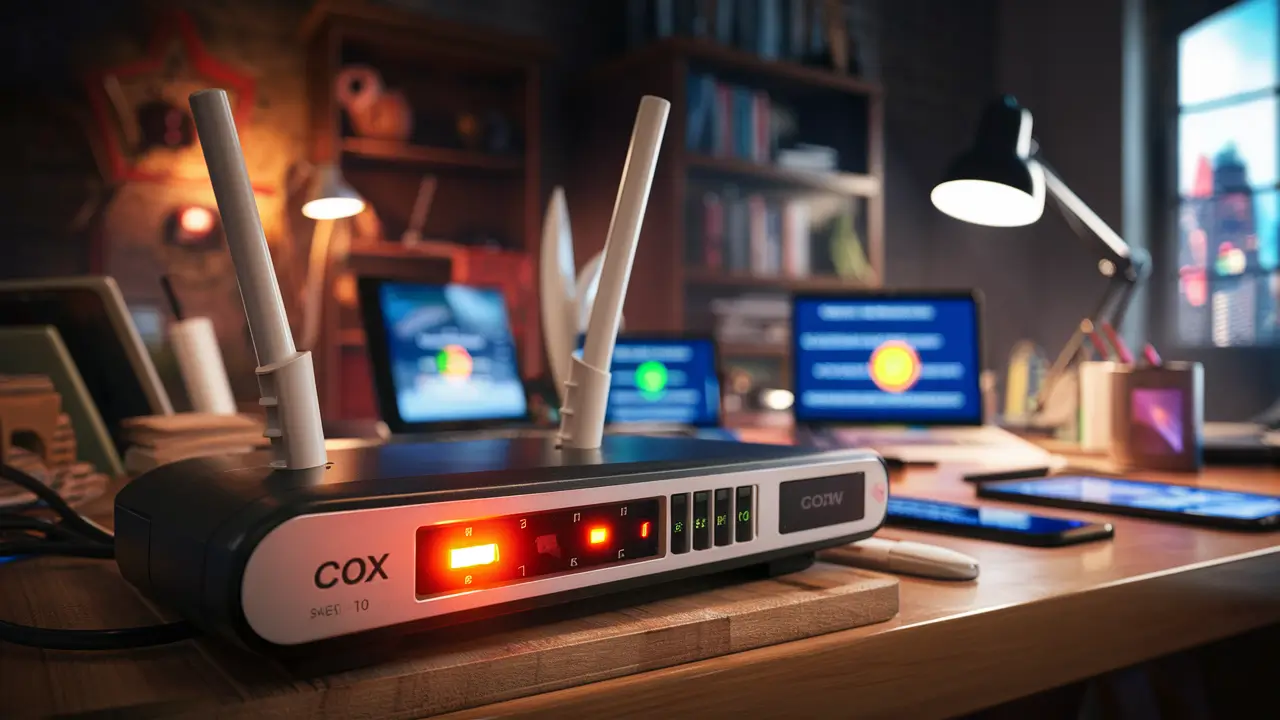
Before diving into the process of changing your WiFi password, it's crucial to understand the hardware involved. Cox Communications typically provides internet service through a modem, which connects your home to their network. Often, this modem is combined with a router in a single device, known as a gateway. This gateway broadcasts your WiFi signal and manages your home network. Identifying whether you have a separate modem and router or a combined gateway is the first step. Cox offers various models, and knowing your specific device can help you locate the correct login information and interface.
Identifying Your Cox Equipment
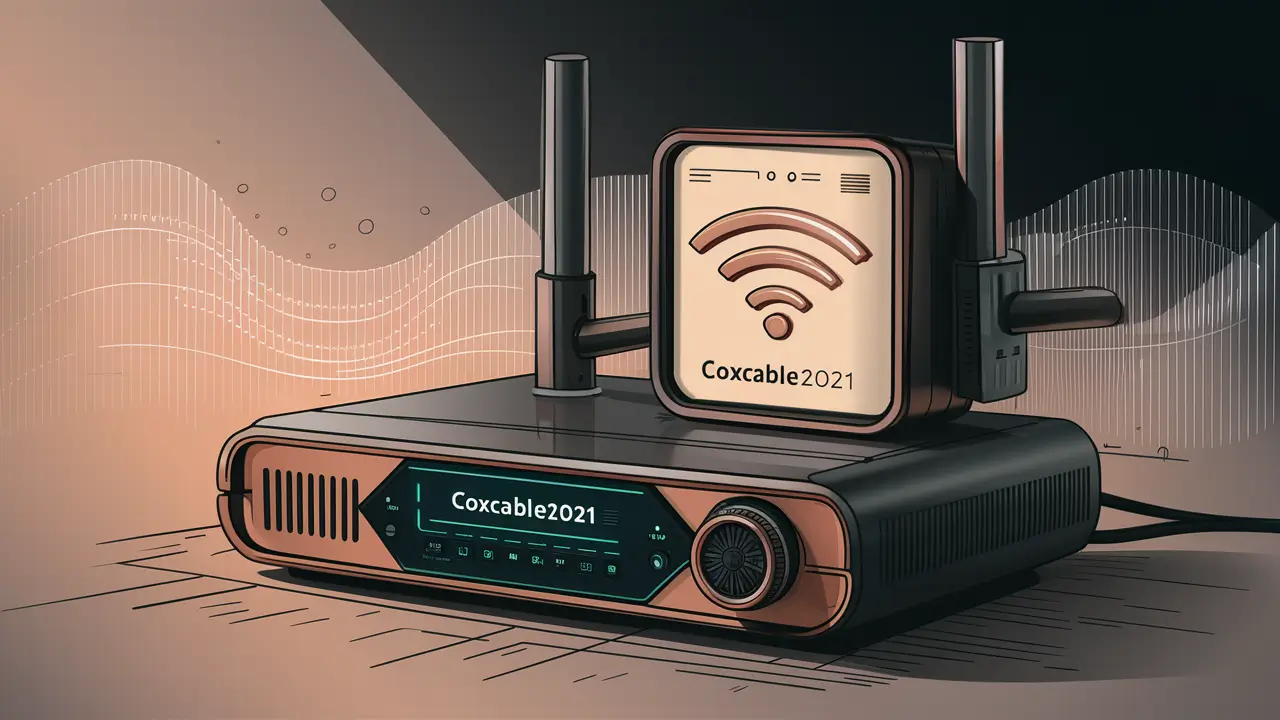
Cox provides several types of equipment. Some customers may have a separate modem and router, while others have an all-in-one gateway. The most common Cox gateways are the Panoramic WiFi Gateway and older models like the Netgear CM series or Arris Surfboard models. You can usually find the model number on a sticker on the device itself. This sticker often also contains crucial information like the default WiFi network name (SSID) and password, which you'll need if you're changing it for the first time or if you've forgotten your current credentials.
Modem vs. Gateway
A modem's primary function is to translate the signal from your Internet Service Provider (ISP) into a format your home network can use. A router, on the other hand, creates a local network within your home, allowing multiple devices to connect to the internet simultaneously via wired Ethernet or wireless WiFi. A gateway combines both these functions into a single unit. For most Cox customers using their provided equipment, they are likely using a gateway. This simplifies setup but means that router settings and modem settings are often accessed through the same interface.
Default Login Information
When you first set up your Cox internet service, the gateway comes with default login credentials for accessing its administrative settings. These are typically found on the sticker on the device. This information includes:
- Default WiFi Network Name (SSID): This is the name that appears when you search for WiFi networks.
- Default WiFi Password (or Key/Passphrase): This is what you use to connect your devices to the network.
- Router Admin Login IP Address: This is the IP address you'll type into your web browser to access the router's configuration page. For most home networks, this is often 192.168.0.1 or 192.168.1.1.
- Router Admin Username and Password: These are used to log into the router's settings interface.
It is highly recommended to change these default credentials as soon as possible for security reasons. If you've never changed them, you'll use these defaults to log in and set up your new, custom password.
Preparations Before Changing Your Password
Before you begin the process of changing your WiFi password, a few preparatory steps can make the experience smoother and prevent potential connectivity issues. Ensuring you have the right information and a stable connection is key to a successful password change.
Gather Necessary Information
The most critical piece of information you'll need is access to your router's administration interface. This requires knowing the router's IP address and the login credentials (username and password). As mentioned earlier, this information is usually on a sticker on your Cox gateway. If you've lost or removed this sticker, you might need to consult Cox's support documentation or contact them directly. You'll also need to decide on your new WiFi password. It should be strong and memorable.
What is a Strong WiFi Password?
A strong WiFi password is essential for protecting your network from unauthorized access. According to cybersecurity experts in 2025, a robust password should:
- Be at least 12 characters long.
- Include a mix of uppercase and lowercase letters, numbers, and symbols.
- Avoid common words, personal information (names, birthdays), or sequential numbers/letters.
- Be unique and not reused for other accounts.
For example, instead of "password123," consider something like "MyH0me$ecureNet!25." The longer and more complex the password, the harder it is for brute-force attacks to guess.
Ensure a Stable Internet Connection
You'll need a stable internet connection to access your router's settings. It's best to perform this task from a device connected to your network, preferably via an Ethernet cable if possible, as this provides the most stable connection. If you're using WiFi, ensure you have a strong signal. If your WiFi is currently unstable, it might be worth troubleshooting that first or using a wired connection for the password change process.
Have a List of Connected Devices Ready
Once you change your WiFi password, all devices currently connected to your network will be disconnected. You will need to re-enter the new password on each device to reconnect them. It's helpful to have a list of your smart home devices, computers, smartphones, tablets, and any other WiFi-enabled gadgets. This way, you won't forget to reconnect any of them. For devices like smart TVs or gaming consoles, you might need to navigate through their network settings to update the WiFi password.
Accessing Your Cox Router Settings
Accessing your Cox router's settings is the gateway to making any changes, including updating your WiFi password. This process typically involves using a web browser and entering a specific IP address. Understanding how to find and use this address is fundamental.
Finding Your Router's IP Address
As mentioned, the default IP address for most routers, including those provided by Cox, is commonly 192.168.0.1 or 192.168.1.1. If these don't work, check the sticker on your Cox gateway. If the sticker is missing or unreadable, you can find your router's IP address (also known as the Default Gateway) on your computer:
- On Windows: Open the Command Prompt (search for "cmd"). Type
ipconfigand press Enter. Look for the "Default Gateway" under your active network adapter. - On macOS: Go to System Preferences > Network. Select your active connection (Wi-Fi or Ethernet). Click "Advanced" and then the "TCP/IP" tab. Your router's IP address will be listed as "Router."
- On Linux: Open a terminal. Type
ip route | grep default. The IP address following "default via" is your router's IP.
For Cox Panoramic WiFi, the default IP address is typically 192.168.0.1.
Logging In to the Router Interface
Once you have the IP address, open a web browser (like Chrome, Firefox, Safari, or Edge) on a device connected to your Cox network. In the address bar, type the IP address (e.g., http://192.168.0.1) and press Enter. You should be prompted for a username and password. These are the router's administrative login credentials, also usually found on the sticker on your gateway. Common default usernames for Cox gateways include "admin," and passwords can vary but are often found on the device sticker.
Cox Panoramic WiFi Gateway Login
For the Cox Panoramic WiFi Gateway, the login process is often streamlined. You'll typically access it via http://192.168.0.1. The default username is often "admin," and the password is the WiFi password printed on the gateway itself. However, Cox strongly encourages users to change this admin password for enhanced security. If you've already set a custom admin password and forgotten it, you may need to perform a factory reset on the gateway, which will revert all settings to their defaults, including the WiFi password.
Navigating the Router Settings Menu
After successfully logging in, you'll be presented with your router's administrative interface. This interface can vary significantly depending on the router model and firmware version. However, most interfaces will have sections dedicated to network settings, wireless settings, security, and device management. Look for a section labeled "Wireless," "WiFi," "Network Settings," or "Security." Within this section, you should find options to view and change your WiFi network name (SSID) and password.
Step-by-Step Guide to Changing Your WiFi Password
This section provides a detailed, step-by-step guide on how to change your WiFi password on a Cox Cable router. While interfaces may differ slightly, the core steps remain consistent.
Step 1: Access Your Router's Administration Page
As detailed in the previous section, open a web browser and navigate to your router's IP address (e.g., http://192.168.0.1). Log in using your router's administrative username and password.
Step 2: Locate the Wireless Settings
Once logged in, navigate through the menu to find the wireless settings. This is typically under a tab or section named:
- Wireless
- WiFi
- Network Settings
- Advanced Settings
Within this section, you should see options for your WiFi network's SSID (network name) and its security settings, including the password.
Step 3: Find the Password/Security Settings
Within the wireless settings, look for an option related to "Security," "Password," "Passphrase," or "Pre-Shared Key (PSK)." You might need to expand a section or click on a specific tab to reveal these options. Ensure you are looking at the settings for your primary WiFi network (often labeled "2.4GHz" and "5GHz" if your router is dual-band).
Step 4: Enter Your New WiFi Password
You will see a field where your current WiFi password is displayed (often masked with asterisks or dots). Delete the existing password and type in your new, strong password. Remember the guidelines for creating a secure password discussed earlier. Some routers may require you to enter the password twice to confirm.
Example: Changing Password on Cox Panoramic WiFi
For the Cox Panoramic WiFi Gateway, the process is as follows:
- Access the gateway via
http://192.168.0.1. - Log in with your admin credentials.
- Navigate to the "WiFi" or "Wireless" section.
- You will see options for "Network Name (SSID)" and "Password."
- Enter your desired new WiFi password in the "Password" field.
- Click "Save" or "Apply" to confirm the changes.
Step 5: Save Your Changes
After entering your new password, click the "Save," "Apply," or "Submit" button. The router will then process your changes. This may take a minute or two, and your WiFi signal might briefly drop.
Step 6: Reconnect Your Devices
Once the router has saved the new password, all your WiFi-connected devices will be disconnected. You will need to go to each device (smartphone, tablet, laptop, smart TV, etc.), find your WiFi network name (SSID) in the available networks list, and enter the new password to reconnect. This is where having your list of devices ready is invaluable.
Dual-Band Considerations (2.4GHz and 5GHz)
Many modern routers, including Cox gateways, are dual-band, meaning they broadcast two separate WiFi networks: one on the 2.4GHz frequency and another on the 5GHz frequency. These often have different SSIDs (e.g., "MyHomeWiFi" and "MyHomeWiFi_5G"). You can choose to change the password for both networks to be the same, or use different passwords for each. Using the same password simplifies reconnection for your devices. The 2.4GHz band offers a longer range but slower speeds, while the 5GHz band offers faster speeds but a shorter range. For most users, keeping the passwords the same is the most convenient option.
Step 7: Verify Your Connection
After reconnecting a few devices, try browsing the internet to ensure everything is working correctly. Check if all your essential devices have successfully reconnected and can access the internet.
Troubleshooting Common Issues
Even with careful steps, you might encounter issues when changing your WiFi password. Here are some common problems and their solutions.
Cannot Access Router Login Page
Possible Causes: Incorrect IP address, device not connected to the router, router not powered on, browser cache issues.
Solutions:
- Double-check the IP address.
- Ensure your device is connected to the Cox WiFi network (or via Ethernet).
- Restart your router and modem.
- Try a different web browser or clear your browser's cache and cookies.
- If using WiFi, try connecting via an Ethernet cable.
Incorrect Username or Password for Router Login
Possible Causes: Typo in credentials, using WiFi password instead of admin password, credentials were changed previously and forgotten.
Solutions:
- Carefully re-enter the username and password, paying attention to case sensitivity.
- Confirm you are using the administrative login, not the WiFi login.
- If you've forgotten the admin password, you may need to perform a factory reset on your router. This will revert all settings to default, including the WiFi password, and you'll need to reconfigure your network.
New Password Not Working
Possible Causes: Typo when entering the new password, router did not save the changes, trying to connect to the wrong network name.
Solutions:
- Carefully re-enter the new password on your device.
- Log back into the router and verify the password has been saved correctly.
- Ensure you are selecting the correct WiFi network name (SSID) from the list.
- Restart your device and the router.
Devices Not Reconnecting After Password Change
Possible Causes: Incorrect password entered on the device, device has a saved old password, device compatibility issues.
Solutions:
- "Forget" the network on your device and try reconnecting by entering the new password.
- For smart home devices, check their specific apps or manuals for instructions on updating WiFi credentials. Some may require a re-setup process.
- Ensure the device supports the WiFi security protocol your router is using (e.g., WPA2, WPA3).
Factory Resetting Your Cox Router
If all else fails, a factory reset is often the last resort. This will erase all custom settings and restore the router to its original factory defaults. Typically, there's a small reset button on the back or bottom of the router. You'll need a paperclip or a similar pointed object to press and hold this button for about 10-30 seconds while the router is powered on. After the reset, you'll need to use the original default login credentials and set up your WiFi network again from scratch.
Best Practices for WiFi Security
Changing your WiFi password is a crucial step, but maintaining strong WiFi security involves more than just a good password. Implementing a few best practices can significantly enhance your network's protection.
Regularly Update Your Password
As a general security guideline, it's recommended to change your WiFi password every 3 to 6 months. This proactive measure helps mitigate risks if your password has been compromised without your knowledge. Think of it like changing the locks on your house periodically.
Enable WPA3 Encryption (If Available)
Wireless Protected Access (WPA) is a security protocol used to protect WiFi networks. WPA3 is the latest and most secure version, offering enhanced encryption and protection against brute-force attacks. If your Cox gateway supports WPA3, ensure it's enabled. Most modern devices are compatible with WPA3, but older devices might only support WPA2. In such cases, WPA2-AES is still a strong choice. You can usually find this setting within the router's wireless security options.
Change the Default Admin Password
This cannot be stressed enough. The default username and password for accessing your router's settings are widely known. Changing this administrative password prevents unauthorized access to your router's configuration, which could allow someone to change your WiFi password back or access other sensitive network information. As of 2025, this is a fundamental security step.
Disable WPS (Wi-Fi Protected Setup)
While WPS is designed for easy device connection, it has known security vulnerabilities. It's often exploited to gain unauthorized access to WiFi networks. Unless you have a specific need for WPS and understand its risks, it's best to disable it in your router's settings.
Create a Guest Network
If your Cox gateway supports it, setting up a guest network is an excellent way to provide internet access to visitors without giving them access to your main network and connected devices. The guest network will have its own SSID and password, and it can be configured to be isolated from your primary network. This is particularly useful for smart home devices that might not have the most robust security features.
Keep Router Firmware Updated
Router manufacturers, including those whose equipment Cox uses, regularly release firmware updates to patch security vulnerabilities and improve performance. Check your router's administration interface for an option to update firmware. Many newer gateways, like the Cox Panoramic WiFi, can update automatically, but it's good practice to verify.
Cox-Provided Equipment vs. Third-Party Routers
Many Cox customers opt to use the equipment provided by Cox. However, some users prefer to purchase their own routers or modem/router combos. Understanding the differences can help you make informed decisions.
Cox-Provided Gateways
Pros:
- Easy Setup: Typically pre-configured for Cox service, making initial setup straightforward.
- Bundled Support: Technical support from Cox is usually included for their equipment.
- Compatibility: Guaranteed to work with Cox's network.
- Advanced Features (Panoramic WiFi): Cox's Panoramic WiFi offers features like AI-driven network optimization and advanced security through its app.
Cons:
- Monthly Rental Fees: Cox charges a monthly fee for equipment rental, which can add up over time.
- Limited Customization: May offer fewer advanced customization options compared to high-end third-party routers.
- Firmware Control: Cox has control over firmware updates, which might not always align with user preferences.
Third-Party Routers
Pros:
- Cost Savings: Buying your own modem/router can be cheaper in the long run than paying monthly rental fees.
- Performance and Features: You can choose routers with superior performance, advanced features (like mesh networking, VPN support, more robust QoS), and better WiFi coverage.
- Full Control: You have complete control over firmware updates and all settings.
Cons:
- Compatibility Issues: You must ensure the modem is compatible with Cox's network (check Cox's approved modem list).
- Self-Support: You are responsible for troubleshooting and support for your equipment.
- Initial Investment: A higher upfront cost for purchasing the equipment.
Using Your Own Router with a Cox Modem
If you choose to use your own router, you'll typically need to use a Cox-approved modem (or purchase one yourself) and then connect your third-party router to it. This setup allows you to leverage the performance and features of your chosen router while still using Cox's internet service. When changing the WiFi password in this scenario, you would log into your *own* router's settings, not Cox's gateway (if you're using a separate modem).
The Importance of Regular Password Changes
In today's interconnected world, cybersecurity is paramount. Regularly changing your WiFi password is a fundamental practice for maintaining the security and privacy of your home network. The digital landscape in 2025 is more complex than ever, with an increasing number of connected devices and sophisticated cyber threats.
Protecting Against Unauthorized Access
A strong, regularly changed WiFi password acts as the first line of defense against individuals who might try to access your internet connection without permission. Unauthorized users can consume your bandwidth, slowing down your internet speed, and potentially use your connection for illicit activities, which could be traced back to you. By updating your password, you ensure that any previously compromised access is immediately revoked.
Preventing Data Breaches
While your WiFi password doesn't directly encrypt the data transmitted between your devices and the internet (that's the job of HTTPS and VPNs), it secures the gateway to your network. If someone gains access to your network, they can potentially intercept unencrypted traffic, conduct man-in-the-middle attacks, or exploit vulnerabilities in your connected devices. For example, a compromised smart home device could serve as an entry point into your network. In 2025, the proliferation of IoT devices makes this risk even more significant.
Maintaining Network Performance
When your WiFi network is being used by unauthorized devices, it directly impacts the performance for your legitimate users. This can lead to frustratingly slow internet speeds, buffering issues when streaming, and delays in online gaming. Regularly changing your password helps ensure that only your authorized devices are consuming your bandwidth, leading to a more stable and faster internet experience for everyone in your household.
Compliance and Best Practices
For businesses and even tech-savvy households, adhering to cybersecurity best practices is crucial. Regularly changing passwords is a common recommendation from cybersecurity organizations. By adopting this habit, you contribute to a more secure online environment for yourself and your community. The average number of connected devices per household in the US reached 25 in 2024, and this number is projected to grow, making network security more critical than ever.
Conclusion: Securing Your Cox WiFi
Changing your Cox WiFi password is a vital step in safeguarding your home network and personal data. By following the comprehensive steps outlined in this guide, you can confidently update your password and enhance your online security. Remember to choose a strong, unique password, update it periodically, and secure your router's administrative access. Implementing best practices like enabling WPA3 encryption and setting up a guest network further fortifies your defenses. Whether you're using Cox-provided equipment or your own router, maintaining vigilance over your network security is an ongoing process. Take action today to ensure your Cox WiFi connection remains private, secure, and performing at its best for years to come.