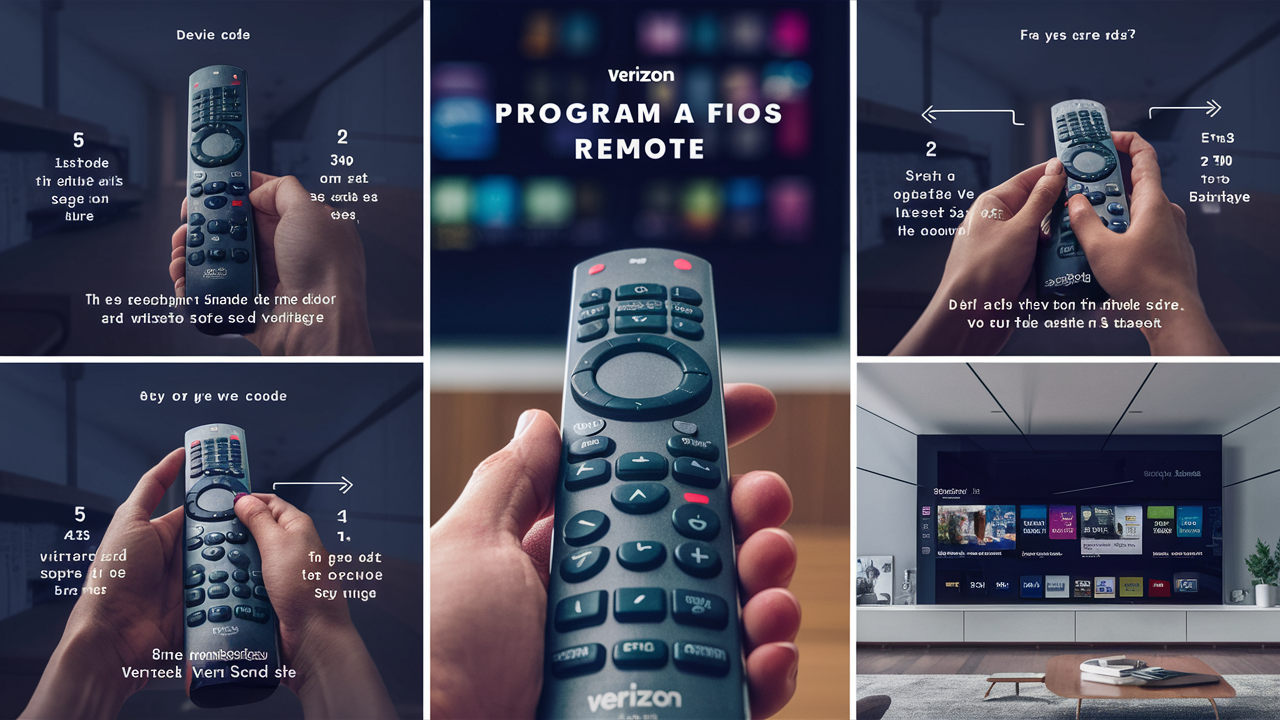
Struggling to get your Verizon Fios remote working with your TV or audio equipment? This comprehensive guide will walk you through the simple steps to program your Verizon Fios remote, ensuring seamless control of your entertainment system. We cover all common remote models and troubleshooting tips for a frustration-free experience.
Understanding Your Verizon Fios Remote
Verizon Fios remotes are designed to be versatile, often capable of controlling not just your Fios set-top box but also your television, soundbar, or AV receiver. This unification of control can significantly declutter your entertainment center and simplify your viewing experience. The primary goal of programming your Fios remote is to establish a communication link between the remote and the device you wish to control. This is typically achieved through infrared (IR) signals, similar to most universal remotes. The process involves entering specific codes or allowing the remote to scan for compatible codes.
In 2025 and 2026, Verizon continues to offer sophisticated remotes that integrate seamlessly with their Fios TV One and other advanced set-top boxes. These remotes often feature voice control capabilities and advanced pairing options. Understanding the basic functionality of your remote – its buttons, their purposes, and how it interacts with your Fios equipment – is the first step towards successful programming. Most Fios remotes have dedicated buttons for power, volume, channel control, input selection, and navigation. Some newer models also include dedicated streaming service buttons.
The programming process itself usually involves a sequence of button presses on the remote, often guided by indicator lights on the remote itself. The remote needs to be pointed at the device it's trying to control during the programming phase. The effectiveness of the programming is usually tested by attempting to operate basic functions like powering the device on/off or changing the volume. If these functions work, the programming is generally successful for that device. For more complex functionalities, further setup might be required, but the core programming focuses on these essential controls.
Identifying Your Verizon Fios Remote Model
Before you can program your Verizon Fios remote, it's crucial to identify which model you have. Verizon has released several remote models over the years, each with slightly different button layouts and programming procedures. Knowing your model ensures you follow the correct instructions, preventing frustration and wasted time. The most common models include the standard Fios remote, the Fios TV Voice Remote, and the Fios TV One Remote.
How to Identify Your Remote Model:
- Look for Model Numbers: The easiest way to identify your remote is to look for a model number printed on it. This is usually found on the back of the remote, often under the battery compartment cover. Common model numbers might include phrases like "RC127," "UR50," "XR11," "XR15," or "XR16."
- Examine Button Layout: Different models have distinct button arrangements. For instance, voice remotes will have a microphone button. Newer Fios TV One remotes often have a more streamlined design with fewer buttons and may feature a touchpad or dedicated streaming service buttons.
- Check Your Fios Equipment: The remote that came with your Fios TV One box will likely be a Fios TV One Remote. Older set-top boxes might have shipped with earlier models.
- Verizon Support Website: If you're still unsure, you can visit the Verizon Fios support website and browse their remote control guides. They often have images and descriptions that can help you match your remote.
As of 2025, Verizon's primary remotes are the XR15 and XR16 models, which are voice-enabled and designed for Fios TV One. These remotes offer advanced features and a more intuitive user experience. Understanding the specific features of your remote model is key to unlocking its full potential, including its ability to control other home entertainment devices.
Programming Your Fios Remote for TV Control
Programming your Fios remote to control your television is a common task, especially when setting up a new TV or after replacing your Fios equipment. This process allows you to use a single remote for both your Fios box and your TV, simplifying channel surfing and volume adjustments. The method varies slightly depending on your remote model, but the core principle remains the same: inputting a device code or letting the remote search for one.
Using Device Codes (Most Common Method)
This is the most direct and often fastest method. It requires you to find the correct 3- or 4-digit code for your TV brand. Verizon maintains extensive lists of these codes, which can usually be found on their support website or sometimes printed in the remote's manual.
Steps for Code Entry:
- Turn on your TV. Ensure it's powered on and not in standby mode.
- Locate the device code list: Access the Verizon Fios support website or your remote's manual to find the codes for your TV brand. For example, if you have a Samsung TV, you'll look for Samsung codes.
- Press and hold the TV button and the OK button simultaneously on your Fios remote until the light at the top of the remote blinks twice. This puts the remote into TV control mode.
- Enter the first 3-digit code for your TV brand using the number pad. The light should blink twice after each digit, or once at the end of the code.
- Test the remote: Point the remote at your TV and press the Power button. If the TV turns off, the code is correct. If not, repeat the process with the next code on the list for your brand.
- If the TV turns off, press the TV button again to lock in the code. The light should blink twice.
- Test other functions: Try changing channels and adjusting the volume to ensure they work correctly.
Example Scenario: You have an LG TV and a Fios XR15 remote. You find the codes for LG TVs on Verizon's support site. You try code 0100. You press and hold TV + OK, enter 0100, and press Power. If the TV turns off, you press TV to confirm. If it doesn't, you try the next LG code, such as 0056, and repeat the testing process.
Automatic Code Search (If Codes Don't Work)
If you can't find the correct code, or if the codes provided don't work, your remote likely has an automatic search function. This method can take longer but is effective for finding compatible codes.
Steps for Automatic Search:
- Turn on your TV.
- Press and hold the TV button and the OK button simultaneously on your Fios remote until the light blinks twice.
- Press and hold the Mute button and the OK button simultaneously until the light blinks twice. This initiates the search mode.
- Point the remote at your TV.
- Press and hold the Power button. The remote will cycle through codes, attempting to turn off your TV. Keep holding the Power button until the TV turns off.
- As soon as the TV turns off, release the Power button.
- Press the TV button to lock in the code. The light should blink twice.
- Test the remote thoroughly: Check power, volume, channels, and input selection.
Note: If the TV doesn't turn off after a significant amount of time holding the Power button, you may need to repeat the process, as the remote might have skipped the correct code. Some remotes might require you to press the Channel Up button to advance through codes instead of holding the Power button.
Pairing Your Voice Remote (XR11, XR15, XR16)
For voice-enabled remotes, the initial setup often involves pairing the remote with your Fios set-top box using Bluetooth. This is usually done during the initial setup of your Fios equipment. If your remote isn't controlling your Fios box or if voice commands aren't working, re-pairing might be necessary.
Steps for Voice Remote Pairing:
- Ensure your Fios set-top box is powered on.
- On your remote, press and hold the "Home" button and the "Back" button simultaneously for about 10 seconds. The light on the remote should blink rapidly.
- Follow any on-screen prompts on your TV. The Fios box should detect the remote and initiate pairing.
- Once paired, test basic functions and voice commands.
If you're programming for TV control using a voice remote, you'll typically use the same code entry or auto-search methods described above, but you'll use the "TV" button instead of the "Cable" or "Fios" button to initiate TV mode.
Troubleshooting TV Control Issues
- Line of Sight: Ensure there are no obstructions between the remote and the TV's IR receiver.
- Batteries: Replace the batteries in the remote. Low battery power can cause erratic behavior.
- Correct Mode: Make sure the remote is in TV mode (indicated by the light or by pressing the TV button).
- Device Codes: Double-check that you are using the correct code for your specific TV model and brand. Sometimes, a code for a slightly different model might work.
- Reset Remote: Some remotes can be reset by removing the batteries for a minute and then reinserting them.
By following these steps, you should be able to successfully program your Fios remote to control your television, enhancing your home entertainment experience. The ability to control multiple devices with one remote is a significant convenience, and Verizon's remotes are designed to facilitate this.
Programming Your Fios Remote for Audio Devices
Beyond controlling your television, many Verizon Fios remotes can also be programmed to operate your audio equipment, such as soundbars or AV receivers. This allows for unified control of your entire entertainment system, eliminating the need to juggle multiple remotes for volume and power. The process is very similar to programming for a TV, using device codes specific to audio equipment brands.
Using Device Codes for Audio Equipment
Similar to TV programming, you'll need to find the correct 3- or 4-digit codes for your specific audio device brand. These codes are usually available on the Verizon support website or in your Fios remote's user manual. The key difference is selecting the correct device mode on your remote.
Steps for Audio Device Code Entry:
- Turn on your audio device (e.g., soundbar, AV receiver).
- Locate the device code list for audio equipment on the Verizon support website or in your remote's manual.
- Press and hold the AUDIO button and the OK button simultaneously on your Fios remote until the light at the top blinks twice. This puts the remote into audio device control mode. (Note: Some remotes might use an "AUX" or "Other" button instead of "AUDIO").
- Enter the first 3-digit code for your audio device brand using the number pad. The light should blink twice after each digit or once at the end.
- Test the remote: Point the remote at your audio device and press the Volume Up button. If the volume changes on your audio device, the code is likely correct.
- If the volume works, press the AUDIO button (or the relevant device button) again to lock in the code. The light should blink twice.
- Test other functions: Try adjusting volume down, muting, and powering the audio device on/off.
Example Scenario: You have a Bose soundbar and a Fios XR16 remote. You find the codes for Bose audio devices on Verizon's support site. You try code 0028. You press and hold AUDIO + OK, enter 0028, and press Volume Up. If the soundbar's volume increases, you press AUDIO to confirm. If not, you try the next Bose code.
Automatic Code Search for Audio Devices
If you cannot find a working code for your audio equipment, the automatic search function is your next best option. This method systematically tries different codes until a compatible one is found.
Steps for Automatic Search:
- Turn on your audio device.
- Press and hold the AUDIO button and the OK button simultaneously until the light blinks twice.
- Press and hold the Mute button and the OK button simultaneously until the light blinks twice. This initiates the search mode for audio devices.
- Point the remote at your audio device.
- Press and hold the Volume Up button. The remote will cycle through codes, attempting to control the volume. Keep holding the Volume Up button until you see the volume change on your audio device.
- As soon as the volume changes, release the Volume Up button.
- Press the AUDIO button to lock in the code. The light should blink twice.
- Test the remote thoroughly: Check volume up/down, mute, and power functions for your audio device.
Important Considerations for Audio Devices:
- Volume Control: Most often, programming an audio device focuses on volume control and power. Some advanced remotes might offer more granular control.
- AV Receivers: If you have an AV receiver, you might need to program the remote to control specific inputs (e.g., HDMI 1, HDMI 2) if your remote supports input selection for audio devices.
- Soundbars: Soundbars are generally simpler to program, primarily for volume and power.
- Multiple Audio Devices: If you have multiple audio devices (e.g., a soundbar and a separate subwoofer), you might only be able to program one primary audio device with the Fios remote.
Successfully programming your Fios remote for audio devices significantly enhances convenience. Imagine adjusting your soundbar's volume with the same remote you use for your Fios channels, all without switching devices. This integration is a key benefit of modern universal remotes.
Advanced Programming and Troubleshooting
While basic programming for TVs and audio devices covers most user needs, there are advanced features and common troubleshooting steps that can further enhance your Fios remote experience. Understanding these can save you time and resolve persistent issues.
Learning Functionality
Some older or more advanced Fios remotes might have a "learning" function. This allows the remote to "learn" commands directly from the original remote of another device. This is particularly useful if your device brand isn't listed in the code database or if the codes provided don't offer full functionality.
General Steps for Learning Function:
- Place the original remote and your Fios remote head-to-head (IR emitters facing each other).
- Initiate learning mode on the Fios remote (refer to your specific remote's manual, as this varies greatly). This often involves pressing a combination of buttons like "Setup" or "Learn."
- Select the device type (TV, Audio, etc.) and the button on the Fios remote you want to assign the learned command to.
- Press the corresponding button on the original remote.
- The Fios remote's light will indicate if the command was learned successfully.
- Repeat for all desired buttons.
Note: Learning functionality is less common on newer, streamlined Fios remotes like the XR15 and XR16, which rely more heavily on code databases and voice commands.
Troubleshooting Common Issues
Even with successful programming, you might encounter issues. Here are some common problems and their solutions:
Remote Not Responding at All
- Check Batteries: This is the most frequent culprit. Replace with fresh, high-quality batteries. Ensure they are inserted correctly.
- Reset the Remote: Remove batteries for at least 60 seconds, then reinsert them. This can clear temporary glitches.
- Check Pairing (Voice Remotes): For XR11, XR15, XR16 remotes, ensure they are properly paired with the Fios box. Try re-pairing using the "Home" + "Back" button method.
- Obstructions: Ensure there's a clear line of sight between the remote and the IR receiver on the device.
Some Buttons Don't Work
- Incomplete Code Entry: If you used manual code entry, try entering the code again or try a different code for your brand.
- Automatic Search Needed: The entered code might be partial. Perform an automatic search for the device.
- Device Compatibility: Not all remotes can control every function of every device. Some advanced features might not be programmable.
- Learning Function: If available, use the learning function to manually program missing buttons.
Volume Control Issues
- Incorrect Device Mode: Ensure the remote is in the correct mode (TV for TV volume, AUDIO for soundbar/receiver volume).
- Volume Lock: Some remotes allow you to "lock" volume control to a specific device. Check your remote's settings or manual for how to set or unlock volume. For example, on XR15/XR16, you might need to press the TV button first, then Volume Up/Down.
- Conflicting Codes: If you've programmed both the TV and an audio device, ensure the volume commands aren't conflicting. You might need to choose to control volume via the TV or the audio device exclusively.
Voice Commands Not Working
- Pairing: Re-pair the voice remote with the Fios box.
- Microphone Button: Ensure you are pressing and holding the microphone button while speaking.
- Internet Connection: Voice commands require an active internet connection for your Fios box.
- Software Updates: Ensure your Fios box and remote firmware are up to date.
Resetting Your Fios Remote to Factory Defaults
If all else fails, you can reset your Fios remote to its factory default settings. This will erase all programmed codes and pairings, requiring you to set it up from scratch. The method for resetting varies by model:
- XR11/XR15/XR16 Voice Remotes: Typically, you can reset by removing the batteries, then pressing and holding the "Exit" button while reinserting the batteries. Hold "Exit" for about 15 seconds.
- Older Standard Remotes: Often involves pressing and holding "Setup" and "OK" or "Power" and "Mute" buttons for a specific duration.
Always consult your specific remote's manual or the Verizon support website for the exact reset procedure for your model. After a reset, you will need to re-program the remote for your TV and any audio devices.
Understanding IR vs. RF Control
Most Fios remotes use Infrared (IR) signals for controlling TVs and audio devices. This requires a direct line of sight. However, voice remotes (XR11, XR15, XR16) use Radio Frequency (RF) or Bluetooth to communicate with the Fios set-top box. This allows for control without direct line of sight, which is why you can use voice commands even if the remote isn't pointed directly at the box. When programming for external devices like TVs and soundbars, the remote usually switches back to IR mode.
By understanding these advanced features and troubleshooting steps, you can ensure your Verizon Fios remote functions optimally, providing a seamless and convenient control experience for your entire home entertainment system.
Fios Remote Programming FAQs and Tips
Navigating the programming process for your Verizon Fios remote can sometimes bring up specific questions. Here, we address some frequently asked questions and offer additional tips to ensure a smooth and successful setup for 2025-26 users.
Frequently Asked Questions:
Q1: My Fios remote won't control my TV's power, but volume works. What's wrong?
A1: This often indicates that the volume control code is correct, but the power code is not, or vice versa. Try entering a different code for your TV brand, focusing on power control first. Alternatively, you might need to use the automatic search function. Some remotes also have a "volume lock" feature; ensure volume is set to control your TV if that's your intention.
Q2: Can I program my Fios remote to control a Blu-ray player or streaming device like a Roku?
A2: Generally, Fios remotes are designed to control TVs, audio receivers, soundbars, and the Fios set-top box itself. Direct programming for most Blu-ray players or standalone streaming devices (like Roku, Fire TV Stick) is typically not supported through the standard code entry or auto-search methods. However, some newer Fios TV One remotes might offer limited control over select smart TV apps or devices via HDMI-CEC, but this is not a direct programming function.
Q3: How do I switch between controlling my Fios box and my TV with the same remote?
A3: Most Fios remotes have dedicated buttons. Pressing the "Fios" or "Cable" button typically switches control to the Fios set-top box. Pressing the "TV" button switches control to your programmed television. For voice remotes, the device you are trying to control with a voice command is usually inferred, but you can explicitly say "Control TV" or "Control Fios."
Q4: What if I have multiple audio devices? Can my Fios remote control them all?
A4: Typically, a Fios remote can be programmed to control one primary audio device (like a soundbar or AV receiver) for functions like volume and power. Controlling multiple distinct audio devices simultaneously with a single Fios remote is generally not possible through standard programming methods.
Q5: My voice remote is paired but still not working. What should I do?
A5: Ensure your Fios box has a stable internet connection. Try re-pairing the remote. Also, check if the remote's firmware is up-to-date by visiting the Verizon support site or checking within your Fios box settings. Sometimes, a simple reboot of the Fios box can resolve connectivity issues.
Helpful Tips for Successful Programming:
- Have Your Device Manuals Handy: While Verizon's codes are comprehensive, your TV or audio device manual might sometimes offer specific insights or alternative control methods.
- Work in a Quiet Environment: Minimize background noise when using voice commands.
- Point Directly: When using IR for programming or basic control, ensure a clear, unobstructed line of sight between the remote and the device's IR receiver.
- Be Patient with Auto-Search: The automatic search function can take several minutes. Don't interrupt the process unless absolutely necessary.
- Keep a Record: Once you find working codes, jot them down in a safe place. This saves time if you ever need to reprogram the remote.
- Check Verizon's Support Site Regularly: Verizon occasionally updates its device code databases and remote support documentation.
- Consider HDMI-CEC: For newer TVs and devices, ensure HDMI-CEC (Consumer Electronics Control) is enabled on both your TV and Fios box. This allows devices to communicate and control basic functions (like power and volume) over the HDMI cable, sometimes reducing the need for extensive remote programming.
- Prioritize Functions: If you can't get all functions to work, prioritize the most important ones – usually power and volume.
By leveraging these FAQs and tips, you can confidently tackle the programming of your Verizon Fios remote. The goal is to simplify your entertainment setup, and with a little guidance, you can achieve a fully integrated experience. For example, successfully programming your soundbar means you can adjust its volume using your Fios remote while watching your favorite shows, a convenience that significantly enhances usability.
Conclusion
Mastering the programming of your Verizon Fios remote unlocks a more streamlined and enjoyable home entertainment experience. We've covered the essential steps for programming your remote to control your TV and audio devices, whether through direct code entry or the automatic search function. Identifying your specific remote model is the critical first step, followed by careful execution of the programming sequences. Remember to test thoroughly after each step and consult your device manuals or Verizon's support resources when needed.
For 2025-26 users, the advanced voice remotes offer enhanced capabilities, but the core principles of IR programming for external devices remain relevant. Troubleshooting common issues like unresponsive buttons or volume control problems is manageable with the guidance provided. By following these comprehensive instructions, you can ensure your Fios remote effectively commands your entire entertainment system, reducing clutter and simplifying operation. Take the time to program it correctly; the convenience it offers is well worth the effort.