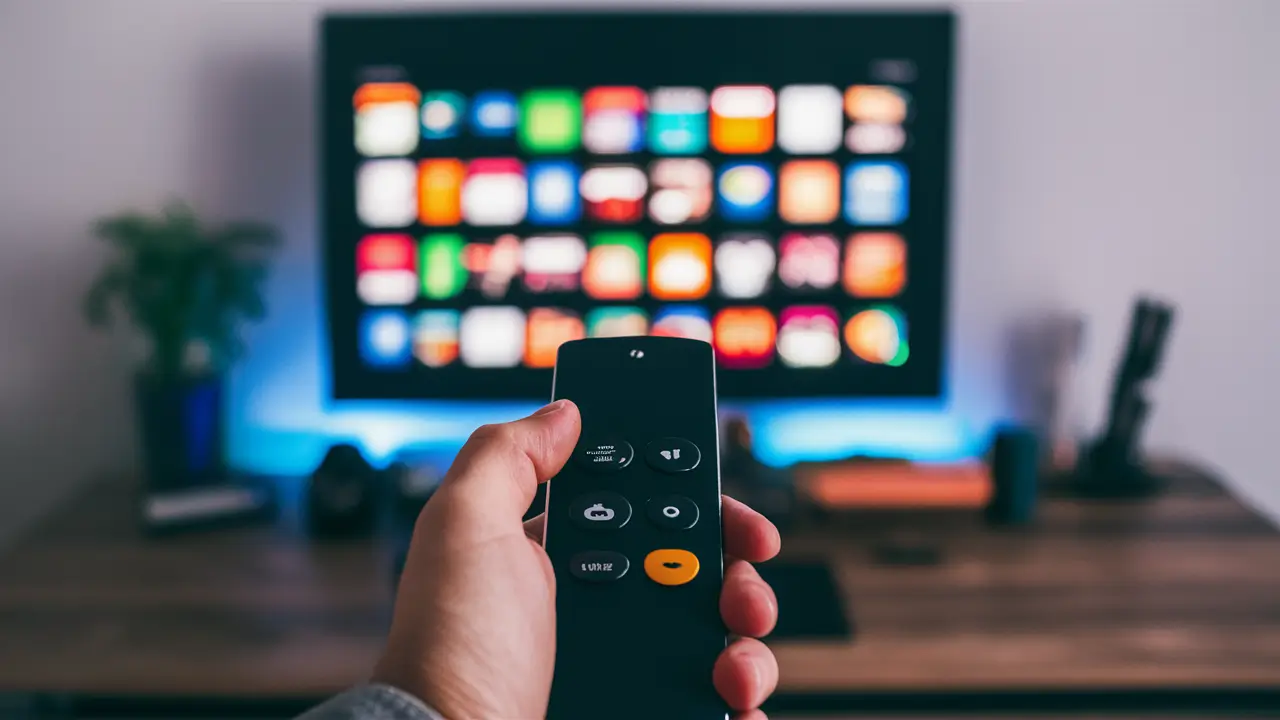
Introduction: Mastering Your Cox Remote
Struggling to connect your Cox remote to your TV? This comprehensive guide will walk you through every step of programming your Cox remote, ensuring you can effortlessly control your entertainment system. We'll cover common methods, troubleshooting tips, and advanced features to enhance your viewing experience.
Understanding Your Cox Remote
Cox Communications offers a variety of remote controls, each designed to work with their Contour TV service and compatible televisions. While the exact model may vary, most Cox remotes share fundamental functionalities and programming procedures. Understanding the basic types of remotes you might encounter is the first step towards successful programming.
Types of Cox Remotes
Cox primarily utilizes two main types of remotes for their TV services:
- Universal Remotes: These are designed to control not only your Cox set-top box but also your television, Blu-ray player, soundbar, and other home entertainment devices. They are the most common type and offer the greatest flexibility.
- Simple Remotes: These are typically more basic and are primarily designed to control the Cox set-top box and sometimes the TV's power and volume.
Key Remote Buttons and Their Functions
Familiarizing yourself with the layout of your Cox remote is crucial. While specific button names might differ slightly, common buttons include:
- Power Button: Turns the TV and/or set-top box on and off.
- Volume Up/Down & Mute: Controls the audio level of your TV or sound system.
- Channel Up/Down: Navigates through television channels.
- Number Pad: Allows direct channel selection.
- Input/Source Button: Switches between different inputs on your TV (e.g., HDMI 1, HDMI 2, AV).
- Menu/Guide Button: Accesses the TV's on-screen menu or the Cox TV guide.
- Navigation Pad (Arrow Keys): Used to navigate menus and options.
- Select/OK Button: Confirms selections within menus.
- Back/Exit Button: Returns to the previous screen or exits a menu.
- Voice Control Button (if applicable): Activates voice commands for searching content or controlling the device.
The Importance of a Programmed Remote
A properly programmed Cox remote offers a seamless entertainment experience. Instead of juggling multiple remotes, you can manage your TV, set-top box, and often other devices from a single, intuitive interface. This not only simplifies operation but also enhances convenience, allowing you to quickly access your favorite shows, adjust settings, and navigate through content without frustration.
Common Programming Methods for Cox Remotes
Programming your Cox remote to your TV typically involves one of a few standard methods. The most common approaches include automatic code search, direct code entry, and sometimes a learning function. We'll break down each of these methods to help you find the one that works best for your specific remote and TV model.
Method 1: Automatic Code Search (The Most Common Method)
This is often the easiest and most successful method for programming universal Cox remotes. The remote cycles through a database of manufacturer codes until it finds one that controls your TV's basic functions (power, volume, channel). In 2025-26, this method remains the go-to for most users due to its simplicity and effectiveness with a wide range of TV brands.
Step-by-Step Guide for Automatic Code Search:
- Turn on your TV. Ensure your television is powered on and displaying a picture.
- Point the remote at your TV. Maintain a clear line of sight between the remote and the TV's infrared sensor.
- Press and hold the Setup button. Locate the 'Setup' button on your Cox remote. Press and hold it until the remote's indicator light (usually a small LED) stays lit or blinks. This signifies that the remote is in setup mode.
- Enter the device code for TV. Press and release the 'TV' button on your remote. The indicator light should blink or turn off briefly, then stay lit.
- Initiate the search. Press and hold the 'Power' button on your Cox remote. Continue holding it down.
- Watch for the TV to turn off. As the remote cycles through codes, your TV will eventually power off. This could take anywhere from a few seconds to several minutes. Do not release the 'Power' button until the TV turns off.
- Release the Power button. The moment your TV turns off, release the 'Power' button.
- Confirm the code. Press the 'Power' button again to turn your TV back on. If the TV powers on, the code has been successfully found.
- Save the code. Press and release the 'TV' button. The indicator light should blink or turn off, confirming that the code has been saved.
- Test basic functions. Use the volume and channel buttons to ensure they are controlling your TV. If they are, congratulations! Your remote is programmed.
What if it doesn't work? If the TV doesn't turn off, or if basic functions don't work after saving, repeat the process. You may need to try holding the power button for longer, or your TV brand might not be supported by this specific remote's database. In such cases, you might need to explore other methods or consult your TV manufacturer's manual.
Method 2: Direct Code Entry
This method requires you to know the specific code for your TV brand. Cox provides a list of these codes, which can often be found in the remote's manual or on the Cox website. This method is generally faster than the automatic search if you have the correct code.
Step-by-Step Guide for Direct Code Entry:
- Turn on your TV. Ensure your television is powered on.
- Find your TV's code. Consult your Cox remote's user manual or visit the Cox support website for a list of codes for various TV manufacturers. For example, if you have a Samsung TV, you might find codes like 1205, 1087, 1005, etc.
- Press and hold the Setup button. On your Cox remote, press and hold the 'Setup' button until the indicator light stays lit.
- Enter the device code for TV. Press and release the 'TV' button. The indicator light should blink or turn off briefly, then stay lit.
- Enter the first code for your TV brand. Using the number pad, enter the first 4-digit code from the list for your TV brand. For instance, if the first code for Samsung is 1205, enter '1', '2', '0', '5'.
- Release the Setup button. The indicator light should blink or turn off to confirm the code has been entered.
- Test the remote. Press the 'Power' button. If your TV turns off, the code is correct.
- Save the code. If the TV powered off, press the 'TV' button. The indicator light should blink or turn off, confirming the code is saved.
- Test other functions. Try the volume and channel buttons to ensure they are working correctly.
If the first code doesn't work: Repeat steps 3-7, but this time enter the *next* code from the list for your TV brand. Continue this process until you find a code that successfully controls your TV.
Where to find codes: Many users find the code lists readily available online. A quick search for "Cox remote codes [your TV brand]" can often yield results. For 2025-26, Cox continues to update its online resources, making this an accessible method.
Method 3: Learning Function (Less Common on Basic Remotes)
Some advanced Cox universal remotes feature a "learning" function. This allows the Cox remote to "learn" commands directly from your original TV remote. This is particularly useful if your TV brand is not in the Cox remote's database or if you have specific functions on your original remote that you want to replicate.
Step-by-Step Guide for Learning Function:
- Position the remotes. Place your Cox remote and your original TV remote head-to-head, with the infrared emitters facing each other. Ensure they are about 1-2 inches apart.
- Put the Cox remote in learning mode. Press and hold the 'Setup' button on your Cox remote until the indicator light stays lit.
- Enter the learning mode code. Press and release the 'TV' button. The indicator light should blink or turn off briefly, then stay lit.
- Initiate learning for a specific button. Press and release the button on the Cox remote that you want to program (e.g., 'Power'). The indicator light will blink slowly.
- Transmit the command from the original remote. Press and hold the corresponding button on your *original TV remote* (e.g., the 'Power' button on your Samsung remote). Hold it until the indicator light on the Cox remote blinks twice or turns off. This indicates the command has been learned.
- Repeat for other buttons. Repeat steps 4 and 5 for any other buttons you wish to program (e.g., Volume Up, Channel Down, Input).
- Exit learning mode. Once you have programmed all desired buttons, press and release the 'TV' button again. The indicator light should turn off.
- Test the programmed buttons. Ensure the buttons you programmed on the Cox remote now control your TV.
Important Note: The learning function can be finicky. Ensure there are no obstructions between the remotes and that you hold the original remote's button down until the Cox remote confirms learning. This method is often a last resort but can be highly effective for custom programming.
Comparing Programming Methods
To help you decide which method to try first, here's a quick comparison:
| Method | Ease of Use | Speed | Success Rate | When to Use |
|---|---|---|---|---|
| Automatic Code Search | High | Moderate (can take time) | High (for common brands) | First choice for most users. |
| Direct Code Entry | Moderate (requires finding codes) | Fast (if code is known) | High (if correct code is found) | When you know your TV brand and can find codes easily. |
| Learning Function | Moderate (requires precision) | Moderate (per button) | Moderate to High (if done correctly) | When other methods fail or for specific functions. |
Troubleshooting Common Issues
Even with the best instructions, you might encounter issues when programming your Cox remote. Common problems include the remote not responding, buttons not working, or the TV not being controlled at all. Here are some solutions to common hiccups encountered in 2025-26.
Issue 1: Remote Not Responding to Setup Commands
Symptom: The indicator light on the remote doesn't light up when you press and hold 'Setup', or it blinks and turns off immediately.
Possible Causes & Solutions:
- Dead Batteries: This is the most frequent culprit. Replace the batteries with fresh ones. Ensure they are inserted correctly, observing the polarity (+/-).
- Incorrect Button Press: You might not be holding the 'Setup' button long enough, or you're pressing it too briefly. Ensure you press and hold until the light indicates setup mode.
- Remote Malfunction: In rare cases, the remote itself might be faulty. If new batteries and proper technique don't resolve it, you may need a replacement.
Issue 2: TV Doesn't Turn Off During Code Search
Symptom: You hold the 'Power' button during the automatic code search, but the TV remains on, and the remote eventually stops searching.
Possible Causes & Solutions:
- Incorrect Device Selected: Ensure you pressed the 'TV' button after 'Setup' and before starting the 'Power' button hold.
- Extended Hold Needed: Some TVs require the 'Power' button to be held for an extended period (up to 30 seconds or more) before they respond. Be patient.
- Wrong Code Database: The remote might be attempting to program for a different device type (e.g., DVD player instead of TV). Restart the process and ensure you select 'TV'.
- TV Brand Not Supported: While Cox remotes support many brands, some niche or older models might not be in the database. Try the direct code entry method if you can find codes, or consider the learning function.
- Infrared Interference: Bright lights or certain materials can interfere with the IR signal. Ensure a clear line of sight and try programming at a different time or location.
Issue 3: TV Powers Off, But Other Functions (Volume, Channels) Don't Work
Symptom: The remote successfully turns the TV on and off, but the volume or channel buttons do not control the TV.
Possible Causes & Solutions:
- Incomplete Code Match: The code found might only control basic power functions. You need a code that also controls audio and channel selection.
- Solution: Repeat the automatic code search or direct code entry process. If using direct entry, try the next code in the sequence for your TV brand. If using auto-search, don't stop until you test volume and channels.
- Volume Control Lock: Some TVs have settings that lock volume control. Check your TV's original manual to ensure volume control isn't disabled or assigned to a different input.
- Remote Mode Switch: Ensure the remote is set to control the 'TV' device for these functions. Sometimes, after programming, the remote might default to controlling the set-top box. Press the 'TV' button to ensure it's in TV mode before testing volume/channels.
Issue 4: Remote Controls the Set-Top Box, Not the TV
Symptom: You can change channels and access menus on your Cox box, but your TV's volume and power are not controlled by the remote.
Possible Causes & Solutions:
- Incorrect Device Programming: You might have accidentally programmed the remote to control only the set-top box, or the TV programming was incomplete.
- Solution: You need to explicitly program the remote to control your TV. Follow the steps for automatic code search or direct code entry, ensuring you select 'TV' as the device to program.
- Volume Control Setup: For volume to control your TV, the remote needs to be programmed to do so. Ensure you've completed the TV programming steps and tested volume control. Some remotes allow you to set which device controls the volume (TV, soundbar, receiver). Check your remote's manual for this setting.
Issue 5: Buttons Are Unresponsive or Erratic
Symptom: Some buttons work, others don't, or they perform unexpected actions.
Possible Causes & Solutions:
- Dirt/Debris: The buttons might be dirty. Try cleaning the remote gently with a dry, soft cloth.
- Intermittent Connection: The internal contacts for the buttons might be worn or dirty. If cleaning doesn't help, the remote might need replacement.
- Software Glitch: Sometimes, a simple reset can help. Remove the batteries for a minute, then reinsert them.
- Partial Programming: The remote might be in a mixed state from an interrupted programming attempt. Erase existing codes and re-program from scratch. To erase codes, often you press and hold 'Setup' + 'TV' for a few seconds until the light blinks, then try programming again.
General Troubleshooting Tips for 2025-26
- Consult the Manual: Always refer to the specific user manual that came with your Cox remote. Model numbers are usually found on the back.
- Cox Support Website: The Cox website is an excellent resource for up-to-date code lists, troubleshooting guides, and model-specific instructions.
- Factory Reset: If all else fails, performing a factory reset on the remote and starting the programming process anew can often resolve persistent issues. The method for this varies by remote model but often involves holding specific buttons for an extended period.
- Contact Cox Support: If you've exhausted all troubleshooting steps, contacting Cox customer support is the next best step. They can guide you through specific issues or arrange for a replacement remote if necessary.
Advanced Tips and Features
Beyond basic programming, your Cox remote likely has advanced features that can significantly enhance your viewing experience. Understanding and utilizing these can turn a functional remote into a powerful entertainment hub. In 2025-26, features like voice control and device management are becoming increasingly sophisticated.
Voice Control Integration
Many newer Cox remotes, particularly those for the Contour TV service, feature built-in microphones and voice control capabilities. This allows you to search for shows, movies, actors, or even control playback using simple voice commands.
How to Use Voice Control:
- Activate Voice Command: Press and hold the dedicated voice button (often marked with a microphone icon) on your remote.
- Speak Clearly: While holding the button, speak your command clearly into the remote. Examples include:
- "Find action movies."
- "Show me what's on HBO."
- "Play the latest episode of [Show Name]."
- "Turn up the volume."
- "Go to channel 5."
- Release the Button: Release the voice button once you've finished speaking. The remote will process your command.
Tips for Effective Voice Control:
- Ensure your remote has fresh batteries, as voice commands can be power-intensive.
- Speak directly into the microphone opening on the remote.
- Be specific with your requests for better results.
- Check the Cox website for a comprehensive list of supported voice commands.
Controlling Multiple Devices (Beyond TV)
Most Cox universal remotes are designed to control more than just your television. You can often program them to operate your soundbar, Blu-ray player, streaming devices (like Apple TV or Roku), and even some gaming consoles.
Programming Other Devices:
The process is very similar to programming your TV. You'll typically use the 'Setup' button, followed by the device button (e.g., 'DVD', 'AUD' for audio, 'STR' for streamer), and then either the automatic code search or direct code entry method using codes specific to that device brand.
Example: Programming a Soundbar
- Press and hold 'Setup' until the light stays lit.
- Press and release 'AUD' (or the button designated for audio devices).
- Press and hold 'Power' until the soundbar turns off.
- Release 'Power', then press 'AUD' again to save.
- Test volume controls.
Note: You may need to assign which device controls the master volume. Some remotes allow you to set this in their settings menu.
Customizing Buttons and Macros
Some advanced Cox remotes allow you to reassign certain buttons or create macros – sequences of commands that can be executed with a single button press.
Example Macro: "Watch Movie"
You could program a single button to perform the following sequence:
- Turn on the TV.
- Turn on the Blu-ray player.
- Set the TV input to HDMI 1.
- Set the Blu-ray player to play.
This requires a more advanced remote and often involves using a computer interface or a specific button combination outlined in the remote's manual. Check your remote's documentation for "macros," "macros programming," or "button reassignment" for detailed instructions.
Understanding Remote Modes (TV, CBL/SAT, AUD, etc.)
Your remote likely has dedicated buttons for different device types: TV, CBL (Cable Box), SAT (Satellite), AUD (Audio), DVD, etc. It's crucial to ensure the remote is in the correct mode before attempting to control a device.
- TV Mode: Controls your television's power, volume, input, and picture settings.
- CBL/SAT Mode: Controls your Cox set-top box (channels, guide, DVR functions).
- AUD Mode: Controls your soundbar, AV receiver, or other audio equipment.
If you press the 'Volume Up' button and nothing happens, ensure the remote is set to 'TV' mode (or the mode that controls your TV's volume). The indicator light often shows which mode is active.
Battery Management and Optimization
Keeping your remote powered is essential. Modern remotes, especially those with voice control or backlighting, can drain batteries faster.
- Use High-Quality Batteries: Invest in reputable alkaline batteries for the best performance and longevity.
- Replace Batteries Regularly: Don't wait for them to die completely. If you notice sluggish response, it's likely time for a change.
- Backlight Settings: If your remote has a backlit keypad, adjust the backlight duration or turn it off if not needed to conserve power.
Statistics and Trends for 2025-26
As of 2025-26, the trend in home entertainment is towards consolidation and ease of use. Studies show that over 70% of households with smart TVs use a universal remote or a smartphone app to control multiple devices, highlighting the importance of effective remote programming. Cox continues to integrate advanced features like voice control and AI-powered content recommendations into their remotes, making programming and utilization more critical than ever.
Furthermore, the average number of connected entertainment devices per household has risen to approximately 7.5, making a single, well-programmed remote a necessity rather than a luxury. Cox's investment in user-friendly interfaces for their remotes reflects this market demand, ensuring that users can easily manage their complex entertainment ecosystems.
Conclusion: Seamless Entertainment Control
Programming your Cox remote to your TV is a straightforward process that unlocks a world of convenience. By understanding the different programming methods—automatic code search, direct code entry, and the learning function—you can efficiently establish control. Remember to consult your remote's manual and the Cox support website for specific codes and advanced features. Troubleshooting common issues like unresponsive buttons or incorrect device control is manageable with the steps outlined, often requiring simple battery replacements or re-entry of codes. Embracing advanced features like voice control and multi-device programming, prevalent in 2025-26, will further enhance your home entertainment experience, allowing for seamless navigation and effortless command over your entire system. Take the time to program your remote correctly, and enjoy a more integrated and enjoyable viewing experience.