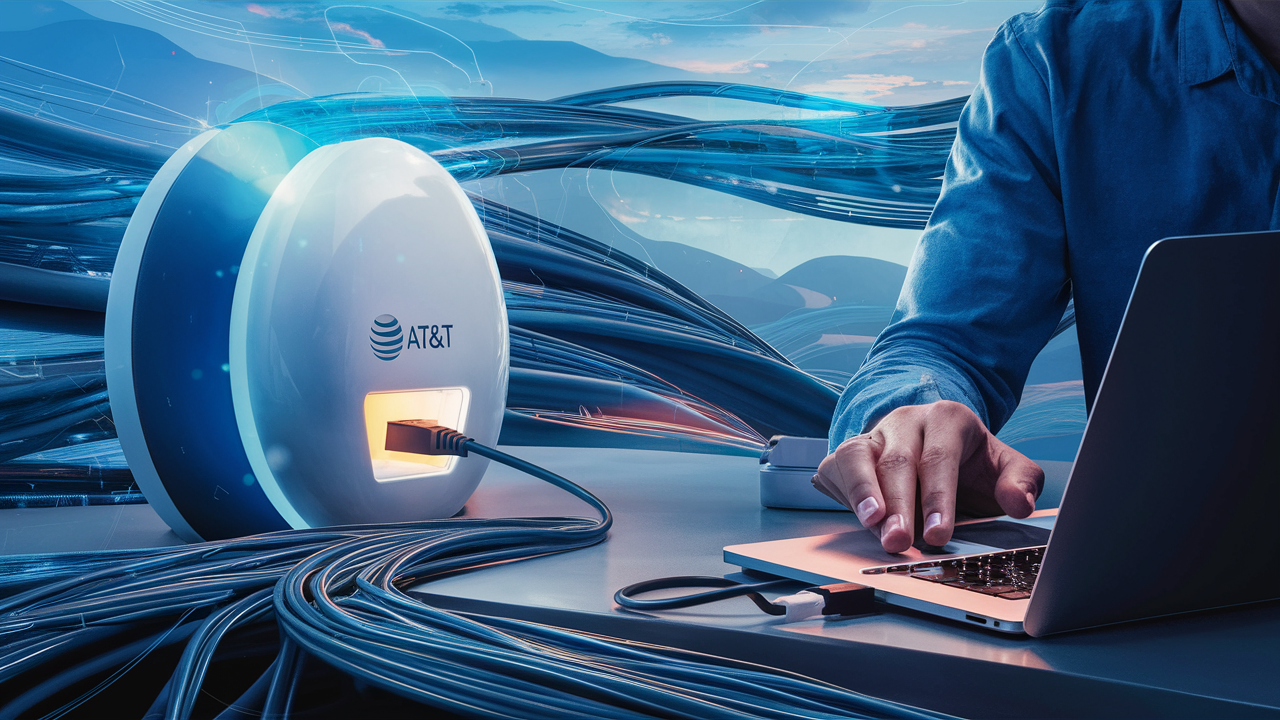
Connecting to AT&T internet is a straightforward process, whether you're setting up a new service or troubleshooting an existing connection. This guide will walk you through the essential steps, from choosing your plan to getting your modem and router online, ensuring a seamless internet experience for your home or business. We cover everything you need to know to get connected.
Understanding AT&T Internet Options
AT&T offers a variety of internet technologies to suit different needs and locations. Understanding these options is the first step to a successful connection. As of 2025-26, AT&T continues to expand its fiber optic network while also providing reliable DSL and fixed wireless services.
Fiber Optic Internet (AT&T Fiber)
AT&T Fiber is their premium internet service, utilizing fiber optic cables that run directly to your home. This technology offers the fastest speeds, lowest latency, and greatest reliability. Speeds can range from 300 Mbps to over 5 Gigabits per second (Gbps), making it ideal for heavy internet users, gamers, streamers, and large households with many connected devices. The availability of AT&T Fiber is expanding rapidly across major metropolitan areas and growing suburban communities. In 2025, AT&T announced significant investments to further its fiber deployment, aiming to reach millions more homes by 2027.
Key Benefits of AT&T Fiber:
- Blazing-fast download and upload speeds.
- Consistent performance, unaffected by network congestion.
- Low latency, crucial for real-time applications like online gaming and video conferencing.
- Future-proof technology for evolving internet demands.
DSL Internet (AT&T Internet)
AT&T DSL (Digital Subscriber Line) uses existing telephone lines to deliver internet service. While generally slower than fiber, it offers a stable connection and is widely available in areas where fiber has not yet been deployed. Speeds for AT&T DSL typically range from 6 Mbps to 100 Mbps, depending on the distance from the local exchange and the specific DSL plan. For many households with moderate internet usage, such as browsing, email, and standard definition streaming, DSL can be a perfectly adequate solution. AT&T continues to offer and support its DSL network, especially in rural and underserved areas.
When DSL is a Good Choice:
- When AT&T Fiber is not available in your area.
- For households with basic internet needs.
- As a more affordable internet option.
Fixed Wireless Internet (AT&T Fixed Wireless Internet)
AT&T Fixed Wireless Internet provides broadband internet access to rural and underserved areas where traditional wired connections are impractical. This service uses a wireless signal transmitted from a local tower to an antenna installed at your home. Speeds can vary but generally offer a significant improvement over dial-up or satellite internet, often in the range of 25 Mbps to 100 Mbps. This is a viable option for those looking for a reliable internet connection outside of major urban centers. AT&T's commitment to bridging the digital divide means continued investment in fixed wireless infrastructure.
Advantages of Fixed Wireless:
- Available in many rural locations.
- Faster than traditional dial-up or some satellite options.
- Often more stable than satellite internet due to less susceptibility to weather interference.
Choosing the Right Plan
When deciding which AT&T internet service and plan is best for you, consider the following:
- Speed Requirements: How many people will be using the internet simultaneously? What activities will they be doing (streaming, gaming, working from home, etc.)?
- Availability: Check AT&T's website for service availability at your specific address.
- Budget: Compare the monthly costs, installation fees, and any equipment rental charges.
- Contract Terms: Understand if there are any long-term contracts required.
For the most up-to-date information on plans and pricing, it's always recommended to visit the official AT&T website.
Getting Started: New AT&T Internet Service
If you're a new customer looking to establish AT&T internet service, the process involves a few key steps. This section guides you through ordering, scheduling installation, and preparing for your new connection.
1. Check Availability and Choose Your Plan
The very first step is to visit the AT&T website or call their sales department to check for service availability at your address. You'll need to provide your street address. Once you confirm availability, you can explore the different internet plans offered for your location. Consider the speed tiers and data allowances to match your household's needs. As of 2025, AT&T is actively promoting its fiber plans, so if it's available, it's often the recommended choice for optimal performance.
2. Place Your Order
Once you've selected a plan, you can place your order online or over the phone. You'll need to provide your personal information, including your name, address, and contact details. You'll also be asked to choose an installation date. For AT&T Fiber, professional installation is typically required to ensure the fiber optic cable is correctly run to your home and connected to the network.
3. Installation Scheduling and Requirements
After placing your order, you'll be given a date and time window for the installation. It's crucial to ensure someone over 18 is present at the property during the entire window. The technician will need access to the location where the modem and router will be installed, as well as potential entry points for cables. For fiber installations, this might involve drilling small holes for the fiber optic cable to enter the home. For DSL, the technician will ensure the connection to the phone line is optimal.
What to Expect During Installation:
- Arrival: The technician will arrive within the scheduled window.
- Assessment: They will assess the best location for the equipment, typically near a power outlet and where you want your Wi-Fi network to be strongest.
- Cabling: For fiber, they will run the fiber optic cable from the outside demarcation point to the interior gateway device. For DSL, they will connect to your existing phone jack.
- Equipment Setup: The technician will install and configure the AT&T gateway (modem/router combo) or separate modem and router.
- Testing: They will test the connection to ensure it's active and performing optimally.
- Wi-Fi Setup: They will help you set up your Wi-Fi network name (SSID) and password.
The installation process for AT&T Fiber typically takes between 2 to 4 hours, depending on the complexity of the home and the routing of the cable. DSL installations are generally quicker, often under an hour.
4. Equipment Options
AT&T provides gateway devices that combine modem and router functionalities. You can either rent an AT&T gateway for a monthly fee or, in some cases, use your own compatible modem/router. However, for AT&T Fiber, using their provided gateway is usually mandatory to ensure compatibility and access to their advanced network features. For DSL, compatibility with your own modem can be more common, but renting from AT&T often simplifies troubleshooting.
Setting Up Your AT&T Internet Equipment
Once your service is installed or if you're setting up equipment yourself for a self-install option (less common for fiber), the next step is to connect and configure your AT&T gateway. This process is designed to be user-friendly.
Step-by-Step Setup Guide
Follow these steps to get your AT&T internet equipment up and running:
Step 1: Unpack and Connect the Gateway
If you received equipment for self-installation or are replacing an old device, unpack the AT&T gateway. Locate the power adapter and the coaxial cable (for some DSL/older setups) or Ethernet cable. Connect the power adapter to the gateway and plug it into a nearby electrical outlet. If your service requires a coaxial cable connection to a wall jack, connect that now. For fiber, the connection will be made by the technician, and you'll simply plug in the power.
Step 2: Power On the Gateway
Turn on the gateway using the power button. The device will go through a boot-up sequence, which can take several minutes. Look for indicator lights on the front of the gateway. These lights will typically show power status, internet connection status, and Wi-Fi broadcasting. Consult your gateway's manual or the AT&T setup guide for the specific meaning of each light.
Step 3: Connect to the Gateway (Initial Setup)
Your AT&T gateway will broadcast a default Wi-Fi network. The network name (SSID) and password are usually printed on a sticker on the bottom or back of the gateway. On your computer, smartphone, or tablet, go to your Wi-Fi settings and connect to this default network. You will then be prompted to set up your personalized Wi-Fi network name and password.
Step 4: Access the Gateway Configuration Interface
Open a web browser on a device connected to the gateway's Wi-Fi. Type the gateway's IP address into the address bar. This is commonly 192.168.1.254 or att.com/wifi. You may need to log in using the default administrator username and password, also found on the gateway sticker. This interface allows you to customize your network settings.
Step 5: Personalize Your Wi-Fi Network
Within the gateway's configuration interface, you can change the Wi-Fi network name (SSID) and create a strong, unique password. It's recommended to use a combination of upper and lowercase letters, numbers, and symbols. You can also choose to set up a separate guest network if desired.
Step 6: Update Gateway Firmware
Ensure your gateway's firmware is up-to-date. The configuration interface usually has an option to check for and install firmware updates. Keeping the firmware current is important for security and performance.
Gateway Indicator Lights Explained
Understanding the lights on your AT&T gateway is crucial for diagnosing connection issues. While specific light patterns vary by model, here's a general guide:
| Light Name | Color/State | Meaning |
|---|---|---|
| Power | Solid Green | Gateway is powered on and functioning correctly. |
| Broadband/DSL/Fiber | Solid Green/Blue | Active internet connection established. |
| Broadband/DSL/Fiber | Flashing Green/Blue | Attempting to establish an internet connection. |
| Broadband/DSL/Fiber | Off/Red | No internet connection detected or a fault. |
| Wi-Fi | Solid Green/Blue | Wi-Fi network is broadcasting. |
| Wi-Fi | Flashing Green/Blue | Data is actively being transmitted over Wi-Fi. |
| Internet/Online | Solid Green/Blue | Connected to the AT&T network. |
| Internet/Online | Flashing Green/Blue | Connecting to the AT&T network. |
| Internet/Online | Off/Red | Not connected to the AT&T network. |
Always refer to your specific AT&T gateway model's manual for precise light indicators.
Connecting Devices to Your AT&T Network
Once your AT&T internet is set up and your gateway is broadcasting a Wi-Fi signal, you can connect your various devices. This includes computers, smartphones, tablets, smart TVs, gaming consoles, and smart home devices.
Connecting via Wi-Fi
This is the most common method for connecting devices wirelessly.
- On your device: Navigate to the Wi-Fi settings.
- Scan for networks: Your device will scan for available Wi-Fi networks.
- Select your network: Choose the Wi-Fi network name (SSID) you set up for your AT&T internet.
- Enter password: When prompted, enter the Wi-Fi password you created.
- Connect: Your device should now connect to your AT&T network.
For devices that support WPS (Wi-Fi Protected Setup), you can often connect by pressing the WPS button on your AT&T gateway and then pressing the WPS button on your device within a short timeframe.
Connecting via Ethernet Cable
For devices that require the most stable and fastest connection, or if you prefer a wired setup, you can use an Ethernet cable.
- Locate Ethernet Ports: Your AT&T gateway will have multiple Ethernet ports (usually labeled LAN 1, LAN 2, etc.).
- Connect Cable: Plug one end of an Ethernet cable into an available Ethernet port on your gateway.
- Connect to Device: Plug the other end of the Ethernet cable into the Ethernet port on your device (e.g., computer, gaming console, smart TV).
- Automatic Configuration: Most devices will automatically detect the wired connection and establish internet access.
Ethernet connections are ideal for high-bandwidth activities like online gaming, 4K streaming, and large file transfers, as they bypass potential Wi-Fi interference.
Connecting Smart Home Devices
Smart home devices, such as smart speakers, thermostats, and security cameras, typically connect via Wi-Fi. Ensure your Wi-Fi signal is strong enough in the areas where these devices will be placed. You may need to use a Wi-Fi extender or mesh system if you have dead spots.
When connecting smart devices, you'll usually follow a similar Wi-Fi connection process through their respective mobile apps. Some devices may require you to temporarily connect to a setup network broadcast by the device itself before linking it to your main AT&T Wi-Fi network.
Managing Connected Devices
You can often view and manage the devices connected to your AT&T network through the gateway's configuration interface. This allows you to see which devices are online, their IP addresses, and sometimes even set up parental controls or prioritize certain devices for bandwidth.
Troubleshooting Common AT&T Internet Connection Issues
Even with a reliable service like AT&T's, you might occasionally encounter connection problems. Here's how to troubleshoot some of the most common issues.
No Internet Connection
This is the most frustrating problem. Start with these basic checks:
- Check Gateway Lights: Refer to the indicator light table above. If the broadband or internet light is off or red, there's likely an issue with the connection from AT&T.
- Restart Your Gateway: Unplug the power adapter from your AT&T gateway, wait for about 30 seconds, and then plug it back in. Allow the gateway a few minutes to fully boot up and re-establish the connection. This simple step resolves many temporary glitches.
- Check Cables: Ensure all cables (power, Ethernet, coaxial, fiber optic if applicable) are securely plugged into both the gateway and the wall outlets.
- Test with a Wired Connection: If you're having Wi-Fi issues, try connecting a computer directly to the gateway using an Ethernet cable. If you get internet access via Ethernet, the problem is likely with your Wi-Fi.
- Check for Outages: Visit the AT&T Service Outage page or use the AT&T Smart Home Manager app to see if there's a known outage in your area.
Slow Internet Speeds
If your internet is slow, consider these possibilities:
- Run a Speed Test: Use a reliable speed test tool (like Ookla Speedtest or AT&T's own speed test tool) to measure your current download and upload speeds. Compare these results to the speeds advertised in your plan.
- Too Many Devices: If many devices are using the internet simultaneously for bandwidth-intensive activities, it can slow down the overall connection.
- Wi-Fi Interference: Other electronic devices (microwaves, cordless phones) or neighboring Wi-Fi networks can interfere with your signal. Try changing your Wi-Fi channel in the gateway settings.
- Distance from Gateway: Wi-Fi signal strength decreases with distance. Try moving closer to the gateway or consider a Wi-Fi extender.
- Outdated Equipment: Older modems or routers might not be able to handle higher speeds. Ensure your AT&T gateway is a current model.
- Check for Malware: Malicious software on your devices can consume bandwidth. Run a virus scan.
Wi-Fi Connectivity Issues
If devices can't connect to your Wi-Fi or the connection is intermittent:
- Restart Gateway: As mentioned, a simple reboot can fix many Wi-Fi issues.
- Check Wi-Fi Password: Ensure you are entering the correct Wi-Fi password.
- Signal Strength: If the signal is weak, move closer to the gateway or consider a Wi-Fi extender.
- Gateway Placement: Ensure your gateway is placed in a central, open location, away from obstructions and sources of interference.
- Change Wi-Fi Channel: Access your gateway's settings and try switching to a less congested Wi-Fi channel.
Contacting AT&T Support
If you've tried the basic troubleshooting steps and are still experiencing issues, it's time to contact AT&T customer support. They can remotely diagnose your connection, check for line issues, and schedule a technician visit if necessary. Have your account number and a description of the problem ready when you call.
Optimizing Your AT&T Internet Performance
Once you're connected, you'll want to ensure your AT&T internet is performing at its best. Here are some tips to optimize your connection and Wi-Fi experience.
1. Strategic Gateway Placement
The location of your AT&T gateway significantly impacts Wi-Fi performance. For optimal coverage:
- Central Location: Place the gateway in a central area of your home to distribute the Wi-Fi signal evenly.
- Elevated Position: Avoid placing it on the floor. A shelf or tabletop is ideal.
- Away from Obstructions: Keep it clear of large furniture, metal objects, and thick walls that can block signals.
- Minimize Interference: Place it away from other electronics like microwaves, cordless phones, and Bluetooth devices.
2. Utilize the AT&T Smart Home Manager App
The AT&T Smart Home Manager app is a powerful tool for managing your home network. It allows you to:
- View and manage connected devices.
- Pause internet access for specific devices.
- Perform speed tests.
- Change Wi-Fi network name and password.
- Troubleshoot common issues.
- Check for service outages.
Download and familiarize yourself with this app for easy network management.
3. Consider a Wi-Fi Extender or Mesh System
If you have a large home or areas with weak Wi-Fi signals (dead spots), a Wi-Fi extender or a mesh Wi-Fi system can significantly improve coverage. A mesh system, in particular, creates a single, seamless Wi-Fi network throughout your home using multiple nodes.
4. Prioritize Devices and Bandwidth
Some AT&T gateways offer Quality of Service (QoS) settings. This allows you to prioritize certain devices or types of traffic (e.g., video streaming, gaming) over others, ensuring a smoother experience for your most critical online activities, especially when the network is busy.
5. Keep Firmware Updated
Regularly check for and install firmware updates for your AT&T gateway. These updates often include performance enhancements, security patches, and bug fixes that can improve your internet experience.
6. Optimize Device Settings
On your individual devices, ensure that background applications aren't consuming excessive bandwidth. Close unnecessary tabs, applications, and downloads when not in use. For gaming and streaming, consider using wired Ethernet connections whenever possible.
7. Understand Your Plan's Limitations
Be aware of the data caps or speed limitations of your specific AT&T internet plan. If you consistently exceed your data allowance, you might incur overage charges or experience throttled speeds. For heavy users, upgrading to a plan with higher speeds or unlimited data might be necessary.
Advanced Connection Considerations
For users with more specific needs or those looking to fine-tune their network, several advanced considerations can enhance their AT&T internet experience.
Using Your Own Router (BYOD)
While AT&T gateways often combine modem and router functionalities, some users prefer to use their own high-performance routers. For AT&T Fiber, this typically involves putting the AT&T gateway into "IP Passthrough" or "Bridge Mode" (terminology may vary by model). This allows your own router to handle all the routing and Wi-Fi functions, bypassing the AT&T gateway's routing capabilities.
Steps for IP Passthrough/Bridge Mode:
- Access your AT&T gateway's configuration interface.
- Navigate to the advanced settings or firewall section.
- Look for an option like "IP Passthrough," "DMZplus," or "Bridge Mode."
- Configure it to pass the public IP address to your router's WAN port. You'll typically need to specify your router's MAC address.
- Connect your router's WAN port to one of the LAN ports on the AT&T gateway.
- Configure your own router with your desired network settings.
Note: This process can be complex and may vary significantly between AT&T gateway models. Always consult AT&T's support documentation or forums for your specific gateway. Using your own router may also affect your ability to receive certain AT&T technical support for Wi-Fi issues.
Static IP Addresses
Most residential AT&T internet plans use dynamic IP addresses, which can change periodically. For businesses or users who host servers, run VPNs, or require remote access to their network, a static IP address is often necessary. AT&T offers static IP addresses as an add-on service, particularly for their business internet plans. A static IP address remains constant, making it easier for external services to find and connect to your network.
Network Security Best Practices
Securing your AT&T internet connection is paramount. Implement the following:
- Strong Wi-Fi Password: Use WPA3 encryption if supported by your gateway and devices. Avoid simple, easily guessable passwords.
- Change Default Credentials: Always change the default administrator username and password for your AT&T gateway.
- Enable Firewall: Ensure your gateway's built-in firewall is enabled.
- Regularly Update Firmware: As mentioned, this is crucial for patching security vulnerabilities.
- Guest Network: Use a separate guest network for visitors to keep your main network secure.
- Be Wary of Phishing: Never share your AT&T account information or passwords via unsolicited emails or calls.
Understanding Bandwidth and Data Usage
In 2025-26, understanding your bandwidth and data usage is key to managing your internet experience and costs. AT&T Fiber plans typically offer unlimited data, but DSL and some other plans might have data caps. Monitor your usage through the AT&T Smart Home Manager app or your account portal. If you find yourself consistently hitting data limits, explore plans with higher data allowances or unlimited data options.
VoIP and AT&T Services
If you use AT&T's Voice over IP (VoIP) phone service, ensure your internet connection is stable and has sufficient upload and download speeds. VoIP requires a consistent and low-latency connection to function without dropped calls or poor audio quality. Prioritizing VoIP traffic through QoS settings on your router can be beneficial.
By understanding these advanced considerations, you can further optimize your AT&T internet connection for performance, security, and specific use cases.
Conclusion
Connecting to AT&T internet, whether it's the lightning-fast AT&T Fiber, reliable DSL, or accessible Fixed Wireless, is a process designed for ease and efficiency. We've covered everything from understanding your service options and placing an order to the detailed steps of setting up your equipment and connecting your devices. You've learned how to interpret gateway lights, troubleshoot common issues like slow speeds or no connection, and optimize your network for peak performance. Remember that strategic gateway placement, utilizing the Smart Home Manager app, and considering Wi-Fi extenders can significantly enhance your in-home Wi-Fi experience. For those seeking more control, options like IP Passthrough for BYOD routers and understanding static IP addresses are available. Prioritizing network security through strong passwords and regular updates is also paramount. By following these comprehensive guidelines, you can ensure a stable, fast, and secure AT&T internet connection tailored to your needs. Should you encounter persistent issues, don't hesitate to leverage AT&T's support resources. Your seamless online experience starts with a proper connection, and this guide provides the roadmap to achieve it.