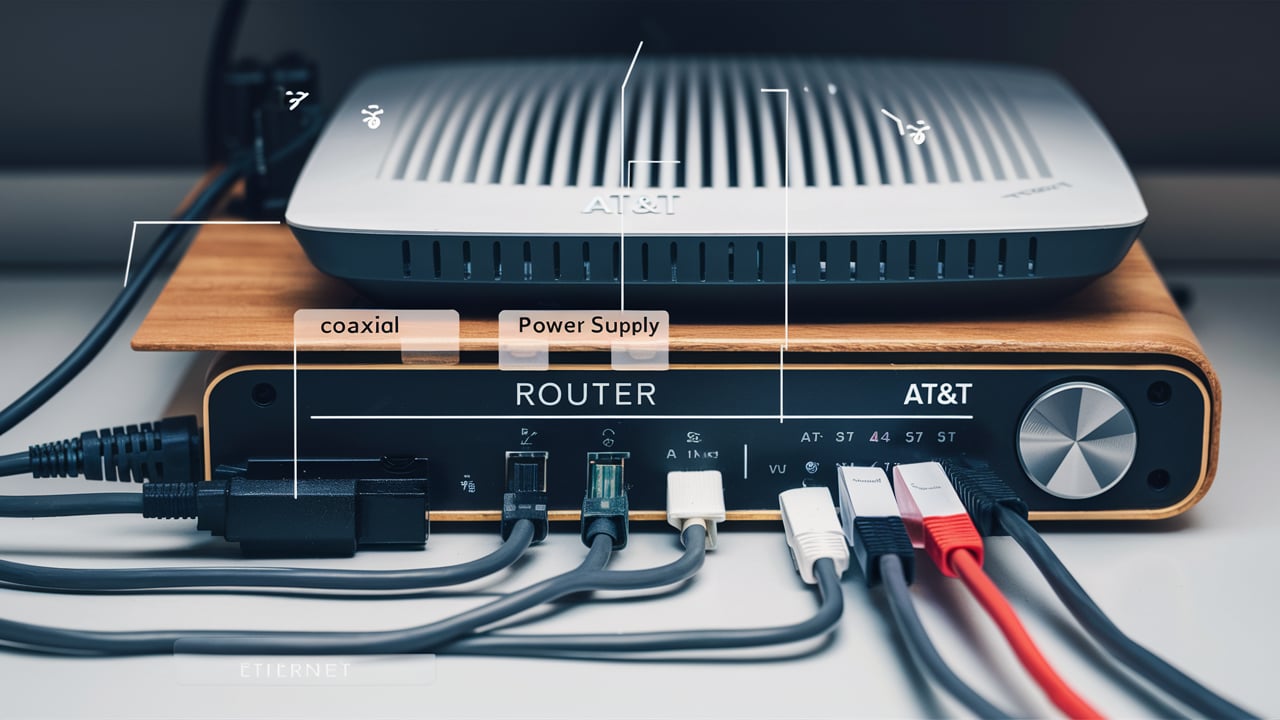
Connecting to AT&T Fiber is a straightforward process designed for maximum convenience. This guide will walk you through every step, from understanding your equipment to troubleshooting common issues, ensuring you get online quickly and efficiently. We aim to provide a comprehensive resource, answering all your questions about AT&T Fiber setup.
Understanding Your AT&T Fiber Setup
Connecting to AT&T Fiber internet is an exciting step towards a faster, more reliable online experience. Unlike traditional cable or DSL, fiber optic internet utilizes light signals transmitted through thin strands of glass, offering unparalleled speed and low latency. This means quicker downloads, smoother streaming, and a more responsive gaming experience. When you sign up for AT&T Fiber, you're not just getting an internet service; you're investing in a future-proof connection capable of handling the ever-increasing demands of modern digital life. Understanding the components and the process is key to a successful setup.
The core of your AT&T Fiber setup involves a few key pieces of equipment. Primarily, you'll encounter the Optical Network Terminal (ONT). This device is crucial as it converts the light signals from the AT&T fiber optic cable into electrical signals that your home network can understand. It's the gateway from the AT&T network into your home. Following the ONT, you'll typically have an AT&T-provided gateway, which acts as both a modem and a router. This all-in-one device manages your internet connection and broadcasts your Wi-Fi signal throughout your home. For those with larger homes or specific networking needs, you might also consider extending your network with additional Wi-Fi extenders or a mesh system, though AT&T's advanced gateways often provide robust coverage on their own.
The installation process itself is designed to be as seamless as possible. AT&T offers both professional installation, where a trained technician handles everything, and in some cases, a self-installation option for customers who are comfortable with basic setup. Regardless of the method chosen, the goal is to get you connected to the high-speed AT&T Fiber network efficiently. This guide will delve into the specifics of each stage, ensuring you have all the information needed to make your AT&T Fiber connection a success.
Before You Begin: What to Expect
Before your AT&T Fiber installation day arrives, it's essential to prepare your home and understand the general process. This proactive approach minimizes potential delays and ensures a smooth transition to your new high-speed internet service. AT&T aims to make this as user-friendly as possible, but a little preparation goes a long way.
Confirming Service Availability and Your Appointment
The first step, which you've likely already completed, is confirming that AT&T Fiber is available at your address. You can usually do this on the AT&T website or by speaking with a customer service representative. Once you've ordered service, you'll be given an installation appointment. It's crucial to confirm this date and time, noting any specific instructions provided by AT&T. If you need to reschedule, do so as soon as possible to avoid any inconvenience.
Preparing Your Home for Installation
For a professional installation, AT&T technicians will need access to the location where the fiber line will enter your home and where the ONT and gateway will be placed. Ideally, choose a central location for your gateway to maximize Wi-Fi coverage. Ensure the area is accessible and clear of obstructions. The technician will typically run a fiber cable from the outside of your home to this interior location. They will also need access to a power outlet for the equipment.
Consider the following:
- Equipment Placement: Think about where you want your modem/router to be. A central, elevated location is usually best for Wi-Fi signal distribution. Avoid placing it near large metal objects or appliances that can interfere with the signal.
- Power Source: Ensure there's a working electrical outlet near the chosen location for the ONT and gateway.
- Access: The technician will need to access the exterior of your home to connect the fiber line and potentially drill a small hole to bring it inside. Make sure this area is accessible.
- Pet Safety: If you have pets, ensure they are secured during the installation process to prevent them from interfering with the technician or getting into any hazardous situations.
Understanding the Equipment
AT&T typically provides a gateway device that combines modem and router functionalities. For fiber, this device connects to the ONT. The ONT is a small box that the fiber optic cable plugs into. The technician will install both. In some cases, AT&T may use a separate ONT and gateway, or an all-in-one unit. Familiarize yourself with the basic indicators on the equipment, such as power lights, internet connection lights, and Wi-Fi status lights. This will be helpful during setup and troubleshooting.
What to Do on Installation Day
On the day of your appointment, be present at home. The technician will arrive within the scheduled window. They will assess the best location for the installation, discuss the process with you, and then proceed with running the necessary cables and setting up the equipment. The installation typically takes between 1 to 3 hours, depending on the complexity. After the installation is complete, the technician will test the connection to ensure it's working correctly and help you get your first device online.
The Installation Process: DIY vs. Professional
When you sign up for AT&T Fiber, you'll generally have two options for getting your service installed: professional installation or, in select areas and for certain service types, self-installation. Each has its own advantages and is suited to different customer needs and technical comfort levels. Understanding these differences will help you choose the best path for your AT&T Fiber connection.
Professional Installation
This is the most common and recommended method for AT&T Fiber. A certified AT&T technician will visit your home on a scheduled date and time to set up your service. This ensures that everything is installed correctly, from the external fiber connection to the internal equipment and Wi-Fi setup.
Benefits of Professional Installation:
- Expertise: Technicians are trained to handle all aspects of the installation, including navigating your home's structure and ensuring optimal equipment placement.
- Troubleshooting: They can immediately identify and resolve any issues that arise during the setup.
- Full Service: The technician will connect the ONT, set up the gateway, test the connection, and ensure your Wi-Fi is broadcasting. They can also assist with connecting your first device.
- Minimal Risk: Reduces the risk of incorrect installation or damage to your property.
- Speed: While it requires an appointment, a professional installation is often quicker in terms of getting you fully operational due to the technician's experience.
Process Overview:
- Appointment Scheduling: You'll book a date and time for the technician's visit.
- Arrival and Assessment: The technician arrives, assesses your home, and discusses the best placement for equipment.
- Fiber Entry: The technician will run a fiber cable from the outside network demarcation point to your home. This may involve drilling a small hole.
- Equipment Setup: The ONT and AT&T gateway are installed and connected.
- Testing: The technician tests the internet speed and connection stability.
- Wi-Fi Configuration: The Wi-Fi network is set up with your chosen network name (SSID) and password.
- Customer Walkthrough: The technician explains the setup and answers any questions.
Self-Installation
In some cases, AT&T may offer a self-installation option. This is typically available for customers who are already familiar with setting up modems and routers, or where the existing AT&T infrastructure is already in place and requires minimal external work. It's often an option for upgrading service or moving equipment within the same location.
Benefits of Self-Installation:
- Flexibility: You can install the service on your own schedule without waiting for an appointment.
- Cost Savings: AT&T often waives installation fees for self-installation.
- Control: You have complete control over the setup process.
When Self-Installation Might Be Available:
- Existing fiber optic wiring is already present in the home.
- The service is an upgrade or relocation within the same premises.
- The customer has a high degree of technical confidence.
Process Overview (if available):
- Equipment Shipment: AT&T ships the necessary equipment (ONT, gateway, cables) to your home.
- Instructional Materials: You receive detailed instructions, often with video guides, on how to connect everything.
- Connection: You connect the ONT to the incoming fiber line and then connect the gateway to the ONT.
- Activation: You follow on-screen prompts or online instructions to activate your service.
- Troubleshooting: You are responsible for troubleshooting any issues that arise.
Choosing the Right Option
For most users, especially those new to fiber internet or AT&T Fiber, **professional installation is highly recommended**. It guarantees a correct setup, minimizes potential problems, and provides peace of mind. If you're very tech-savvy, comfortable with basic wiring, and AT&T confirms self-installation is an option for your specific service and location, it can be a convenient and cost-effective choice. Always check with AT&T directly about your eligibility for self-installation.
Step-by-Step Guide for Professional Installation
The professional installation of AT&T Fiber is designed to be a seamless experience. A trained technician handles the technical aspects, allowing you to focus on enjoying your new high-speed internet. Here’s a detailed breakdown of what to expect during a typical professional installation:
1. Pre-Installation Confirmation and Preparation
Your Role: Before the technician arrives, ensure you've confirmed your appointment details. Clear the areas around where the fiber line might enter your home and where you'd like the AT&T gateway placed. Ensure there's access to a power outlet near the intended gateway location. If you have pets, make arrangements to keep them safely contained during the appointment.
AT&T's Role: AT&T will have dispatched a technician equipped with the necessary tools and equipment, including the ONT, gateway, fiber optic cable, and testing devices.
2. Technician Arrival and Site Assessment
What Happens: The technician will arrive within the scheduled appointment window. They will greet you and briefly discuss the installation plan. They will assess the exterior of your home to determine the best point of entry for the fiber optic cable and the optimal route to your desired interior equipment location. They will also confirm the interior placement of the ONT and gateway, ensuring it's in a suitable spot for connectivity and Wi-Fi coverage.
Your Involvement: This is your opportunity to communicate any specific preferences or concerns you have regarding equipment placement or cable routing. The technician will explain their proposed plan.
3. Fiber Cable Installation
What Happens: The technician will run a thin fiber optic cable from the AT&T network's point of entry outside your home to the chosen interior location. This usually involves drilling a small hole (typically about the size of a dime) through an exterior wall. The cable is then carefully routed to the designated spot for the ONT. The technician will ensure the cable is securely and neatly installed, minimizing its visual impact.
Considerations:
- Drilling: If drilling is required, the technician will seek your approval for the location. They use specialized tools to minimize disruption.
- Cable Routing: The technician will aim for the least intrusive route, often along existing utility lines or through inconspicuous entry points.
4. ONT (Optical Network Terminal) Installation
What Happens: The ONT is a small device that converts the optical signals from the fiber cable into electrical signals. The technician will mount the ONT securely near the power outlet and the point where the fiber cable enters your home. They will then connect the fiber optic cable to the ONT.
Importance: The ONT is the critical link between the AT&T network and your home's internal network.
5. AT&T Gateway (Modem/Router) Installation
What Happens: The technician will connect the AT&T gateway to the ONT using an Ethernet cable. The gateway will then be plugged into the nearby power outlet. This device serves as both your modem and your Wi-Fi router, broadcasting the internet signal throughout your home.
Placement: The technician will place the gateway in the location you agreed upon, ensuring it's stable and has adequate ventilation.
6. Equipment Activation and Testing
What Happens: Once the hardware is in place, the technician will power on the ONT and gateway. They will then activate your service through AT&T's system. This process involves the equipment communicating with AT&T's network to establish a connection. The technician will use diagnostic tools to verify the internet speed and signal strength, ensuring it meets the specifications of your chosen AT&T Fiber plan.
Verification: You may see various lights on the gateway and ONT illuminate as the connection is established.
7. Wi-Fi Network Setup
What Happens: The technician will configure your Wi-Fi network. This includes setting the network name (SSID) and password. They will typically use a default name and password, or guide you through setting up your own. They will ensure the Wi-Fi signal is broadcasting effectively from the gateway's location.
Customization: You can often customize the Wi-Fi name and password during this step. The technician can advise on best practices for strong, secure passwords.
8. Final Checks and Customer Walkthrough
What Happens: The technician will perform a final check of all connections and settings. They will then connect at least one of your devices (e.g., a smartphone or laptop) to the Wi-Fi to demonstrate that the internet is working. They will explain the basic functions of the equipment, how to access your Wi-Fi settings, and provide you with any necessary documentation, such as your network name and password.
Your Questions: This is the ideal time to ask any remaining questions you have about your AT&T Fiber service, the equipment, or basic troubleshooting.
By following these steps, you can be well-prepared for your AT&T Fiber professional installation, ensuring a smooth and efficient setup process.
Setting Up Your AT&T Fiber Modem and Router
For AT&T Fiber, the "modem" and "router" are typically combined into a single device known as the AT&T Gateway. This device connects to the Optical Network Terminal (ONT), which is the actual interface for the fiber optic cable. Setting up this gateway is crucial for establishing your home network. Whether it's a professional installation or a self-installation, understanding the setup process for your AT&T Fiber gateway is key.
Understanding the AT&T Gateway
The AT&T Gateway is the central hub of your home network. It:
- Connects to the ONT: Receives the internet signal from the fiber line via the ONT.
- Provides Wi-Fi: Broadcasts a wireless network (SSID) that your devices can connect to.
- Offers Ethernet Ports: Allows for wired connections to devices like computers, gaming consoles, or smart TVs for a more stable connection.
- Manages Network Traffic: Directs data to and from your connected devices.
AT&T provides specific gateway models, and the exact appearance and features might vary. Always refer to the user manual that came with your specific gateway for the most accurate instructions.
Step-by-Step Setup (for Self-Installation or Post-Professional Setup)
If you're performing a self-installation or need to re-set up your gateway after a professional installation, follow these general steps:
1. Unboxing and Placement
Carefully unbox your AT&T Gateway and any accompanying cables. Place the gateway in a central, open location in your home, away from obstructions, large metal objects, or other electronics that could cause interference (like microwaves). Ensure it's near a power outlet.
2. Connecting the ONT to the Gateway
Locate the Ethernet cable provided. One end of this cable connects to the Ethernet port on your ONT, and the other end connects to the WAN (Wide Area Network) or Internet port on your AT&T Gateway. The WAN port is usually colored differently or labeled specifically. The ONT itself should already be connected to the incoming fiber line.
Important: Ensure the fiber optic cable is securely connected to the ONT and that the ONT is powered on and has established a connection (indicated by status lights).
3. Powering On the Gateway
Connect the power adapter to the AT&T Gateway and plug it into a working electrical outlet. The gateway will begin to power up. This process can take several minutes. You'll typically see indicator lights on the front of the device begin to illuminate.
4. Waiting for Initialization
Allow the gateway sufficient time to boot up and establish a connection with the AT&T network. This can take up to 15 minutes. The indicator lights will signal when the internet connection is ready. Consult your gateway's manual for specific light meanings.
5. Accessing the Gateway's Interface (Optional but Recommended)
Once the gateway is online, you can access its web-based interface to configure settings, change your Wi-Fi name and password, and view network status. To do this:
- Connect a computer or mobile device to the gateway's Wi-Fi network (the default network name and password are often printed on a sticker on the gateway itself).
- Open a web browser (like Chrome, Firefox, or Safari).
- Type the gateway's IP address into the address bar. Common AT&T gateway IP addresses include 192.168.1.254.
- You may be prompted for a username and password. These are also typically found on the gateway's sticker.
Within the interface, you can:
- Change Wi-Fi Name (SSID) and Password: This is highly recommended for security and personalization. Choose a strong password.
- Set Up a Guest Network: If your gateway supports it, a guest network can provide internet access to visitors without giving them access to your main network.
- View Connected Devices: See which devices are currently using your network.
- Check Internet Status: Monitor your connection speed and stability.
6. Connecting Your Devices
Once the gateway is set up and broadcasting Wi-Fi, you can connect your devices:
- Wi-Fi: On your device (smartphone, tablet, laptop, smart TV), go to Wi-Fi settings, select your AT&T network name (SSID), and enter the password.
- Wired Connection: For devices that benefit from a stable connection (e.g., gaming consoles, desktop computers), use an Ethernet cable to connect them directly to one of the LAN ports on the AT&T Gateway.
Troubleshooting Common Setup Issues
- No Internet Connection: Check that all cables are securely connected (ONT to gateway, gateway to power). Ensure the ONT has power and is showing a stable connection light. Reboot both the ONT and the gateway by unplugging them, waiting 30 seconds, and plugging them back in.
- Weak Wi-Fi Signal: Try repositioning the gateway to a more central location. Consider using Wi-Fi extenders or a mesh system if you have a large home or many dead spots.
- Cannot Access Gateway Interface: Double-check the IP address and login credentials. Ensure your device is connected to the AT&T gateway's network. Try clearing your browser's cache.
For specific troubleshooting steps related to your AT&T Gateway model, always refer to the official AT&T support resources or the user manual.
Connecting Your Devices to AT&T Fiber
Once your AT&T Fiber service is installed and your AT&T Gateway is set up and broadcasting a Wi-Fi signal, the next crucial step is connecting your various devices to this high-speed network. This process is generally straightforward, whether you're using a wireless or wired connection.
Connecting via Wi-Fi (Wireless Connection)
This is the most common method for connecting smartphones, tablets, laptops, smart TVs, and many other wireless-enabled devices. The process involves selecting your AT&T network and entering your password.
Steps for Connecting a Wi-Fi Device:
- Enable Wi-Fi: On your device, navigate to its Wi-Fi settings. Ensure Wi-Fi is turned on.
- Scan for Networks: Your device will scan for available Wi-Fi networks.
- Select Your Network: Look for your AT&T network name (SSID). This is the name you or the technician set up. If you haven't changed it, it might be a default name provided by AT&T, often found on a sticker on your gateway.
- Enter Password: Once you select your network, you'll be prompted to enter the Wi-Fi password. This is also typically found on the gateway sticker or is the custom password you set. Passwords are case-sensitive.
- Connect: After entering the correct password, your device should connect to the network. You'll usually see a Wi-Fi icon appear on your device's status bar, indicating a successful connection.
Tips for Wi-Fi Connectivity:
- Signal Strength: For the best performance, ensure your device is within a reasonable range of the AT&T Gateway.
- Network Band: Modern AT&T Gateways often broadcast on both 2.4 GHz and 5 GHz bands. The 2.4 GHz band offers a wider range but slower speeds, while the 5 GHz band offers faster speeds but a shorter range. Connect to the 5 GHz band when you're closer to the gateway for optimal speed.
- Restart Device: If you're having trouble connecting, try restarting your device.
Connecting via Ethernet Cable (Wired Connection)
For devices that require the most stable and fastest connection, or for those that don't have Wi-Fi capabilities, a wired Ethernet connection is ideal. This includes devices like desktop computers, gaming consoles, smart TVs, and network-attached storage (NAS) devices.
Steps for Connecting an Ethernet Device:
- Locate Ports: On the back or side of your AT&T Gateway, you'll find several LAN (Local Area Network) Ethernet ports. These are typically numbered. You'll also need an Ethernet cable (often referred to as a Cat 5e, Cat 6, or Cat 7 cable).
- Connect Cable to Gateway: Plug one end of the Ethernet cable into an available LAN port on your AT&T Gateway.
- Connect Cable to Device: Plug the other end of the Ethernet cable into the Ethernet port on your device (e.g., your computer's network card, your gaming console).
- Automatic Configuration: Most devices will automatically detect the wired connection and configure themselves to use it. You may see a network icon change on your device's screen.
Benefits of Wired Connections:
- Speed and Stability: Ethernet connections generally offer higher and more consistent speeds than Wi-Fi, with less susceptibility to interference.
- Lower Latency: Crucial for online gaming and real-time applications.
- Security: A wired connection is inherently more secure than a wireless one.
Connecting Smart Home Devices
Smart home devices, such as smart speakers, smart thermostats, security cameras, and smart plugs, typically connect via Wi-Fi. The connection process is the same as for any other Wi-Fi device: enable Wi-Fi on the device (usually through its dedicated app), scan for networks, select your AT&T network, and enter the password. Some smart home hubs might require a wired connection initially to set up their Wi-Fi credentials.
Troubleshooting Device Connections
- Device Not Seeing Network: Ensure the AT&T Gateway is powered on and broadcasting Wi-Fi. Try moving the device closer to the gateway.
- Incorrect Password: Double-check that you are entering the correct Wi-Fi password, paying attention to capitalization.
- No Internet After Connecting: If your device shows it's connected to the Wi-Fi but has no internet access, try rebooting your AT&T Gateway. If the problem persists, try connecting another device to see if it's a device-specific issue or a network-wide problem.
- Slow Speeds: For Wi-Fi, try connecting to the 5 GHz band if available and you are close to the router. For wired connections, ensure you are using a good quality Ethernet cable and that the device's network adapter is functioning correctly.
By understanding these connection methods, you can ensure all your devices are optimally connected to your AT&T Fiber network, allowing you to take full advantage of its high-speed capabilities.
Optimizing Your AT&T Fiber Network
Once your AT&T Fiber service is up and running, optimizing your network ensures you get the best possible performance, speed, and coverage throughout your home. This involves a combination of equipment placement, gateway settings, and understanding how your network interacts with your devices.
Gateway Placement: The Foundation of Good Wi-Fi
The physical location of your AT&T Gateway is paramount for Wi-Fi performance. Even with fiber's incredible speeds, a poorly placed router can create dead zones and slow down your experience.
- Central Location: Place the gateway as close to the center of your home as possible. This allows the Wi-Fi signal to radiate outwards evenly.
- Elevated Position: Mount the gateway on a shelf or table, rather than on the floor. Wi-Fi signals tend to travel downwards.
- Avoid Obstructions: Keep the gateway away from thick walls (especially concrete or brick), large metal objects (like refrigerators or filing cabinets), mirrors, and aquariums, as these can block or interfere with Wi-Fi signals.
- Minimize Interference: Place the gateway away from other electronic devices that emit radio waves, such as microwaves, cordless phones, and Bluetooth devices.
Leveraging Dual-Band Wi-Fi (2.4 GHz vs. 5 GHz)
Most modern AT&T Gateways are dual-band, meaning they broadcast on two frequencies: 2.4 GHz and 5 GHz. Understanding their differences can help you optimize device connections.
- 2.4 GHz Band:
- Pros: Longer range, better penetration through walls and obstacles.
- Cons: Slower speeds, more susceptible to interference from other devices.
- Best for: Devices further away from the gateway, or devices that don't require high speeds (e.g., smart home sensors, older smart TVs).
- 5 GHz Band:
- Pros: Faster speeds, less interference.
- Cons: Shorter range, less effective at penetrating obstacles.
- Best for: Devices closer to the gateway that require high bandwidth (e.g., streaming 4K video, online gaming, large file downloads).
Optimization Tip: If your gateway broadcasts separate SSIDs for each band (e.g., "MyHomeWiFi_2.4" and "MyHomeWiFi_5"), connect devices accordingly. If it broadcasts a single SSID, the gateway often automatically steers devices to the best band. You can usually manage these settings within the gateway's web interface.
Using Wired Connections for Critical Devices
For devices where speed, stability, and low latency are paramount, a direct Ethernet connection is always superior to Wi-Fi. Prioritize wired connections for:
- Desktop computers
- Gaming consoles
- Smart TVs (especially for 4K streaming)
- Network Attached Storage (NAS) devices
- Work-from-home setups requiring consistent video conferencing quality
Ensure you use high-quality Ethernet cables (Cat 6 or higher) for optimal performance.
Extending Your Wi-Fi Network
If you have a large home, multiple floors, or significant dead zones despite optimal gateway placement, you may need to extend your Wi-Fi coverage. AT&T offers solutions for this:
- Wi-Fi Extenders/Boosters: These devices capture your existing Wi-Fi signal and rebroadcast it, extending its reach. They are relatively inexpensive but can sometimes halve the speed of the extended network.
- Mesh Wi-Fi Systems: These systems consist of a main router and satellite nodes that work together to create a single, seamless Wi-Fi network throughout your home. They offer better performance and coverage than traditional extenders and are ideal for larger or more complex layouts. AT&T may offer its own mesh solutions or compatible third-party options.
Gateway Settings and Management
Accessing your AT&T Gateway's web interface (usually at 192.168.1.254) allows for advanced configuration:
- Change Wi-Fi Name (SSID) and Password: This is crucial for security and personalization. Use a strong, unique password.
- Firmware Updates: Ensure your gateway's firmware is up-to-date. AT&T often pushes updates automatically, but checking periodically can ensure you have the latest features and security patches.
- Quality of Service (QoS): Some gateways allow you to prioritize traffic for specific devices or applications (e.g., giving video conferencing higher priority than general web browsing).
- Parental Controls: If available, utilize parental controls to manage internet access times and filter content for specific devices.
Regular Network Maintenance
Like any technology, your AT&T Fiber network benefits from occasional maintenance:
- Reboot Regularly: Periodically rebooting your AT&T Gateway (unplugging for 30 seconds and plugging back in) can resolve minor glitches and improve performance. Aim for once a month.
- Check for Interference: If you notice sudden performance drops, consider if any new electronics have been introduced into your home that might be causing interference.
- Monitor Speeds: Use online speed test tools (like Speedtest.net or AT&T's own speed test) periodically to ensure you're receiving the speeds you're paying for. Test both wired and wireless connections from different locations.
By implementing these optimization strategies, you can ensure your AT&T Fiber connection delivers its full potential, providing a fast, reliable, and seamless internet experience for all your connected devices.
Troubleshooting Common AT&T Fiber Connection Issues
Even with the reliability of AT&T Fiber, occasional connectivity issues can arise. Fortunately, most common problems can be resolved with a few simple troubleshooting steps. This section will guide you through diagnosing and fixing typical issues you might encounter.
1. No Internet Connection at All
This is the most critical issue. If no devices can access the internet:
- Check Equipment Lights: Examine the indicator lights on your AT&T ONT and Gateway. Refer to your gateway's manual for the meaning of each light. Look for lights indicating power, internet connection, and Wi-Fi status. If critical lights are off or red, there's a problem.
- Verify Power: Ensure both the ONT and Gateway are plugged into a working power outlet and are powered on.
- Check Cable Connections:
- Ensure the fiber optic cable is securely connected to the ONT.
- Ensure the Ethernet cable is securely connected between the ONT and the WAN/Internet port on your AT&T Gateway.
- Ensure the Ethernet cable is securely connected between the gateway and any directly connected devices.
- Reboot Equipment: This is the most common fix.
- Unplug the power cords from both the ONT and the AT&T Gateway.
- Wait for at least 30-60 seconds.
- Plug the ONT back in first and wait for its lights to stabilize (usually 1-2 minutes).
- Then, plug the AT&T Gateway back in and wait for it to fully boot up (another 5-10 minutes).
- Check for Outages: Visit the AT&T website or use the AT&T app to check if there are any reported service outages in your area.
- Contact AT&T Support: If the above steps don't resolve the issue, it's time to contact AT&T customer support. They can check the network status remotely and guide you through more advanced diagnostics or schedule a technician visit if necessary.
2. Slow Internet Speeds
If your internet is working but is noticeably slower than expected:
- Test Your Speed: Use a reliable speed test tool (e.g., Speedtest.net, Fast.com, or AT&T's official speed test). Perform the test with a device connected via Ethernet directly to the gateway for the most accurate reading of your service speed.
- Check Your Plan: Compare your test results to the speeds advertised for your AT&T Fiber plan.
- Wi-Fi vs. Wired: If wired speeds are good but Wi-Fi speeds are slow, the issue is likely with your Wi-Fi. See the "Poor Wi-Fi Performance" section below.
- Too Many Devices: If many devices are actively using the internet simultaneously (streaming, downloading, gaming), it can impact overall speeds. Try disconnecting some devices to see if performance improves.
- Background Processes: Ensure no devices are running large downloads or updates in the background without your knowledge.
- Reboot Gateway: A simple reboot can often resolve temporary performance issues.
- Interference: If using Wi-Fi, try moving closer to the gateway or switching to the 5 GHz band if you are close.
- Contact AT&T: If wired speeds are consistently below your plan's advertised rate, contact AT&T.
3. Poor Wi-Fi Performance (Weak Signal, Dropped Connections)
This is common in larger homes or homes with many obstructions.
- Gateway Placement: Revisit the gateway placement recommendations in the "Optimizing Your AT&T Fiber Network" section. Central, elevated, and unobstructed locations are key.
- Band Selection: Ensure devices that need speed are connected to the 5 GHz band if possible.
- Router Reboot: Rebooting the gateway can sometimes clear up Wi-Fi issues.
- Interference: Identify and move potential sources of interference (microwaves, cordless phones).
- Too Many Devices: While fiber is fast, a single gateway has limits on the number of simultaneous Wi-Fi connections it can efficiently manage.
- Consider Network Extenders or Mesh Systems: For larger homes, investing in a Wi-Fi extender or a mesh Wi-Fi system is often the most effective solution to ensure consistent coverage.
- Check for Firmware Updates: Ensure your gateway's firmware is up-to-date.
4. Specific Device Cannot Connect
If one device can't connect while others can:
- Restart the Device: The simplest solution is often to restart the problematic device.
- Forget and Reconnect: On the device's Wi-Fi settings, "forget" your AT&T network, then scan for it again and re-enter the password.
- Check Password: Ensure you're entering the correct Wi-Fi password (case-sensitive).
- Device Compatibility: Ensure the device supports the Wi-Fi standards your gateway is broadcasting (e.g., 2.4 GHz or 5 GHz). Older devices might only support 2.4 GHz.
- Device Network Settings: For more advanced users, check the device's network settings to ensure IP address acquisition is set to automatic (DHCP).
5. Intermittent Connectivity (Connections Dropping Randomly)
This can be frustrating and is often related to Wi-Fi instability or minor network glitches.
- Reboot Gateway: As always, this is a good first step.
- Check for Interference: New electronics or changes in your environment could be causing interference.
- Wi-Fi Channel Congestion: If you have access to your gateway's settings, you might be able to manually change the Wi-Fi channel to a less congested one.
- Hardware Issue: If the problem persists, there might be an issue with the gateway itself, or potentially the ONT or the fiber line. Contact AT&T support.
When to Contact AT&T Support
You should contact AT&T support if:
- You have no internet connection after performing all basic troubleshooting steps, including rebooting equipment.
- Your wired internet speeds are consistently significantly lower than your plan's advertised speeds.
- You suspect an issue with the ONT or the fiber line entering your home.
- You are uncomfortable performing any of the troubleshooting steps.
Have your account information ready when you call, and be prepared to describe the problem and the troubleshooting steps you've already taken. This will help the support representative assist you more efficiently.
Understanding AT&T Fiber Speeds and Plans in 2025
As of 2025, AT&T continues to expand its fiber optic network, offering some of the fastest and most reliable internet plans available. Understanding the different speed tiers and what they mean for your household is crucial for choosing the right AT&T Fiber plan. The key advantage of fiber is its symmetrical upload and download speeds, meaning your uploads are just as fast as your downloads, a significant benefit for video conferencing, cloud backups, and live streaming.
Key Speed Tiers and What They Offer (2025 Estimates)
AT&T typically offers several speed tiers to cater to various user needs. While exact names and speeds can vary by region and promotional offers, here are the common categories you'll find:
1. AT&T Fiber 300 (or similar, e.g., 300 Mbps)
Download Speed: Up to 300 Mbps
Upload Speed: Up to 300 Mbps
Ideal For:
- Small to medium households (1-4 people).
- Users who primarily browse the web, check email, stream standard-definition and HD video, and use social media.
- Basic online gaming.
- Connecting a moderate number of smart home devices.
Performance: This speed tier provides a significant upgrade over traditional DSL or cable internet for most users. It can comfortably handle multiple simultaneous HD streams and general internet usage without significant buffering.
2. AT&T Fiber 500 (or similar, e.g., 500 Mbps)
Download Speed: Up to 500 Mbps
Upload Speed: Up to 500 Mbps
Ideal For:
- Medium to large households (2-6 people).
- Heavy streaming of HD and 4K content.
- Enthusiast online gamers who require low latency and fast response times.
- Users who frequently upload large files (e.g., photographers, video editors working with cloud storage).
- Multiple users actively using the internet simultaneously.
Performance: This is often considered the sweet spot for many households, offering a robust experience for almost all common online activities. The symmetrical speeds are particularly beneficial for content creators and those who rely on fast cloud backups.
3. AT&T Fiber 1 Gig (or similar, e.g., 1000 Mbps)
Download Speed: Up to 1 Gig (1000 Mbps)
Upload Speed: Up to 1 Gig (1000 Mbps)
Ideal For:
- Large households with many connected devices (6+ people).
- Power users who demand the absolute best performance.
- Extensive 4K/8K streaming across multiple devices.
- Professionals working from home who need ultra-fast and reliable connections for large file transfers, video conferencing, and remote work.
- Users with extensive smart home ecosystems and high-bandwidth IoT devices.
- Gamers who want the lowest possible latency and fastest download times for large game updates.
Performance: A 1 Gig connection offers virtually instantaneous downloads and uploads, making lag and buffering a thing of the past for even the most demanding applications. It future-proofs your home for upcoming bandwidth-intensive technologies.
4. AT&T Fiber 2 Gig and 5 Gig (or higher, where available)
Download Speed: Up to 2 Gbps (2000 Mbps) or 5 Gbps (5000 Mbps)
Upload Speed: Up to 2 Gbps (2000 Mbps) or 5 Gbps (5000 Mbps)
Ideal For:
- The most demanding households and businesses.
- Users who require multi-gigabit speeds for professional applications, large-scale data transfers, or advanced home networking setups.
- Early adopters and tech enthusiasts.
Performance: These ultra-high-speed plans are designed for the most extreme use cases and offer performance that is orders of magnitude faster than standard broadband. Availability for these tiers is often more limited and may require specific networking hardware.
Factors to Consider When Choosing a Plan
- Number of Users: How many people regularly use the internet in your household?
- Number of Devices: How many smart devices, computers, phones, and streaming devices do you have connected?
- Usage Habits: Do you stream 4K video, play online games, upload large files, or work from home?
- Future Needs: Consider how your internet usage might evolve in the coming years with new technologies.
- Budget: Higher speeds generally come with higher monthly costs.
Data and Statistics (2025 Outlook)
By 2025, the average household is projected to have significantly more connected devices than in previous years, with estimates often exceeding 30-50 devices per home. The increasing adoption of 4K/8K streaming, cloud gaming, and remote work further drives the demand for higher bandwidth and lower latency. AT&T's continued investment in its fiber network aims to meet this growing demand, making gigabit and multi-gigabit speeds increasingly accessible.
A study by the Fiber Broadband Association in late 2024 indicated that over 70% of new internet deployments in the US are fiber-based, highlighting the industry's shift towards this superior technology. AT&T is a leading player in this expansion, aiming to connect millions more homes and businesses to its fiber network.
When selecting an AT&T Fiber plan in 2025, consider your current needs and anticipate future ones. While the 300 Mbps plan is sufficient for many, the 500 Mbps or 1 Gig plans offer a more robust and future-proof experience for most modern households.
AT&T Fiber vs. Competitors: A 2025 Look
In the competitive landscape of internet service providers, AT&T Fiber stands out due to its commitment to fiber-to-the-home (FTTH) technology. As of 2025, fiber optic internet is widely recognized as the gold standard for broadband, offering superior speeds, lower latency, and greater reliability compared to cable, DSL, or fixed wireless. This section compares AT&T Fiber to its main competitors, highlighting key differentiators.
Key Competitors
The primary competitors to AT&T Fiber include:
- Xfinity (Comcast): A major cable internet provider with extensive reach.
- Verizon Fios: Another leading fiber optic provider, primarily in select East Coast markets.
- Google Fiber: A fiber provider known for its high speeds and transparent pricing, though its availability is more limited.
- Local/Regional ISPs: Numerous smaller providers, some of which may also offer fiber.
- Fixed Wireless Providers: Companies offering internet via wireless signals from towers, often a last resort in areas without wired infrastructure.
Comparison Metrics
1. Technology
AT&T Fiber: Exclusively uses fiber optic cables (FTTH). This means light signals travel through glass strands directly to your home, enabling the highest possible speeds and lowest latency.
Xfinity (Cable): Primarily uses coaxial cable, which is a hybrid fiber-coaxial (HFC) network. While the backbone is fiber, the "last mile" to your home is often cable. This technology is fast but can be susceptible to shared bandwidth issues during peak times and generally offers lower upload speeds than fiber.
Verizon Fios: Also exclusively uses fiber optic cables (FTTH), making it a direct technological competitor to AT&T Fiber.
Google Fiber: Exclusively uses fiber optic cables (FTTH).
Fixed Wireless: Uses radio waves. Speeds and reliability can be affected by weather, distance from the tower, and line-of-sight obstructions. Generally slower and less reliable than fiber.
2. Speed (Download and Upload)
AT&T Fiber: Offers symmetrical speeds, with plans commonly reaching 300 Mbps, 500 Mbps, 1 Gig (1000 Mbps), and even 2 Gig or 5 Gig in select areas. Upload speeds match download speeds.
Xfinity: Offers very high download speeds (often exceeding 1 Gbps in top tiers) but significantly lower upload speeds (e.g., 30-50 Mbps for a 1 Gbps download plan). This asymmetry can be a disadvantage for content creators and heavy cloud users.
Verizon Fios: Also offers symmetrical speeds, comparable to AT&T Fiber, with plans up to 1 Gig and sometimes higher.
Google Fiber: Known for offering 1 Gig and 2 Gig symmetrical plans.
3. Latency
AT&T Fiber: Very low latency due to the nature of fiber optics. This is critical for real-time applications like online gaming, video conferencing, and VoIP calls.
Xfinity: Latency is generally good but typically higher than fiber, especially during peak usage times when the shared cable network can become congested.
Verizon Fios: Very low latency, comparable to AT&T Fiber.
Google Fiber: Very low latency.
4. Reliability
AT&T Fiber: Highly reliable. Fiber optic cables are less susceptible to electromagnetic interference and physical damage compared to copper or coaxial cables.
Xfinity: Generally reliable, but can be more prone to outages or slowdowns during peak hours due to shared bandwidth. Weather can also impact HFC networks.
Verizon Fios: Highly reliable, similar to AT&T Fiber.
Google Fiber: Highly reliable.
5. Availability
AT&T Fiber: Expanding rapidly, but availability is still concentrated in specific cities and suburban areas. Check AT&T's website for your address.
Xfinity: Has the widest availability across the US due to its extensive cable infrastructure.
Verizon Fios: Available in a more limited geographic footprint, primarily in the Northeast and select other metropolitan areas.
Google Fiber: Availability is intentionally limited to specific cities where Google has invested in deploying its network.
6. Pricing and Contracts
AT&T Fiber: Often offers competitive pricing, sometimes with introductory promotions. Many plans are available with no annual contracts, offering flexibility. Pricing can vary by speed and location. As of 2025, AT&T is increasingly offering plans with no data caps and