Unlock the simplicity of Frontier Internet with this comprehensive guide designed specifically for seniors. Learn straightforward steps for setup, usage, and troubleshooting, ensuring you can connect with loved ones and enjoy online services with confidence and ease.
Getting Started with Frontier Internet
Embarking on the journey with Frontier Internet can seem daunting, especially if you're new to the technology or have had less than ideal experiences in the past. However, Frontier has made significant strides in simplifying the process for all users, including seniors who may require a more guided approach. This section will demystify the initial steps, from choosing the right plan to understanding what to expect upon installation. Our aim is to provide a clear, actionable roadmap so you can confidently begin your digital life with Frontier. We understand that technology can sometimes feel overwhelming, but with clear instructions and a focus on user-friendliness, setting up and using your Frontier Internet service will be a smooth and rewarding experience. By the end of this guide, you'll feel equipped to navigate the initial setup and start enjoying the benefits of reliable home internet.
Why Choose Frontier Internet?
Frontier Communications offers a range of internet services designed to meet diverse needs. For seniors, key advantages often include reliable service, straightforward pricing, and dedicated customer support. In 2025, Frontier continues to invest in its network infrastructure, aiming to provide stable connections for everyday activities like video calls with family, online banking, accessing health information, and enjoying streaming entertainment. Many plans offer good value, and their commitment to customer service means that assistance is readily available when you need it. Understanding these benefits upfront can help solidify your decision and build confidence in your choice.
Understanding Frontier Internet Plans
Frontier offers various internet plans, often categorized by speed and technology type (e.g., DSL, Fiber Optic). For seniors, the most important factors are usually:
- Speed: Sufficient speed for browsing, email, and video calls. Most basic plans are adequate for these activities.
- Reliability: Consistent connection without frequent interruptions.
- Cost: Affordable monthly pricing with transparent fees.
- Bundles: Options to bundle internet with phone or TV services, which can sometimes offer savings.
It's crucial to discuss your specific needs with a Frontier representative. For instance, if you plan on frequent video calls with multiple participants or streaming high-definition movies, a slightly faster plan might be beneficial. However, for general browsing, email, and occasional video calls, a standard plan is typically more than enough. We recommend checking out Frontier's official website for the most current plan details available in your area.
What to Expect During Installation
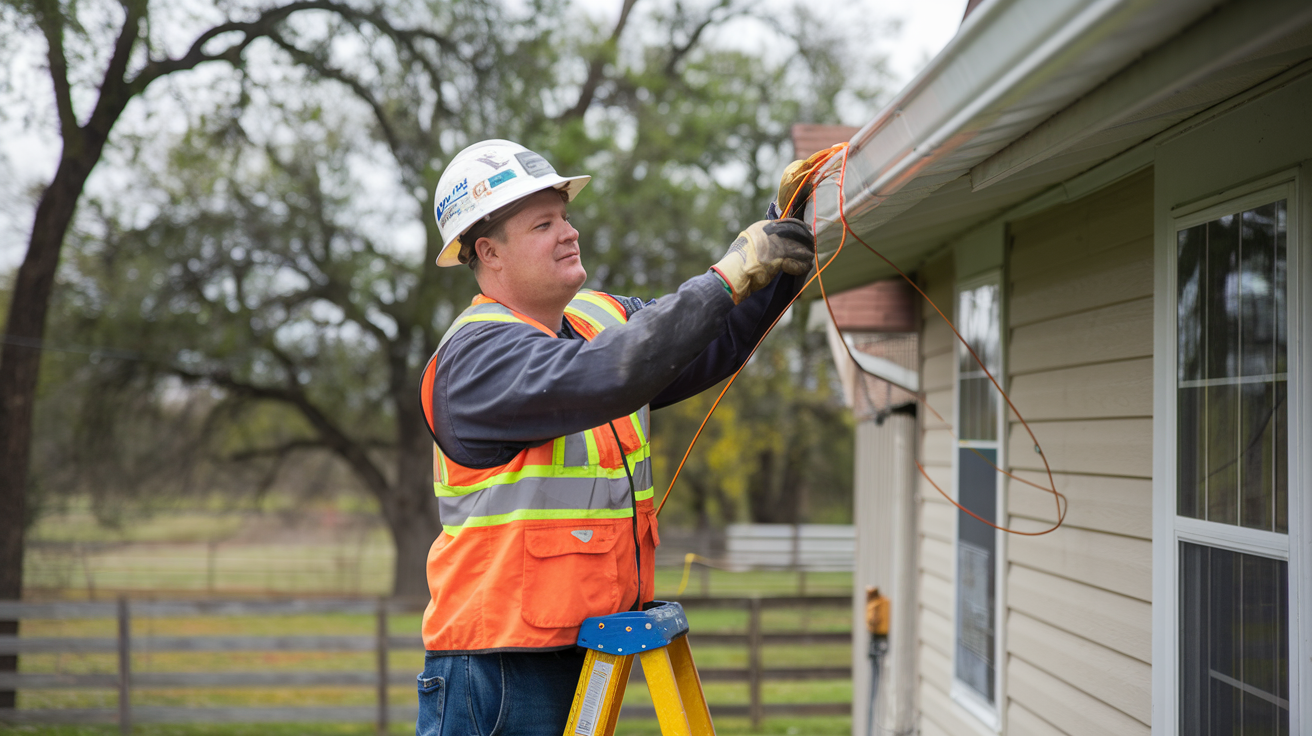
Frontier typically offers professional installation for new customers. This means a trained technician will visit your home to set up your internet service. They will install any necessary equipment, such as a modem or router, and ensure your connection is working properly before they leave. This service is invaluable for seniors, as it removes the need for complex self-installation. The technician can also answer initial questions and demonstrate basic functionality. You'll usually be provided with a window for the appointment, and it's a good idea to be present during this time to communicate any specific needs or preferences you might have regarding equipment placement.
Understanding Your Frontier Internet Equipment
One of the most common points of confusion when setting up new internet service is understanding the equipment involved. Frontier typically provides a modem, and sometimes a separate router or a combined modem/router unit (often called a gateway). Knowing what each device does is the first step to mastering your home network. This section breaks down the essential hardware you'll receive and what its function is, making the setup process much less intimidating.
The Modem: Your Gateway to the Internet
The modem is the device that connects your home to Frontier's network. It translates the signals from Frontier's infrastructure (like DSL lines or fiber optic cables) into a format that your home devices can understand. Think of it as the translator between the outside world's internet and your home.
- DSL Modems: These connect to your existing phone line.
- Fiber Optic Modems (ONT - Optical Network Terminal): These connect to the fiber optic cable that runs to your home.
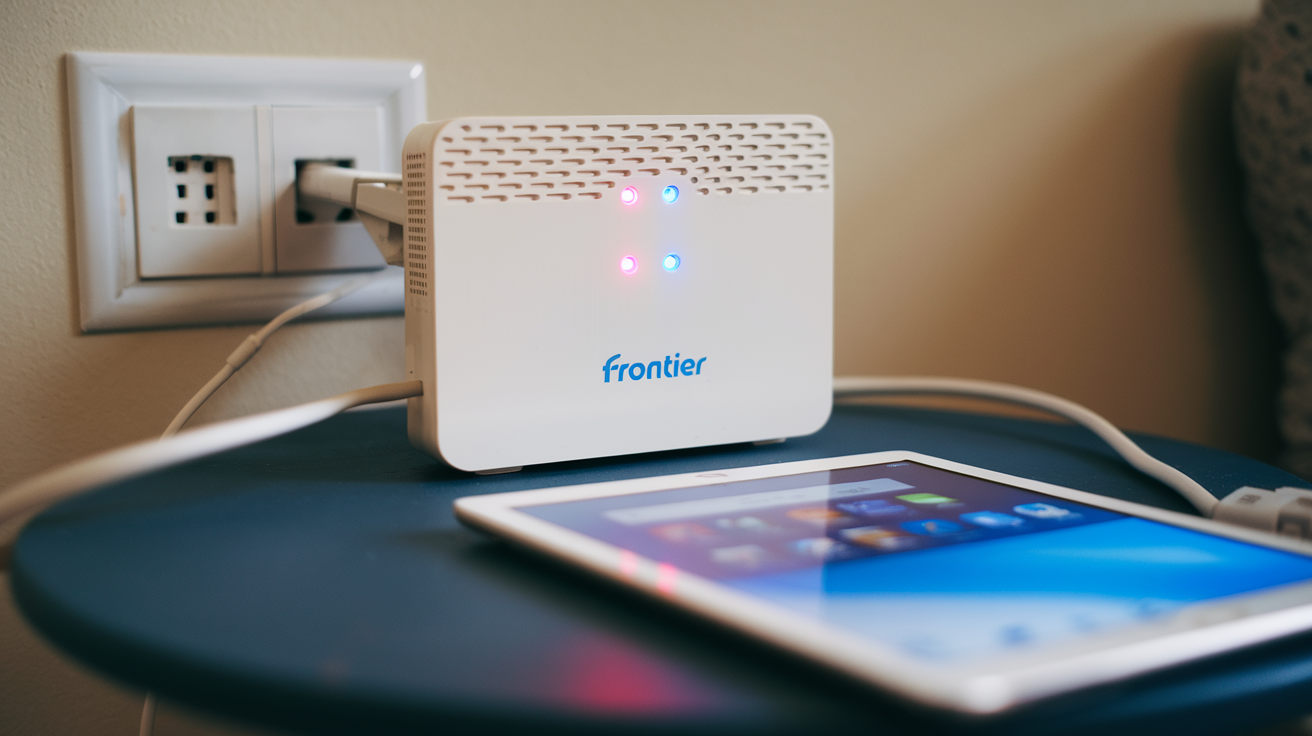
The modem will have lights on it that indicate its status. Generally, solid lights mean everything is working correctly. Blinking lights might indicate a problem, which we'll cover in the troubleshooting section.
The Router: Creating Your Wi-Fi Network
The router is what creates your Wi-Fi network. It takes the internet connection from the modem and broadcasts it wirelessly throughout your home, allowing devices like smartphones, tablets, and smart TVs to connect without cables.
- Separate Router: If you have a separate router, it will connect to the modem via an Ethernet cable.
- Combined Gateway: Many newer installations use a gateway device that combines the modem and router functions into a single unit. This is often the simplest option for users.
The router is also where you'll find your Wi-Fi network name (SSID) and password, usually printed on a sticker on the device itself.
Understanding Indicator Lights
Both modems and routers have indicator lights that provide valuable information about their operational status. While the exact labels can vary, here are some common ones:
- Power: Indicates the device is receiving power. Should be solid.
- Internet/Online: Shows the modem is connected to Frontier's network. Should be solid.
- Wi-Fi/Wireless: Indicates the Wi-Fi signal is active. Should be solid or blinking when data is being transmitted.
- Ethernet: Lights up when a device is connected via an Ethernet cable.
If you see unusual blinking or no lights where there should be lights, it's often a sign that something needs attention. Refer to your equipment manual or the troubleshooting section for more details.
Equipment Comparison: Modem vs. Router vs. Gateway
To further clarify, here's a simple comparison table:
| Device | Primary Function | Connection Type | Typical Setup |
|---|---|---|---|
| Modem | Connects home to ISP network | DSL, Fiber, Cable | Connects to wall jack; Router connects to Modem |
| Router | Creates Wi-Fi network; Manages devices | Wireless (Wi-Fi) | Connects to Modem via Ethernet |
| Gateway | Combines Modem & Router functions | DSL/Fiber & Wireless (Wi-Fi) | Connects to wall jack; broadcasts Wi-Fi |
Step-by-Step Setup Guide for Frontier Internet
This section is dedicated to guiding you through the physical setup of your Frontier Internet service. If you opted for professional installation, a technician will handle this. However, understanding the process can empower you and help you prepare for their arrival. If you are attempting a self-installation (less common but possible for some services), these steps are crucial. We'll cover the basic connections and what to expect. Remember, safety first – ensure all connections are secure and avoid overloading electrical outlets.
Pre-Installation Checklist
Before the technician arrives, or before you begin a self-installation, ensure you have the following:
- Clear Space: Designate a location for the modem/gateway. It should be central if possible for optimal Wi-Fi coverage and near a power outlet and the incoming service line (phone jack for DSL, or wall plate for fiber).
- Power Outlet: Ensure the outlet is working and not already overloaded with other devices.
- Service Line Access: For DSL, ensure the phone jack is accessible. For fiber, ensure the wall plate is accessible.
- Your Frontier Welcome Kit: This usually contains essential information, including Wi-Fi network names and passwords.
Connecting the Modem/Gateway
The process varies slightly depending on whether you have DSL or Fiber internet.
For DSL Internet:
- Locate the Phone Jack: Find the active phone jack in your home where you want to place the modem.
- Connect the DSL Cable: Plug one end of the provided DSL cable (often a standard phone cord) into the back of the modem and the other end into the phone jack.
- Connect the Power Adapter: Plug the modem's power adapter into the modem and then into a working electrical outlet.
- Power On: The modem should power on automatically. Wait a few minutes for the indicator lights to stabilize.
For Fiber Optic Internet:
- Locate the Fiber Wall Plate: The technician will have installed a wall plate where the fiber optic cable enters your home.
- Connect the ONT (if separate): If Frontier provides a separate Optical Network Terminal (ONT), it will likely be pre-installed near the wall plate. The technician will connect the fiber cable to this.
- Connect the Gateway: Connect the provided Ethernet cable from the ONT (or directly from the wall plate if it's an integrated unit) to the WAN or Internet port on your Frontier gateway (modem/router combo).
- Connect the Power Adapter: Plug the gateway's power adapter into the device and then into a working electrical outlet.
- Power On: The gateway will power on. Allow several minutes for it to establish a connection.
Connecting the Router (if separate)
If you have a separate router, the connection is typically as follows:
- Connect Modem to Router: Use an Ethernet cable to connect the modem's Ethernet port to the router's WAN or Internet port.
- Connect Power: Plug in the router's power adapter.
- Power On: The router will power on.
Initial Boot-Up and Light Stabilization
After connecting the power, give the equipment at least 5-10 minutes to boot up and establish a connection. You'll see the indicator lights on the modem/gateway begin to illuminate and stabilize. Solid lights usually indicate a successful connection. If lights are blinking continuously or are off when they should be on, this may indicate an issue, which we'll address later.
Verifying the Connection
Once the lights appear stable, you can verify the connection. The technician will do this. If you're self-installing, you can proceed to the next step of connecting your devices. If you're waiting for a technician, they will confirm the service is active before leaving.
Connecting Your Devices to Frontier Wi-Fi
Now that your Frontier Internet service is set up and the equipment is powered on, the next crucial step is connecting your personal devices to your new home Wi-Fi network. This is where you'll start experiencing the benefits of your internet connection. This section breaks down the process for common devices, making it easy to get all your gadgets online.
Finding Your Wi-Fi Network Name and Password
Your Wi-Fi network name (also known as SSID) and password are essential for connecting. These are typically found:
- On a sticker on your Frontier modem, router, or gateway.
- In your Frontier welcome kit or service agreement.
The password is case-sensitive, so pay close attention to uppercase and lowercase letters, numbers, and symbols. If you've misplaced this information, you may need to contact Frontier customer support or check your router's settings if you've logged into it previously.
Connecting a Smartphone or Tablet
The process is very similar for both Android and iOS devices.
- Open Settings: On your device, find and tap the "Settings" icon.
- Select Wi-Fi: Look for "Wi-Fi" or "Network & Internet" and tap it.
- Turn Wi-Fi On: Ensure the Wi-Fi toggle switch is in the "On" position.
- Find Your Network: Your device will scan for available networks. Locate your Frontier Wi-Fi network name (SSID) from the list and tap on it.
- Enter Password: A prompt will appear asking for the password. Carefully type in your Wi-Fi password.
- Connect: Tap "Join" or "Connect."
Once connected, you should see a Wi-Fi symbol in your device's status bar, indicating you are online.
Connecting a Laptop or Desktop Computer
The steps for computers vary slightly between Windows and macOS.
For Windows Computers:
- Click the Network Icon: In the system tray (usually at the bottom right of your screen), click the network icon (it looks like a Wi-Fi symbol or a globe).
- Select Your Network: A list of available Wi-Fi networks will appear. Click on your Frontier Wi-Fi network name (SSID).
- Click Connect: Click the "Connect" button.
- Enter Password: When prompted, enter your Wi-Fi password and click "Next" or "OK."
For macOS Computers:
- Click the Wi-Fi Icon: In the menu bar at the top of your screen, click the Wi-Fi icon.
- Select Your Network: A list of available networks will appear. Click on your Frontier Wi-Fi network name (SSID).
- Enter Password: When prompted, enter your Wi-Fi password and click "Join."
Your computer should now be connected to the internet.
Connecting Smart TVs and Other Devices
Most smart TVs, gaming consoles, and other internet-enabled devices have similar Wi-Fi setup menus.
- Navigate to Network Settings: Find the "Settings" or "Network" menu on your device.
- Select Wi-Fi: Choose the Wi-Fi setup option.
- Scan for Networks: The device will scan for available networks.
- Select Your Network: Choose your Frontier Wi-Fi network name (SSID).
- Enter Password: Input your Wi-Fi password using the on-screen keyboard or remote.
- Connect: Confirm the connection.
Consult your device's user manual if you have trouble finding the network settings.
Using an Ethernet Cable (Optional but Reliable)
For devices that are stationary and require the most stable connection (like a desktop computer or smart TV), using an Ethernet cable directly from your router (or gateway) can be a great option.
- Locate Ports: Find an available Ethernet port on your router/gateway and on your device.
- Connect Cable: Plug one end of an Ethernet cable into the router/gateway and the other end into your device.
- Automatic Connection: Most devices will automatically detect the wired connection and connect to the internet.
This bypasses Wi-Fi entirely, offering a direct and often faster connection.
Basic Usage and Essential Tips for Frontier Internet
Once your devices are connected, the real fun begins! This section focuses on how to use your Frontier Internet service for common activities and offers practical tips to enhance your experience and ensure smooth operation. We'll cover everything from browsing the web to staying secure online.
Browsing the Internet
The most fundamental use of the internet is browsing. This involves using a web browser application to visit websites.
- Web Browsers: Popular browsers include Google Chrome, Mozilla Firefox, Microsoft Edge, and Apple Safari. You likely have one pre-installed on your computer or device.
- Entering Web Addresses: Type the website's address (URL) directly into the address bar at the top of the browser window (e.g., www.google.com).
- Using Search Engines: If you don't know the exact web address, use a search engine like Google or Bing. Type what you're looking for into the search bar (e.g., "local weather forecast" or "Frontier customer service number").
Email and Communication
Email is a cornerstone of online communication.
- Webmail: Access your email through a web browser by visiting your email provider's website (e.g., gmail.com, outlook.com).
- Email Clients: You can also set up email accounts in dedicated applications like Microsoft Outlook or Apple Mail. This often involves entering your email address, password, and server settings, which Frontier can provide or your email provider can guide you through.
- Video Calls: Services like Zoom, Skype, FaceTime, and Google Meet allow you to see and talk to friends and family. Ensure your device has a webcam and microphone.
Streaming Video and Music
Enjoying movies, TV shows, and music is easier than ever with Frontier Internet.
- Services: Popular streaming services include Netflix, Hulu, Amazon Prime Video, Disney+, and YouTube for video, and Spotify or Apple Music for audio.
- Smart TVs and Devices: Many smart TVs have built-in apps for these services. You can also use streaming devices like Roku, Amazon Fire Stick, or Apple TV connected to your TV.
- Buffering: If videos are choppy or take a long time to load, it might be due to your internet speed or network congestion.
Online Safety for Seniors
As you become more comfortable online, it's vital to be aware of online safety.
- Strong Passwords: Use unique, strong passwords for all your online accounts. Combine uppercase and lowercase letters, numbers, and symbols. Consider using a password manager.
- Be Wary of Phishing: Never click on suspicious links or open attachments in emails from unknown senders. Scammers often try to trick you into revealing personal information.
- Secure Websites: Look for "https://" at the beginning of a website address and a padlock icon in the address bar, especially when entering sensitive information like credit card details.
- Keep Software Updated: Ensure your operating system, browser, and antivirus software are always up-to-date. Updates often include security patches.
- Privacy Settings: Review the privacy settings on social media and other online services to control who sees your information.
Tips for Optimal Wi-Fi Performance
To ensure you get the best possible Wi-Fi experience:
- Router Placement: Place your router in a central, open location, away from walls, metal objects, and other electronics that can cause interference (like microwaves).
- Restart Your Equipment: If your internet seems slow or is not working, try restarting your modem and router. Unplug them, wait 30 seconds, and plug them back in, starting with the modem.
- Limit Connected Devices: While Frontier's service is robust, having too many devices actively using the internet simultaneously can slow things down.
- Consider a Wi-Fi Extender: If you have a large home or dead spots, a Wi-Fi extender can help boost the signal to hard-to-reach areas.
Understanding Your Frontier Bill
It's important to understand your monthly bill to avoid surprises.
- Review Charges: Familiarize yourself with the charges for your internet service, any equipment rentals, and taxes/fees.
- Due Dates: Note the payment due date to avoid late fees.
- Online Account Access: Frontier usually offers an online portal where you can view your bill, check your usage, and make payments.
If anything on your bill is unclear, don't hesitate to call Frontier customer support.
Troubleshooting Common Frontier Internet Issues
Even with the best service, occasional issues can arise. This section provides practical, easy-to-follow steps for troubleshooting common problems with your Frontier Internet connection. The goal is to empower you to resolve minor issues yourself, saving you time and potential frustration.
No Internet Connection
This is the most common problem. Here’s what to do:
- Check Indicator Lights: Look at your modem/gateway. Are the "Power," "Online/Internet," and "Wi-Fi" lights on and solid? If not, proceed to the next steps.
- Restart Your Equipment: This is the most effective first step.
- Unplug the power cords from both your modem and your router (if you have a separate one).
- Wait for at least 30 seconds.
- Plug the modem back in first. Wait for its lights to stabilize (usually 1-2 minutes).
- Then, plug in your router (if separate). Wait for its lights to stabilize.
- Try connecting to the internet again.
- Check Cables: Ensure all cables are securely plugged in at both ends – power cords, DSL/fiber cables, and Ethernet cables.
- Test with Another Device: Try connecting a different device (e.g., another smartphone or laptop) to see if the issue is with a specific device or the entire network.
- Check for Service Outages: Sometimes, Frontier may experience a local outage. You can often check this on the Frontier website or by calling their support line.
Slow Internet Speeds
If your internet is working but feels sluggish:
- Restart Equipment: As with no connection, restarting your modem and router can often resolve speed issues.
- Test Speed: Use an online speed test tool (search "internet speed test" on Google). Run the test a few times at different times of the day. Compare the results to the speed you are supposed to be getting from your Frontier plan.
- Reduce Network Load: Are multiple devices streaming video, downloading large files, or gaming simultaneously? Try disconnecting some devices or pausing heavy activities to see if speed improves.
- Check Wi-Fi Signal Strength: If you are far from the router, the signal may be weak, leading to slower speeds. Try moving closer to the router or consider a Wi-Fi extender.
- Test with Ethernet: Connect a computer directly to the router/gateway with an Ethernet cable and run a speed test. If speeds are significantly better via Ethernet, the issue is likely with your Wi-Fi signal.
- Scan for Malware: Malicious software on your computer can consume bandwidth and slow down your connection. Run a full scan with your antivirus software.
Wi-Fi Signal is Weak or Intermittent
This often relates to the placement and environment of your router.
- Router Placement: Ensure your router is in a central, elevated, and open location, away from obstructions like thick walls, metal objects, aquariums, and other electronics (microwaves, cordless phones).
- Minimize Interference: Other wireless devices can interfere. Try turning off other wireless devices temporarily to see if it improves your Wi-Fi.
- Update Router Firmware: If you have a gateway, Frontier may push firmware updates remotely. If you have a separate router, check its manual for instructions on updating its firmware.
- Consider a Wi-Fi Extender or Mesh System: For larger homes, a single router might not cover the entire area. Extenders or mesh systems can significantly improve coverage.
Specific Device Not Connecting
If one device won't connect while others do:
- Forget and Rejoin Network: On the problematic device, go to Wi-Fi settings, find your Frontier network, and select "Forget" or "Remove." Then, scan for networks again, select yours, and re-enter the password.
- Restart the Device: Sometimes a simple reboot of the smartphone, tablet, or computer can resolve connectivity issues.
- Check Device's Wi-Fi Settings: Ensure Wi-Fi is turned on and that you are selecting the correct network and entering the password accurately.
- Check for Device Updates: Ensure the operating system and drivers on the device are up-to-date.
When to Call Frontier Customer Support
If you've tried the above steps and are still experiencing issues, it's time to contact Frontier. You should call them if:
- Your modem/gateway lights indicate a problem that you can't resolve.
- You suspect a service outage in your area.
- You are consistently experiencing very slow speeds that don't improve.
- You are unable to resolve the issue after trying these troubleshooting steps.
Having your account number ready and being able to describe the problem and the steps you've already taken will help expedite the support process.
Leveraging Frontier Customer Support
Frontier understands that sometimes you need a helping hand. Their customer support is a valuable resource designed to assist you with any questions or issues you may encounter. This section guides you on how to effectively connect with Frontier support and what to expect, ensuring you get the help you need efficiently.
Ways to Contact Frontier Support
Frontier offers multiple channels for customer support, catering to different preferences:
- Phone Support: This is often the most direct way to speak with a representative. The primary customer service number can be found on your bill or the Frontier website. For technical support, there might be a specific number or extension.
- Online Chat: Many ISPs, including Frontier, offer live chat support through their website. This is a convenient option if you prefer typing and don't want to be on the phone.
- Online Account Portal: Your online account portal usually has a "Help" or "Support" section with FAQs, troubleshooting guides, and options to submit a support ticket.
- Social Media: Frontier may also have customer service representatives monitoring their official social media channels (like Twitter or Facebook), which can sometimes be a quick way to get a response for general inquiries.
Preparing for Your Support Call
To make your call as efficient as possible:
- Have Your Account Number Ready: This is usually found on your monthly bill.
- Know Your Equipment: Have the make and model of your modem/router handy.
- Describe the Problem Clearly: Be ready to explain what is happening, when it started, and any troubleshooting steps you've already taken.
- Note Down Error Messages: If you see any specific error messages on your screen or equipment, write them down.
- Be Patient: Sometimes wait times can be long, especially during peak hours.
What to Expect from Frontier Support
When you contact Frontier support, they will typically:
- Verify Your Identity: For security, they will ask for information to confirm you are the account holder.
- Troubleshoot Remotely: They can often diagnose and fix issues remotely by checking your connection status and equipment from their end.
- Guide You Through Steps: A support agent can walk you through troubleshooting steps for your equipment.
- Schedule a Technician: If a remote fix isn't possible, they may schedule a technician to visit your home.
- Provide Information: They can answer questions about your bill, plan features, and service upgrades.
When a Technician Visit is Necessary
In some cases, the issue cannot be resolved over the phone or through remote diagnostics. This might happen if:
- There is a problem with the physical lines outside your home.
- Your equipment is faulty and needs replacement.
- Complex network configuration issues exist.
When a technician visit is scheduled, they will confirm the appointment details, provide a time window, and explain what to expect.
Tips for a Positive Support Experience
- Be Polite and Respectful: Support agents are there to help. A friendly demeanor can go a long way.
- Take Notes: Jot down the name of the representative you speak with, the date and time of your call, and any reference numbers or instructions they provide.
- Ask for Clarification: If you don't understand something, ask the representative to explain it in simpler terms.
- Follow Up: If you were promised a callback or follow-up, ensure you receive it. If not, don't hesitate to call back.
By understanding how to use Frontier's support resources effectively, you can ensure that any challenges are resolved quickly and smoothly.
Enhancing Your Frontier Internet Experience
Once your Frontier Internet is set up and running smoothly, you might wonder how to get even more out of your service. This section explores ways to enhance your online experience, from improving Wi-Fi coverage to exploring new online activities and ensuring long-term satisfaction with your Frontier service.
Improving Wi-Fi Coverage in Your Home
As mentioned in troubleshooting, weak Wi-Fi can be a common frustration. Beyond basic router placement, consider these options:
- Wi-Fi Extenders (Repeaters): These devices pick up your existing Wi-Fi signal and rebroadcast it, extending its range. They are relatively inexpensive and easy to set up.
- Mesh Wi-Fi Systems: For larger homes or those with many dead spots, a mesh system offers a more robust solution. It consists of a main router and several satellite nodes that work together to create a single, seamless Wi-Fi network.
- Upgrade Your Router: If your current router is several years old, it might not support the latest Wi-Fi standards (like Wi-Fi 6). Upgrading to a newer router can significantly improve speed and range.
Exploring Online Services and Hobbies
With a reliable internet connection, the possibilities are nearly endless.
- Online Learning: Websites like Coursera, Udemy, and Khan Academy offer courses on a vast array of subjects. Many local libraries also offer free access to online learning platforms.
- Staying Connected: Beyond video calls, explore social media platforms to reconnect with old friends or join groups with shared interests.
- Health and Wellness: Access online doctor consultations, follow exercise videos, or find reliable health information from reputable sources.
- Entertainment: Discover new music, watch documentaries, play online games, or explore virtual museum tours.
- Online Banking and Shopping: Manage your finances and shop from the comfort of your home. Remember to prioritize security when conducting transactions online.
Understanding Data Usage and Speeds
While many Frontier plans offer unlimited data, some may have caps or promotional periods.
- Check Your Plan: Understand if your plan has any data limits. You can usually find this information in your Frontier account portal.
- Monitor Usage: If you have data caps, monitor your usage to avoid overage charges. Many devices and routers provide usage statistics.
- Speed Tiers: If you find your current speed is insufficient for your needs (e.g., frequent buffering during streaming), consider upgrading your plan. Frontier's representatives can help you find the best speed tier for your usage habits.
Security Best Practices for Long-Term Use
Continuing to prioritize online security is paramount.
- Regularly Change Wi-Fi Password: It's good practice to change your Wi-Fi password periodically, especially if you suspect it might have been compromised or if you've had many visitors connect to your network.
- Enable Guest Network: If your router supports it, set up a guest Wi-Fi network for visitors. This keeps them separate from your main network, enhancing security.
- Be Cautious with Public Wi-Fi: While Frontier provides home internet, you might use public Wi-Fi. Be extremely cautious with sensitive transactions on public networks, as they are often less secure.
- Educate Yourself: Stay informed about common online scams and security threats. Resources from organizations like the FTC or AARP can be very helpful.
Managing Your Frontier Account
Take advantage of the tools Frontier provides for managing your service.
- Online Portal: Regularly log in to your Frontier account to view bills, check service status, update contact information, and manage your services.
- Notifications: Sign up for email or text alerts for billing reminders, service updates, or important announcements.
- Review Your Plan Annually: As your needs or Frontier's offerings change, it's wise to review your internet plan annually to ensure it still meets your requirements and offers the best value.
By proactively managing your service and staying informed, you can ensure your Frontier Internet experience remains positive and beneficial for years to come.
In conclusion, setting up and using Frontier Internet is an accessible process, even for those new to technology. This guide has walked you through understanding your equipment, the step-by-step setup, connecting your devices, basic usage, and essential troubleshooting. Remember that Frontier provides customer support to assist you, and by following the tips for enhancing your experience and prioritizing online safety, you can confidently enjoy all the benefits of reliable home internet. Embrace the digital world with ease and stay connected to what matters most.