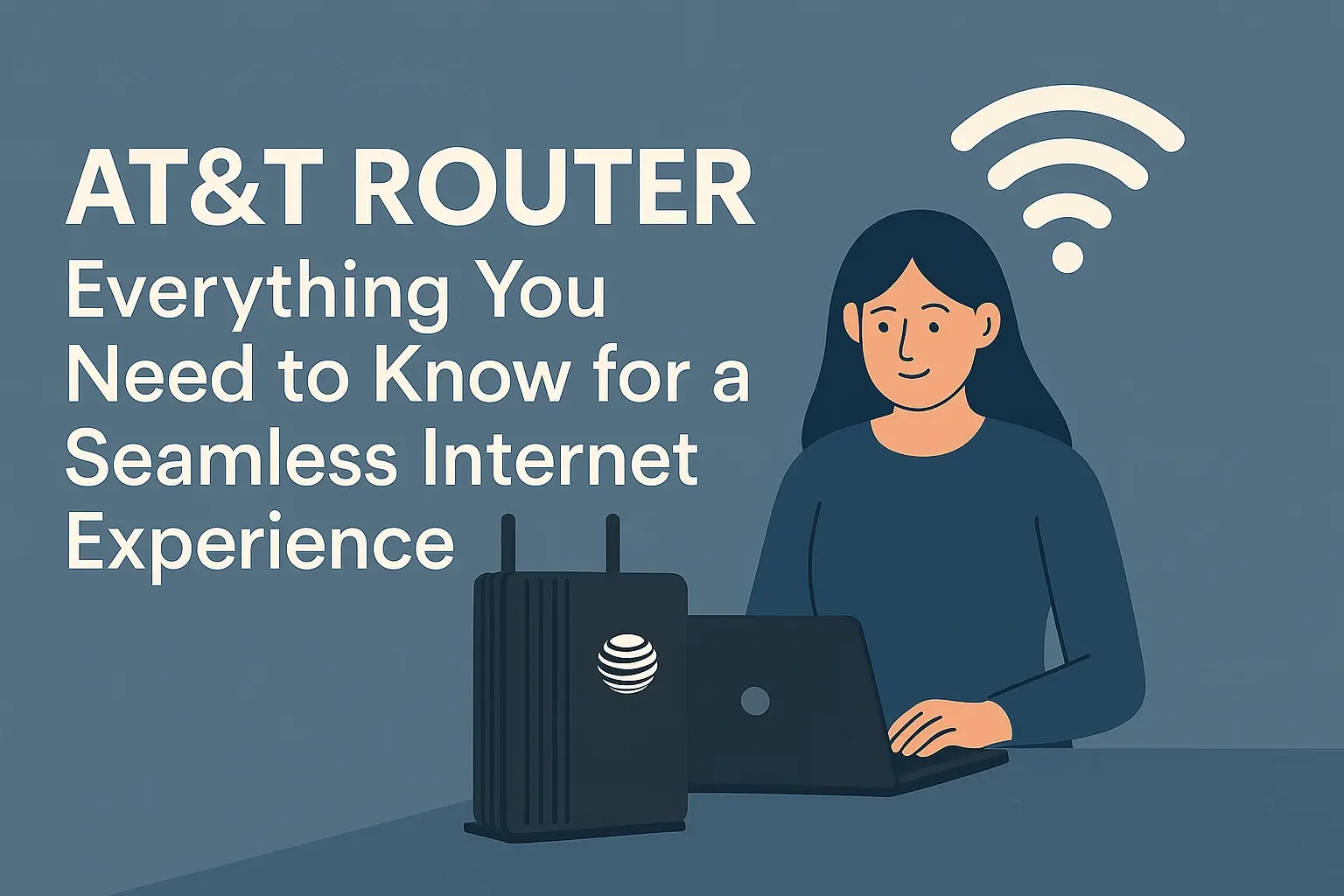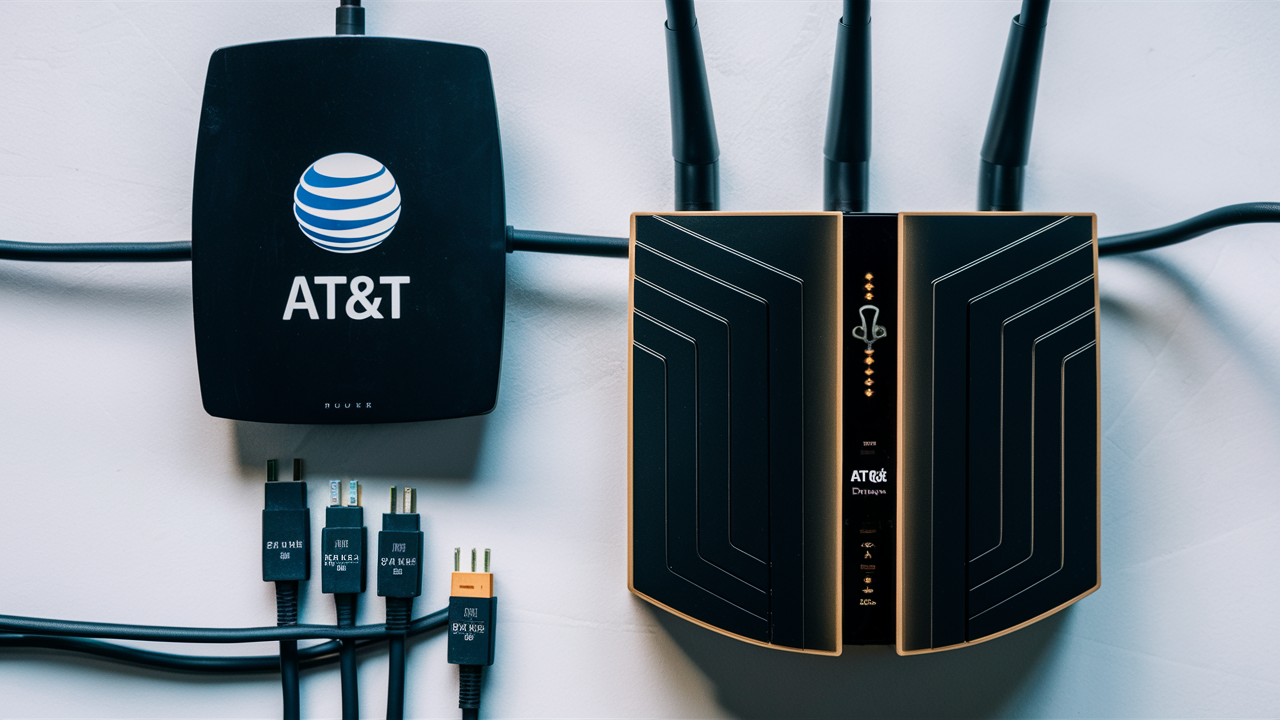
Yes, AT&T Fiber internet service typically includes a complimentary modem/router combo unit as part of your installation. This device is essential for connecting your home to AT&T's high-speed fiber network and enabling Wi-Fi connectivity throughout your residence. Understanding what this equipment entails can help you maximize your internet experience.
What is AT&T Fiber?
AT&T Fiber represents AT&T's commitment to delivering ultra-fast internet speeds through a pure fiber-optic network. Unlike traditional cable or DSL internet, fiber optics use thin strands of glass to transmit data as light signals, allowing for significantly higher bandwidth, lower latency, and more reliable connections. This technology is particularly well-suited for demanding online activities such as 4K streaming, online gaming, large file downloads and uploads, and supporting multiple connected devices simultaneously. As of 2025-2026, AT&T continues to expand its fiber footprint across various urban and suburban areas, offering speeds that can reach up to 5 Gigabits per second (Gbps) in select locations. The infrastructure is designed to be future-proof, capable of handling increasing data demands as technology evolves. The availability of AT&T Fiber is a key factor for consumers seeking top-tier internet performance, and understanding the associated equipment is crucial for a seamless experience.
Does AT&T Fiber Come with a Router? The Direct Answer
For the vast majority of new AT&T Fiber installations, the answer is a resounding yes. AT&T provides customers with a specialized piece of equipment called a "Gateway." This Gateway functions as both a modem and a router, seamlessly bridging your home network to AT&T's fiber optic infrastructure and broadcasting a Wi-Fi signal. This integrated approach simplifies the setup process and ensures that the provided equipment is optimized for AT&T's network performance. You do not need to purchase a separate modem for AT&T Fiber. The Gateway is typically included at no additional monthly cost, though it remains AT&T property and must be returned if service is discontinued. This bundled offering is a standard practice among major internet service providers to ensure a consistent and reliable user experience from the moment of installation.
The Importance of the Gateway
The AT&T Fiber Gateway is more than just a box; it's the central hub of your home internet. It translates the light signals from the fiber optic cable into data that your devices can understand and vice-versa. Furthermore, it creates your private Wi-Fi network, allowing all your wireless devices – smartphones, laptops, smart TVs, and more – to connect to the internet without needing individual cables. Its performance directly impacts your internet speed, Wi-Fi range, and overall connectivity stability. Therefore, understanding its capabilities and how to manage it is key to enjoying the full benefits of AT&T's high-speed fiber service.
What If I Already Own a Router?
While AT&T provides a Gateway, some users may already have a high-performance third-party router they prefer to use for enhanced features, better Wi-Fi coverage, or specific network configurations. In such cases, you can often put the AT&T Gateway into a "pass-through" or "IP Passthrough" mode. This configuration essentially disables the Gateway's routing functions, allowing your own router to handle all network traffic and Wi-Fi broadcasting. This approach requires a bit more technical setup and is generally recommended for users who are comfortable managing their own network equipment. It's important to consult AT&T's specific instructions or customer support to ensure correct configuration for IP Passthrough, as improper setup can lead to connectivity issues. Using your own router can offer advantages like advanced Quality of Service (QoS) settings, more robust parental controls, or a more powerful Wi-Fi signal if your existing router is superior to the AT&T Gateway.
Understanding the AT&T Fiber Gateway
The AT&T Fiber Gateway is a sophisticated piece of technology designed to provide a seamless and high-performance internet experience. AT&T typically deploys their latest Gateway models to new fiber customers, ensuring they benefit from the most current Wi-Fi standards and networking capabilities. These devices are engineered to handle the immense bandwidth that fiber optic technology offers, making them capable of supporting multi-gigabit speeds. As of 2025-2026, the most common Gateway model provided by AT&T is the Smart Home Manager Gateway (often referred to by model numbers like BGW320 or similar). This device integrates multiple functionalities into a single unit.
Key Features of the Gateway
The AT&T Fiber Gateway is packed with features designed to enhance your home networking experience:
- High-Speed Internet Connectivity: It directly interfaces with the fiber optic line, enabling the delivery of ultra-fast internet speeds.
- Wi-Fi 6 (802.11ax) Support: Most modern AT&T Fiber Gateways support Wi-Fi 6, the latest Wi-Fi standard. Wi-Fi 6 offers significant improvements over previous generations, including faster speeds, increased capacity for more devices, better performance in crowded environments, and improved power efficiency for connected devices. This is crucial for households with numerous smart devices and high bandwidth demands.
- Dual-Band Wi-Fi: The Gateway broadcasts Wi-Fi on both the 2.4 GHz and 5 GHz frequency bands. The 2.4 GHz band offers a wider range and better penetration through walls, ideal for devices further away or those that don't require the highest speeds. The 5 GHz band provides faster speeds and less interference, perfect for devices closer to the router that need to handle bandwidth-intensive tasks like streaming or gaming.
- Gigabit Ethernet Ports: For devices that require the most stable and fastest connection, the Gateway includes multiple Gigabit Ethernet ports. Connecting devices like gaming consoles, desktop computers, or smart TVs via Ethernet can often provide a more reliable experience than Wi-Fi.
- Integrated Security Features: The Gateway includes built-in firewall capabilities and other security measures to help protect your home network from unauthorized access and cyber threats.
- AT&T Smart Home Manager App Integration: The Gateway is designed to work seamlessly with the AT&T Smart Home Manager app. This app allows users to manage their Wi-Fi network, view connected devices, perform speed tests, troubleshoot issues, and even set up guest networks and parental controls directly from their smartphone or tablet. This app is a significant value-add for managing your home network easily.
Gateway Model Examples (2025-26)
While AT&T periodically updates its hardware, the primary Gateway for new fiber installations in 2025-2026 is often the AT&T Fiber Gateway BG320-700. This model is a robust, all-in-one solution designed to deliver the full potential of AT&T's fiber network. It features Wi-Fi 6, advanced security protocols, and the necessary ports for wired connections. Older models may still be in use for existing customers, but new installations typically receive the latest hardware. It's always advisable to check with AT&T for the specific model being installed in your area.
Router vs. Modem Clarification
It's important to understand the distinction between a modem and a router, even though the AT&T Fiber Gateway combines both functions. A modem is the device that connects your home to your Internet Service Provider's (ISP) network. It translates the incoming signal (in this case, light from fiber optics) into a digital signal that your home network can use. A router, on the other hand, takes that internet connection from the modem and distributes it to multiple devices within your home, typically via Wi-Fi or Ethernet cables. It creates your local network and manages traffic between your devices and the internet. The AT&T Gateway performs both of these critical roles in a single unit.
Equipment Options and Considerations
When you sign up for AT&T Fiber, the primary equipment you receive is the AT&T Fiber Gateway. However, there are nuances and options to consider regarding this equipment, especially concerning performance, coverage, and potential upgrades.
The Provided AT&T Fiber Gateway
As established, the AT&T Fiber Gateway is provided as part of your service. This is typically a high-quality, modern device capable of supporting the speeds offered by AT&T Fiber. For most users, this single device is sufficient to provide reliable internet access and Wi-Fi coverage throughout their home. AT&T designs these Gateways to be compatible with their network infrastructure, ensuring optimal performance and stability. The benefit of using the provided Gateway is that it's included in your service cost, and AT&T is responsible for its maintenance and replacement if it malfunctions.
Using Your Own Router (Advanced Setup)
Many tech-savvy users prefer to use their own routers, often because they offer more advanced features, better Wi-Fi performance, or greater control over their network. If you have a high-end router from brands like ASUS, Netgear, or TP-Link, you might consider using it in conjunction with the AT&T Fiber Gateway. To do this, you'll need to configure the AT&T Gateway into IP Passthrough mode. In this mode, the AT&T Gateway acts solely as a modem, passing the public IP address directly to your own router, which then handles all the routing, Wi-Fi broadcasting, and network management. This requires some technical knowledge and can be done through the AT&T Smart Home Manager app or by accessing the Gateway's administrative interface. It's crucial to follow AT&T's official guides for IP Passthrough to avoid connectivity issues.
Benefits of using your own router:
- Superior Wi-Fi Performance: High-end routers often feature more powerful Wi-Fi radios, better antenna designs, and advanced Wi-Fi technologies that can provide wider coverage and faster speeds than the provided Gateway.
- Advanced Features: You gain access to more sophisticated Quality of Service (QoS) settings, advanced parental controls, VPN support, and more granular network management options.
- Mesh Wi-Fi Compatibility: If you have a large home or areas with weak Wi-Fi signals, you can integrate your own router into a mesh Wi-Fi system for seamless coverage throughout your entire property.
Considerations for using your own router:
- Complexity: Setting up IP Passthrough and managing your network requires a higher level of technical expertise.
- No AT&T Support: AT&T will not provide support for your third-party router or the network configuration if you use your own equipment.
- Potential Compatibility Issues: While generally straightforward, there can be rare instances of compatibility issues between specific routers and AT&T's network.
Mesh Wi-Fi Systems for Larger Homes
For larger homes or properties with multiple floors or thick walls that can impede Wi-Fi signals, a single router may not provide adequate coverage. In such scenarios, a mesh Wi-Fi system is an excellent solution. A mesh system consists of a main router and one or more satellite "nodes" that work together to create a single, unified Wi-Fi network. This allows you to extend Wi-Fi coverage to every corner of your home. You can either use a mesh system where the main unit is your own router (connected via IP Passthrough to the AT&T Gateway), or you can use AT&T's extenders if they are offered and compatible with your specific Gateway model. As of 2025-2026, AT&T has offered Wi-Fi extenders for certain Gateway models, but their effectiveness can vary. Investing in a reputable third-party mesh system often provides more consistent and robust coverage.
AT&T Wi-Fi Extenders and Their Role
In some cases, AT&T may offer Wi-Fi extenders or repeaters designed to work with their Gateways to boost Wi-Fi signal strength in areas where it's weak. These devices are typically easy to set up and integrate into the existing AT&T network. However, it's important to note that extenders can sometimes reduce overall speeds by half, as they often have to receive and then retransmit data. For optimal performance, especially with multi-gigabit AT&T Fiber speeds, a mesh Wi-Fi system is generally a superior solution compared to traditional extenders.
Equipment Fees and Rental Policies
The AT&T Fiber Gateway is typically provided at no additional monthly rental fee for new installations. This is a significant advantage, as it means you don't have an ongoing cost for the modem/router hardware. However, the equipment remains the property of AT&T. If you cancel your AT&T Fiber service, you are required to return the Gateway to AT&T. Failure to return the equipment will result in an unreturned equipment fee, which can be substantial. Therefore, it's crucial to keep the provided Gateway in good condition and be prepared to return it upon service termination.
Installation Process and Equipment Setup
Getting AT&T Fiber up and running in your home involves a professional installation process, which includes the setup of your AT&T Fiber Gateway. Understanding this process can help you prepare and ensure a smooth transition to high-speed internet.
Scheduling Your Installation
Once you've signed up for AT&T Fiber service, you'll work with AT&T to schedule an installation appointment. Installation windows are typically offered in blocks of time (e.g., 8 AM - 12 PM, 1 PM - 5 PM). It's important to ensure someone 18 years or older is present at the home for the entire duration of the appointment. The technician will assess your home's wiring and determine the best location for the fiber optic connection and the AT&T Fiber Gateway. Factors like proximity to power outlets and central location for Wi-Fi coverage are usually considered.
The Technician's Role
On the day of your appointment, a certified AT&T technician will arrive to complete the installation. Their tasks typically include:
- Fiber Optic Line Installation: If fiber optic cable isn't already run to your home, the technician will install it. This may involve running a cable from the street to your house and through an exterior wall.
- ONT (Optical Network Terminal) Installation: The fiber optic cable terminates at an Optical Network Terminal (ONT), which converts the light signals from the fiber line into electrical signals. The ONT is usually mounted near where the fiber enters your home.
- Gateway Connection: The AT&T Fiber Gateway will be connected to the ONT via an Ethernet cable.
- Initial Setup and Testing: The technician will power up the Gateway, perform initial configuration, and test the internet connection to ensure it's working correctly and providing the subscribed speeds. They will also likely set up a basic Wi-Fi network name (SSID) and password.
- Demonstration: The technician should provide a brief demonstration of the Gateway's basic functions and explain how to access the AT&T Smart Home Manager app for further management.
Self-Installation Options (If Available)
In some limited scenarios, if fiber optic infrastructure is already present at your home and a previous AT&T Fiber service was active, AT&T might offer a self-installation option. This would involve shipping the AT&T Fiber Gateway to you with instructions for connecting it yourself. However, for new fiber installations or when significant wiring is required, professional installation is almost always mandatory. Always confirm with AT&T whether self-installation is an option for your specific situation.
Setting Up Your Wi-Fi Network
After the technician leaves, you'll want to personalize your Wi-Fi network. This involves changing the default Wi-Fi network name (SSID) and password to something unique and secure. You can do this using the AT&T Smart Home Manager app or by accessing the Gateway's web interface. It's highly recommended to use a strong, unique password to protect your network from unauthorized access. Consider using WPA3 encryption if your Gateway and devices support it for the highest level of security.
Connecting Your Devices
Once your Wi-Fi network is set up, you can begin connecting your devices. For wireless devices, simply find your network name in the list of available Wi-Fi networks and enter your password. For wired devices, use an Ethernet cable to connect them directly to one of the LAN ports on the back of the AT&T Fiber Gateway. Wired connections are generally more stable and faster than Wi-Fi, making them ideal for gaming consoles, desktop computers, and smart TVs.
Optimizing Your AT&T Fiber Network
Having AT&T Fiber and the provided Gateway is the first step; optimizing your network ensures you get the best possible performance and coverage throughout your home. This involves strategic placement of the Gateway, understanding Wi-Fi settings, and managing connected devices.
Gateway Placement for Optimal Wi-Fi Coverage
The location of your AT&T Fiber Gateway significantly impacts your Wi-Fi signal strength and reach. Follow these best practices for placement:
- Central Location: Position the Gateway as close to the center of your home as possible. This helps distribute the Wi-Fi signal more evenly in all directions.
- Elevated Position: Place the Gateway on a shelf or table, rather than on the floor. Radio waves tend to travel downwards, so an elevated position can improve coverage.
- Open Space: Avoid placing the Gateway in enclosed cabinets, behind large furniture, or near metal objects, as these can obstruct and weaken the Wi-Fi signal.
- Away from Interference: Keep the Gateway away from other electronic devices that can cause interference, such as microwaves, cordless phones, and Bluetooth devices.
- Near the ONT: While Wi-Fi is important, the Gateway must be physically connected to the ONT. Ensure the location you choose is accessible for the Ethernet cable connecting the two.
Leveraging the AT&T Smart Home Manager App
The AT&T Smart Home Manager app is a powerful tool for managing your AT&T Fiber network. As of 2025-2026, it offers a range of features:
- Network Monitoring: View connected devices, check their connection status, and see real-time internet speeds.
- Wi-Fi Settings Management: Easily change your Wi-Fi network name (SSID) and password. You can also manage dual-band settings and sometimes enable features like Wi-Fi 6.
- Guest Network Creation: Set up a separate Wi-Fi network for guests, which can help keep your main network secure and prevent unauthorized access.
- Parental Controls: Manage internet access for specific devices, set time limits, and block certain websites.
- Device Prioritization (QoS): In some versions of the app, you may be able to prioritize bandwidth for specific devices or applications, ensuring critical devices like gaming consoles or work laptops receive the necessary speed.
- Troubleshooting Tools: The app often includes diagnostic tools to help identify and resolve common network issues.
Understanding Wi-Fi Bands and Channels
Your AT&T Fiber Gateway broadcasts on two main bands: 2.4 GHz and 5 GHz.
- 2.4 GHz: Offers longer range and better penetration through obstacles but has lower speeds and is more prone to interference. Ideal for devices further away or those that don't require high bandwidth (e.g., smart home sensors, older laptops).
- 5 GHz: Offers faster speeds and less interference but has a shorter range. Ideal for devices close to the Gateway that need high bandwidth (e.g., 4K smart TVs, gaming consoles, high-performance laptops).
Managing Connected Devices
With the increasing number of smart devices in homes, it's essential to manage your network effectively. Too many devices competing for bandwidth can slow down your connection.
- Identify Bandwidth Hogs: Use the Smart Home Manager app to see which devices are consuming the most bandwidth.
- Disable Unused Devices: Turn off Wi-Fi on devices that are not actively in use.
- Consider Wired Connections: For stationary devices that require high bandwidth and stability (e.g., smart TVs, gaming consoles, desktop computers), use Ethernet cables for a direct connection.
- Regularly Reboot: Periodically rebooting your AT&T Fiber Gateway (unplugging it for 30 seconds and plugging it back in) can resolve minor glitches and improve performance.
Firmware Updates
AT&T regularly releases firmware updates for its Gateways to improve performance, security, and add new features. These updates are usually applied automatically. Ensure your Gateway is always powered on and connected to the internet to receive these important updates. If you suspect your Gateway is not updating, you can contact AT&T support.
Troubleshooting Common Router Issues
Even with advanced equipment like the AT&T Fiber Gateway, you might occasionally encounter network issues. Here are some common problems and their solutions:
No Internet Connection
This is the most frustrating issue. Before contacting AT&T, try these steps:
- Check Lights on the Gateway: Observe the indicator lights on your AT&T Fiber Gateway. Consult your Gateway's manual or AT&T's support site to understand what each light signifies. Solid lights usually indicate a good connection, while blinking or off lights may signal a problem.
- Reboot the Gateway: Unplug the power cord from the back of the Gateway, wait for at least 30 seconds, and then plug it back in. Allow a few minutes for the Gateway to fully restart and re-establish its connection. This simple step resolves a surprising number of issues.
- Check Physical Connections: Ensure all cables are securely plugged in. This includes the power cord, the Ethernet cable connecting the Gateway to the ONT, and any Ethernet cables connecting to wired devices.
- Check for Outages: Visit the AT&T website or use the Smart Home Manager app to check if there's a known service outage in your area.
- Test with a Wired Connection: Connect a computer directly to the Gateway using an Ethernet cable. If you have internet access via Ethernet but not Wi-Fi, the issue is likely with the Wi-Fi signal or settings.
Slow Internet Speeds
If your internet speeds are consistently lower than expected, consider the following:
- Run a Speed Test: Use a reliable speed test tool (e.g., Ookla Speedtest, AT&T's own speed test tool via the Smart Home Manager app) to measure your current download and upload speeds. Perform tests at different times of the day.
- Test Closer to the Gateway: Move your device closer to the Gateway to rule out Wi-Fi signal strength as the cause.
- Check Wi-Fi Band: Ensure your device is connected to the 5 GHz band for faster speeds, especially if it's close to the Gateway.
- Reduce Network Congestion: Temporarily disconnect some devices from your network to see if speeds improve. Identify and manage bandwidth-heavy applications or devices.
- Check for Interference: Ensure the Gateway is not placed near other electronic devices that could cause interference.
- Update Router Firmware: While usually automatic, ensure your Gateway has the latest firmware.
- Consider a Wired Connection: If speeds are significantly better via Ethernet, your Wi-Fi might be the bottleneck.
- Use Your Own Router: If you suspect the AT&T Gateway's Wi-Fi performance is the issue, consider using your own, more powerful router in IP Passthrough mode.
Wi-Fi Connectivity Issues
Problems connecting to or maintaining a Wi-Fi connection:
- Restart Your Device: Sometimes, the issue is with the device trying to connect. Restart your smartphone, laptop, or tablet.
- Forget and Reconnect to Network: On your device, "forget" your Wi-Fi network and then reconnect, entering the password again.
- Check Wi-Fi Password: Ensure you are entering the correct Wi-Fi password. Passwords are case-sensitive.
- Move Closer to the Gateway: Weak Wi-Fi signal is a common cause of connectivity issues.
- Check for Too Many Devices: If your network is overloaded with too many devices, the Gateway might struggle to manage connections.
- Change Wi-Fi Channel: If you have access to advanced settings, try changing the Wi-Fi channel on the 2.4 GHz or 5 GHz band to a less congested one.
Gateway Overheating
If your Gateway feels excessively hot to the touch, it could indicate an overheating issue, which can lead to performance problems or shutdowns. Ensure the Gateway is in a well-ventilated area, not covered by anything, and not in direct sunlight. If overheating persists, contact AT&T support.
Contacting AT&T Support
If you've tried the above troubleshooting steps and are still experiencing issues, it's time to contact AT&T customer support. They can remotely diagnose your Gateway, check for line issues, and schedule a technician visit if necessary. Have your account information ready when you call.
Comparing AT&T Fiber Equipment to Competitors
When evaluating internet providers, the equipment they supply plays a crucial role in the overall user experience. AT&T Fiber's approach to providing a bundled modem/router Gateway is common in the industry, but there are differences in hardware capabilities and policies across major providers.
Equipment Provided by Major ISPs (2025-26)
Most major Internet Service Providers (ISPs) offer a modem and/or router as part of their service package. Here's a general overview:
| ISP | Typical Equipment Provided | Monthly Fee | Notes |
|---|---|---|---|
| AT&T Fiber | All-in-one Fiber Gateway (Modem/Router) | Typically $0/month (included) | Must be returned upon service termination. Supports Wi-Fi 6. |
| Verizon Fios | Fios Home Router (Modem/Router) | Often $0/month for new customers, may have a fee for older models. | Supports Wi-Fi 6. |
| Google Fiber | Google Fiber Webpass Router | Included | Designed for Google Fiber's high speeds. |
| Xfinity (Comcast) | Gateway (Modem/Router Combo) | Varies, often $15-$25/month (can be higher for advanced models) | Can use own modem/router, but ISP support may be limited. |
| Spectrum (Charter) | Modem and separate Wi-Fi Router, or Gateway | Often a rental fee ($15-$20/month for modem, additional for router) | Can use own equipment. |
Note: Fees and specific models are subject to change and vary by region and plan. Always verify with the ISP.
AT&T Fiber Gateway Advantages
The AT&T Fiber Gateway generally offers several advantages for its users:
- Integrated Solution: Having a single device for both modem and router functions simplifies setup and reduces clutter.
- Optimized for Fiber: The Gateway is specifically designed and tested to work optimally with AT&T's fiber optic network, ensuring you can achieve the advertised speeds.
- Wi-Fi 6 Support: Providing Wi-Fi 6 as standard on new fiber Gateways ensures modern wireless performance for multiple devices.
- Included in Service: The absence of a monthly rental fee for the Gateway is a significant cost saving compared to some competitors.
- Smart Home Manager App: The robust app provides user-friendly control over the network, which is a great benefit for less technical users.
Potential Drawbacks and Alternatives
While the AT&T Gateway is generally good, some users might find it has limitations:
- Wi-Fi Range/Performance: For very large homes or homes with challenging construction, the built-in Wi-Fi might not offer sufficient coverage or performance. This is where third-party mesh systems or high-end routers become beneficial.
- Limited Advanced Customization: While the Smart Home Manager app offers good control, power users might find it lacks the deep customization options found in some high-end third-party routers. This is why IP Passthrough is a valuable feature.
- Hardware Upgrades: AT&T typically provides their latest hardware for new installations, but older customers might be on older Gateway models with less advanced Wi-Fi capabilities.
Compared to ISPs that charge a monthly fee for their modem/router, AT&T's included Gateway is a more cost-effective solution. However, if ultimate Wi-Fi performance and granular control are paramount, investing in a high-quality third-party router or mesh system, used in conjunction with the AT&T Gateway in IP Passthrough mode, remains the best option.
Frequently Asked Questions About AT&T Fiber Routers
Do I Have to Use the AT&T Router?
While AT&T provides a Gateway (which includes router functionality), you are not strictly required to use its Wi-Fi capabilities. You can connect your own router to the AT&T Gateway by configuring the Gateway into IP Passthrough mode. This allows your own router to manage your home network and Wi-Fi.
Can I Buy My Own Router for AT&T Fiber?
Yes, you can buy your own router. However, you will still need to use the AT&T Fiber Gateway provided by AT&T as the modem to connect to their fiber network. You would then configure the AT&T Gateway for IP Passthrough and connect your own router to it. You cannot bypass the AT&T Gateway entirely.
What is the Latest AT&T Fiber Gateway Model?
As of 2025-2026, the most common Gateway model for new AT&T Fiber installations is often the AT&T Smart Home Manager Gateway, such as the BG320-700. AT&T periodically updates its hardware, so it's best to confirm the specific model with AT&T when you sign up for service.
How Do I Access My AT&T Router Settings?
You can access your AT&T Fiber Gateway settings in two primary ways:
- AT&T Smart Home Manager App: Download this app on your smartphone or tablet for an intuitive interface to manage Wi-Fi, connected devices, and basic settings.
- Web Browser: You can also access the Gateway's administrative interface by typing its IP address (usually 192.168.1.254) into a web browser on a device connected to your network. You will need the Gateway's admin credentials, often found on a sticker on the device itself.
Does the AT&T Fiber Gateway Support Wi-Fi 6?
Yes, the latest AT&T Fiber Gateways provided for new installations typically support Wi-Fi 6 (802.11ax), offering improved speeds, capacity, and efficiency for compatible devices.
What Happens If My AT&T Router Stops Working?
If your AT&T Fiber Gateway malfunctions, you should contact AT&T customer support. They will troubleshoot the issue remotely. If it's determined to be a hardware fault, AT&T will typically replace the Gateway at no additional cost to you, especially if it's within the warranty period or if you are still renting the equipment.
Can I Use My Own Modem with AT&T Fiber?
No, you cannot use your own modem with AT&T Fiber. Fiber optic internet requires a specialized Optical Network Terminal (ONT) and a compatible Gateway provided by AT&T to interface with their fiber network. The AT&T Gateway serves as this necessary interface.
Conclusion: Maximizing Your AT&T Fiber Service
In conclusion, the question "Does AT&T Fiber come with a router?" is definitively answered with a "yes." AT&T Fiber service includes a high-performance, all-in-one Gateway that acts as both your modem and Wi-Fi router, typically at no additional monthly cost. This integrated solution is designed to deliver the full potential of AT&T's blazing-fast fiber optic network directly to your home. As of 2025-2026, these Gateways are equipped with modern Wi-Fi 6 technology, ensuring robust wireless performance for your connected devices. For most users, the provided AT&T Fiber Gateway offers an excellent balance of performance, convenience, and value, simplifying setup and management through the intuitive AT&T Smart Home Manager app. However, for those seeking enhanced Wi-Fi coverage in larger homes or desiring more advanced network customization, the option to utilize a third-party router in conjunction with the AT&T Gateway via IP Passthrough mode provides ultimate flexibility. By understanding your equipment, optimizing its placement, and leveraging available management tools, you can ensure a consistently reliable and high-speed internet experience with AT&T Fiber.