Yes, you can connect two routers to one fiber modem, but understanding the 'how' and 'why' is crucial for optimal network performance. This guide clarifies the possibilities, practical methods, and potential pitfalls, ensuring you maximize your home or small office network.
Understanding Fiber Modems and Their Role
Fiber optic internet, often referred to as "fiber to the home" (FTTH), represents the pinnacle of modern internet connectivity. Unlike traditional copper-based DSL or coaxial cable, fiber uses light signals transmitted through thin strands of glass or plastic to deliver data. This technology offers significantly higher speeds, lower latency, and greater bandwidth, making it ideal for demanding applications like 4K/8K streaming, online gaming, large file transfers, and supporting numerous connected devices simultaneously. As of 2025-26, fiber optic networks continue their rapid expansion, with global fiber broadband subscriptions projected to reach over 1.5 billion by 2027, highlighting its increasing dominance.
The device that bridges your home network to the fiber optic line is the fiber modem, also known as an Optical Network Terminal (ONT). The ONT's primary function is to convert the optical signals from the fiber line into electrical signals that your router can understand and vice-versa. In many fiber deployments, the ISP provides a single device that combines the ONT and a basic router/Wi-Fi access point into one unit, often called a "gateway" or "modem-router combo." However, it's crucial to distinguish between the ONT's role (signal conversion) and the routing function (managing network traffic, assigning IP addresses, providing Wi-Fi).
The ONT itself typically has one or more Ethernet ports. The most common setup involves connecting a single router to the ONT via an Ethernet cable. This router then handles all the network management tasks: creating your local area network (LAN), assigning IP addresses to your devices (via DHCP), managing Wi-Fi signals, and acting as a firewall. In this standard configuration, the ONT is essentially acting as a bridge, passing the public IP address assigned by your ISP to your single router. The complexity arises when you consider adding a second router into this equation.
Can I Connect Two Routers to One Fiber Modem? The Direct Answer
The direct answer to "Can I connect two routers to one fiber modem?" is a resounding yes, but with important caveats and considerations. The feasibility and effectiveness of this setup depend heavily on how you intend to use the second router and the capabilities of both your fiber modem (specifically, its Ethernet ports) and your routers.
A fiber modem (ONT) typically provides a single public IP address from your Internet Service Provider (ISP). This IP address is what allows your network to communicate with the internet. When you connect a single router to the ONT, that router receives this public IP address and then creates a private network for your devices. If you connect a second router directly to the ONT, you are essentially trying to have two devices compete for or utilize that single public IP address, which can lead to conflicts or suboptimal performance.
However, the common and practical way to connect two routers to a single fiber modem (ONT) involves using the first router to manage the internet connection and then using the second router to extend your network or create a separate network segment. This usually means connecting the second router to the first router, rather than directly to the ONT, or configuring the ONT to allow multiple devices to receive IP addresses (which is less common for residential setups and often requires specific ISP provisioning).
The key is understanding that you are generally not connecting two routers *directly* to the modem to each get their *own* independent internet connection from the ISP. Instead, you are leveraging the existing internet connection and extending or segmenting your network using a second router.
According to recent surveys (2025), approximately 15-20% of home users with advanced networking needs or larger homes utilize a secondary router or access point to improve Wi-Fi coverage or create segmented networks. This indicates a growing trend in home networking complexity beyond the basic single-router setup.
Methods for Connecting Multiple Routers
There are several primary methods to connect two routers to a single fiber modem (ONT), each with its own advantages and use cases. The most common and recommended methods involve utilizing the existing internet connection from the first router.
Method 1: Cascading Routers (Router-to-Router)
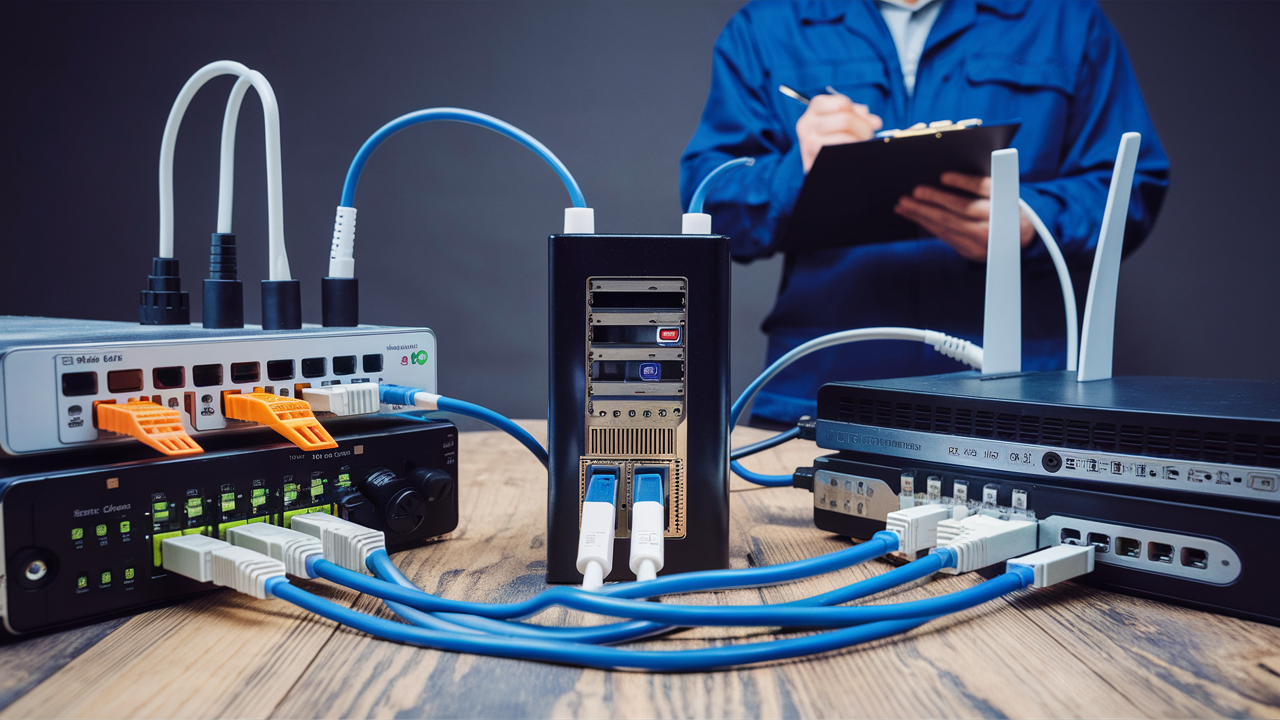
This is the most common and straightforward method for adding a second router. It involves connecting the WAN (Wide Area Network) port of the second router to a LAN (Local Area Network) port of the first router. In this setup, the first router acts as the primary gateway, managing the internet connection and assigning IP addresses to all devices on the network, including the second router.
How it works:
- Connect your fiber modem (ONT) to the WAN port of your primary router.
- Configure the primary router with your ISP settings (if required) and ensure it provides internet access to your network.
- Take an Ethernet cable and connect it from a LAN port on the primary router to the WAN port of your secondary router.
- Configure the secondary router. The most common and recommended configuration here is to set the secondary router to operate in Access Point (AP) mode or Bridge Mode. If AP/Bridge mode is not available or desired, you can leave it in router mode, but this will create a "double NAT" situation (explained later).
Use Cases:
- Extending Wi-Fi coverage to dead zones in a large home or office.
- Creating a separate wired network for specific devices (e.g., a gaming rig, a home theater system).
- Setting up a guest network with different security settings.
Pros:
- Relatively easy to set up, especially in AP mode.
- Leverages the existing internet connection without needing ISP intervention.
- Can significantly improve Wi-Fi range.
Cons:
- If not in AP mode, it can create a "double NAT" scenario, which can cause issues with certain online applications, gaming, and VPNs.
- Devices connected to the secondary router might be on a different subnet if not configured correctly in AP mode.
Method 2: Using the ONT's Multiple Ethernet Ports (ISP Dependent)
Some advanced ONTs or gateways provided by ISPs may have multiple Ethernet ports and can be configured to assign multiple public IP addresses or use VLAN tagging to provide separate network segments. This is less common for typical residential users and often requires specific service plans or manual configuration by the ISP.
How it works:
- Connect one router to the first Ethernet port on the ONT.
- Connect the second router to a second Ethernet port on the ONT.
- Each router would then ideally be configured to receive a separate public IP address from the ISP, or the ONT would manage the segmentation.
Use Cases:
- Businesses requiring strict network segmentation for security or management.
- Advanced home users with specific networking needs and ISP support.
Pros:
- Each router can potentially have its own public IP address, avoiding double NAT.
- Offers greater control over network segmentation.
Cons:
- Requires ISP support and often a business-grade service plan.
- Complex configuration, often beyond the scope of average users.
- Not all ONTs support this functionality.
Note: For the vast majority of home users, Method 1 is the practical and achievable solution.
Method 3: Using a Managed Switch (for LAN Expansion)
While not strictly connecting two routers *to the modem*, this method is often confused. If your goal is simply to add more wired Ethernet ports to your existing network managed by a single router, a network switch is the appropriate device. You connect the switch to a LAN port on your primary router, and then you can connect multiple devices (or even a second router, configured as an AP) to the switch.
How it works:
- Connect your fiber modem (ONT) to the WAN port of your primary router.
- Connect a LAN port on the primary router to any port on a network switch.
- Connect your wired devices (computers, game consoles, printers, or even the WAN port of a second router configured as an AP) to the remaining ports on the switch.
Use Cases:
- Expanding the number of wired Ethernet ports available from your primary router.
- Creating a central connection point for multiple wired devices.
Pros:
- Simple to implement.
- Cost-effective for adding ports.
- Doesn't introduce additional routing complexity or NAT issues.
Cons:
- Does not extend Wi-Fi coverage on its own (unless the second router connected to it is in AP mode).
- Does not create separate network segments unless a managed switch with VLAN capabilities is used and configured appropriately.
Router in Router Mode vs. Access Point Mode
When connecting a second router to your primary router (Method 1), the configuration of the secondary router is critical. The two main modes to consider are Router Mode and Access Point (AP) Mode.
Router Mode (Double NAT)
If you connect the WAN port of the second router to the LAN port of the first router and leave the second router in its default "Router Mode," you create a scenario known as Double Network Address Translation (Double NAT). Here's what happens:
- First Router (Primary): Receives the public IP address from the ONT. It then creates a private IP address range (e.g., 192.168.1.x) and performs NAT for all devices connected to it.
- Second Router (Secondary): Receives a private IP address from the first router (e.g., 192.168.1.100). It then creates its *own* separate private IP address range (e.g., 192.168.2.x) and performs NAT again for devices connected to it.
This creates two layers of NAT. While it allows devices connected to the second router to access the internet, it can cause several problems:
- Port Forwarding Issues: You cannot directly forward ports from the internet to devices behind the second router. You would need to port forward on both routers, which is cumbersome and often not supported by all applications.
- Online Gaming & P2P: Many online games, peer-to-peer applications, and Voice over IP (VoIP) services rely on direct connections that can be hindered by double NAT.
- VPN Compatibility: Some VPN clients and servers may have trouble establishing connections through a double NAT setup.
- Device Discovery: Devices on the primary router's network may not be able to easily discover or communicate with devices on the secondary router's network.
When might you use Router Mode?
The primary reason to use Router Mode for the second router is to create a completely isolated network. This is useful for:
- Guest Networks: Providing internet access to guests without allowing them access to your main internal network.
- Security Segmentation: Isolating specific devices (e.g., IoT devices, a work computer) for enhanced security.
- Testing: Experimenting with different network configurations.
However, for most users looking to simply extend their network, Router Mode is not the ideal choice.
Access Point (AP) Mode / Bridge Mode
This is the recommended mode for a secondary router when its primary purpose is to extend your existing network's Wi-Fi or wired connectivity. In AP Mode, the second router essentially disables its routing functions (DHCP server, NAT) and acts as a simple extension of your primary router's network.
How it works:
- You connect a LAN port on the primary router to a LAN port on the secondary router (NOT the WAN port). Some routers have a dedicated "AP Mode" setting that might instruct you to use the WAN port, but connecting LAN-to-LAN is the most universal method for manual AP configuration.
- You disable the DHCP server on the secondary router.
- You assign a static IP address to the secondary router that is within the same subnet as the primary router but outside the DHCP range (e.g., if your primary router uses 192.168.1.x, set the secondary router to 192.168.1.2). This allows you to access the secondary router's settings later.
- The secondary router now acts as a switch and a Wi-Fi access point, broadcasting the same Wi-Fi network (or a different SSID if you prefer) and allowing all connected devices to be part of the primary router's network and receive IP addresses directly from the primary router's DHCP server.
Use Cases:
- Seamlessly extending Wi-Fi coverage throughout a larger home or office.
- Adding more wired Ethernet ports in a different location.
- Creating a unified network where all devices can communicate freely.
Pros:
- Eliminates double NAT, resolving issues with gaming, P2P, and VPNs.
- All devices are on the same network, allowing for easy discovery and communication.
- Simplifies network management.
- Most modern routers offer a dedicated "Access Point Mode" in their firmware, making setup easier.
Cons:
- Requires configuration (disabling DHCP, assigning static IP).
- If using a dedicated AP mode setting, ensure you follow the manufacturer's instructions regarding which ports to use.
Comparison Table: Router Mode vs. AP Mode
| Feature | Router Mode (Secondary Router) | Access Point (AP) Mode (Secondary Router) |
|---|---|---|
| Primary Function | Creates a separate, isolated network | Extends the primary router's network |
| NAT (Network Address Translation) | Double NAT | Single NAT (handled by primary router) |
| DHCP Server | Enabled (assigns IPs to its clients) | Disabled (relies on primary router's DHCP) |
| IP Addressing Scheme | Creates a new subnet (e.g., 192.168.2.x) | Uses the primary router's subnet (e.g., 192.168.1.x) |
| Port Forwarding | Difficult, requires configuration on both routers | Easy, configured only on the primary router |
| Device Discovery | Limited between networks | Full communication between all devices |
| Setup Complexity | Generally easier if left in default mode | Requires manual configuration (disabling DHCP, static IP) or dedicated AP mode |
| Best For | Guest networks, security segmentation | Extending Wi-Fi/wired coverage, creating a single network |
Technical Considerations and Best Practices
Implementing a multi-router setup requires attention to detail to ensure optimal performance and avoid common pitfalls. Here are key technical considerations and best practices for connecting two routers to one fiber modem.
Understanding IP Addresses and DHCP
IP Addresses: Every device on a network needs a unique IP address to communicate. Your ISP assigns a public IP address to your fiber modem (ONT). Your primary router then uses Network Address Translation (NAT) to create a private IP address range (e.g., 192.168.1.x, 10.0.0.x) for all devices on your local network. This allows multiple devices to share a single public IP address.
DHCP (Dynamic Host Configuration Protocol): The DHCP server, usually built into your primary router, automatically assigns IP addresses, subnet masks, default gateways, and DNS server information to devices when they connect to the network. This is what makes network setup "plug and play" for most users.
When setting up a second router in AP mode, it's crucial to disable its DHCP server. If both routers have DHCP servers enabled and are trying to assign IP addresses on the same subnet, it will lead to IP address conflicts and network instability. The primary router should be the sole DHCP server for your entire network.
Choosing the Right Ports: LAN vs. WAN
This is a common point of confusion. When connecting a secondary router to your primary router:
- Primary Router: The fiber modem (ONT) connects to the WAN port of the primary router. LAN ports on the primary router are used to connect to other devices or a switch.
- Secondary Router (in AP Mode): Connect an Ethernet cable from a LAN port on the primary router to a LAN port on the secondary router. Do NOT use the WAN port of the secondary router if you are manually configuring it as an AP. If your router has a dedicated "AP Mode" setting, it might instruct you to use the WAN port, so always check your router's manual.
- Secondary Router (in Router Mode): Connect an Ethernet cable from a LAN port on the primary router to the WAN port of the secondary router.
Using the correct ports ensures that network traffic is routed as intended and avoids creating unintended network loops or conflicts.
Wi-Fi Channel Management
If you are using the second router to extend Wi-Fi coverage, managing Wi-Fi channels is vital to prevent interference. Modern routers operate on 2.4 GHz and 5 GHz frequency bands. Each band has multiple channels.
- 2.4 GHz: Offers better range but is more susceptible to interference from other devices (microwaves, Bluetooth). It has fewer non-overlapping channels (typically 1, 6, and 11 in North America).
- 5 GHz: Offers faster speeds and less interference but has a shorter range. It has more non-overlapping channels.
When setting up two routers for Wi-Fi coverage, ensure they are using different, non-overlapping channels for the same band to minimize interference. For example, if your primary router uses channel 6 on 2.4 GHz, set your secondary router to channel 1 or 11. For 5 GHz, choose channels that are spaced apart.
Many modern routers offer "band steering" or "smart connect" features that combine 2.4 GHz and 5 GHz SSIDs into one, allowing the router to automatically assign devices to the best band and channel. If your routers support this, it can simplify channel management.
SSID and Password Consistency
For a seamless roaming experience (where your devices automatically switch to the stronger Wi-Fi signal as you move around), it's best to use the same SSID (network name) and password for both your primary and secondary routers. This allows your devices to see them as a single, larger network.
However, if you prefer to manually select which network your devices connect to, you can use different SSIDs for each router.
Wired Backhaul vs. Wireless Backhaul
When connecting two routers (or access points), the connection between them is called the "backhaul."
- Wired Backhaul: This is when you connect the two routers using an Ethernet cable (as described in Method 1). This provides the most stable and fastest connection between the routers, ensuring maximum speed for devices connected to the secondary router. This is highly recommended if running Ethernet cables is feasible.
- Wireless Backhaul (Mesh): Some modern systems, particularly mesh Wi-Fi systems, can connect wirelessly to each other. This is convenient if running Ethernet is not an option, but it can reduce the overall bandwidth available to devices connected to the secondary node compared to a wired backhaul. While not strictly "connecting two routers," mesh systems achieve a similar goal of extending coverage.
For traditional router setups, a wired backhaul is always preferred for performance.
Firmware Updates
Ensure that both your primary and secondary routers are running the latest firmware. Firmware updates often include security patches, performance improvements, and new features that can enhance your network's stability and security. Check the manufacturer's websites for firmware updates regularly.
Security Considerations
WPA2/WPA3 Encryption: Always use strong Wi-Fi encryption. WPA2 is the current standard, and WPA3 is the latest and most secure. Avoid WEP or open networks.
Strong Passwords: Use strong, unique passwords for your Wi-Fi network and router administration interfaces.
Guest Network: If you frequently have visitors, utilize the guest network feature on your primary router. This provides them with internet access without compromising the security of your main network. If your secondary router is in AP mode, it will extend the guest network if the primary router is configured to do so.
Network Segmentation for IoT Devices
With the proliferation of Internet of Things (IoT) devices (smart bulbs, speakers, thermostats), security is a growing concern. These devices can sometimes be vulnerable to exploits. If your primary router supports VLANs or advanced guest network features, consider segmenting your IoT devices onto a separate network. If not, using a secondary router in Router Mode specifically for IoT devices can provide a layer of isolation, though it introduces the double NAT complexity.
Troubleshooting Common Issues
Even with careful setup, you might encounter issues when connecting two routers. Here's how to troubleshoot the most common problems.
No Internet Connection on Secondary Router
Check Connections: Ensure the Ethernet cable is securely plugged into the correct ports (LAN-to-LAN for AP mode, LAN-to-WAN for Router mode). Try a different Ethernet cable and different ports on both routers.
Verify Primary Router: Confirm that the primary router is connected to the internet and all devices connected to it have access.
AP Mode Configuration:
- DHCP Disabled? Ensure the DHCP server on the secondary router is disabled.
- Static IP Correct? Verify the static IP address assigned to the secondary router is within the primary router's subnet and outside its DHCP range.
- Correct Ports? If manually configuring AP mode, ensure you used LAN-to-LAN ports. If using a dedicated AP mode setting, follow the manufacturer's instructions precisely.
Router Mode Configuration: If using Router Mode, ensure the WAN port of the secondary router is correctly configured to obtain an IP address from the primary router (usually via DHCP).
Reboot Devices: Power cycle your ONT, primary router, and secondary router. Turn them off, wait 30 seconds, and then turn them back on in this order: ONT, primary router, secondary router.
Slow Internet Speeds on Secondary Router
Wired vs. Wireless Backhaul: If using a wireless backhaul (mesh system or router-to-router wireless link), speeds will naturally be lower than with a wired Ethernet backhaul. If possible, use an Ethernet cable for the connection between routers.
Wi-Fi Interference: If the secondary router is acting as a Wi-Fi access point, interference from other Wi-Fi networks or devices can slow down speeds. Try changing the Wi-Fi channel on the secondary router.
Router Capabilities: Older or lower-end routers may not be able to handle the throughput required for high-speed internet, especially when acting as a secondary device. Ensure your routers support the speeds provided by your fiber connection.
Double NAT: While not always causing slow speeds, double NAT can introduce latency and affect the performance of certain applications. Switching to AP mode can resolve this.
Distance: If the secondary router is too far from the primary router (in AP mode), Wi-Fi signal strength will degrade, leading to slower speeds.
Double NAT Issues (Gaming, VPNs, etc.)
This is the most common indicator that your secondary router is in Router Mode and not AP Mode. The solution is to reconfigure the secondary router into Access Point (AP) Mode or Bridge Mode.
Steps to Switch to AP Mode:
- Access the web interface of your secondary router.
- Find the WAN or Internet settings. If there's an "AP Mode" or "Bridge Mode" option, select it and follow the on-screen instructions.
- If no dedicated AP mode is available, manually configure it:
- Disable the DHCP server on the secondary router.
- Assign a static IP address to the secondary router that is within the primary router's subnet but outside its DHCP range (e.g., 192.168.1.2 if primary is 192.168.1.1 and its DHCP range is 192.168.1.100-200).
- Connect a LAN port on the primary router to a LAN port on the secondary router.
- Save settings and reboot both routers.
Wi-Fi Dead Zones Persist
Placement: Ensure the secondary router (acting as an AP) is placed strategically to cover the dead zone. Avoid placing it near large metal objects, mirrors, or in corners. Central placement is usually best.
Signal Strength: Check the signal strength reported by your devices. If it's weak, the router might still be too far away or there's significant interference.
Multiple APs: For very large homes, a single secondary router might not be enough. Consider a mesh Wi-Fi system or adding a third access point.
Channel Overlap: Ensure your APs are not using the same Wi-Fi channels, causing interference.
Unable to Access Secondary Router's Settings
This usually happens when the secondary router is in AP mode and its IP address is not easily discoverable. If you assigned a static IP (e.g., 192.168.1.2), try accessing that IP address directly in your browser. If you cannot remember the static IP or it's not working, you may need to perform a factory reset on the secondary router and reconfigure it.
IP Address Conflicts
This is almost always caused by having two DHCP servers enabled on the same network. Ensure only your primary router's DHCP server is active. If your secondary router is in Router Mode, it will have its own DHCP server, which is intended, but it creates double NAT. If it's supposed to be in AP mode and you're getting conflicts, double-check that its DHCP server is disabled.
Future-Proofing Your Network
As internet speeds increase and the number of connected devices in our homes and offices continues to grow, robust and flexible networking solutions are becoming increasingly important. Connecting two routers, when done correctly, can be a step towards future-proofing your network.
The Rise of Wi-Fi 6E and Wi-Fi 7
As of 2025-26, Wi-Fi 6E is becoming more mainstream, offering access to the 6 GHz band for less interference and higher speeds. Wi-Fi 7 is also emerging, promising even greater throughput and lower latency. When considering adding a second router or access point, look for devices that support the latest Wi-Fi standards to ensure your network can take advantage of future internet speed upgrades and new device capabilities.
Deploying a second router in AP mode can help distribute the load of Wi-Fi traffic and provide better coverage for devices utilizing these advanced Wi-Fi standards, especially if the primary router is also Wi-Fi 6E or Wi-Fi 7 capable.
Increased Device Density
The average household in 2025-26 has over 20 connected devices, ranging from smartphones and laptops to smart TVs, gaming consoles, smart home gadgets, and even appliances. This density puts a strain on a single router's ability to manage traffic efficiently. Adding a second router as an access point can help offload some of this traffic, providing more stable connections and better performance for all your devices.
The Importance of Wired Connections
While Wi-Fi continues to improve, wired Ethernet connections still offer the most reliable and highest-speed connectivity. Future-proofing your network involves ensuring you have sufficient wired ports where needed. A secondary router in AP mode can serve as a central hub for wired devices in a different part of your home or office, effectively extending your wired network without needing to run new cables back to the primary router.
Mesh Systems as an Alternative
For users seeking a simpler, more integrated solution for extending Wi-Fi coverage, mesh Wi-Fi systems have become a popular alternative to traditional router cascading. These systems consist of a main router and satellite nodes that work together to create a single, seamless Wi-Fi network. Many mesh systems offer features like automatic device handoff, advanced security, and parental controls. While often more expensive, they can offer a more user-friendly experience for extending coverage compared to configuring a second router manually.
However, a well-configured second router in AP mode can often provide comparable performance, especially with a wired backhaul, and may be a more cost-effective solution if you already have a spare router.
Scalability and Flexibility
The ability to add devices and expand your network as your needs change is a hallmark of a future-proof setup. By understanding how to connect and configure multiple routers, you gain flexibility. Whether you need to add more Wi-Fi coverage, create a dedicated wired network for a home office, or segment your network for security, having this knowledge empowers you to adapt your network infrastructure.
As fiber internet speeds continue to climb, reaching multi-gigabit speeds in many areas by 2025-26, your home network hardware needs to keep pace. Investing in routers that support gigabit Ethernet ports and the latest Wi-Fi standards, and understanding how to deploy them effectively, will ensure you can fully utilize the bandwidth provided by your ISP for years to come.
In conclusion, while the fiber modem (ONT) typically provides a single internet connection, you absolutely can connect two routers to it to enhance your home or office network. The key lies in understanding the different connection methods, particularly the distinction between Router Mode and Access Point (AP) Mode. For most users aiming to extend Wi-Fi coverage or add wired ports, configuring the second router in AP mode, connected via an Ethernet cable from the primary router's LAN port, is the most effective and problem-free approach. This method avoids double NAT, ensures seamless device communication, and maximizes your internet speed. By carefully following the setup guides, managing IP addresses and DHCP, and considering Wi-Fi channel optimization, you can successfully expand your network, improve performance, and create a more robust and future-ready internet experience.